
線上編輯器

您可以透過:ref:分支分頁 <odoo-sh/branches/tabs>、建置下拉式選單 <odoo-sh/builds/stages/features>`存取建置的編輯器,或在建置的網址後面加上 `/odoo-sh/editor`(例如 `https://odoo-addons-master-1.dev.odoo.com/odoo-sh/editor)。
編輯原始碼
工作目錄由以下部分組成:
.
├── home
│    └── odoo
│         ├── src
│         │    ├── odoo                Odoo Community source code
│         │    │    └── odoo-bin       Odoo server executable
│         │    ├── enterprise          Odoo Enterprise source code
│         │    ├── themes              Odoo Themes source code
│         │    └── user                Your repository branch source code
│         ├── data
│         │    ├── filestore           Database attachments, as well as the files of binary fields
│         │    └── sessions            Visitors and users sessions
│         └── logs
│              ├── install.log         Database installation logs
│              ├── odoo.log            Running server logs
│              ├── update.log          Database updates logs
│              └── pip.log             Python packages installation logs
您可以編輯開發和預備建置的原始碼(/src 下的檔案)。對於生產建置,原始碼為唯讀,因為在生產伺服器上套用本地變更並非良好做法。
備註
您的變更不會傳播到新建置。如果您希望變更持續存在,必須:ref:
將其提交到原始碼 <odoo-sh/editor/commit>。您的 GitHub 存儲庫的原始碼位於
/src/user下。Odoo 的原始碼位於:
若要在編輯器中開啟檔案,請在檔案瀏覽器面板中按兩下該檔案。然後您可以編輯該檔案。若要儲存變更,前往:menuselection:`File –> Save`或使用:kbd:`Ctrl+S`鍵盤捷徑。
如果您在 Odoo 伺服器的附加元件路徑中儲存 Python 檔案,Odoo 會偵測到並自動重新載入,這意味著您的變更會立即可見。

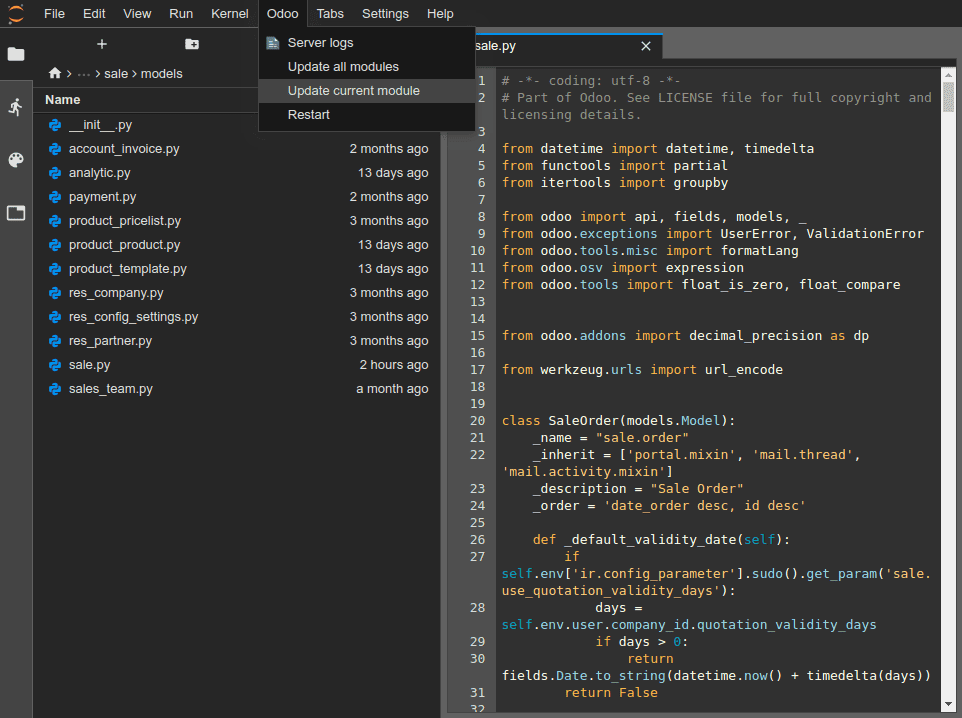
但是,如果您的變更儲存在資料庫中(例如欄位的標籤或視圖),則需要更新相關模組以套用變更。若要更新目前開啟檔案的模組,前往:menuselection:Odoo --> Update current module。
小訣竅
您也可以在終端機中執行以下命令來更新模組:
odoo-bin -u <comma-separated module names> --stop-after-init
提交並推送變更
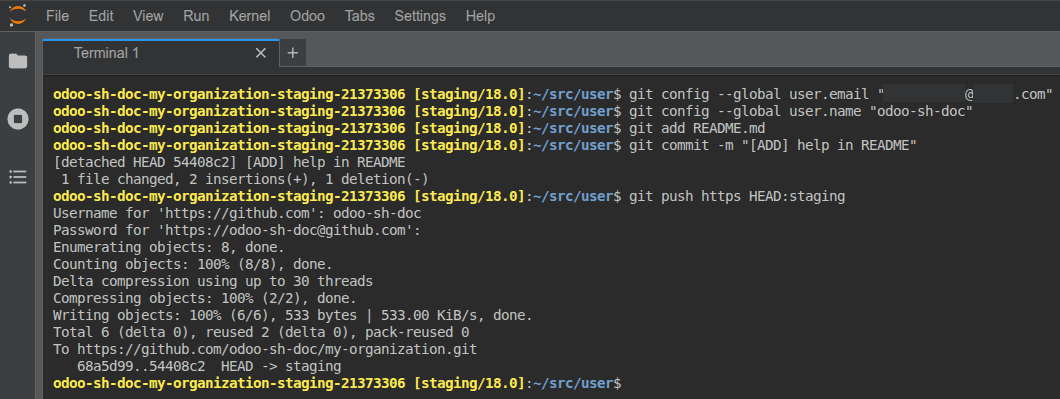
若要提交並推送變更到您的 GitHub 存儲庫:
前往:menuselection:`File –> New –> Terminal`開啟終端機。
將目錄變更為
~/src/user。
cd ~/src/user
聲明您的身份。
git config --global user.email "you@example.com" && git config --global user.name "Your Name"
暫存您的變更。
git add
提交您的變更。
git commit
推送您的變更。
git push https HEAD:<branch>
https是您 HTTPS GitHub 遠端儲存庫的名稱(例如https://github.com/username/repository.git)。
HEAD是您提交的最新修訂版本的參照。
<branch>必須替換為您要推送變更的分支名稱,如果您在開發建置上工作,很可能是當前分支。
系統會提示您輸入 GitHub 使用者名稱和密碼。輸入憑證後,按 Enter。
備註
無法使用 SSH 進行驗證,因為出於安全原因,您的私有 SSH 金鑰不會託管在建置容器中,也不會透過 SSH 代理轉發,因為您透過網頁瀏覽器存取編輯器。
來源資料夾
~/src/user不是簽出在分支上,而是在分離的修訂版本上。這是因為建置在特定修訂版本上工作,而不是分支,意味著您可以在同一分支上擁有多個建置,但在不同的修訂版本上。
一旦推送變更,根據您的:ref:分支推送行為 <odoo-sh/branches/tabs/settings>,可能會建立新的建置。您可以繼續在推送的編輯器中工作,因為它將與建立的新建置具有相同的修訂版本。但是,務必確保您在使用分支最新修訂版本的建置編輯器中。
控制台
您可以開啟 Python 主控台,這些是 IPython 互動式 shell。使用這些 Python 主控台(而不是終端機內的 IPython shell)可讓您利用其 豐富顯示功能 以 HTML 顯示物件。
Example
Pretty 類別以清晰易讀的方式顯示清單。


您可以開啟 Odoo shell 主控台來實驗您資料庫的 Odoo 註冊表和模型方法。您也可以直接讀取或寫入您的記錄。
警告
在 Odoo shell 主控台中,交易會自動提交。這表示對記錄所做的變更會套用到資料庫。例如,如果您變更使用者的名稱,它也會在您的資料庫中更新。因此,在生產資料庫上請謹慎使用 Odoo shell 主控台。
您可以使用 env 來呼叫資料庫註冊表的模型,例如 env['res.users']。
env['res.users'].search_read([], ['name', 'email', 'login'])
[{'id': 2,
'login': 'admin',
'name': 'Administrator',
'email': 'admin@example.com'}]