Overtime rulesets
Odoo's Attendances app allows for the configuration of overtime rules to determine if and when employees earn overtime, and at what rate.
Important
No overtime rulesets come preconfigured in the Attendances app; all overtime rulesets must be created.
Create an overtime ruleset
To create an overtime ruleset, navigate to . Any existing overtime rulesets appear in a default list view, and display the ruleset Name, the Rate Mode, and the Rules Count (the number of rules configured for the ruleset).
Click the New button, and a blank Rulesets form loads. Enter the following information on the top half of the form:
Ruleset Name: Enter a name for the ruleset.
Rate Combination Mode: Using the drop-down menu, select how the overtime rate is calculated. The options are:
Maximum Rate: The highest rate is used to determine the overtime pay. For example, if there are two available rates of 150% and 125%, the highest available rate, 150%, is applied.
Sum of all rates: A combination of all applicable overtime rates is used to calculate the overtime pay. Odoo calculates the rate by adding the extra pay rates (above 100%).
Example
Two overtime rates are created, one for 150% and the other for 120%. The Sum of all rates option is selected. The overtime rate applied is 170%.
The calculation used to determine this rate is: 100% (baseline) + (150-100)% + (120-100)% = 170%.
คำอธิบาย: ป้อนคำอธิบายสั้นๆ สำหรับชุดกฎ
ประเทศ: ใช้เมนูแบบเลื่อนลง เลือกประเทศที่ชุดกฎนี้ใช้กับ
กฎการทำงานล่วงเวลา
เมื่อสร้างข้อมูลหลักของชุดกฎเรียบร้อยแล้ว ขั้นตอนถัดไปคือการเพิ่มกฎแต่ละข้อ คลิก เพิ่มรายการ ที่ด้านล่างของแท็บ กฎการทำงานล่วงเวลา ในฟอร์ม ชุดกฎ และหน้าต่างป๊อปอัป สร้างกฎ จะปรากฏขึ้น
ป้อน ชื่อกฎ ในช่องที่เกี่ยวข้อง จากนั้นป้อนข้อมูลต่อไปนี้ในแท็บ คำจำกัดความ:
ส่วนเงื่อนไข
ส่วนนี้กำหนดว่าเวลาที่บันทึกไว้ใดที่นับเป็นการทำงานล่วงเวลา กฎสามารถอิงจาก ปริมาณ หรือ ช่วงเวลา
อิงจากปริมาณ
หากการทำงานล่วงเวลาคำนวณเมื่อจำนวนชั่วโมงที่บันทึกไว้ทั้งหมดสำหรับวันหรือสัปดาห์เกินกว่าที่คาดไว้ ให้เลือกปุ่มตัวเลือก ปริมาณ สำหรับช่อง กฎนี้อิงจาก กำหนดค่าช่องที่เหลือในส่วน เงื่อนไข ดังนี้:
หากชั่วโมงทำงานใน (วัน/สัปดาห์) แตกต่าง: ก่อนอื่น เลือกว่าเวลาที่คาดหวังทั้งหมดคำนวณตาม วัน หรือ สัปดาห์ โดยใช้เมนูแบบเลื่อนลง จากนั้นเลือกว่าความแตกต่างเปรียบเทียบ:
จากจำนวนที่กำหนดในสัญญา: เลือกตัวเลือกนี้หากการทำงานล่วงเวลาอิงจากชั่วโมงทำงาน ที่กำหนดไว้ในสัญญาของพนักงาน
จากระยะเวลาที่ระบุ: เลือกตัวเลือกนี้หากการทำงานล่วงเวลาอิงจากจำนวนเวลาที่ระบุ หากเลือกตัวเลือกนี้ ช่อง ระยะเวลาที่ต้องเกิน จะปรากฏขึ้น ป้อนจำนวน ชั่วโมง ในรูปแบบ
HH:MMที่พนักงานต้องเกินในแต่ละ วัน หรือ สัปดาห์ ขึ้นอยู่กับสิ่งที่เลือกในช่อง หากชั่วโมงทำงานใน (วัน/สัปดาห์) แตกต่าง
โดยมีค่าเผื่อเพื่อประโยชน์ของนายจ้าง: ช่องนี้กำหนดช่วงเวลาบัฟเฟอร์ที่ ไม่ ถือว่าเป็นการทำงานล่วงเวลา ป้อนจำนวนในรูปแบบ
HH:MMตัวอย่างเช่น หากช่องนี้ตั้งค่าเป็น00:15และพนักงานบันทึกการทำงานวันละ 8 ชั่วโมง 13 นาที เวลาเพิ่มเติม 13 นาที ไม่ นับเป็นการทำงานล่วงเวลาโดยมีค่าเผื่อเพื่อประโยชน์ของพนักงาน: ป้อนจำนวนเวลาเพิ่มเติมที่ให้กับพนักงานเป็นการทำงานล่วงเวลา ในรูปแบบ
HH:MMตัวอย่างเช่น หากช่องนี้ตั้งค่าเป็น00:15และพนักงานบันทึกการทำงานวันละ 8 ชั่วโมง 48 นาที เวลาที่ขาดไป 12 นาที นับ เป็นการทำงานล่วงเวลา รวมเป็นการทำงานล่วงเวลาหนึ่งชั่วโมงเต็ม (แทนที่จะเป็นเพียง 48 นาทีของการทำงานล่วงเวลา)
อิงจากช่วงเวลา
หากการทำงานล่วงเวลาคำนวณเฉพาะในวันหรือเวลาที่ระบุเท่านั้น ให้เลือกปุ่มตัวเลือก ช่วงเวลา สำหรับช่อง กฎนี้อิงจาก กำหนดค่าช่องที่เหลือในส่วน เงื่อนไข ดังนี้:
โดยมีค่าเผื่อเพื่อประโยชน์ของนายจ้าง: ช่องนี้กำหนดช่วงเวลาบัฟเฟอร์ที่ ไม่ ถือว่าเป็นการทำงานล่วงเวลา ป้อนจำนวนในรูปแบบ
HH:MMตัวอย่างเช่น หากช่องนี้ตั้งค่าเป็น00:15และพนักงานบันทึกการทำงานสัปดาห์ละ 40 ชั่วโมง 13 นาที เวลาเพิ่มเติม 13 นาที ไม่ นับเป็นการทำงานล่วงเวลาโดยมีค่าเผื่อเพื่อประโยชน์ของพนักงาน: ป้อนจำนวนเวลาเพิ่มเติมที่ให้กับพนักงานเป็นการทำงานล่วงเวลา ในรูปแบบ
HH:MMตัวอย่างเช่น หากช่องนี้ตั้งค่าเป็น00:15และพนักงานบันทึกการทำงานสัปดาห์ละ 40 ชั่วโมง 48 นาที เวลาที่ขาดไป 12 นาที นับ เป็นการทำงานล่วงเวลา รวมเป็นการทำงานล่วงเวลาหนึ่งชั่วโมงเต็ม (แทนที่จะเป็นเพียง 48 นาทีของการทำงานล่วงเวลา)หากพนักงานทำงาน: คลิกปุ่มตัวเลือกเพื่อเลือกช่วงเวลาที่กำหนดสำหรับการคำนวณการทำงานล่วงเวลา ตัวเลือกมีดังนี้:
ในวันทำงานใดๆ: เลือกตัวเลือกนี้หากการทำงานล่วงเวลาคำนวณเมื่อพนักงานทำงานนอกชั่วโมงที่กำหนดไว้สำหรับวันทำงานใดๆ เมื่อเลือกแล้ว ช่อง ระหว่าง จะปรากฏขึ้น โดยระบุ
00:00และ24:00ชั่วโมงตามค่าเริ่มต้น ปรับเวลาทำงานในรูปแบบHH:MMสำหรับทั้งสองช่อง โดยกำหนดชั่วโมงทำงานเฉพาะที่พนักงานได้รับค่าตอบแทนการทำงานล่วงเวลาExample
ช่วงเวลา Between ถูกตั้งค่าเป็น
09:00และ17:00พนักงานทำงานตั้งแต่ 7:00 น. ถึง 4:00 น. พนักงานได้รับค่าล่วงเวลา 2 ชั่วโมงสำหรับช่วงเวลาระหว่าง 7:00 น. ถึง 9:00 น.On any non-working day: เลือกตัวเลือกนี้หากค่าล่วงเวลาจะถูกคำนวณเมื่อพนักงานทำงานนอกเวลาที่กำหนดไว้ในวันที่ไม่ใช่วันทำงาน เมื่อเลือกแล้ว ช่อง Between จะปรากฏขึ้นโดยแสดงเวลา
00:00และ24:00ตามค่าเริ่มต้น ปรับเวลาทำงานในรูปแบบHH:MMสำหรับทั้งสองช่อง เพื่อกำหนดช่วงเวลาทำงานที่พนักงานได้รับค่าล่วงเวลาWhen employee is off: เลือกตัวเลือกนี้หากค่าล่วงเวลาจะถูกคำนวณในวันใดก็ตามที่พนักงาน*ไม่ได้*มีกำหนดการทำงาน
Outside of a specific schedule: เลือกตัวเลือกนี้หากค่าล่วงเวลาจะถูกคำนวณเมื่อพนักงานทำงานนอกเหนือจาก:doc:
ตารางเวลาทำงาน <../payroll/working_schedules>`ที่เลือก เมื่อเลือกแล้ว ช่อง :guilabel:`Scheduleจะปรากฏขึ้น ใช้เมนูแบบเลื่อนลงเพื่อเลือกตารางเวลาทำงานที่ใช้กำหนดค่าล่วงเวลา
ส่วนการดำเนินการ
เมื่อเงื่อนไขที่กำหนดในส่วน Condition ได้รับการปฏิบัติตาม ส่วน Action จะกำหนดวิธีการจัดการเวลาพิเศษที่ได้รับอนุมัติ
Pay extra hours: เปิดใช้งานช่องทำเครื่องหมายนี้หากชั่วโมงล่วงเวลาจะได้รับการจ่ายเงิน หากเปิดใช้งาน ช่องเปอร์เซ็นต์จะปรากฏทางด้านขวาของเครื่องหมายถูก โดยจะมีอัตราที่กำหนดไว้บน:ref:`ประเภทรายการทำงาน <payroll/work-entry-types>`ล่วงเวลา
Work entry type to use: ช่องนี้จะปรากฏเฉพาะเมื่อเปิดใช้งานช่อง Pay extra hours เท่านั้น ใช้เมนูแบบเลื่อนลงเพื่อเลือก:ref:
ประเภทรายการทำงาน <payroll/work-entry-types>`ที่จะสร้างสำหรับค่าล่วงเวลา ตามค่าเริ่มต้น :guilabel:`Overtime HoursจะถูกเลือกGive back as time off: เปิดใช้งานช่องทำเครื่องหมายนี้หากค่าล่วงเวลาควรถูกแปลงเป็นเวลาการลา แทนที่จะจ่ายเป็นเงิน
ตัวอย่างชุดกฎค่าล่วงเวลา
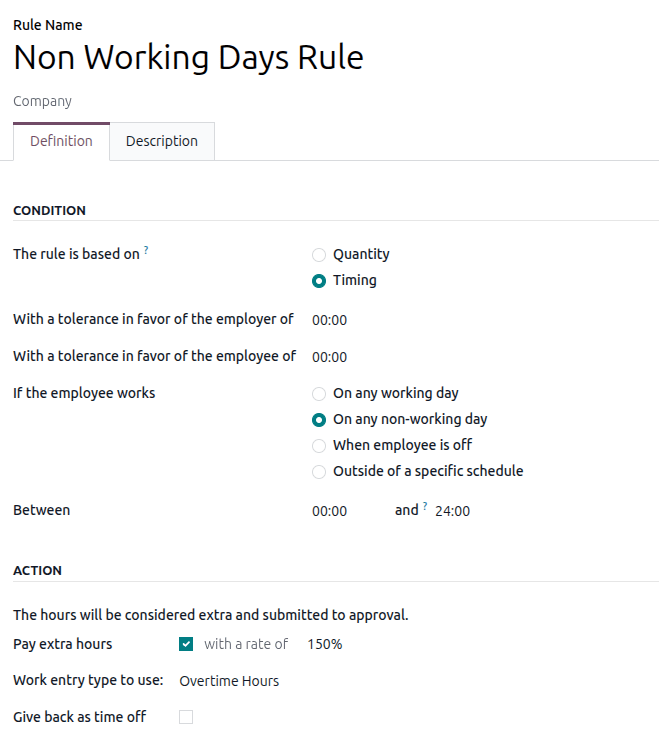
บริษัทที่ตั้งอยู่ในสหรัฐอเมริกาต้องการให้ค่าล่วงเวลาแบบเท่าครึ่งกับพนักงานทุกคนที่ทำงานเกินกว่า 40 ชั่วโมงต่อสัปดาห์ หรือทำงานในวันที่ไม่ใช่วันทำงาน เพื่อกำหนดค่านี้ พวกเขาสร้างชุดกฎที่เรียกว่า Overtime โดยมี Rate Combination Mode ตั้งเป็น Maximum Rate ประเทศถูกตั้งเป็น United States และมีการป้อน Description เพื่ออธิบายกฎค่าล่วงเวลา

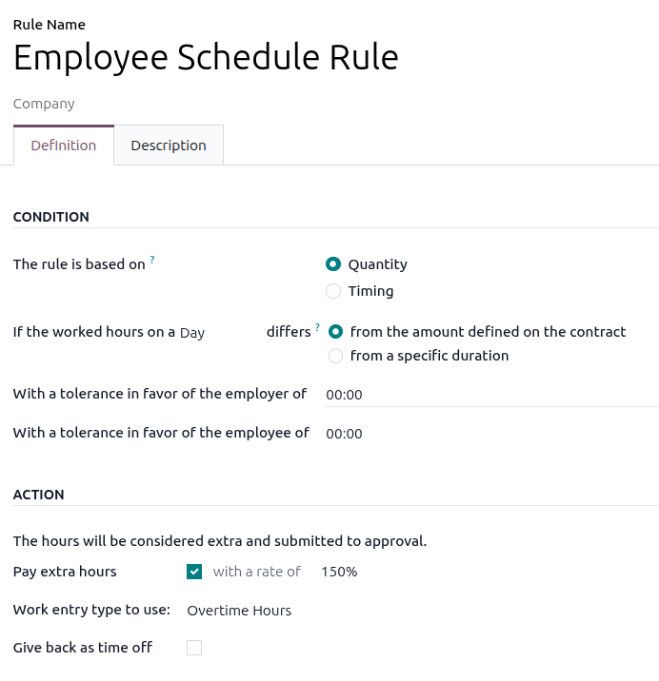
มีการกำหนดค่ากฎสองกฎในแท็บ Overtime Rules: Employee Schedule Rule และ Non Working Days Rule
กฎตารางเวลาของพนักงาน
Employee Schedule Rule อิงตาม Quantity และพนักงานจะได้รับค่าล่วงเวลาหากพวกเขาทำงานมากกว่า:guilabel:จำนวนที่กำหนดไว้ในสัญญา`ใน:guilabel:`วัน`ใดก็ตาม ไม่มีการตั้งค่าความผันแปรสำหรับทั้งพนักงานและนายจ้าง หากพนักงานทำงานล่วงเวลา พวกเขาจะได้รับการจ่ายเงินในอัตรา :guilabel:`150% และเวลาจะถูกบันทึกเป็น Overtime Hours ในบันทึกการเข้างานของพวกเขา
กฎวันไม่ทำงาน
Non-Working Days Rule อิงตาม Timing และพนักงานจะได้รับค่าล่วงเวลาหากพวกเขาทำงาน:guilabel:ในวันที่ไม่ใช่วันทำงาน โดยไม่คำนึงถึงเวลา ไม่มีการตั้งค่าความผันแปรสำหรับทั้งพนักงานและนายจ้าง หากพนักงานทำงานล่วงเวลา พวกเขาจะได้รับการจ่ายเงินในอัตรา 150% และเวลาจะถูกบันทึกเป็น Overtime Hours ในบันทึกการเข้างานของพวกเขา