
Adjust inventory with barcodes
Điều chỉnh tồn kho hay kiểm kê hàng hóa là quá trình đối chiếu số lượng hàng thực tế trong kho với số liệu được ghi nhận trên hệ thống. Việc kiểm kê định kỳ giúp đảm bảo dữ liệu tồn kho chính xác, tránh sai lệch và duy trì hoạt động hiệu quả. Trong kho hàng, quản lý thường giao nhiệm vụ kiểm kê cho nhân viên, những người sẽ đến từng vị trí được phân công, quét mã vạch sản phẩm và cập nhật lại số lượng nếu cần.
Inventory adjustments can be completed through the Barcode application using a compatible scanner, or the Odoo mobile app.
Ghi chú
For a list of Odoo-compatible barcode mobile scanners, and other hardware for the Inventory and Barcode apps, refer to the Odoo Inventory • Hardware page.
Xem thêm
Mẹo
Odoo's Barcode application provides demo data with barcodes to explore the features of the app. These can be used for testing purposes, and can be printed from the home screen of the app.
To access this demo data, navigate to the and click demo data sheet or barcodes in the banner above the scanner.

Assigning inventory counts
Trước khi thực hiện kiểm kê, quản lý có thể phân công nhiệm vụ kiểm kê cho nhân viên. Việc này có thể thực hiện qua bằng cách chọn các vị trí và sản phẩm cụ thể để kiểm kê, đồng thời gán một Người dùng cho các vị trí đó. Khi được phân công, người dùng sẽ thấy các kiểm kê đang chờ khi mở Ứng dụng Mã vạch.
To view a requested inventory count, navigate to the dashboard. If a count has been requested, the number of products to be counted is listed on the Count Inventory button.

Cấu hình
Trước khi thực hiện điều chỉnh tồn kho bằng ứng dụng Mã vạch, ứng dụng cần được cài đặt và cấu hình. Đi đến , rồi cuộn đến phần Mã vạch. Tích chọn ô bên cạnh Máy quét mã vạch, và nhấp Lưu để lưu thay đổi. Nếu cần, nhấp Xác nhận trên cửa sổ pop-up.
Nguy hiểm
Enabling the Barcode feature requires installing the Barcode application. Installing a new application on a One-App-Free database triggers a fifteen-day trial. At the end of the trial, if a paid subscription has not been added to the database, it will no longer be accessible.
After saving, a new drop-down menu appears under the Barcode Scanner option, labeled Barcode Nomenclature, where either Default Nomenclature or Default GS1 Nomenclature can be selected. Each nomenclature option determines how scanners interpret barcodes in Odoo.
To count products using barcodes, ensure that barcodes for products and storage locations are set up within Odoo first. Refer to this section for detailed instructions: Set Product Barcodes.

Performing an inventory count
To perform an inventory adjustment, first navigate to the . If assigned counts exist, tap Count Inventory to view pending tasks.

Walk to the designated storage location, then scan the location barcode.
Mẹo
If the warehouse multi-location feature is not enabled in the database, a source location does not need to be scanned. Instead, scan the product barcode to start the inventory adjustment.
Doing so highlights the location and displays all of the products stored there. Scan the barcode of each product to adjust its count.
Ghi chú
If no counts have been assigned to a user, and the Count Entire Locations feature is not enabled, no products may appear after the location barcode is scanned.
Điều chỉnh số lượng thủ công nếu cần bằng cách nhấn biểu tượng (chỉnh sửa). Thao tác này mở cửa sổ riêng với bàn phím số. Chỉnh sửa số trong dòng Số lượng để thay đổi số lượng. Ngoài ra, có thể nhấn nút +1 và -1 để tăng/giảm số lượng sản phẩm, hoặc sử dụng phím số để nhập số lượng trực tiếp.
Example
Trong điều chỉnh tồn kho dưới đây, vị trí nguồn WH/Stock/Shelf 1 đã được quét, xác nhận vị trí. Sau đó, mã vạch của sản phẩm [FURN_7888] Giá đỡ bàn kèm màn hình được quét ba lần, làm tăng số lượng đơn vị trong điều chỉnh. Có thể thêm các sản phẩm khác vào điều chỉnh này bằng cách quét mã vạch của các sản phẩm tương ứng.

Count entire locations
Tính năng Kiểm kê toàn bộ vị trí cho phép phân công một người dùng kiểm tra tất cả sản phẩm trong một vị trí khi họ quét mã vạch của vị trí đó. Điều này giúp việc kiểm kê định kỳ trở nên dễ dàng hơn bằng cách gán toàn bộ vị trí cho một người dùng thông qua việc giao một lần kiểm kê sản phẩm duy nhất. Trong quá trình kiểm kê, người dùng có thể đảm bảo số lượng tồn kho chính xác, phát hiện sản phẩm bị thiếu trong vị trí, hoặc tìm ra sản phẩm bị lưu kho sai chỗ.
Quan trọng
You can only count entire locations if Storage Locations is enabled in the Inventory settings, found at .
Để thực hiện kiểm kê toàn bộ một vị trí, vào . Nhấn biểu tượng (tác vụ). Nhập hoặc quét mã vạch vị trí, rồi chọn ô Kiểm kê toàn bộ vị trí. Nhấn Áp dụng. Ứng dụng sẽ hiển thị tất cả sản phẩm được gán tại vị trí đó. Tiến hành kiểm kê như bình thường.
Show quantity to count
When conducting an inventory count, the expected quantity of products is not displayed by default, as displaying expected quantities can result in users relying on this count instead of performing a new count.
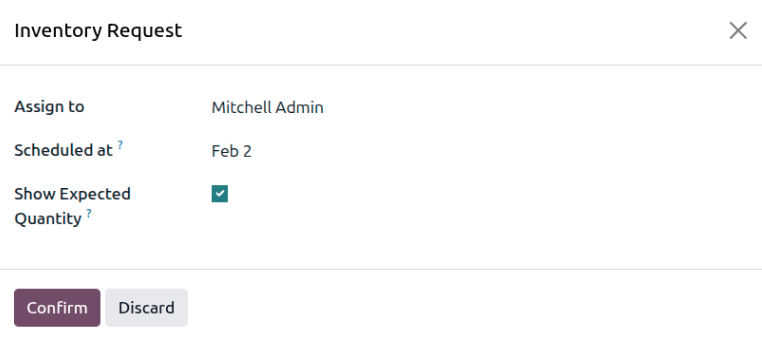
To show the expected quantity, navigate to . Request a count by selecting the check boxes to the left of the products to count, then clicking the Request a Count button. The Inventory Request window opens.
Specify a user to assign the count to in the Assign to field. Specify the date to perform the count in the Scheduled at field. Select the Show Expected Quantity check box to show the expected quantity on the Barcode Count Inventory page.
Example
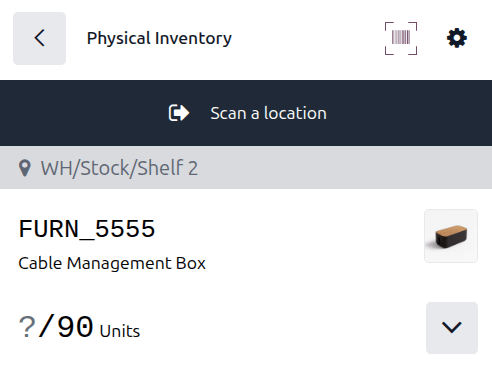
Warehouse managers have requested a count of all Cable Management Box products in inventory.
When the assigned user opens the Count Inventory page in the Barcode app, the
expected quantity of 90 units of the Cable Management Box product is displayed.
Manually add products to an inventory count
When barcodes for location or products are not available, Odoo Barcode can still be used to perform inventory counts.
To do this, navigate to .
To manually add products to this adjustment, click the white Add Product button at the bottom of the screen.
This navigates to a new, blank page where the desired product, quantity, and source location must be chosen.
Đầu tiên, nhấp vào dòng Sản phẩm và chọn sản phẩm cần điều chỉnh tồn kho. Sau đó, nhập thủ công số lượng của sản phẩm đó bằng cách thay đổi số 1 trong dòng Số lượng, hoặc nhấp vào các nút +1 và -1 để tăng/giảm số lượng sản phẩm. Bạn cũng có thể sử dụng bàn phím số để nhập số lượng.
Below the number pad is the Location line, which should read WH/Stock by default.
Click this line to reveal a list of locations to choose from, and choose the location for this
inventory adjustment.
Click Confirm to confirm the changes.

Finalizing an inventory count
After counting all of the products, review the entries to ensure all the counted quantities are accurately entered. To complete the inventory adjustment, click Confirm.
Mẹo
The Validate barcode can be scanned in place of clicking the Confirm button.
Odoo then navigates back to the Barcode Scanning screen. A small green banner appears in the top-right corner, confirming the inventory count has been updated.