
Restaurant features
Odoo Point of Sale provides various features to manage a restaurant or a bar:
Three main buttons in the POS interface allow for navigating between tables, the register, and orders:
Tables: Access the Floor plan view to manage table occupancy.
Register: Access the POS register to process orders.
Orders: Access the overview of all orders.
Quan trọng
To configure restaurant-specific settings, the Is a Bar/Restaurant setting under the Point of Sale section must be enabled in the POS settings.
Ghi chú
When Booking is enabled in the POS settings, a Booking button appears on the main interface for viewing and managing bookings.
Default start screen
To define the point of sale's default start screen, go to the POS settings, scroll down to the PoS Interface section, and set the Default Screen setting to Tables (i.e., Floor plan view) or Register.
Floors and tables
The Floor plan view allows for managing restaurant floors and tables and monitoring table status in real time (occupancy, reservations, kitchen orders) using the following action buttons:
New Order: Create a direct sales order that is not linked to any table. Take the order, click Set Table to assign it to an existing table, or click Set Tab to record the open order's name.
Buttons for navigating between configured floors (e.g., Main Floor/Patio).
(Table Selector): Enter an existing table number and click Jump to access it.
Ghi chú
Selecting a table on the Floor plan view or accessing it through the Table Selector automatically confirms the table's occupancy.
To order free physical QR codes adapted to the floor plan, activate the QR menu setting, then click Get QR Codes in the Floor plan view. This offer is available worldwide and for all subscription types.
Example
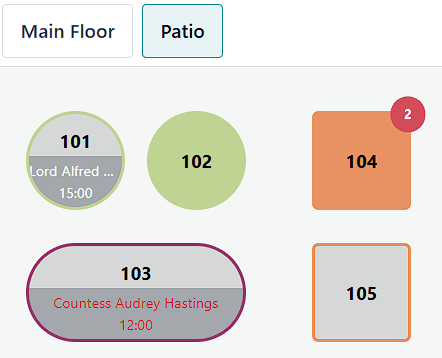
Table 101: The table is currently available but booked for 15:00.
Table 102: The table is booked, and an order is sent to the kitchen.
Table 103: The 12:00 table is running late.
Table 104: The table has a pending order.
Table 105: The table is available.
Cấu hình
Creating floors and tables allows for managing table selection and orders.
From the POS backend
To create floors and tables from the backend, go to , and click New. Follow the next steps to configure the Floor plan:
Enter a Floor Name.
Select the related Point of Sales.
Optionally, hover the mouse over the placeholder image and click the (Edit) icon to add a background image to the restaurant layout.
Click Add a line to create and configure a table:
Enter a Table Number.
Fill in the number of Seats.
Set the table's Shape.
Optionally, activate additional settings by clicking the (settings) icon:
Adjust the Height, Width, and Color.
Tick the Active checkbox to make a table available or not.
Lưu.
Ghi chú
Enable the Booking setting to assign an Appointment resource and make a table bookable.
Click the (trash) icon to delete a table.
Mẹo
To create a Floor plan quickly, go to the Point of Sale section of the
POS settings. Under Floors & Tables Map, type the
floor name in the Floors field, and press Enter.
From the POS frontend
To create floors and tables from the frontend, open the POS register, click the (hamburger menu) icon in the top right corner of the Floor plan view, then Edit Plan. To configure the Floor plan, follow the next steps:
Click the (Add Floor) icon to add a floor.
Enter a Floor name and click Apply.
Click the (Change Floor Background) icon to select a background color, or click File to upload an image.
Optionally, click the (Rename) icon to rename the Floor plan, the (Clone) icon to create a copy, or the (Delete) icon to delete it.
Click Table to add a new table. To edit a table, select it and click one of the following icons:
(Seats): Add or change the number of seats.
(Square) or (Round): Change the table's shape.
(Change Floor Background): Change the table's color.
(Rename): Change the table number.
(Clone): Clone the table's attributes using the following table number.
(Delete): Remove the table.
Nhấp Lưu.
Cảnh báo
Removing a table or a floor is permanent.
Đặt trước
The Booking setting allows for creating and managing reservations for a designated point of sale directly from the POS interface.
Ghi chú
Enabling the Booking setting automatically installs the Appointments app.
Booking configuration
To enable and configure the bookings, follow these steps:
Go to the POS settings, scroll down to the PoS Interface section, and enable Booking.
Enter a name in the Appointment type field and click Create and edit.
Configure the Appointment type form and click Save.
Click Save in the POS settings.
Quan trọng
To ensure that only existing resources can be booked for a specific point of sale, set the Book field to Resources in the Appointment type form and select tables. Then, enable Manage Capacities to define the maximum amount each resource can handle.
Mẹo
To accommodate a booking that exceeds the capacity of a single table, click the (Resources) icon in the Appointment Type form, select a table, and add additional tables in the Linked Resource field to merge them.
Xem thêm
Booking management
To manage table bookings from the POS interface, click Booking, then:
Click New to create a booking. Add a name, the date and time, number of guests, phone number, duration, and resources, then click Save.
Click a booking to Edit or Delete it. Click a stage name (e.g., Booked, Checked-In, or No Show) or drag the booking card to move it to the relevant stage.
Mẹo
To quickly edit a booking from the Floor plan view, click the booking notification on the booked table.
Order management
The POS register allows for processing and transferring orders, defining presets, and managing courses.
Order process
To process an order from the POS register, follow these steps:
Click products to add them to the cart.
Define how the order is handled:
Click Set Table to link the order to a table. Enter a table number and click Assign.
Click Set Tab to enter the open order's name and click Apply.
Click Order to validate the order.
When ready, process the order payment.
Ghi chú
Clicking Order redirects to the Floor plan view if Tables is selected as the default start screen.
Mẹo
To cancel an order, click the (Actions) icon, then Cancel Order. If an order printer is configured, a cancellation ticket is automatically printed for an order sent to the kitchen.
After selecting a table in the Floor plan view, click Release table in the cart to cancel the table's occupancy. This action is available when the cart is empty.
Configure a printer to send an order to the kitchen printer when clicking Order.
Order transfer
To transfer an order to another table from the POS register, click the (Actions) icon, then Transfer/Merge, and choose the target table in the Floor plan view:
Select an available table to transfer customers and their orders.
Select an occupied table to merge customers and their orders.
Cài đặt sẵn
Presets are used to apply preconfigured settings to orders and determine whether an order is for Dine In, Takeout, or Delivery. They also control whether customer contact information is required and apply capacity limits based on opening hours and order quantity.
To use preconfigured presets, go to the POS settings and enable the Take out / Delivery / Members setting under the Point of Sale section. Set the Default field to the preferred preset, then save. From the register, select the relevant preset, and process the order:
Dine In: Assign a table or open a tab.
Takeout: Enter the order's name and click Apply, then select a date and a time slot.
Delivery: Select an existing customer, or click Create to add one. Then, select a time slot.
Mẹo
Click the preset button to switch to another one.
Khóa học
The Course button allows for splitting orders into multiple courses, sending each course to the kitchen sequentially.
To split an order into courses from the register, click Course and add products. Repeat the action as many times as needed, then click Order to send the order to the kitchen, which also fires the first course.
When ready for the second course, retrieve the order from the Floor plan view or the Orders overview, and click Fire Course 2. Repeat the action as many times as needed.
Mẹo
Alternatively, click Course as often as needed to display the desired number of courses in the cart. Then, click each course, add products, and click Order.
To transfer a product or an entire course into another course, select it in the cart, click the (Actions) icon, then Transfer course, and select the preferred course.
Order printing
To enable sending orders to a kitchen or a bar printer, connect a printer to Odoo, go to the POS settings, and follow these steps:
Scroll down to the Preparation section and enable the Preparation Printers setting.
Type the printer's name in the Printers field and click Create and edit.
On the printer setup form, select the Printer Type:
If the printer is connected to an IoT system, select Use a printer connected to the IoT, and choose the relevant device. This process requires the IoT app and an IoT system.
If using an Epson printer that does not require an IoT system connection, select Use an Epson printer and enter the Epson Printer IP Address.
Define the product categories to be printed by clicking Add a line in the Printed Product Categories field and selecting the preferred category from the popover.
Nhấp Lưu.
In the POS settings, click Save.
The printer is then connected to the point of sale and can print kitchen orders and order receipts.
Ghi chú
Printing kitchen orders requires assigning a PoS Product Category.
To create a Printed Product Category on the Add: Printed Product Categories popover, click New. Enter a name, select a Parent Category, choose a Color, click the (Edit) icon to add an image, determine the product availability, then click Save & Close.
Mẹo
To access all preparation printers from the POS settings, scroll down to the Preparation section and click Printers. Alternatively, go to .
After processing an order, click the (order) icon in the POS register next to Payment to reprint a duplicate of the last kitchen order.
Bills and payment
Tách hóa đơn
To allow bill splitting, go to , and enable Allow Bill Splitting under the Point of Sale section.
To split a bill from the POS register, follow these steps:
Click the (Actions) icon, then Split.
Select at least one product and perform one of the following actions:
Payment: Process the direct payment for the selected product(s).
Split Order: Create a sub-order.
Transfer: Transfer one or all products to another table.
Process the payment.
Click Continue and repeat the process for each guest.
Ghi chú
Splitting a bill requires ordering at least two products and creates a sub-order, which must be paid before returning to the main order.
Order payment
To proceed with the order payment from the POS register, follow these steps:
Click Payment.
Select a payment method.
Optionally, select a customer and send an invoice to them:
Click Customer to select or create a customer account.
Enable Invoice to allow sending an invoice to the customer.
Click Validate.
Receipt printing
To allow receipt printing, go to , and enable Early Receipt Printing under the Point of Sale section.
After a successful order payment, click Print Full Receipt to generate and print a bill.
Quan trọng
If a printer is configured and linked to a point of sale, the receipt is automatically printed upon payment confirmation.
Xem thêm
Lời nhắc
Cấu hình
To allow tipping in a POS, go to the POS settings, scroll down to the Payment section, enable Tips, and click Save.
Quan trọng
The Add tip after payment setting only works for a POS in the United States of America with an Adyen or a Stripe payment terminal.
The Add tip through payment terminal (Adyen) setting only works with an Adyen terminal.
Ghi chú
Saving the Tips setting automatically fills the Tip product field with the preconfigured [TIPS] Tips product, which is only used for tips. When selecting another product in the Tip product field, the chosen product is no longer available on the POS register.
Choose only one tip product per POS.
Tip and payment
To process a tip during payment, follow these steps:
Click Tip, add the amount, then click Ok.
Select a payment method for the order and the tip.
Click Validate.
Mẹo
If the order and the tip are paid using different payment methods, select a payment method for the order first. Then, select a payment method for the tip, click Tip, add the tip amount, and click Ok. Finally, Validate the payment.
Tip after payment (US only)
To allow tipping after payment for a POS in the United States of America, ensure the Add tip after payment setting is enabled in the POS settings. To process tips after payment, follow these steps: