
Wynagrodzenia
In Odoo, salaries are calculated and determined by six factors: salary structure types, salary structures, rules, rule parameters, rule categories, and salary input types. Together, these determine how each employee’s pay is calculated.
Each structure type contains one or more structures within it. Each structure contains a set of rules, and every rule uses parameters and categories to define how specific amounts are calculated. Additional salary inputs, such as bonuses or deductions, can also be included to adjust the final salary.
Podczas obliczania list płac Odoo oblicza przepracowany czas pracownika na podstawie jego wpisów czasu pracy, a następnie stosuje odpowiednią strukturę, reguły i parametry z przypisanego pracownikowi typu struktury, aby określić całkowite wynagrodzenie.
Typy struktur
W Odoo typ struktury grupuje powiązane struktury wynagrodzeń. Gdy umowa określa typ struktury, do obliczenia wynagrodzenia pracownika używane są tylko struktury w ramach tego typu. Każdy typ struktury zawiera poszczególne struktury, z których każda zawiera zestaw reguł przetwarzania wpisu ewidencji czasu pracy.
Typy struktur definiują kluczowe aspekty konfiguracji listy płac, w tym częstotliwość wypłat pracownikom, ich godziny pracy, domyślną strukturę wynagrodzeń oraz to, czy płace są stałe (oparte na wynagrodzeniu) czy zmienne (godzinowe).
Example
Typ struktury o nazwie Pracownik zawiera dwie różne struktury: strukturę Regularne wynagrodzenie, która obejmuje wszystkie odrębne reguły przetwarzania regularnych wynagrodzeń, oraz strukturę Premia roczna, która zawiera reguły tylko dla premii rocznej. Obie należą do tego samego typu struktury Pracownik.
Istniejące typy struktur można wyświetlić, przechodząc do .
W Odoo skonfigurowane są domyślnie dwa typy struktur: Pracownik i Robotnik.
Typically, Employee is used for salaried employees, which is why the Wage Type is set to Fixed Wage. Worker is typically used for employees paid by the hour, so the wage type is set to Hourly Wage.
Informacja
If using a country-specific payroll localization, it is recommended to use the structure in the corresponding country localization document.

Nowy typ struktury
Jeśli domyślne typy struktur nie spełniają potrzeb firmy, przejdź do i kliknij Nowy, aby utworzyć niestandardowy typ struktury.
Ostrzeżenie
Tworząc nowy typ struktury wynagrodzeń, upewnij się, że uwzględniono wszystkie przepisy lokalne i krajowe. Potwierdź z działem księgowości podczas konfigurowania struktur listy płac, aby zapewnić spełnienie wszystkich wymagań.
Wprowadź następujące informacje w polach:
Typ struktury: Wprowadź nazwę nowego typu struktury, taką jak
PracowniklubRobotnik.Kraj: Wybierz kraj, którego dotyczy nowy typ struktury, z menu rozwijanego.
Typ wynagrodzenia: Wybierz typ wynagrodzenia dla struktury:
Stałe wynagrodzenie: Dla pracowników zatrudnionych na etacie, którzy otrzymują takie samo wynagrodzenie w każdym okresie rozliczeniowym.
Wynagrodzenie godzinowe: Dla pracowników opłacanych na podstawie przepracowanych godzin w okresie rozliczeniowym.
Scheduled Pay: Select the typical pay schedule for the new structure type using the drop-down menu. This indicates how often this specific type of structure is paid out.
Working Hours: Select the working hours for the new structure type using the drop-down menu. All available working hours for the currently selected company appear in the drop-down menu. The default working hours are the Standard 40 hours/week option. If the needed working hours do not appear in the list, a new set of working hours can be created.
Pay Structure: Select the pay structure that falls within the new structure type using the drop-down menu. This is used as the default option when generating payslips.
Work Entry Type: Select the work entry type used to create all work entries for the employee.

New working hours
To make new working hours, type the name for the new working hours in the Working Hours field on the new structure type form, then click Create and edit. A Create Working Hours pop-up window loads. The form has two sections: a general information section, and a Working Hours tab listing all the individual working hours by day and time. When the form is completed, click Save.
Name: Type in the name for the new working hours. This should be descriptive and clear to understand, such as
Standard 20 Hours/Week.Schedule Type: Select whether the hours are Flexible or Fully Fixed by clicking the corresponding radio button. Selecting Flexible hides the Working Hours tab and some other fields in the general information section.
Define Amount of Hours per day: Enable this option to base the schedule on a set amount of expected hours by day, instead of set start and end times for each day. When this option is modified, a Confirmation pop-up window appears. Click Confirm on the pop-up to make the change.
Full Time Equivalent: The number of hours per week an employee needs to work to be considered a full-time employee. Typically, this is approximately 40 hours, and this number affects what types of benefits an employee can receive, based on their employment status (full-time vs. part-time). This field is not able to be modified.
Work Time Rate: This percentage is auto-generated based on the configured times in the Working Hours tab, compared to the Full Time Equivalent. This number should be between
0.00%and100%, so if the percentage is above100%, it is an indication that the working times may need adjustment.Company: Select the company that can use the new default working hours using the drop-down menu. Leave this field blank if the hours are available for all companies.
Timezone: Select the time zone to be used for the new working hours using the drop-down menu.
2 Week’s Calendar: Enable this checkbox to switch from a one-week calendar to a two-week calendar. When this option is modified, a Confirmation pop-up window appears. Click Switch on the pop-up to make the change. When enabled, the presented tabs change from a single Working Hours tab to two tabs: Week 1 Working Hours and Week 2 Working Hours.
Ważne
Switching the calendar between either method removes all current work entries.
Working Hours tab: This tab is where each day’s specific working hours are listed, including breaks. When a new working schedule is created, the Working Hours tab is pre-populated with a default 40-hour week, with each day divided into three timed sections.
Each day includes a morning shift (8:00-12:00), a lunch break (12:00-13:00), and an afternoon shift (13:00-17:00), configured using a 24-hour time format.
The average daily working hours are automatically calculated based on the schedule and appear in the Avg field, along with the Total hours for the week.
To adjust any of these entries, click the desired field and modify the information using the drop-down menus or type the information in directly.
Ensure the Work Entry Type field is configured for each line. This ensures the Payroll app properly calculates all work entries.
Informacja
Godziny pracy są specyficzne dla firmy i nie mogą być współdzielone między firmami.
Wskazówka
If the 2 Week’s Calendar option is enabled, ensure the various working hours for both tabs (Week 1 Working Hours and Week 2 Working Hours) are correctly configured.

Struktury
Struktury wynagrodzeń to różne sytuacje, w których pracownik może być opłacany w ramach określonej struktury i są konkretnie zdefiniowane przez różne zasady.
Liczba struktur, których firma potrzebuje dla każdego typu struktury, zależy od tego, na ile różnych sposobów pracownicy są opłacani i jak ich wynagrodzenie jest obliczane. Powszechnym przykładem dodatkowej struktury jest Premia.
Aby wyświetlić wszystkie różne struktury dla każdego typu struktury, przejdź do .
Each structure type lists the various structures associated with it. Each structure contains a set of rules that define it.
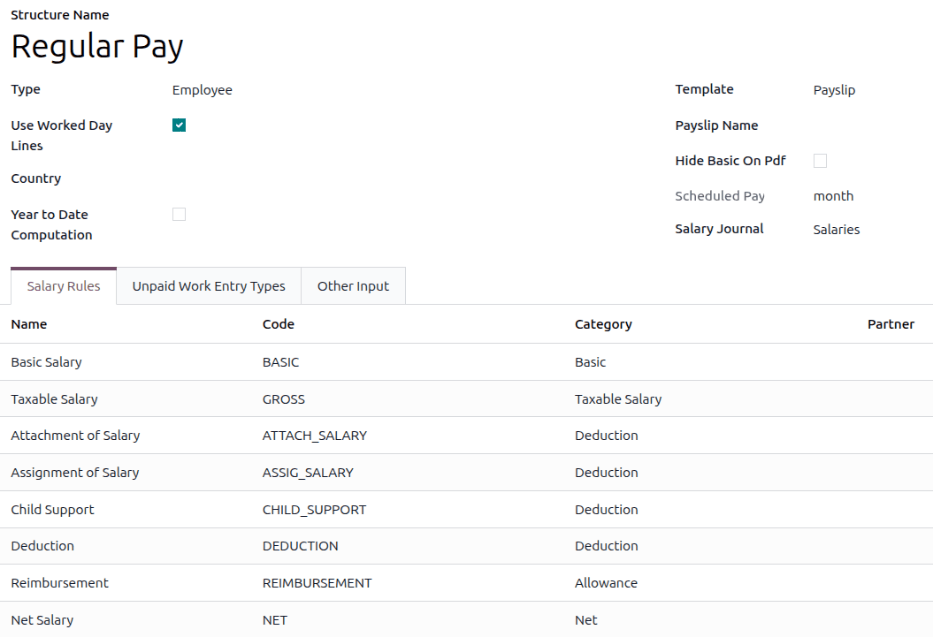
Odoo comes with two salary structures preconfigured: Regular Pay, housed within the Employee structure type, and Worker Pay, housed within the Worker salary structure type.
Kliknij strukturę, aby wyświetlić jej Reguły wynagrodzeń. Te reguły definiują sposób obliczania listy płac dla pracownika.
Informacja
Po zainstalowaniu lokalizacji listy płac odpowiednie struktury są instalowane i pojawiają się na tej liście.
Salary input types
When creating payslips, it is sometimes necessary to add other entries for specific circumstances, like tips, commissions, expenses, or deductions. These other inputs can be found by navigating to . All universal and localization-specific salary input types appear in the list.

If a new input type is needed that does not appear on the list, click the New button to create a new salary input type. Enter the Description, the Code, and select which structure it applies to in the Availability in Structure field.
Enable the Available in adjustments checkbox if the input should be a salary adjustment.
Ważne
Kod jest używany w regułach wynagrodzeń do obliczania list płac. Jeśli pole Dostępność w strukturze jest puste, oznacza to, że nowy typ danych wejściowych jest dostępny dla wszystkich list płac i nie jest przypisany wyłącznie do konkretnej struktury.