
UI icons
Odoo’s UI relies on two icon systems:
Material Symbols (Google Fonts) is the primary icon library. It covers the vast majority of interface needs.
Odoo UI Icons (OI) is a supplementary library for icons not available in Material Symbols — custom view icons, brand logos (e.g. Facebook, GitHub), and other Odoo-specific glyphs.
Both systems share the same .oi base class and use a data-icon attribute to specify the
icon to render.
Material Symbols
A subset of Material Symbols Outlined is loaded in the Odoo webclient. Use it for any standard icon: actions, navigation, status indicators, and so on.
Pass the icon’s ligature name (as listed on fonts.google.com/icons)
to the data-icon attribute:
Example
<i class="oi" data-icon="check"/>
<i class="oi" data-icon="settings"/>
<i class="oi" data-icon="arrow_forward"/>
Tip
To browse and search for icons, visit the Material Symbols library
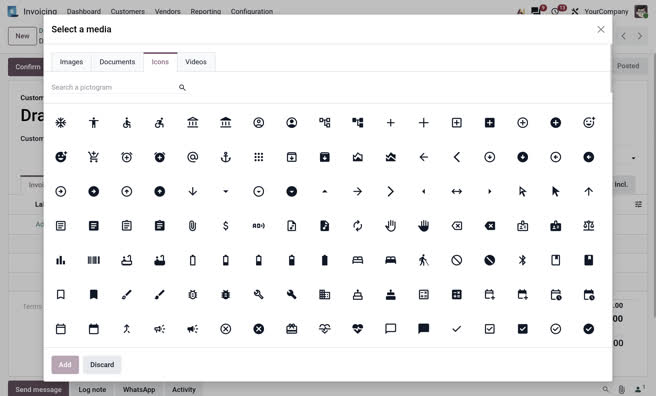
or open the Media Dialog to see the exact icon subset available in Odoo.
Type /icons in the Odoo Editor to open the Icons tab
directly via the Powerbox.
You can also view the full list of supported icons in the Material Symbols - Subset page.
Note
The list of available icons in Odoo is maintained in icons_wishlist.txt.
Odoo UI icons
The OI library covers icons not available in Material Symbols: brand logos, custom kanban-view
icons, and other Odoo-specific glyphs. OI icons use the oi_ prefix in the data-icon
attribute:
Example
<i class="oi" data-icon="oi_odoo"/>
<i class="oi" data-icon="oi_view-kanban"/>
<i class="oi" data-icon="oi_facebook"/>
Like the Material Symbols library, Odoo custom icons are available inside the Odoo Media Dialog.
Odoo
oi_odoo
oi_studio
oi_view-kanban
oi_view-pivot
oi_view-cohort
oi_app_documents
oi_threads
Social
oi_bandcamp
oi_behance
oi_behance-square
oi_bluesky
oi_deviantart
oi_digg
oi_discord
oi_dribbble
oi_facebook
oi_facebook-square
oi_flickr
oi_foursquare
oi_google-plus
oi_imdb
oi_instagram
oi_kickstarter
oi_lastfm
oi_linkedin
oi_linkedin-square
oi_medium
oi_meetup
oi_mixcloud
oi_odnoklassniki
oi_pinterest
oi_pinterest-square
oi_product-hunt
oi_qq
oi_quora
oi_reddit
oi_reddit-square
oi_skype
oi_slack
oi_snapchat
oi_soundcloud
oi_spotify
oi_steam
oi_strava
oi_telegram
oi_tiktok
oi_tumblr
oi_twitch
oi_vimeo
oi_vk
oi_weibo
oi_whatsapp
oi_x
oi_x-square
oi_xing
oi_yelp
oi_youtube
oi_youtube-play
oi_youtube-square
Technologies
oi_amazon
oi_android
oi_angellist
oi_apple
oi_bitbucket
oi_bitbucket-square
oi_chrome
oi_codepen
oi_creative-commons
oi_css3
oi_dropbox
oi_drupal
oi_edge
oi_git
oi_github
oi_github-square
oi_gitlab
oi_google
oi_google-play
oi_hacker-news
oi_html5
oi_joomla
oi_linux
oi_opera
oi_safari
oi_stack-overflow
oi_trello
oi_windows
oi_wordpress
oi_yahoo
Payment methods
oi_paypal
oi_cc-paypal
oi_cc-amex
oi_cc-diners-club
oi_cc-discover
oi_cc-jcb
oi_cc-mastercard
oi_cc-stripe
oi_cc-visa
RTL adaptations
Some OI view icons have RTL adaptations that flip the glyph horizontally when an RTL language is active. Material Symbols directional icons (arrows, chevrons, etc.) also include RTL adaptations; refer to rtl_icons.scss for the full set.
Utility classes
The following utility classes can be combined with .oi:
oi-fwFixed width — useful for aligning icons in lists or menus.
Example
<i class="oi oi-fw" data-icon="check"></i>
oi-spinContinuous 360° rotation (2s, linear). Useful for loading indicators.
Example
<i class="oi oi-spin" data-icon="progress_activity"></i>
oi-pulse8-step pulsing rotation (1s). Alternative to
oi-spinfor a stepped animation.Example
<i class="oi oi-pulse" data-icon="progress_activity"></i>
oi-filledBy default, Material Symbols are rendered in their outline style. Add
oi-filledto render the filled variant of the icon.Example
<i class="oi oi-filled" data-icon="favorite"></i>
- Size classes
oi-sm,oi-lg,oi-2x,oi-3x…oi-10xscale the icon relative to the current font size.Example
<i class="oi oi-2x" data-icon="check"></i>
Note
The icon font size can also be adjusted through CSS by overriding the
--oi-font-sizevariable:.my-element { --oi-font-size: 1.5em; }
Setting an icon from CSS
To set the icon’s glyph directly from CSS (rather than the data-icon attribute), use the
icon’s ligature name as the content value. To use the filled variant, append _f to the
name or set the 'FILL' font-variation-settings to 1. Prefer the _f suffix in PDF
reports, as wkhtmltopdf does not support font-variation-settings.
Example
/* Outline variant */
.my-element::before { content: "favorite"; }

/* Filled variant */
.my-element::before { content: "favorite_f"; }
/* OR */
.my-element::before {
   content: "favorite";
   font-variation-settings: 'FILL' 1;
}
Note
In most cases, the filled variant should be set in the HTML with the oi-filled class,
which also works in PDF reports.
Migration from Font Awesome
Odoo’s user interface used to render Font Awesome and Odoo UI icons with
fa fa-<name> and oi oi-<name> HTML class names.
Since the introduction of Material Symbols and the new Odoo UI icons,
these glyph class names no longer work and must be replaced by their data-icon equivalent in
the new icon system.
SCSS mappings were introduced to ease the icon migration and you may refer to them in order to help you switch to the new icon system.
Font Awesome to Material Symbols mapping: fa_to_ms.scss
(Old) Odoo Custom Icons to Material Symbols mapping: oi_to_ms.scss
Important
The mappings are not included in the Odoo codebase as of Odoo 20; the links above point to the last revision containing them.
Migration steps:
Replace
class="fa fa-<name>"withclass="oi" data-icon="<ms-name>"where<ms-name>is the corresponding Material Symbols ligature name.For icons not available in Material Symbols (brands, custom Odoo glyphs), use the Odoo UI icon library:
class="oi" data-icon="oi_<name>".Remove any
fa-*sizing and formatting classes and replace them with their equivalentoi-*utility classes (fa-lg→oi-lg,fa-2x→oi-2x,fa-fw→oi-fw,fa-spin→oi-spin,fa-pulse→oi-pulse).
Example
Here are a few examples of equivalent icons in the old and the new icon system:
<!-- Old system -->
<i class="fa fa-user"></i>
<!-- New system -->
<i class="oi oi-filled" data-icon="person"></i>

<!-- Old system -->
<i class="fa fa-github fa-2x"></i>
<!-- New system -->
<i class="oi oi-2x" data-icon="oi_github"></i>

<!-- Old system -->
<i class="oi oi-settings-adjust"></i>
<!-- New system -->
<i class="oi" data-icon="tune"></i>

<!-- Old system -->
<i class="oi oi-view-pivot"></i>
<!-- New system -->
<i class="oi" data-icon="oi_view-pivot"></i>
Odoo Spreadsheet icons
The Odoo Spreadsheet icons are
defined as <svg> elements and rendered using QWeb templates.
Example
<t t-name="o-spreadsheet-Icon.GLOBAL_FILTERS">
    <svg width="20" height="20" viewbox="0 0 20 20">
        <path fill="currentColor" d="M1 3h12L7 9M5.5 6h3v11l-3-3M14 4h4v2h-4m-3 3h7v2h-7m0 3h7v2h-7"/>
    </svg>
</t>
SEE_RECORDS
GLOBAL_FILTERS
NEW
COPY_FILE
SAVE
VERSION_HISTORY
CAMERA
DOWNLOAD_AS_JSON
ADD_TO_DASHBOARD
ODOO_LIST
INSERT_LIST
REFRESH_DATA
COMMENTS
LINE_CHART
STACKED_LINE_CHART
AREA_CHART
STACKED_AREA_CHART
COLUMN_CHART
STACKED_COLUMN_CHART
BAR_CHART
STACKED_BAR_CHART
COMBO_CHART
PIE_CHART
DOUGHNUT_CHART
SCATTER_CHART
GAUGE_CHART
SCORECARD_CHART
WATERFALL_CHART
POPULATION_PYRAMID_CHART
RADAR_CHART
FILLED_RADAR_CHART
GEO_CHART
FUNNEL_CHART
SUNBURST_CHART
TREE_MAP_CHART
CLEAR_AND_RELOAD
EXPORT_XLSX
OPEN_READ_ONLY
OPEN_DASHBOARD
OPEN_READ_WRITE
IMPORT_XLSX
UNDO
REDO
CUT
COPY_AS_IMAGE
PASTE
CLEAR
FREEZE
UNFREEZE
FORMULA
HIDE_ROW
UNHIDE_ROW
HIDE_COL
UNHIDE_COL
INSERT_ROW
INSERT_ROW_BEFORE
INSERT_ROW_AFTER
INSERT_COL
INSERT_COL_AFTER
INSERT_COL_BEFORE
INSERT_CELL
INSERT_CELL_SHIFT_DOWN
INSERT_CELL_SHIFT_RIGHT
DELETE_CELL_SHIFT_UP
DELETE_CELL_SHIFT_LEFT
INSERT_DROPDOWN
INSERT_SHEET
PAINT_FORMAT
CONDITIONAL_FORMAT
CLEAR_FORMAT
BOLD
ITALIC
UNDERLINE
STRIKE
TEXT_COLOR
FILL_COLOR
MERGE_CELL
ALIGN_LEFT
ALIGN_CENTER
ALIGN_RIGHT
ALIGN_TOP
ALIGN_MIDDLE
ALIGN_BOTTOM
WRAPPING_OVERFLOW
WRAPPING_WRAP
WRAPPING_CLIP
BORDERS
BORDER_HV
BORDER_H
BORDER_V
BORDER_EXTERNAL
BORDER_LEFT
BORDER_TOP
BORDER_RIGHT
BORDER_BOTTOM
BORDER_CLEAR
BORDER_TYPE
BORDER_COLOR
BORDER_NO_COLOR
PLUS
MINUS
LIST
ARROW_DOWN
ARROW_UP
ARROW_RIGHT
SMILE
MEH
FROWN
GREEN_DOT
YELLOW_DOT
RED_DOT
SMALL_DOT_RIGHT_ALIGN
SORT_RANGE
FILTER_ICON
CHECK
NUMBER_FORMATS
FONT_SIZE
SPLIT_TEXT
DISPLAY_HEADER
COG
PLUS_IN_BOX
MINUS_IN_BOX
GROUP_ROWS
UNGROUP_ROWS
GROUP_COLUMNS
UNGROUP_COLUMNS
DATA_VALIDATION
THIN_DRAG_HANDLE
SHORT_THIN_DRAG_HANDLE
EDIT_TABLE
DELETE_TABLE
PAINT_TABLE
CIRCLE_INFO
PIVOT
INSERT_PIVOT
MOVE_SHEET_LEFT
MOVE_SHEET_RIGHT
RENAME_SHEET
CAROUSEL