
Post job positions
After a job position has been created and configured, the next step is to share it so that prospective applicants can apply.
Job positions can be shared on the company website or on job boards.
Publish to website
To publish a job listing on the company’s website, first a setting must be enabled in the Recruitment app. Navigate to , and enable the Online Posting option. Click the Save button after making any changes.
Note
The Online Posting option is only available if the Website application is also installed.
Once the setting has been enabled, open the main Recruitment dashboard by navigating to . Next, click the Job Page button, then click the Unpublished toggle in the upper-right corner. The toggle becomes green and displays Published. Return to the main dashboard by navigating to .
When a job position is published, a green Published banner appears in the top-right corner of the job position card.
Tip
Alternatively, click the Configure button on a job position card, then click the Published toggle in the Job Posting section of the Details tab.
Post on job boards
Posting a job on a job board is an effective way to reach a wider audience and attract more candidates.
Note
Currently, Odoo only supports directly posting to Monster.com. Check back frequently for more updates, as more job boards are added.
Job board credentials
To publish a job listing onto a job board outside of Odoo, the job board credentials must be configured first. Navigate to . In the Monster Credentials section, enter the Username and Password for Monster in the corresponding fields, then click the Save button.
Note
When installing the Recruitment app, the following modules are automatically installed: Job Board - Monster.com, Job Board - Monster.com (Skills), and Job Board - Monster.com (Website). If any of these modules are not installed, install them from the main Apps app.
Publish on job board
Once the credentials have been configured for the job board, it is possible to post a job position.
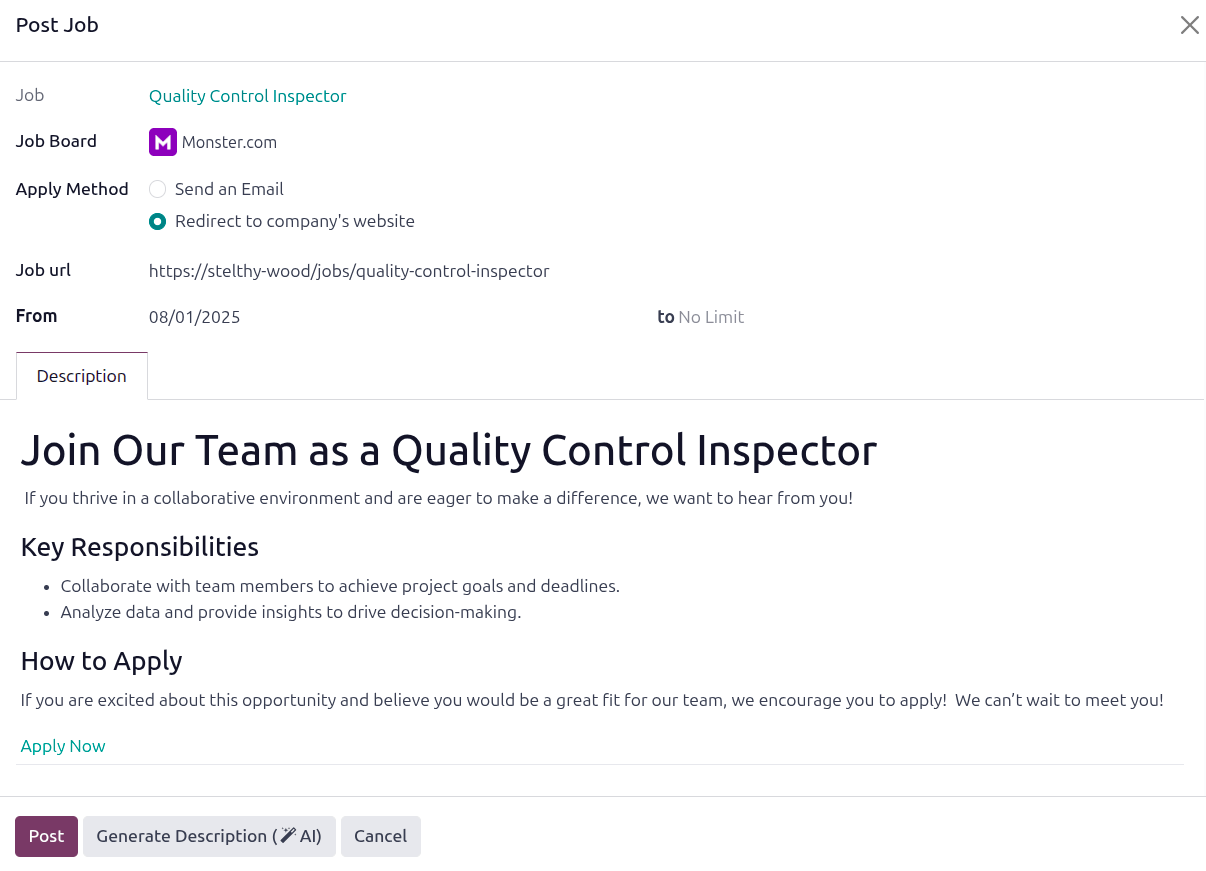
Navigate to , click Publish on Jobs Board, and a Publish on a Job Board pop-up window loads. Fill out the following information in the pop-up window:
Job: Select the job position being shared using the drop-down menu.
Industry: Select the relevant industry the job position falls under with the drop-down menu. This field corresponds to industries on the job board, and can aid applicants searching for positions within a specific industry.
Job Board: Select the job board being posted to with the drop-down menu.
Apply Method: Click the desired radio button to determine how applicants apply for the position. The two options are:
Send an Email: Select this for applicants to apply for the job via email.
Redirect to company’s website: Select this for applicants to apply for the job via the company website.
Email or Job url: The selected Apply Method determines which field appears. The field is populated with the information from the job card, if available. Make any desired modifications to this field, for example, enter a tracking URL for the job board listing.
From and to: Using the calendar selector, select the date the job is posted to the job board in the From field. The to field says No Limit by default. If the job position should be removed from the job board on a specific date, enter it in the second field.
Mission Dates: If there is a set start date for the job position, select the date using the calendar selector. When configured, if the applicant is hired for the job position, their availability on the job board is updated to reflect they are no longer available.
Description tab: The description from the job card populates this tab by default. Make any desired changes to it in this section. This is what appears on the job board.
Tip
Click the Generate Description ( AI) to use AI to edit or create the job description.
Once the listing is ready, click the Post button. After the post has been published to a job board, the Job Boards Posts page reloads, and the new post appears in a Kanban card.
Job board emails
When posting job positions on a job board, like Indeed or LinkedIn, the job board posts the job position, and typically allows the website visitor to apply to the job directly from the job board.
When someone applies to a job directly from a job board, an email is sent to Odoo from a specific
email address, such as jobs-listings@linkedin.com. The email uses regular expression (regex)
rules, which are instructions to match text in the email and map it to specific fields in Odoo.
When Odoo receives an email from the job board’s corresponding email address, it runs the regex rule and pulls applicant information from the email when creating an applicant record.
Example
The regex rule for LinkedIn (emails received from: jobs-listings@linkedin.com) is
New application:.*from (.*). This rule tells Odoo to capture everything after the
word from when creating the applicant record.
An email subject of New application: Job ID 123 from John Doe will capture John Doe and
create an applicant record for John Doe.
To view the currently configured job board emails, navigate to . Three emails come preconfigured in the database: LinkedIn, Jobsdb, and Indeed.
Create job board emails
To create a new job board email, navigate to . Click the New button, and a blank Emails form loads.
Enter the Name for the platform, such as Glassdoor, in the corresponding field. Next,
enter the email address the applications come from in the Email field. Last, enter the
regex rules in the corresponding field.
View job board listings
To view all the job positions that have been posted to a job board, navigate to . This presents the Job Boards Posts dashboard and all job board postings.
Each listing is displayed in an individual Kanban card, with the following information:
Job Board Icon: The icon for the job board where the listing is posted.
Job Board Listing Title: The job position title and job board name.
Status Dot: The status of the post. A green dot indicates the post is live, a blue dot indicates it is scheduled to be published in the future, and a red dot indicates there is an issue with the post and the posting failed.
From: The date the listing was published.
To: The date the listing is removed from the job board.
User Icon: The icon of the user who posted the listing.
Click on any Kanban card to view the details for the specific job board listing.
