
Production overview
Odoo Manufacturing can display an overview of manufacturing order production to help monitor ongoing and future manufacturing orders.
The (Kanban) view on the Manufacturing Orders page functions as this production overview. Production managers can use it to filter and group manufacturing orders according to their needs and to monitor the time remaining on each order to ensure production remains on schedule.
Manufacturing Orders page
Navigate to . The Manufacturing Orders page opens.
Views
The Manufacturing Orders page can be viewed in different ways:
(List): View, search, and edit manufacturing orders. This is the default view.
(Kanban): Move manufacturing orders across stages or display them inside cards.
(Gantt): Forecast and examine the overall progress of manufacturing orders. Manufacturing orders are represented by a bar under a time scale.
(Calendar): View and manage manufacturing orders inside a calendar.
Work in the Kanban view
On the Manufacturing Orders page, click the (Kanban) icon.
Tip
By default, this view is filtered by manufacturing orders in To Do status. The filters can be changed from the search bar.
Manufacturing orders are displayed in card form. Each grouping of manufacturing orders lists the expected time remaining to produce all the orders in the stage. A progress bar is visible above each stage, displaying the percentage breakdown of every status type for all the cards within that stage. Each status type has an assigned color that appears within the bar.
By default, the cards in each stage are sorted by priority, then scheduled date.
Each card lists the manufacturing order number, the product and amount being manufactured, the manufacturing order’s status, priority, activities, the remaining work order time, component availability, and the responsible user. If a work order is in progress, the active work center is visible. If there are child manufacturing orders created from a subassembly in a product’s bill of materials, their statuses display in the card.
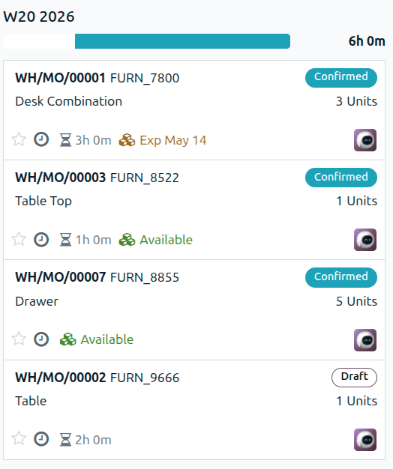
By default, this view is grouped by weekly production. The orders can be grouped in several different ways from the search bar:
Product: Manufacturing orders are grouped by the products being produced.
Status: Manufacturing orders are sorted by status (such as Confirmed or Draft).
Material Availability: Manufacturing orders are grouped by component availability. Manufacturing orders with all components available are listed in the Ready column, and those awaiting component availability are listed in the Waiting column.
Date: Group by Year, Quarter, Month, Week, or Day.
Deadline: If deadlines are assigned to the manufacturing orders, they can be grouped by Year, Quarter, Month, Week, or Day.