
Upsell subscriptions
When a subscription sales order is opened, either in the Sales or Subscriptions apps, that subscription may then be upsold via the Upsell button at the top of the sales order.
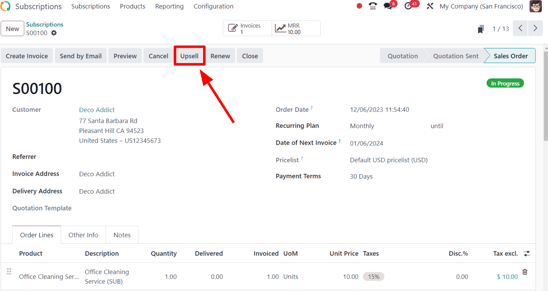
Upselling involves changing a subscription to include a more expensive product or service. Upselling may also involve adding discounts to encourage conversion. Before sending an upsell quotation to a customer, the unit price, taxes, and even discount may all be adjusted. Using the Upsell feature allows for greater convenience and continuity when making changes to an exisiting subscription.
How to upsell a subscription
Important
A subscription sales order must be invoiced before it can be upsold.
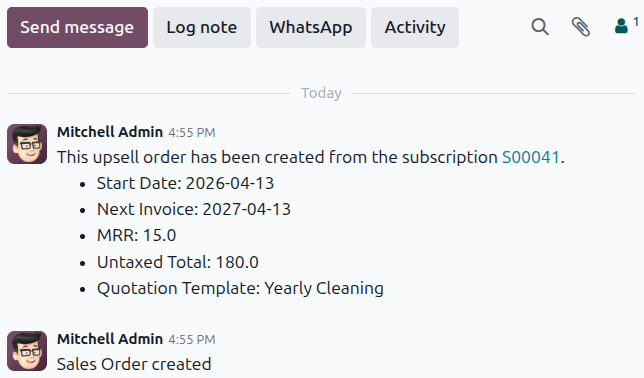
Click the Upsell button to bring up a new quotation form. This quotation’s status as an upsell is indicated by the Upsell icon in the corner of the form. The chatter for the new form also includes information linking the upsell order to the original order.
Within the new form, the initial subscription product appears in the Order Lines tab. The Order Lines tab also features a reminder that recurring products are prorated based on the original subscription’s starting date.
Important
The prorated amount is only applied to Service product types. It is not applied to Goods, even if the message appears and suggests otherwise.
From this new upsell quotation form, new subscription products can be added in the Order Lines tab, by clicking Add a product and selecting the desired subscription products. Once the desired upsell subscription products have been added, the quotation can be sent to the customer for approval by clicking the Send button.
Once the quotation is confirmed by the customer, the upsold products are added to the initial subscription. The quotation’s prices are then prorated based on the current invoicing period’s remaining time.
Once the customer approves, click the Confirm button on the quotation, making it a sales order. When that’s clicked, a Sales History smart button appears, displaying how many sales orders are attached to this initial subscription sales order.
When the Sales History smart button is clicked, Odoo reveals a separate page containing a list of the related sales orders, clearly showcasing their individual Subscription Status.

Discount configuration
Discounts can be easily applied to upsold subscriptions to incentivize customers to purchase more expensive or additional subscriptions. To do this, the Discounts feature must be enabled.
To activate the Discounts feature, navigate to . Scroll to the Pricing section and tick the checkbox beside Discounts. Finally, click Save.
Create alternative
Customers can also be presented with alternative subscription quotations. Alternative quotations can be created even after sending an upsell quotation to a customer.
To create an alternative upsell quotation, click the Create Alternative button at the top of the upsell quotation form. This opens a new upsell sales order that is linked to the previous upsell and subscription sales orders.
See also