
Manufacturing backorders
In some cases, the full quantity of a manufacturing order cannot be produced immediately. When this happens, the Manufacturing app can manufacture partial quantities of the order and create a backorder for the remaining amount. To manufacture the full quantity of a manufacturing order, see Create a manufacturing order.
Creating a backorder splits the original manufacturing order into two orders. The reference tag for each order is the tag used for the original order, followed by a hyphen and then an additional number to indicate that it is a backorder. Backorders can be created in the Manufacturing app or from the Shop Floor module.
Example
A company creates a manufacturing order with the reference tag WH/MO/00175, for 10 units of Product X. After starting work on the manufacturing order, the employee working the production line realizes there are only enough components in stock to produce five units of the product.
Instead of waiting for additional stock of the components, they manufacture five units and create a backorder for the remaining five. This splits the manufacturing order into two separate orders: WH/MO/00175-001 and WH/MO/00175-002.
Order 001 contains the five units that have been manufactured, and is immediately marked as Done. Order 002 contains the five units that still need to be manufactured and is marked as In Progress. Once the remaining components are available, the employee returns to order 002 and manufactures the remaining units before closing the order.
Create a backorder in Manufacturing app
To create a backorder for part of a manufacturing order, begin by navigating to . Select a manufacturing order with a quantity of two or more or create one by clicking Create.
If a new manufacturing order is created, select a product from the Product drop-down menu and enter a quantity of two or more in the Quantity field, then click Confirm to confirm the order.
After manufacturing the quantity that is being produced immediately, enter that number in the Quantity field at the top of the manufacturing order.
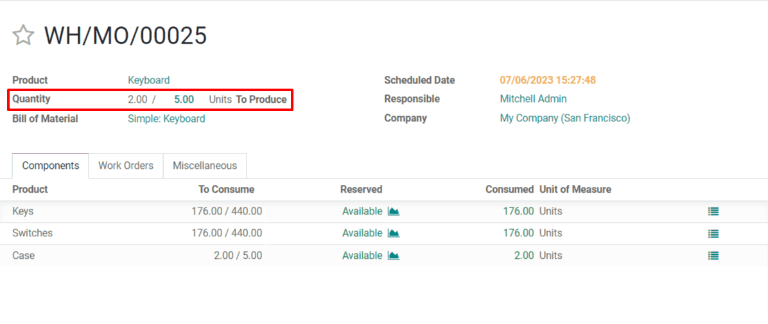
Next, click Produce. If the quantity of consumed materials does not match the quantity of products produced, a Consumption Warning pop-up window appears. Click Confirm to keep the existing quantity of consumed materials, or click Update Quantities & Validate to match the consumed quantities to the quantity of products produced. A You produced less than the initial demand pop-up window appears.
Click Create Backorder to split the manufacturing order into two separate orders, with the reference tags WH/MO/XXXXX-001 and WH/MO/XXXXX-002.
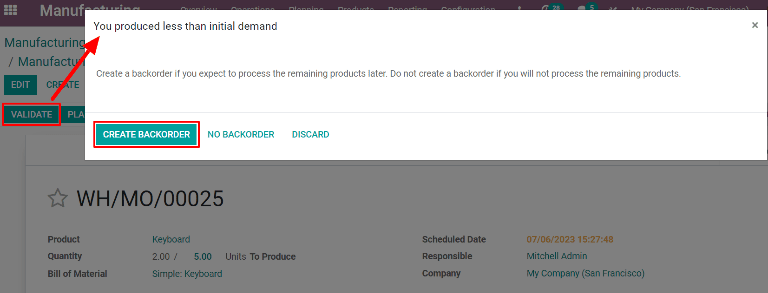
Order 001 contains the items that have been manufactured, and is closed immediately. Order 002 is the backorder that contains the items that have yet to be manufactured, and remains open, to be completed at a later date.
Once the remaining units can be manufactured, navigate to , and then select the backorder manufacturing order. If all of the remaining units are manufactured immediately, click Produce to close the order.
If only some of the remaining units are manufactured immediately, create another backorder for the remainder by following the steps detailed in this section.
Create a backorder in Shop Floor
Backorders for manufacturing orders can also be created from the Shop Floor module.
Note
In order to use the Shop Floor module, the Work Orders setting must be enabled. To do so, navigate to , enable the Work Orders checkbox, and then click Save.
To create a backorder from the Shop Floor module, begin by navigating to . Select an MO for multiple units of a product, for which a backorder needs to be created.
On the MO, select the Work Orders tab, and then click the work order to be processed. On the resulting Work Orders pop-up window, click the Open Shop Floor button to open the Shop Floor module.
When accessed from a specific work order, the Shop Floor module opens to the page for the work center where the order is configured to be processed, and isolates the work order’s card so that no other cards are shown.
Complete the steps on the work order’s card, then click Produce. If the quantity of consumed materials does not match the quantity of products produced, a Consumption Warning pop-up window appears. Click Confirm to keep the existing quantity of consumed materials, or click Update Quantities & Validate to match the consumed quantities to the quantity of products produced. A You produced less than the initial demand pop-up window appears.
Click Create Backorder to split the manufacturing order into two separate orders.

If the original MO has remaining work orders that must be completed before it can be closed, cards for these work orders appear on the Shop Floor pages for the work centers where they are configured to be carried out. They can be processed as normal, and additional backorders can be created from their work order cards using the instructions detailed in this section.
Once the current work order for the backorder MO is ready to be processed, this can also be completed as normal, and an additional backorder can be created from its work order card by following the instructions detailed in this section.
After the final work order for the backorder MO has been completed, the MO can be closed by clicking the Close Production button at the bottom of the work order’s card.