Configuration
Settings
Sign’s general settings, available via , allow you to:
add Default Terms & Conditions to the signature request email
Manage template access; once enabled, it is possible to restrict access to a template to specific user groups when creating or editing the template
enable the following additional authentication methods, manage the service, and buy credits:
Aadhaar eSign (available in India)
itsme® (available in the EU, the UK, Norway, and Iceland)
manage authentication via SMS and buy credits
upload a
.p12or.pfxfile containing a personal digital certificate, allowing you to add a cryptographic, or digital, signature to a document
Default terms and conditions
Terms and conditions allow a business to standardize the legal relationship with its clients, define obligations and expectations, manage risk, and protect its interests by setting clear rules for aspects such as liability and dispute resolution.
To add default terms and conditions to signature requests:
Go to and enable Sign Default Terms & Conditions.
Choose the desired option:
Terms in Email: This option is selected by default and places the terms and conditions at the bottom of the signature request email. Add your terms and conditions to the text box.
Terms as Web Page: This option displays the terms and conditions on a web page; the link to that page is then added as a link in the signature request email. Click Save, then click Update Terms. Add your terms and conditions to the text box, then click Save. Click Preview to see how the terms and conditions will be displayed.
Tip
In the text box, type
/to open the powerbox, then use commands to insert headings, bulleted lists, etc.Click Save.
Note
It is also possible to manually attach files, such as terms and conditions, when configuring a signature request. For templates, files can be attached by default in the Communication section of the template Configuration when creating or editing the template.
Fields
Fields are added to documents to indicate what information must be completed by the signers. Various fields are available by default. These fields can be edited and additional fields can be created if needed.
Create and edit fields
To create or edit a field:
Go to .
Click New to create a new field or click on a field to open and edit it.
Choose the relevant field type by clicking the corresponding button at the top of the form.
Complete or edit the following fields:
Field Name: Enter or edit the field name. This is visible in the list of fields in the left panel when a document is being prepared for signature.
Placeholder: Optionally, specify a placeholder text that provides the signer with a hint or example during the signing process. If this field is left blank, the Field Name is used as placeholder text.
Tip: Add a tip that will be displayed inside an arrow to the left of the document during the signing process to help the signer understand what action to take (e.g., “Sign here”).
Mandatory: Enable the checkbox to make the field mandatory by default.
Read Only: Enable the checkbox to make the field read-only by default.
Note
The Mandatory and Read Only attributes of a field can be modified manually when adding the field to a document.
For Text, Multiline Text, and Date fields only, use the Linked to field to configure auto-completion so the field is auto-completed during the signing process.
Field types
Signature: Signers enter their signature either by generating an automatic signature based on their name, drawing it using their mouse, or uploading a local file (usually an image). Each subsequent Signature field in a document reuses the data entered in the first field.
Initial: Signers enter their initials, in a similar way to the Signature field.
Text and Multiline Text: Signers can enter text on a single line or on multiple lines, respectively. These field types can be configured to be auto-completed during the signing process.
Checkbox: Signers can tick a box (e.g., to confirm they accept the terms and conditions).
Radio: Signers can select a single option from a series of options (defined when the field is added to the document) by clicking the radio button beside the desired option.
Selection: Signers can select a single option from a series of options (defined when the field is added to the document) via a dropdown menu.
Strikethrough: Signers can reject certain phrases by clicking the strikethrough field, which adds a visible line through the text.
Stamp: Signers can add a company stamp (defined when the field is added to the document).
Date: When signers click a date field, today’s date is filled in by default. Clicking the field again allows a different date to be selected in the date picker. This field type can also be configured to be auto-completed during the signing process.
Configure auto-complete fields
To reduce the need for manual input and ensure accurate and consistent information, it is possible to have certain fields automatically completed with data from the database during the signing process. This is done by linking a Sign field to a field from a specific Odoo model.
To enable auto-completion for a Sign field:
Go to .
Open the relevant field.
From the Linked to dropdown, select the model that contains the field to link to, e.g., Contact.
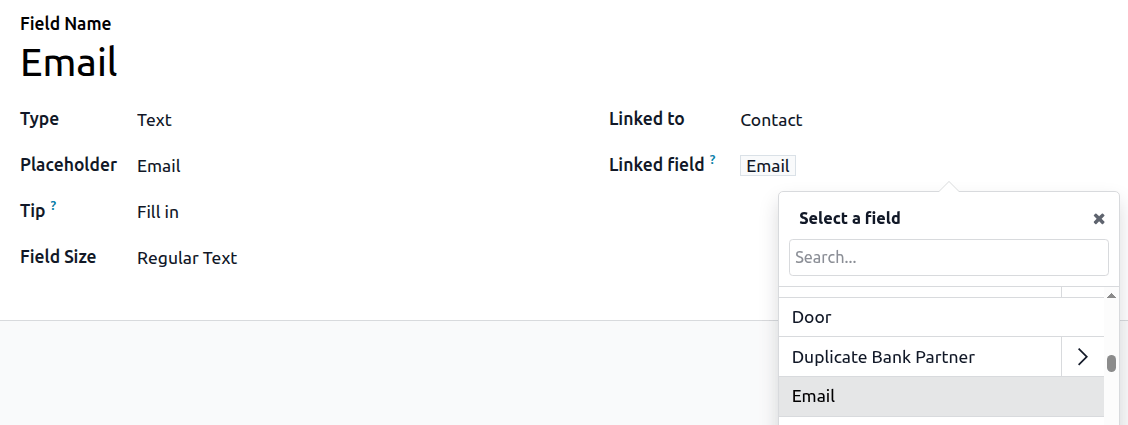
Click beside Field, then use the field selector to select the relevant field, e.g., Email.
Example
In the example, the Email field in the Sign app is linked to the Email field in the Contact model. When the contact completes the document, their email address, as it appears in their record in the Odoo database, is automatically added to the document.