
Troubleshooting
Frequently encountered issues
The pairing code does not appear or does not work
The pairing code might not be displayed or printed under the following circumstances:
The IoT system is not connected to the network.
The IoT system is already connected to an Odoo database. Disconnect it from the database.
The pairing code display time has expired. Restart the IoT box or the Windows virtual IoT service to generate and display the pairing code.
The IoT system does not connect to the database
The IoT system might take a few minutes to restart when it connects to a database. If it still does not appear after a few minutes:
Verify that the IoT system can reach the database and the server does not use a multi-database environment.
Restart the IoT box or the Windows virtual IoT service.
The IoT system is connected to the Odoo database but cannot be reached
Verify that the IoT system and the computer running the Odoo database are connected to the same network and update the DNS settings if necessary.
The Windows virtual IoT’s homepage cannot be accessed from another device
Ensure the device is connected to the same network as the Windows virtual IoT.
Check the Windows Firewall configuration.
The IoT system does not work after an Odoo upgrade
Restart the IoT box or the Windows virtual IoT service.
If the issue persists, update its image by flashing the IoT box’s card or uninstalling the Windows virtual IoT program and reinstalling the virtual IoT package.
The IoT system’s homepage can be accessed using its IP address but not the xxx.odoo-iot.com URL
Contact your system or network administrator to address the issue. Network-related problems are beyond the scope of Odoo support services.
If the router allows manual DNS configuration, update the settings to use Google DNS.
If the router does not support this, you need to update the DNS settings directly on each device that interacts with the IoT system to use Google DNS. Instructions for configuring DNS on individual devices can be found on the respective manufacturer’s website.
Note
Some IoT devices, such as payment terminals, likely do not require DNS changes, as they are typically pre-configured with custom DNS settings.
On some browsers, an error code mentioning the DNS (such as
DNS_PROBE_FINISHED_NXDOMAIN) is displayed.
The IoT system is connected and reports are assigned to a printer that cannot print
Verify that the browser is allowed to access devices on the local network.
HTTPS certificate generation issues and errors
The HTTPS certificate does not generate
Potential causes include the following:
The database doesn’t meet the eligibility requirements for generating an HTTPS certificate.
The firewall is preventing the HTTPS certificate from generating correctly. In this case, deactivate the firewall until the certificate is successfully generated.
Note
Some devices, such as routers with a built-in firewall, can prevent the HTTPS certificate from generating.
Errors
A specific error code is displayed on the IoT system’s homepage if any issues occur during the generation or reception of the HTTPS certificate.
Tip
When you access the IoT system’s homepage, it automatically checks for an HTTPS certificate and attempts to generate one if it is missing. If an error appears, refresh the page to see if the issue is resolved.
Missing credentials
The contract and/or database UUID is missing from the IoT.
Verify that both values are correctly configured. To update them, access the IoT box’s or Windows virtual IoT’s homepage, click the (cogs) button, then click Credentials.
Note
To access the full request exception details with information regarding the error, enable the developer mode, click the IoT system’s card in the IoT app, and click Download logs on the IoT system’s form. To define the log levels recorded in the IoT system’s log file, access the IoT box’s or Windows virtual IoT’s homepage, click the (cogs) button, then Log level at the bottom of the page.
To address network-related issues, contact your system or network administrator; these issues are beyond the scope of Odoo support services.
Odoo.com not reachable
The IoT system successfully reached https://www.odoo.com but received an unexpected HTTP response (status codes).
To solve this issue:
Open https://www.odoo.com in a web browser to check if the website is temporarily down for maintenance.
- If https://www.odoo.com is down for maintenance, wait for it to resume.If the website is operational, open a support ticket and make sure to include the 3-digit HTTPS status code in the ticket.
Still no certificate?
If the IoT system successfully connected to https://www.odoo.com, but the server refused to provide the HTTPS certificate.
Check that the IoT system and database meet the eligibility requirements for an HTTPS certificate.
Grant Odoo support team access to an IoT Box
If you need to grant remote access to an IoT Box, you can provide a Tailscale token on the IoT Box’s homepage. This allows the Odoo support team to access the IoT Box for troubleshooting securely.
Warning
Only enter a token from a trusted source, such as an official Odoo support representative. Providing a token grants access to the IoT Box and your entire local network, so it should be done with caution.
On the IoT Box’s homepage, click the (cogs) button, then click Debugging Tools. In the pop-up window, enter the Tailscale token provided by the Odoo support team and click Enable.
Note
Remote Debug is only available for IoT boxes, not the Windows virtual IoT.
Is the IoT Box down?
If the IoT Box is down, you can still enable remote access for the Odoo support team. Just provide the key in the only field displayed on the homepage and click Enable.
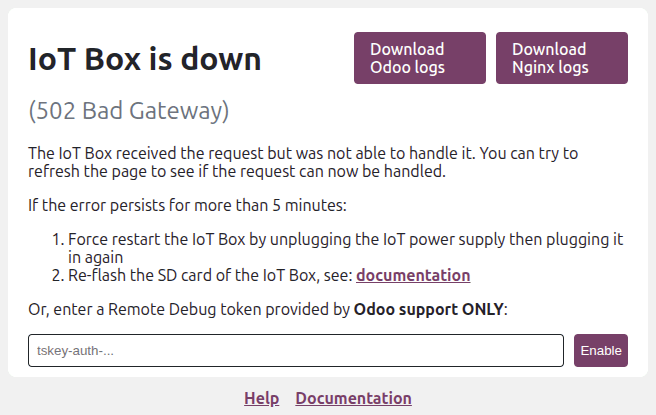
Note
Enabling remote access on a down IoT Box is only available from version above v26.01.2026. If your IoT Box doesn’t have this option, you will need to flash the IoT Box’s card with the latest image.