
Oman
The Oman payroll localization covers salary computations for employees, including both employee and employer payroll taxes. It accounts for all local and national regulations.
Before configuring the Oman localization, refer to the general payroll documentation, which includes the basic information for all localizations, as well as all universal settings and fields.
Apps & modules
Install the following modules to get all the features of the Oman payroll localization:
Name |
Technical name |
Dependencies |
Description |
|---|---|---|---|
Oman - Payroll |
|
|
Includes all salary rules, leave logic, end of service, WPS, and compensation rules compliant with Oman Labor Law. |
Oman - Payroll with Accounting |
|
|
Links payroll and accounting by creating journal entries (per payslip if needed) to record payroll in the company’s books. |
General configurations
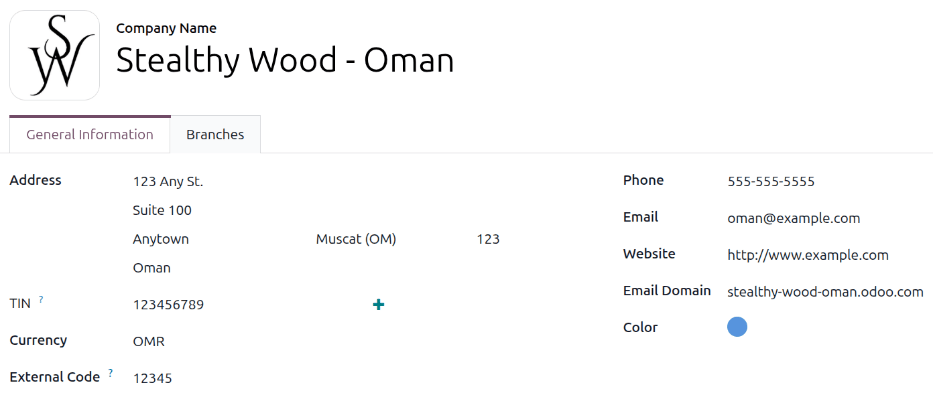
First, the company must be configured. Navigate to . From the list, select the desired company, and ensure the following fields are configured:
Company Name: Enter the business name in this field.
Address: Complete the full address, including the City, State, Zip, and Country.
TIN: Enter the company’s identification number.
Currency: By default, OMR is selected. If not, select OMR from the drop-down menu.
External Code: Enter the code used to export data to third parties.
Phone: Enter the company phone number.
Email: Enter the email used for general contact information.
Website: Enter the company’s web address.
Email Domain: Enter the email domain for the company.
Color: Select a color for the company.
Payroll settings
In addition to configuring the company, some Payroll app settings must be configured. Navigate to , scroll to the Oman Payroll section, and configure the following fields:
Annual Leave Time-off Type: Using the drop-down menu, select the time type used for annual leave. The time type is used to compute the remaining unused annual leave balance when the employee leaves the company.
Company MOL Number: Enter the company’s MOL number that is registered under the WPS program.
Salary Payer: Using the drop-down menu, select the entity registered under the WPS program that actually pays the employee’s salaries.
Salary Payer MOL Number: Enter the MOL number for the selected Salary Payer.
WPS Disbursement Bank Account: Using the drop-down menu, select the bank account used to pay employees, or create a new one. The account must belong to the selected Salary Payer.
Important
If creating a new bank account for the WPS Disbursement Bank Account field, ensure to configure the following fields on the Create WPS Disbursement Bank Account pop-up window:
Account Number: Enter a valid IBAN.
Short name: Enter a 3 to 4 character alphabetic code uniquely identifying the bank, used as a shorthand instead of the full bank name (e.g., NBO for National Bank of Oman, or HSBC for HSBC Middle East).
BIC/SWIFT: Enter an 8 or 11-character alphanumeric code, not a 9-digit numeric value.
Holder Name: Select the company for this field.
Trust bank account: Must be enabled.

Employees
Every employee being paid must have their employee profiles configured for the Oman payroll localization. Additional fields are present after configuring the database for Oman.
To update an employee form, open the Employees app and click on the desired employee record. Ensure a Work Email and Work Phone are configured on the employee form, and configure the required fields in the related tabs.
Personal tab
Ensure the employee has a minimum of one trusted bank account listed in the Bank Accounts field in the Private Contact section.
These accounts are used to pay the employee. Payroll cannot be processed for employees without a trusted bank account. If no trusted bank account is set, a warning appears on the Payroll dashboard and an error occurs when attempting to generate the WPS payment report.
In the Citizenship section, use the drop-down menu in the Nationality (Country) field to select the employee’s nationality. This is used when determining the level of coverage under the Social Protection Fund. Next, select what kind of Identification Type the employee has using the drop-down menu. The default options are Passport and Civil Status Card. This is used when extracting the WPS file.
Payroll tab
Fill out all the information regarding employees’ contracts, residency status, tax treatments, deductions, etc. in this tab.
Set the Pay Category to Oman: Employee in the Contract Overview section, and set the Working hours to Oman Working Schedule 40h/Week in the Schedule section.
By default, the Is Eligible checkbox in the End of Service Benefit section is unchecked, indicating the employee is not eligible for end of service benefits. If the employee is eligible, ensure the box is checked.
Additionally, the contributions percentages in the SPF section are preconfigured for each insurance category for both the Employer Contributions and Employee Contributions sections, but can be modified if desired.
Leaves
The following leave types are available to employees working in Oman:
Annual leave: Employees are eligible for at least 30 calendar days of annual leave once they complete 6 months in the company. If the employee needs more days, they must be requested from HR managers accordingly.
To receive the additional allocation, the time off should be allocated to them using the Annual Leave time off type, and the Oman Employee Plan accrual plan, which gives each employee 2.5 days of allocation at the start of each month until they gain the total of 30 days.
Important
Since the annual leave is fully paid, it is not connected to a salary rule, but it appears in the worked days on the payslip form and the PDF printout.
Sick leave: The rate at which employees in Oman are paid for sick days depends on the number of sick leaves they have already taken. Any sick leaves beyond that are unpaid. The rates are:
Days 0-21: Fully paid
Days 22-35: 75% paid
Days 36-70: 50% paid
Days 71-182: 35% paid
Other leave types: These leave types are fully paid and do not affect the final payslip, but are tracked for reporting purposes:
Paternity leave
Maternity leave
1st-degree relatives’ compassionate leave
2nd-degree relatives’ compassionate leave
Hajj leave
Iddah leave
End of Service
If Is Eligible is enabled in the End of Service Benefit section of the Payroll tab on the employee profile, the employee is eligible to receive end of service benefits. When they leave the company, they receive the following two benefits:
Unused annual leaves compensation: The Annual Leave Balance is shown on the employee record. This is based on the Annual Leave Time-off Type defined in the Payroll app settings, and is calculated as the total remaining, unexpired allocations for that specific leave type assigned to the employee.
The balance represents the total remaining leave allocated to the employee, but does not reflect the portion of leave days the employee earned up to the current month. When calculating the value, the deserved leave balance is determined based on the portion of the year worked. The benefit value is then calculated by multiplying this deserved balance by the employee’s daily rate.
Example
An employee has 3 days of remaining allocation days. If their daily rate is 50 OMR, the benefit value is:
\(3 \text{ days} \times 50 \text{ OMR} = 150 \text{ OMR}\)
Important
If the allocation was fully given at the beginning of the year, the calculation is based on deserved leaves, which are defined by the period of time the employee worked during the current year.
For example, an employee who worked for 7 months deserves 2.5*7 = 17.5 days. This is deducted from the number of remaining unused allocations to get the number of days to be compensated. This value can either be positive or negative.
End of Service Benefit: The calculation begins by determining the total number of days the employee worked at the company, from their hiring date to their last working day. The total service duration is calculated out of a 365-day year. The resulting period in years is then multiplied by the employee’s basic salary.
\[\text{Latest Basic} \times \left(\frac{\text{Number of Days}}{365}\right)\]
Provisions
Provisions are the amounts computed by the employer for EOS benefit payments made to the employee, or for remaining annual leaves compensation when employees leave the company. It is computed on a monthly basis but does not affect the employee’s net wage.
End of service benefit provision: This is computed by dividing the monthly basic salary by 12:
\[\frac{\text{Basic}}{12}\]Annual leave provision: This is computed by dividing the gross salary by 30 to calculate the daily salary, then multiplying that by the number of leave days (which is 30 in Oman), and dividing the result by 12.
\[\left(\frac{\text{Basic} + \text{Allowances}}{30}\right) \times \left(\frac{\text{Number of Leave Days}}{12}\right)\]
Payroll configuration
Several sections within the Payroll app also install a salary structure, structure type, and rules specific to Oman.
Salary structures & structure types
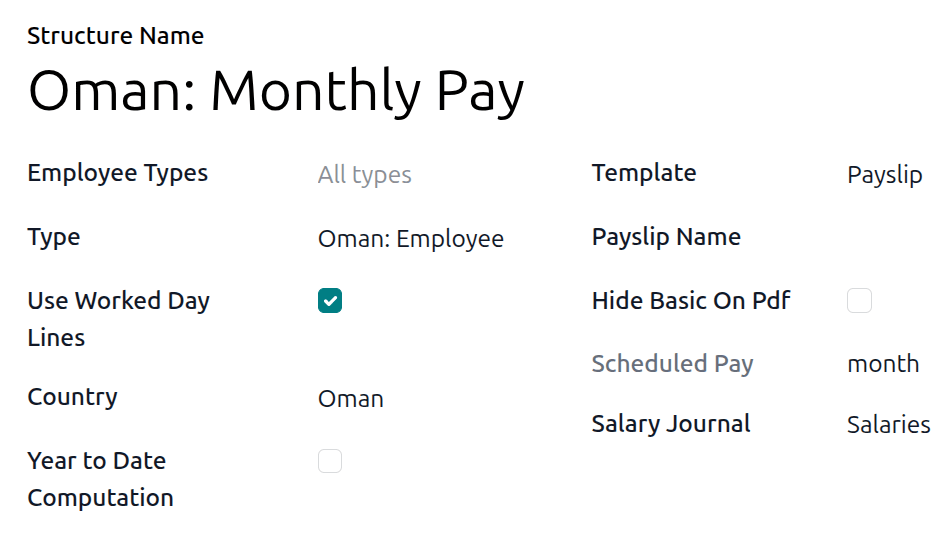
When the l10n_om_hr_payroll module is installed, a new Salary Structure gets installed, Oman: Monthly Pay. This structure includes one Structure Type, Oman: Employee.
The Salary Structure contains all the individual salary rules that inform the Payroll app how to calculate employee payslips.

Salary rules
To view the salary rules that inform the salary structure what to do, navigate to and expand the Omann: Employee group to reveal the Omann: Monthly Pay structure type. Click Omann: Monthly Pay to view the detailed salary rules.
Each rule defines how pay is calculated, taking into account factors such as allowances, deductions, and taxes.
Run Omann payroll
Before running payroll, the payroll officer must validate employee time offs and attendances, to confirm pay accuracy and catch errors. Once everything is correct, draft payslips are created individually or in groups, referred to in the Payroll app as Pay Runs.
Note
To cut down on the payroll officer’s time, it is typical to process pay runs instead of individual payslips one at a time.
The process of running payroll includes different actions that need to be executed to ensure the net wage amounts are correct. The computation of hours worked reflects the employee’s actual hours worked, among others.
When running a pay run, check that the period, company, and employees included are correct before starting to analyze or validate the data.
Once the payslips are drafted, review them for accuracy. Check the Worked Days and Salary Inputs tabs, and ensure the listed worked time is correct, as well as any salary inputs. Add any missing inputs, such as commissions, tips, or reimbursements. Next, check the various totals such as gross pay, social insurance contributions, benefits, and net salaries. If any edits were made, click Compute Sheet to update the salary calculations. If everything is correct, click Validate.
Register Payments
Payments can be grouped by Partner if there is a partner associated with a salary rule.
Close Payroll
If there are no errors, payroll is completed for the pay period.
Wages protection system reports
The WPS report must be submitted by the company to prove they paid their employees the right amounts on the right dates. It can either be generated per payslip or pay run.
The following steps must be followed before generating the report:
Ensure the Company MOL Number, Salary Payer, Salary Payer MOL Number, and the WPS Disbursement Bank Account fields are configured.
Set the unique identifier for all employees who are part of the pay run or payslip.
Tip
The unique identifier is either the employee’s passport number or civil status card number, depending on the selection made for the Identification Type field in the Personal tab on the employee form.
Once the initial setup is done, the WPS can be generated either for one payslip or for a pay run as follows:
Generate the payslip one by one or as a pay run.
Post the draft entry related to the payslips.
Create the payment report and set the Export Format to Oman WPS.
Note
The report is exported in a .csv format.
The resulting file consists of the following:
Field |
Description |
Mapping value |
|---|---|---|
Employer CR-NO |
CR number of the company |
Company MOL Number under |
Payer CR-NO |
CR number of the payer |
Payer MOL Number under |
Payer Bank Short Name |
Short code for the payer’s bank |
Short Name of the WPS Disbursement Bank Account which can be found under |
Payer IBAN |
IBAN of the payer’s account |
IBAN of the WPS Disbursement Bank Account which can be found under |
Salary Year |
Year of the payroll period (YYYY) |
Payslip/Pay runs year. |
Salary Month |
Month of the payroll period (MM) |
Payslip/Pay runs month. |
Total Salaries |
Sum of Net for all payslips in the pay run (or single Net for off-cycle) |
Sum of Salary Rule: Net (3 decimal digits) |
Number of Records |
Count of employees in the report |
1 if only a single payslip, or if only one employee is in a pay run. |
Payment Type |
Static value |
Hardcoded text: “Salary” |
Employee Details section
Field |
Description |
Mapping value |
|---|---|---|
Employee ID Type |
P = Passport, C = Civil Status Card |
Identification Type which can be found on the employee record, in the Citizenship section of the Personal tab. |
Employee ID |
ID number matching the selected ID Type |
Identification No or Passport No depending on the employee’s Identification Type, which can be found on the employee record, in the Citizenship section of the Personal tab. |
Employee Name |
Employee’s legal name |
The employee’s legal name, found in the Personal Information section of the Personal tab of the employee’s record. |
Employee BIC |
Employee’s bank account BIC |
BIC of the bank account for the employee, found in the Private Contact section of the Personal tab of the employee record. |
Employee IBAN |
Employee’s bank account IBAN |
IBAN of the bank account for the employee, found in the Private Contact section of the Personal tab of the employee record. |
Salary Frequency |
B = Biweekly, M = Monthly (only these 2 allowed) |
Strictly as M only. |
Number of Working Days |
30 minus unpaid/out-of-contract days |
Calculated from payslip worked days lines. |
Basic Salary |
Basic salary amount |
Salary Rule: Basic Salary (3 decimal digits) |
Net Salary |
Net salary amount |
Salary Rule: Net (3 decimal digits) |
Extra Hours |
Extra hours worked |
Calculated from payslip worked days lines. (2 decimal digits) |
Extra Income |
Total allowances |
Salary Rule Category: Allowances |
Deductions |
Total deductions |
Salary Rule Category: Deductions |
Social Security Deductions |
SPF employee contribution |
Salary Rule: SPF Employee Contribution |
Comments |
Optional note |
Found on the pay wizard. |
Note
The exported format is based on the Central Bank of Oman guidelines, and is aligned with the formats used by most WPS agents in Oman, including Bank Muscat, Oman Arab Bank and Bank Dhofar, among others.
Social Insurance
Social insurance rules calculate the contribution amounts that are to be paid by both the employee and the company to the SPF. It has 5 categories:
Insurance Scheme
Employee Percentage
Employer
Insurance for Old Age, Disability, and Death
7.5%
11.0%
Insurance for Work Injuries and Occupational Diseases
0.0%
1.0%
Insurance for Employment Security (Unemployment)
0.5%
0.5%
Insurance for Sick and Other Leaves
0.0%
1.0%
Insurance for Maternity Leaves
0.0%
1.0%
Social insurance is available for both Omani and non-Omani employees except for the Insurance for Old Age, Disability, and Death category as it is only available to Omani employees.
For both employer and employee contributions, the contribution base is prorated based on days worked/paid in the month, and is calculated on basic salary only, excluding allowances such as housing, transport, and overtime.