
Training attendances
Most companies require training for their employees. As a company grows, it becomes important to ensure that employees have the specific training required for their job. Odoo’s Employees app has a Training Attendances report that tracks completed employee training. Managers can use this report to identify employees who have completed the required training for a specific role or project.
Note
Only managers and employees with the proper access rights can access the Training Attendances report.
View training attendances report
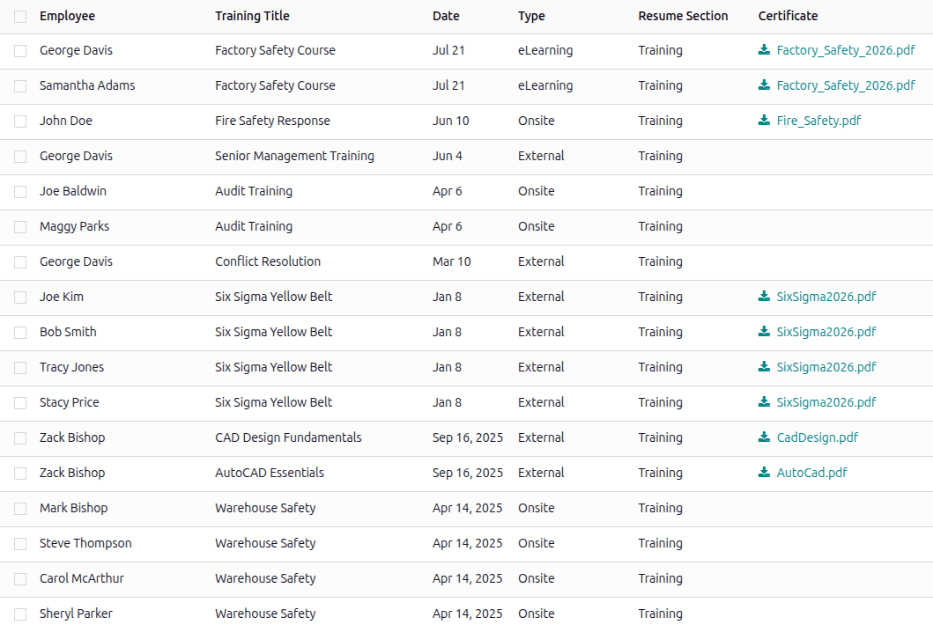
To view the Training Attendances report, navigate to . The report displays a list of all trainings for all employees, in descending chronological order, with the most recent training at the top.
Each line of the report displays the following information:
Employee: The name of the employee who received the training.
Training Title: The title for the training course.
Date: The date the training was completed.
Type: The specific format the training was done in, either at the company (Onsite), at a training facility (External), or virtually through an online course (eLearning).
Resume Section: Where the training appears on the employee record.
Certificate: The certificate earned from the training, if available.
Add a training
As employees complete training, it is important to add their training to their employee record. This can be done from the employee record or from the Training Attendances report.
From the employee record
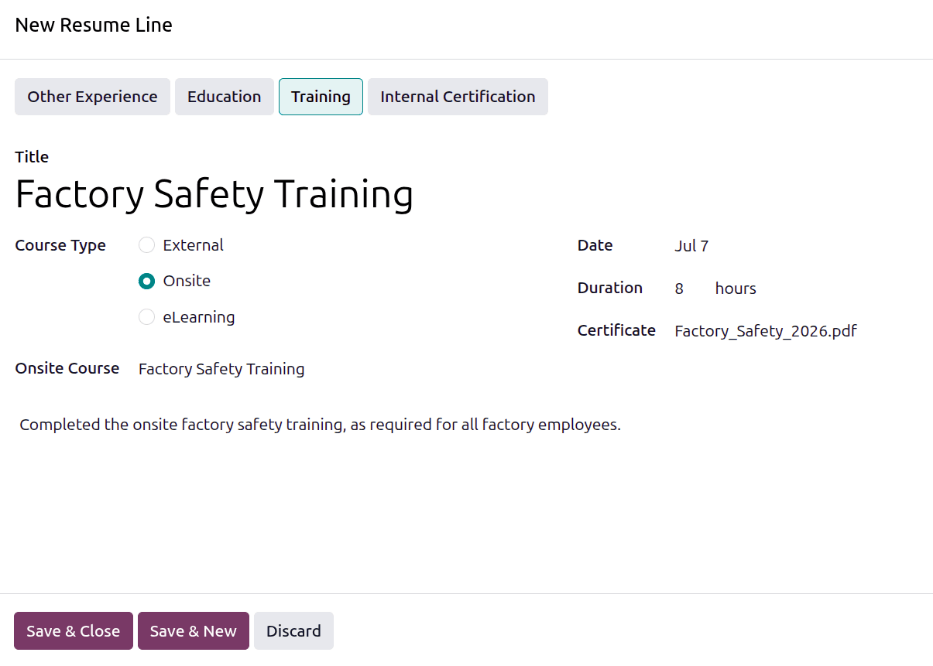
To add training from an employee record, open the Employees app, click the employee’s Kanban card, and click the Resume tab. On the Resume side of the tab, click the Add button and a New Resume Line pop-up window appears. Enter the following information for each entry:
Type: Click Training if not already selected.
Title: Type in the title for the training.
Course Type: Select how the training was conducted. The options are: External for any offsite training, including online classes or in-person training, Onsite for in-person training at the company (through the Events app), or eLearning for online training courses taken through the eLearning app.
External URL: If External is selected for the Course Type, this field appears. Enter a relevant URL for the training, such as the online course or a summary of the training.
Onsite Course: If Onsite is selected for the Course Type, this field appears. Using the drop-down menu, select the training event the employee attended through the Events app.
eLearning Course: If eLearning is selected for the Course Type, this field appears. Using the drop-down menu, select the eLearning class the employee took.
Date: The current date populates this field by default. Using the calendar selector, select the date the training was completed.
Duration: Enter the number of hours of the training.
Certificate: If there is a relevant certificate to attach, click the Upload your file button, select the desired file, and click Select. The file name appears in the field, not an image of the certificate.
Description: Enter any relevant details for the training in this field.
Once all the information is entered, click the Save & Close button if there is only one training to add, or click the Save & New button to save the current entry and create another training record.
Note
If the eLearning or Events apps are not installed, the corresponding fields and options do not appear on the New Resume Line pop-up window.
From the training attendances report
To add a training record from the Training Attendances report, navigate to . Click the New button, and a blank line appears at the bottom of the report. Configure the following fields on the line:
Employee: Using the drop-down menu, select the employee who completed the training.
Training Title: Type in the name of the training taken.
Date: Using the calendar selector, select the date the training was completed. This field is populated with the current date by default.
Type: Using the drop-down menu, select the format for the training. The options are: External for any offsite training, including online classes or in-person training, Onsite for in-person training at the company (through the Events app), or eLearning for online training courses taken through the eLearning app.
Resume Section: Select Training from the drop-down menu.
Certificate: If a certificate was received or required as proof of training, click Upload your file, navigate to the desired file, and click Select.
As the information is entered, Odoo automatically saves the entry. Refresh the page to reload the report. The entry is moved to the correct place on the report, based on the date.
Tip
Since adding training records from the Training Attendances report does not allow for the selection of the corresponding training from the eLearning and Events apps, it is best to add these training records from the employee record.
If a training record is added from the Training Attendances report, the record can be updated from the employee record to add any missing information, such as the eLearning course, training event from the Events app, or a description.