
AI live chat
Odoo’s AI application can be integrated with Live Chat to enable agents to automatically respond to customer inquiries, qualify conversations, and generate leads. When connected to a live chat channel, an AI agent can answer common questions, request additional information, and determine when a conversation needs to be escalated to a human operator.
AI responses are generated in real-time and follow the rules and instructions defined in the assigned agent and skills.
Connecting an agent to live chat
First, confirm that both the Live Chat and AI applications are installed.
Note
When both the AI and Live Chat apps are installed, a Livechat AI Agent is added to the AI app. Other agents can be created and used for live chat conversations, if desired.
Navigate to the Live Chat application and select a live chat channel. On the channel card, click the (vertical ellipsis) icon, then click Configure Channel.
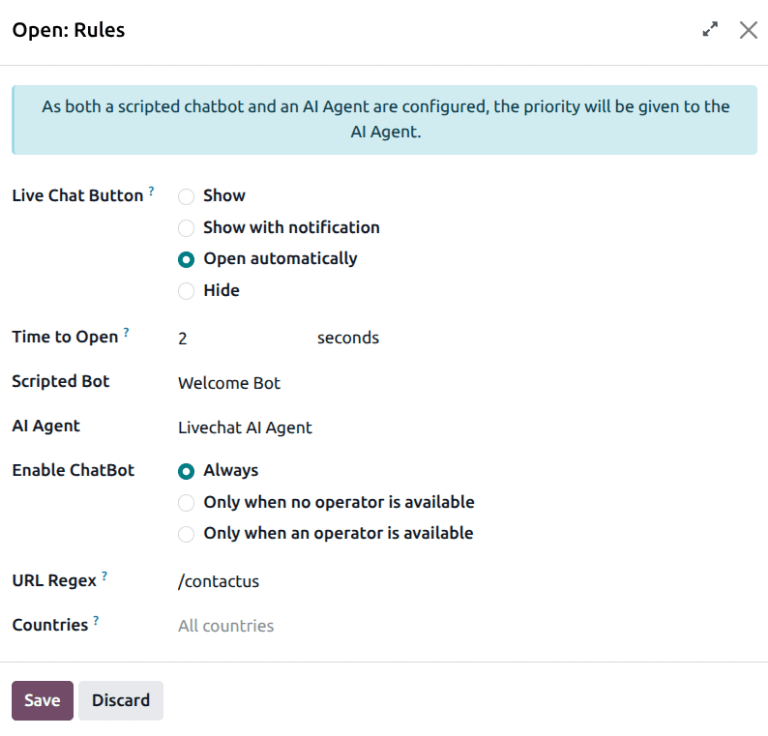
On the channel page, click on the Rules tab. Click on an existing rule, or click Add a line to add a new rule. On the Open: Rules pop-up, click in the AI Agent field, and select an agent from the drop-down.
Note
If a channel has both a chatbot and an AI Agent assigned, the priority is given to the AI agent workflow.
Configuring AI behavior in live chat
The behavior and actions of the AI agent during a live chat conversation are controlled through the agent’s settings. To configure the agent, navigate to the . On the agent card, click the (vertical ellipsis) icon, then click Configuration.
As the default Livechat AI Agent is configured to work with live chat, this section lays out how the agent’s prompt is used in a live chat conversation.
Agent identity and goals
The Livechat AI Agent identity helps define the agent’s communication style and conversation goals. At a high level, the agent is focused on answering customer questions accurately, while also being responsible for initiating lead creation when a request cannot be handled confidently.
Rather than reacting message-by-message, the agent evaluates each interaction against its defined priorities.
How the agent answers questions
During a conversation, each incoming message is evaluated against the agent’s decision rules. When sufficient information is available, the agent responds directly with a clear and concise answer.
If the available information is incomplete or uncertain, the agent does not guess or fabricate a response. Instead, it acknowledges the limitation and prepares to transition the conversation toward human follow-up.
This ensures that automated responses remain accurate and trustworthy.
How escalation is triggered
Escalation to human follow-up is defined explicitly in the agent’s prompt and delegated to a dedicated skill.
Conversations are escalated when one of the following occurs:
The request requires custom pricing, contracts, or implementation work.
The request involves account changes or troubleshooting.
The user explicitly asks to be contacted or requests a demo.
The agent cannot respond with high confidence.
When one of these conditions is met, the agent activates the Lead Creation skill.
Lead creation skill
The Lead Creation skill defines a structured, multi-step workflow that governs how contact information is collected and how a lead is created.
This skill specifies:
when lead creation is appropriate
what information must be collected
how the conversation should progress
what language the agent may and may not use
Rather than immediately creating a lead, the agent completes the following steps:
Suggests human follow-up when appropriate
Collects missing contact details one at a time
Confirms known details before proceeding
Calls the lead creation tool exactly once
The skill also enforces strict constraints to prevent system-centric language, duplicate lead creation, or premature promises of follow-up.
To view the detailed instructions for the lead creation skill, navigate to the , and click Create Leads.
See also