
Manage a bank account in a foreign currency
In Odoo, every transaction is recorded in the default currency of the company, and reports are all based on that default currency. With a bank account in a foreign currency, for every transaction, Odoo stores two values:
The debit/credit in the currency of the company.
The debit/credit in the currency of the bank account.
Currency rates are updated automatically using a banking institution’s web services. By default, Odoo uses the European Central Bank’s web services but other options are available.
Configuration
Configure currencies
To work with multiple currencies, go to , then activate and configure new currencies. Set up manual or automatic currency rate updates and define the accounts and journals used to record gains or losses incurred on exchange rate differences.
See also
Create bank journals and accounts in foreign currencies
To set up a bank account in a foreign currency, first create a new bank journal via . Set the journal’s currency to the foreign currency, then create a new bank account:
In the Bank Account field of the journal, enter the name as it should appear in the chart of accounts.
Click Create and edit.
In the resulting Create Default Account window, configure the account.
Optionally, set the Currency on the bank account to the desired foreign currency.
Setting a currency on an account in the chart of accounts restricts the journal items targeting the account to the selected currency.
Leaving the Currency field blank on an account in the chart of accounts allows journal items of any currency to target that account. In this case, journal items in the foreign currency bank journal are limited to the currency specified on the journal itself. To allow increased flexibility, leaving the Currency field blank is recommended.
Click Save.
On the journal, add a Bank Account Number and Bank if necessary (such as in the case of creating batch payment files).
See also
Unrealized Currencies report
The Unrealized Currencies report gives an overview of all unrealized amounts in a foreign currency on the balance sheet, and allows an exchange rate to be set manually or entries to be adjusted. To access the report, go to .
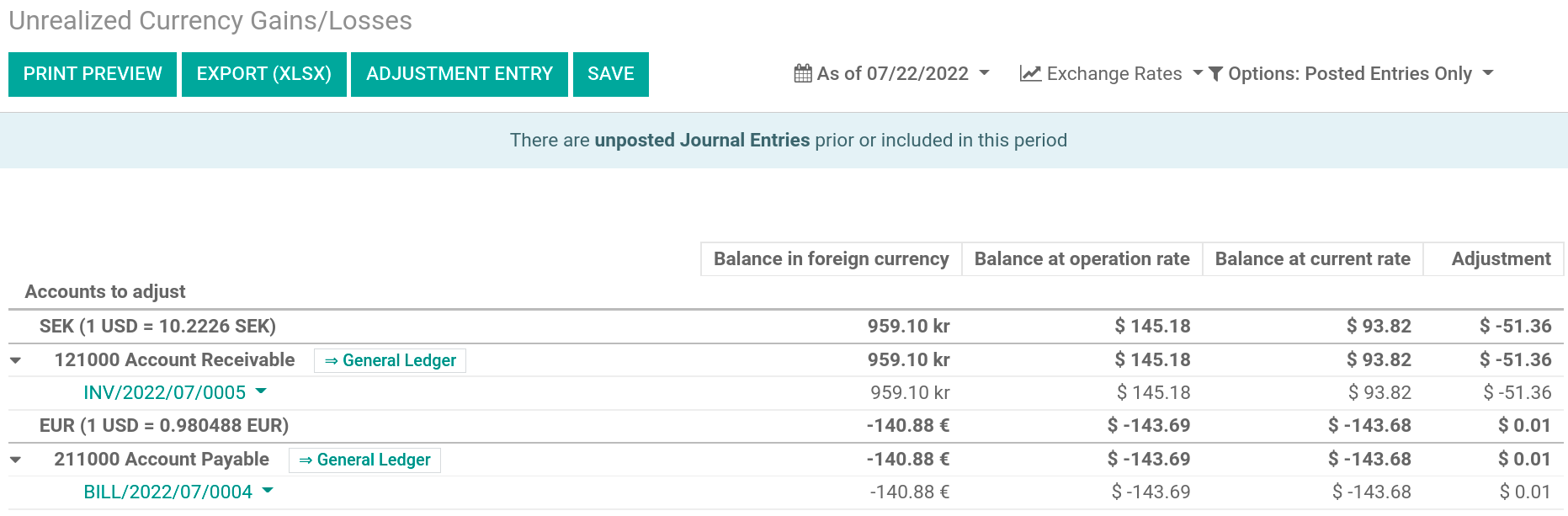
To use a different currency rate than the one set in , click the Exchange Rates button and change the rate of the foreign currencies in the report.
When manually changing exchange rates, a yellow banner appears allowing the rate to be reset to Odoo’s rate. To do so, click Reset to Odoo’s Rate.
To update the balance sheet with the amount of the Adjustment column, click the Adjustment Entry button in the top-left corner. In the pop-up window, select a Journal, an Expense Account and an Income Account to calculate and process the unrealized gains and/or losses.
You can set the date of the report in the Date field. Odoo automatically reverses the booking entry to the date set in Reversal Date.
Once posted, the Adjustment column should indicate 0.00, meaning all unrealized
gains and/or losses have been adjusted.