Accrual plans
Some time off is granted to employees up front, while other kinds of time off are earned through an accrual plan, meaning that for every specified amount of time an employee works (hour, day, week, etc), they earn or accrue a specified amount of time off.
Example
If an employee accrues a vacation day for every week they work, they would earn 0.2 vacation days for each hour they worked. At the end of a 40-hour work week, they would earn one full vacation day (8 hours).
Create an accrual plan
To create a new accrual plan, navigate to . Then, click the New button, which reveals a blank Accrual Plans form.
First, enter a Title for the accrual plan. If in a multi-company database, a Company field appears beneath the Title field. Using the drop-down menu, select the company the accrual plan applies to. If left blank, the accrual plan is available for all companies.
Next, configure the following sections of the form:
Configuration section
Configure the following fields in the Configuration section of the form:
When the time is accrued: Select when the employee begins to accrue time off, either At the start of the accrual period or At the end of the accrual period.
It is based on worked time: Select how time off accrual is determined. The options are:
Yes, consider the worked hours, excluding any time off taken during that period: Days not considered as worked time do not contribute to the accrual plan in Odoo.
No, always consider the entire accrual period (whole calendar days): Every day is calculated when determining worked time, with no exclusions.
Example
An employee is granted time off from an accrual plan configured to accrue one day of vacation for every five days worked. The accrual plan is based on the employee’s worked time (the Yes, consider the worked hours, excluding any time off taken during that period option is selected), which means they only earn vacation time for the five weekdays they work, not the entire seven-day week period.
The employee works a standard 40-hour week. According to the accrual plan, they should earn four vacation days per month.
The employee takes five days off using a time off type with the Counts as set as an Absence. Because the plan grants vacation only for worked time, those five days do not count toward accrual.
As a result, the employee accrues only three vacation days that month instead of four.
What should happen to the unused accrued time: Select what happens to the unused accrued time. The options are either They should be carried over or They should be lost (reset).
When should unused accrued time be reset/carried over: Select when the employee receives previously accrued time. The options are:
At the start of the year: Select this if the accrual rolls over on January 1 of the upcoming year.
At the allocation date: Select this if the accrual rolls over as soon as time is allocated to the employee.
Custom date: Select this option if neither of the other two options is applicable. Once selected, set the date using the two drop-down menus, one for the day and one for the month.
Switch employees to the new accrual level: Select when the employee moves to the next accrual level. The options are either Immediately or After this accrual’s period.

Milestones
Milestones must be created for employees to accrue time off from the accrual plan. Each milestone determines when and how much time off the employee earns.
To create the first milestone, click the Create a milestone button, or to create additional milestones, click the Add a milestone button. Both options open a New Milestone pop-up window. Fill out the following sections on the form.
Tip
Once milestones have been configured, click on a milestone to make edits, click the (Delete) icon to delete it, or click Add a milestone to create additional milestones.
Accrual level options section
This section determines how much the employee earns, and when.
Set the employee accrual frequency: Configure how many hours or days the employee earns in a set period of time.
The first two fields set how much time off the employee earns, while the remaining fields determine how often the employee earns the time off.
Enter the numerical amount the employee earns in the first field. The numerical format is
X.XXXX, so that partial days or hours can be earned. Next, set the middle field to either Day(s) or Hour(s).In the last field, use the drop-down menu to set the frequency the employee earns the time configured in the first two fields. Some options require additional fields to be configured. The default options are:
Hourly: The employee earns the set amount of time for every hour worked. There are no additional fields needed.
Daily: The employee earns the set amount of time for every day worked. There are no additional fields needed.
Weekly: The employee earns the set amount of time for every week worked. When selected, use the drop-down menu to select the specific day of the week in the field that appears.
Twice a month: The employee earns the set amount of time, twice a month, on two specific days. When selected, use the drop-down menus to select the specific days of the month in the two fields that appear.
Monthly: The employee earns the set amount of time for every month worked. When selected, use the drop-down menu to select the specific day of the month in the field that appears.
Twice a year: The employee earns the set amount of time, twice a year, on two specific dates. When selected, use the drop-down menus to select the specific day and month, in the four fields that appear.
Yearly: The employee earns the set amount of time, once a year, on a specific day. When selected, use the drop-down menus to select the specific day and month in the two fields that appear.
Per Hour Worked: The employee earns the set amount of time for every hour worked. There are no additional fields needed.
This milestone will be reached: This selection determines when the employee starts to earn the time off. The options are:
At allocation creation: The time off starts accruing immediately.
After (#) (Time) from the start of the allocation: Use the first two fields to set the time period the employee achieves the milestone. Enter a number in the first field, then set the middle field to either Days, Months, or Years.

Carry over options section
This section determines what happens to any unused time off at the end of the year. Configure the following field:
After a year, unused time off will be: Select Lost if any unused time off is lost, and does not carry over to the following year. Select Carried over if time off is rolled over to the next year. When this option is selected, two additional sections appear:
How much time can be carried over: Select Unlimited if all time off can be carried over. Select Up to (#) Day(s) if there is a limit. Enter the total number of days the employee can carry over from one year to the next in the blank field.
Define a carry over validity: If there is an expiration date for the carried over time off, enable this option. When enabled, the following appears: The days carried over will be effective for (#) (Days or Months). Enter a number in the first field, then set the second field to either Days or Months.

Cap options section
This section sets limits on total time off earned.
Define a yearly cap: Enable this option to set a limit on the total amount of time that can be accrued every calendar year. When enabled, the following line appears: Accrual will stop until next carry-over date if accrued time’s reach (#) Day(s). Enter the maximum number of days the employee can earn in the number field.
Define a balance cap: If there is a maximum amount of time the employee can accrue with this plan, enable this option. When enabled, the following line appears: The plan will be on hold if the balance reach (#) Day(s) of available time. Enter the maximum number of days the employee can have at any given time in the number field. Any time off beyond this parameter is lost.
When completed, click Save to save the milestone, or Save & New to save the milestone and create a new one.

Example
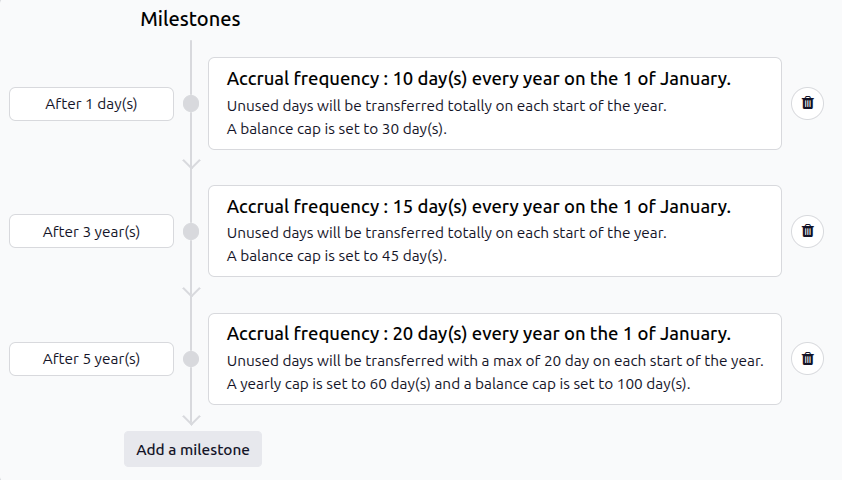
This milestone form is configured so the employee earns two weeks (10 days) a year when they are hired, three weeks (15 days) after three years, and a month (20 days) after five years. They start to earn this time yearly, on January 1st.
The employee can never accrue more than 30 days in the first three years, 45 days from years 3-5, and 100 days after five years. Anytime they exceed those amounts for the respective years, they will stop accruing more time off.
Additionally, they can roll over all their unused time off during the first five years, then they can only rollover 20 days from one year to the next.
Note that in year five, the employee can have a yearly cap of 60 days, and a total balance cap of 100 days.