
Working hours
In Odoo, working hours are the hours during which employees or equipment are scheduled to work or be available for use.
Note
Working hours may also be known as a working schedule in some Odoo applications.
Working hours are company-specific; however, working hours can be applied to all companies by leaving the Company field blank.
Working hours appear in several apps, including:
Working hours form
The following fields are available in all working hours forms:
Name: Enter the name for the new working schedule. This should be descriptive and clear to understand, such as
20 Hours/Week.Calendar Type: Select Fixed or Variable. Fixed working hours are good for schedules that require specific working hours. Variable working hours work best for businesses with split work schedules.
Days per Week: The number of days per week that the schedule is valid is displayed.
Company: Select the company that can use these new working hours from the drop-down menu. Leaving this field blank indicates that it is available for all companies.
Hours per Week: The number of hours per week that the schedule covers is displayed.
Fixed working hours
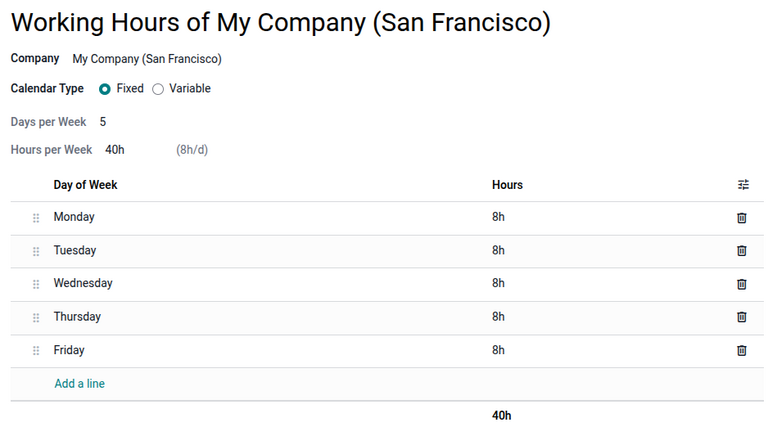
For the Fixed option, the Hours per Week and Days per Week fields are automatic formula fields that update based on the number of hours configured in the Hours column and the number of days listed in the Day of the Week column.
When the work week days and hours are configured, click Save.
The following columns are available in the form:
Day of Week: Select the day of the week that the schedule is made for.
Hours: Specify how many hours the schedule is for on the specified day.
Work from: Specify the time that the schedule starts, in 24-hour format.
Work to: Specify the time that the schedule ends, in 24-hour format.
If a column is not displayed, click the (Optional column toggle) icon and select the checkbox for it.
Important
Working hours are company-specific and cannot be shared between companies. Each company needs to have its own set of working hours.
To edit a day and its hours, click in the Hours column and enter the number of working hours for that day. To remove the day, click the Delete row icon. At the bottom of the Hours column is the calculated total of work hours for the work week.
Variable working hours
Variable calendar types are well-suited to businesses with split work schedules. This option allows industries with variable demand, such as hotels or businesses that rely heavily on tourism, to staff peak hours while reducing labor costs during slow midday periods.
When the Variable option is chosen, a calendar view displays. Multiple time blocks can be selected per day. To add a time block, click in the desired day column at the hour the work time starts. A time slot pop-up window displays with the following fields:
Duration: Specify the total number of hours of the configured time slot.
Time: Specify the start and end time of that time slot. Times are displayed in UTC.
Recurrency: Enable to repeat the time slot to run every week. When disabled, the time slot does not repeat.
Repeat every: Configure the number of days or weeks between occurrences, and optionally set an end date for the repetition. This field only displays when Recurrency is enabled.
The start and end times can be adjusted manually in the time slot window, and the Duration field recalculates automatically based on these changes.
Click Save to confirm the time slot and add it to the calendar. After all the time slots are configured for the variable working hours, click (Save manually).

See also
Employees:
Payroll:
Manufacturing: