
360 Feedback
Odoo’s Appraisals app lets managers gather feedback on their direct reports from anyone in the company. Input from colleagues gives managers a fuller view of each employee’s strengths, growth areas, and collaboration skills.
360 feedback dashboard
The 360 Feedback section displays information for all the surveys configured for the Appraisals app. To view the surveys and their statistics, navigate to .
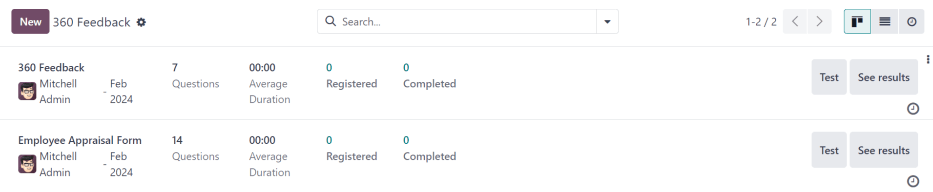
Each appraisal, or survey, is presented on its own line on the 360 Feedback dashboard, along with various information related to that particular appraisal.
Each appraisal includes the following information:
Survey Name: The name of the specific survey.
Responsible: The employee responsible for the survey, including the month and year they were given that designation.
Questions: The number of questions in that particular survey.
Completed: The number of people who have completed the survey.
To test the survey, click the Test button on the right side of the survey line. This opens the appraisal in a new tab to preview the questions without submitting answers. Close the tab to return to the list.
Request feedback
To request feedback from a colleague, navigate to the Appraisals app, and click on the appraisal card to open it.
Click the Ask Feedback button, and an Ask Feedback email pop-up window appears, using the Appraisal: Ask Feedback email template.
Note
Only confirmed appraisals display the Ask Feedback button.
First, using the drop-down menu, select the employees being asked to provide feedback in the Recipients field. Multiple employees may be selected. The Answer Deadline date is automatically set to the day the appraisal is due. Use the calendar selector to modify the date, if desired.
The Subject is populated with Take part in (Employee Name) appraisal, but can be
modified if desired.
Type in any additional comments in the space provided, if desired. The email template copy is not displayed in the pop-up window.
Click Send, and the feedback requests are sent to the specified employees.

View results
To view the results, click the Feedbacks button on the survey form. The Feedback Surveys dashboard loads, and presents a list of everyone requested to submit feedback. Each line displays the following information:
Employee: The name of the employee who was requested to submit feedback.
Status: An icon indicating if the feedback was completed or new.
Deadline: The date and time the survey must be completed.
Survey: The name of the survey, which is Employee Opinion Form by default.

Note
Feedback requests that have been sent but have not been completed are referred to as new.
To view all responses, click the See results button, and a Choose Survey pop-up window loads. Using the dropdown menu, select 360 Feedback in the Survey field, then click See Results. The combined feedback loads in a new tab.
Completed 360 feedback
Feedback requests that have been completed display a green Completed status tag on the Feedback Surveys dashboard.
To view the individual responses of a completed feedback form, click See Answers at the end of the line, and the employee’s individual responses load in a new tab.
Close the tab when the review is complete.
New 360 feedback
Feedback requests that were sent but have not been completed display a blue New status tag on the Feedback Surveys dashboard.
If necessary, the request can be resent. Click Resend at the end of the line, and an Ask Feedback pop-up window loads. Click Send to resend the feedback request.