Granting portal access
For the customers and vendors of a business to begin using a user portal, they must first be granted access by the business. The process to do this begins in the Contacts application.
Adding portal access to a contact
From the main Odoo dashboard, open the Contacts application. If the contact to be granted access is not yet in the database, create an entry for them by clicking the New button and entering their details. Otherwise, choose an existing contact, then click on the (Actions) drop-down menu and select Grant portal access.

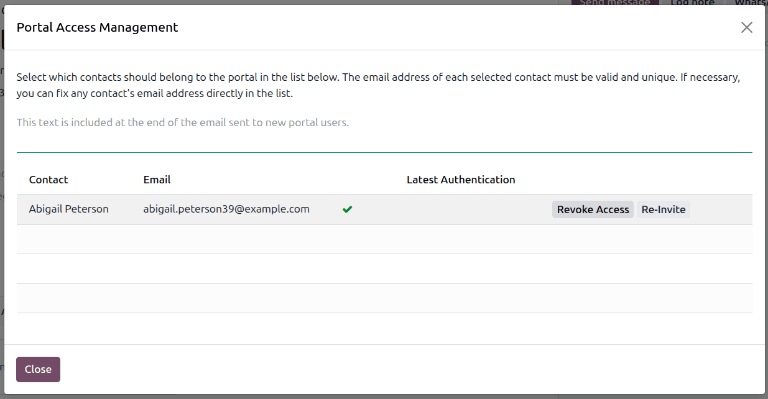
This brings up the Portal Access Management window, which has three fields:
Contact: This field is automatically populated with the name on the contact.
Email: This field shows the contact’s email address used to log into the portal.
Latest Authentication: The last time the user accessed the portal appears on this line. If the user has never accessed the portal, it is blank.
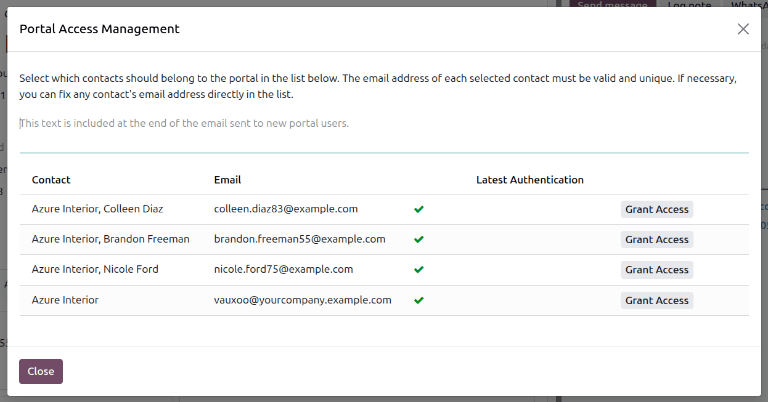
To grant portal access, first enter the email address the contact will use to log into the portal. This may have been automatically entered by the system if an existing contact is being granted access. Then click the Grant Access button to finish.

Note
When portal access is granted to a Company, all contacts affiliated with that company are granted portal access. Individual contacts can be removed as needed.
Granting access to multiple users at once
To grant portal access to multiple users from a single company at once, navigate to the contact listing for that company, then click to view a list of the company’s related contacts. Click Grant Access for each contact that needs portal access. An email is sent to the specified email address, indicating that the contact is now a portal user for that Odoo database.
Revoking portal access
Some situations may require revoking an individual’s portal access, such as when they retire or leave a company. Portal access can be revoked from a contact at any time by navigating to a contact, clicking , and then clicking Revoke Access.