
ACH payments (USA only)
ACH is an electronic funds transfer system used between bank accounts in the United States. To enable this payment method for your Authorize.net account, apply for the eCheck service on Authorize.net.
See also
Odoo configuration
Set the State field to Enabled (or Test Mode if you want to test the integration without affecting live transactions).
Fill in the API Login ID, API Transaction Key, and API Signature Key fields with the values saved at the step Configuration on the Authorize.net portal.
Note
When using the test mode, enter the API credentials of your Authorize.net sandbox account.
Click Generate Client Key.
Click Generate your webhook to create the Webhook ID.
Configure the remaining options as needed.
Tip
To recreate the webhook (e.g., after a domain change), click Re-generate your webhook.
The webhook is automatically configured with the correct URL and event types. To review webhook notifications on Authorize.net, log into the merchant portal, go to , and click Webhooks.
Supported payment methods


Export from Authorize.Net
Log in to Authorize.Net.
Go to .
Define an export range using an opening and closing batch settlement. All transactions within the two batch settlements will be exported to Odoo.
Select all transactions within the desired range, copy them, and paste them into the Report 1 Download sheet of the Excel import template.
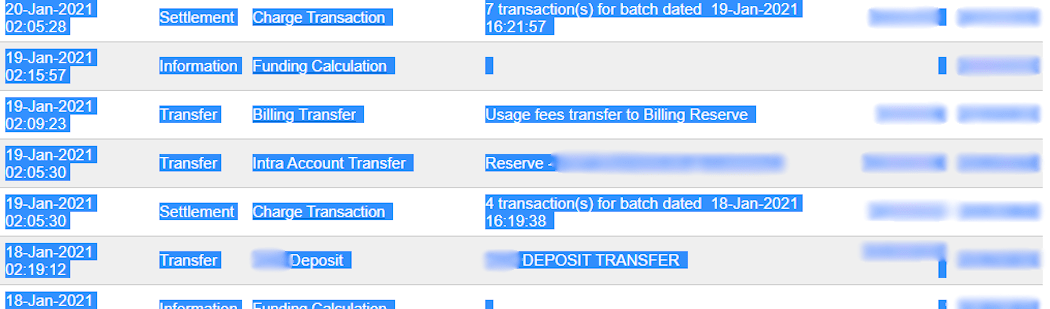
Example

In this case, the first batch (01/01/2021) of the year belongs to the settlement of 12/31/2020, so the opening settlement is from 12/31/2020.
Once the data is in the Report 1 Download sheet:
Go to the Transaction Search tab on Authorize.Net.
Under the Settlement Date section, select the previously used range of batch settlement dates in the From: and To: fields and click Search.
When the list has been generated, click Download to File.
In the pop-up window, select Expanded Fields with CAVV Response/Comma Separated, enable Include Column Headings, and click Submit.
Open the text file, select All, copy the data, and paste it into the Report 2 Download sheet of the Excel import template.
Transit lines are automatically filled in and updated in the transit for report 1 and transit for report 2 sheets of the Excel import template. Make sure all entries are present, and if not, copy the formula from previously filled-in lines of the transit for report 1 or 2 sheets and paste it into the empty lines.
Important
To get the correct closing balance, do not remove any line from the Excel sheets.
Import into Odoo
To import the data into Odoo:
Open the Excel import template.
Copy the data from the transit for report 2 sheet and use paste special to only paste the values in the Odoo Import to CSV sheet.
Look for blue cells in the Odoo Import to CSV sheet. These are chargeback entries without any reference number. As they cannot be imported as such, go to .
Look for Charge Transaction/Chargeback, and click it.
Copy the invoice description, paste it into the Label cell of the Odoo Import to CSV sheet, and add
Chargeback /before the description.If there are multiple invoices, add a line into the Excel import template for each invoice and copy/paste the description into each respective Label line.
Note
For combined chargeback/returns in the payouts, create a new line in the Excel import template for each invoice.
Example

Next, delete zero transaction and void transaction line items, and change the format of the Amount column in the Odoo Import to CSV sheet to Number.
Go back to and search again for the previously used batch settlements dates.
Verify that the batch settlement dates on eCheck.Net match the related payments’ dates found in the Date column of the Odoo Import to CSV.
If it does not match, replace the date with the one from eCheck.Net. Sort the column by date, and make sure the format is
MM/DD/YYYY.Copy the data - column headings included - from the Odoo Import to CSV sheet, paste it into a new Excel file, and save it using the CSV format.
Open the Accounting app, go to , tick the Authorize.Net box, and click . Select the CSV file and upload it into Odoo.
Tip
List of eCheck.Net return codes