
Outlook Plugin
Outlook memungkinkan aplikasi pihak ketiga untuk terhubung guna menjalankan tindakan database dari email. Odoo memiliki plugin untuk Outlook yang memungkinkan pembuatan peluang dari panel email.
Catatan
Plugin Outlook tersedia untuk versi desktop dan web Outlook. Lihat artikel add-in Microsoft.
Konfigurasi
Mail Plugin Outlook perlu dikonfigurasi baik di Odoo maupun Outlook.
Penting
Pastikan untuk memeriksa versi database di aplikasi Pengaturan --> Pengaturan Umum, di bagian bawah halaman.
Untuk versi database 19.2 dan yang lebih baru, lihat dokumentasi terbaru untuk instruksi instalasi.
Aktifkan Mail Plugin
Pertama, aktifkan fitur Mail Plugin di database. Buka , aktifkan Mail Plugin, dan Simpan konfigurasi.
Instal Outlook Plugin
Unduh () file XML berikut untuk diunggah nanti: https://download.odoocdn.com/plugins/outlook/manifest.xml.
Selanjutnya, buka kotak surat Outlook, dan pilih email apa pun. Setelah menyelesaikan ini, klik tombol Tindakan lainnya di sisi kanan atas dan pilih Dapatkan Add-in.

Tip
Untuk versi Microsoft Outlook yang diinstal secara lokal, akses item menu Dapatkan Add-in saat dalam mode pratinjau (bukan dengan pesan terbuka). Pertama, klik ikon ... (elipsis) di kanan atas pesan yang dipratinjau, kemudian gulir ke bawah, dan klik Dapatkan Add-in.
Setelah langkah ini, pilih tab My add-ins di sisi kiri.

Di bawah Add-in kustom di bagian bawah, klik + Tambahkan add-in kustom, kemudian pada Tambahkan dari file...

Untuk langkah berikutnya, lampirkan file manifest.xml yang diunduh di atas, dan tekan OK. Selanjutnya, baca peringatannya dan klik Install.

Hubungkan database
Sekarang, Outlook akan terhubung ke database Odoo. Pertama, buka email apa pun di kotak surat Outlook, klik tombol Tindakan lainnya di sisi kanan atas, dan pilih Odoo untuk Outlook.

Panel sisi kanan sekarang dapat menampilkan Company Insights. Di bagian bawah, klik Login.

Catatan
Hanya jumlah terbatas permintaan Company Insights (Lead Enrichment) yang tersedia sebagai database percobaan. Fitur ini memerlukan kredit prabayar.
Tip
Jika, setelah beberapa saat, panel masih kosong, kemungkinan pengaturan cookie browser mencegahnya untuk dimuat. Perhatikan bahwa pengaturan ini juga berubah jika browser dalam mode "Incognito".
Untuk memperbaiki masalah ini, konfigurasikan browser agar selalu mengizinkan cookie pada halaman plugin Odoo.
Untuk Google Chrome, ubah pengaturan cookie browser dengan mengikuti panduan di: https://support.google.com/chrome/answer/95647 dan tambahkan download.odoo.com ke daftar Situs yang selalu dapat menggunakan cookie.
Setelah selesai, panel Outlook perlu dibuka kembali.
Sekarang, masukkan URL database Odoo dan klik Login.
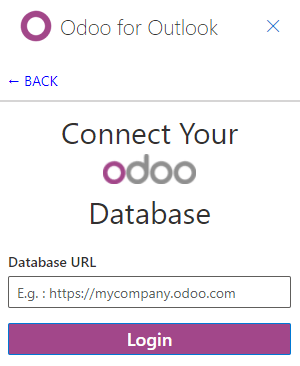
Selanjutnya, klik Allow untuk membuka jendela pop-up.

Jika user belum masuk ke database, masukkan kredensial. Klik Allow untuk mengizinkan Outlook Plugin terhubung ke database.

Tambahkan pintasan ke plugin
Secara default, Plugin Outlook dapat dibuka dari menu More actions. Namun, untuk menghemat waktu, plugin dapat ditambahkan di samping tindakan default lainnya.
Di kotak masuk Outlook, klik Settings, lalu klik View all Outlook settings.

Sekarang, pilih Customize actions di bawah Mail, klik Odoo for Outlook, lalu klik Save.

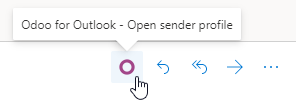
Setelah langkah ini, buka email apa pun; pintasan akan ditampilkan.
Menggunakan plugin
Setelah plug-in terinstal dan beroperasi, yang perlu dilakukan untuk membuat prospek adalah mengklik O [ikon Odoo] atau navigasi ke More actions dan klik Odoo for Outlook. Panel samping akan muncul di sisi kanan, dan di bawah Opportunities klik New. Jendela baru dengan peluang yang dibuat di database Odoo akan ditampilkan.