
Colombia
Odoo’s Colombian localization package provides accounting, fiscal, and legal features for databases in Colombia – such as chart of accounts, taxes, and electronic invoicing.
In addition, a series of videos on the subject is also available. These videos cover how to start from scratch, set up configurations, complete common workflows, and provide in-depth looks at some specific use cases as well.
Vedi anche
Configurazione
Installazione dei moduli
Installa i seguenti moduli per ottenere tutte le funzionalità della localizzazione colombiana:
Nome |
Nome tecnico |
Descrizione |
|---|---|---|
Colombia - Contabilità |
|
Pacchetto di localizzazione fiscale predefinito. Questo modulo aggiunge le funzionalità contabili di base per la localizzazione colombiana: piano dei conti, imposte, ritenuta d’acconto e tipi di documenti d’identificazione. |
Colombia - Report contabili |
|
Includes accounting reports for sending certifications to suppliers for withholdings applied. |
Fatturazione elettronica per la Colombia con Carvajal |
|
This module includes the features required for integration with Carvajal, and generates the electronic invoices and support documents related to the vendor bills, based on DIAN regulations. |
Colombia - Punto vendita |
|
Includes Point of Sale receipts for Colombian localization. |
Nota
When Colombia is selected for a company’s Fiscal Localization, Odoo automatically
installs certain modules.
Configurazione azienda
To configure your company information, go to the app, and search for your company.
Alternatively, activate developer mode and navigate to . Then, edit the contact form and configure the following information:
Nome azienda.
Address: Including City, Department and ZIP code.
Identification Number: Select the Identification Type (
NIT,Cédula de Ciudadanía,Registro Civil, etc.). When the Identification Type isNIT, the Identification Number must have the verification digit at the end of the ID prefixed by a hyphen (-).
Next, configure the Fiscal Information in the Sales & Purchase tab:
Obligaciones y Responsabilidades: Select the fiscal responsibility for the company (
O-13Gran Contribuyente,O-15Autorretenedor,O-23Agente de retención IVA,O-47Regimen de tributación simple,R-99-PNNo Aplica).Gran Contribuyente: If the company is Gran Contribuyente this option should be selected.
Fiscal Regimen: Select the Tribute Name for the company (
IVA,INC,IVA e INC, orNo Aplica)Commercial Name: If the company uses a specific commercial name, and it needs to be displayed in the invoice.
Carjaval credentials configuration
Once the modules are installed, the user credentials must be configured, in order to connect with Carvajal Web Service. To do so, navigate to and scroll to the Colombian Electronic Invoicing section. Then, fill in the required configuration information provided by Carvajal:
Username and Password: Username and password (provided by Carvajal) to the company.
Company Registry: Company’s NIT number without the verification code.
Account ID: Company’s NIT number followed by
_01.Colombia Template Code: Select one of the two available templates (
CGEN03orCGNE04) to be used in the PDF format of the electronic invoice.
Enable the Test mode checkbox to connect with the Carvajal testing environment.
Once Odoo and Carvajal are fully configured and ready for production, deactivate the Test mode checkbox to use the production database.

Importante
Test mode must only be used on duplicated databases, not the production environment.
Report data configuration
Report data can be defined for the fiscal section and bank information of the PDF as part of the configurable information sent in the XML.
Navigate to , and scroll to the Colombian Electronic Invoicing section, in order to find the Report Configuration fields. Here the header information for each report type can be configured.
Gran Contribuyente
Tipo de Régimen
Retenedores de IVA
Autorretenedores
Resolución Aplicable
Actividad Económica
Bank Information
Master data configuration
Partner
Partner contacts can be created in the Contacts app. To do so, navigate to , and click the Create button.
Then, name the contact, and using the radio buttons, select the contact type, either Individual or Company.
Complete the full Address, including the City, State, and ZIP code. Then, complete the identification and fiscal information.
Identification information
Identification types, defined by the DIAN, are available on the partner form, as part of the Colombian localization. Colombian partners must have their Identification Number (VAT) and Document Type set.
Suggerimento
When the Document Type is NIT, the Identification Number needs to be
configured in Odoo, including the verification digit at the end of the ID, prefixed by a hyphen
(`-`).
Informazioni fiscali
The partner’s responsibility codes (section 53 in the RUT document) are included as part of the electronic invoicing module, as it is required by the DIAN.
The required fields can be found under :
Obligaciones y Responsabilidades: Select the fiscal responsibility for the company (
O-13Gran Contribuyente,O-15Autorretenedor,O-23Agente de retención IVA,O-47Regimen de tributación simple, orR-99-PNNo Aplica).Gran Contribuyente: If the company is Gran Contribuyente this option should be selected.
Fiscal Regimen: Select the tribute name for the company (
IVA,INC,IVA e INC, orNo Aplica)Commercial Name: If the company uses a specific commercial name, and it needs to be displayed in the invoice.
Prodotti
To manage products, navigate to , then click on a product.
When adding general information on the product form, it is required that either the UNSPSC Category (Accounting tab), or Internal Reference (General Information tab) field is configured. Be sure to Save the product once configured.
Imposte
Per creare o modificare le tasse, vai su e seleziona la relativa tassa.
If sales transactions include products with taxes, the Value Type field in the Advanced Options tab needs to be configured per tax. Retention tax types (ICA, IVA, Fuente) are also included. This configuration is used to display taxes correctly in the invoice PDF.

Registri delle vendite
Once the DIAN has assigned the official sequence and prefix for the electronic invoice resolution, the sales journals related to the invoice documents must be updated in Odoo. To do so, navigate to , and select an existing sales journal, or create a new one with the Create button.
On the sales journal form, input the Journal Name, Type, and set a unique Short Code in the Journals Entries tab. Then, configure the following data in the Advanced Settings tab:
Electronic invoicing: Enable UBL 2.1 (Colombia).
Invoicing Resolution: Resolution number issued by DIAN to the company.
Resolution Date: Initial effective date of the resolution.
Resolution end date: End date of the resolution’s validity.
Range of Numbering (minimum): First authorized invoice number.
Range of Numbering (maximum): Last authorized invoice number.
Nota
The sequence and resolution of the journal must match the one configured in Carvajal and the DIAN.
Sequenza fattura
The invoice sequence and prefix must be correctly configured when the first document is created.
Nota
Odoo automatically assigns a prefix and sequence to the following invoices.
Registri degli acquisti
Once the DIAN has assigned the official sequence and prefix for the support document related to vendor bills, the purchase journals related to their supporting documents need to be updated in Odoo. The process is similar to the configuration of the sales journals.
Piano dei conti
The chart of accounts is installed by default as part of the localization module, the accounts are mapped automatically in taxes, default account payable, and default account receivable. The chart of accounts for Colombia is based on the PUC (Plan Unico de Cuentas).
Flussi di lavoro principali
Fatture elettroniche
Di seguito è riportata una panoramica del flusso di lavoro principale per le fatture elettroniche con la localizzazione colombiana:
Sender creates an invoice.
Electronic invoice provider generates the legal XML file.
Electronic invoice provider creates the CUFE (Invoice Electronic Code) with the electronic signature.
Electronic invoice provider sends a notification to DIAN.
DIAN convalida la fattura.
DIAN accetta o rifiuta la fattura.
Electronic invoice provider generates the PDF invoice with a QR code.
Electronic invoice provider sends invoice to the acquirer.
Acquirer sends a receipt of acknowledgement, and accepts or rejects the invoice.
Sender downloads a
.zipfile with the PDF and XML.

Creazione fattura
Nota
Il flusso di lavoro funzionale che si svolge prima della validazione di una fattura non altera le principali modifiche introdotte con la fattura elettronica.
Electronic invoices are generated and sent to both the DIAN and customer through Carvajal’s web service integration. These documents can be created from your sales order or manually generated. To create a new invoice, go to , and select Create. On the invoice form configure the following fields:
Customer: Customer’s information.
Journal: Journal used for electronic invoices.
Tipo di fattura elettronica: selezionare il tipo di documento. Per impostazione predefinita, è selezionato Factura de Venta.
Righe fattura: specificare i prodotti con le imposte corrette.
Al termine, fare clic su Conferma.
Convalida della fattura
After the invoice confirmation, an XML file is created and sent automatically to Carvajal. The invoice is then processed asynchronously by the E-invoicing service UBL 2.1 (Colombia). The file is also displayed in the chatter.

The Electronic Invoice Name field is now displayed in the EDI Documents tab, with the name of the XML file. Additionally, the Electronic Invoice Status field is displayed with the initial value To Send. To process the invoice manually, click on the Process Now button.
Reception of legal XML and PDF
The electronic invoice vendor (Carvajal) receives the XML file, and proceeds to validate its structure and information.
After validating the electronic invoice, proceed to generate a legal XML which includes a digital signature and a unique code (CUFE), a PDF invoice that includes a QR code and the CUFE is also generated. If everything is correct the Electronic Invoicing field value changes to Sent.
A .zip containing the legal electronic invoice (in XML format) and the invoice in (PDF
format) is downloaded and displayed in the invoice chatter:

The electronic invoice status changes to Accepted.
Note di credito
Il processo per le note di credito è lo stesso delle fatture. Per creare una nota di carta di credito con riferimento a una fattura, andare a . Sulla fattura, fare clic su Aggiungi nota di carta di credito e completare le seguenti informazioni:
Metodo di carta di credito: Selezionare il tipo di metodo di carta di credito.
Rimborso parziale: Utilizzare questa opzione quando si tratta di un importo parziale.
Rimborso completo: Utilizzare questa opzione se la nota di carta di credito è per l’importo totale.
Rimborso completo e nuova bozza di fattura: Utilizzare questa opzione se la nota di carta di credito è auto-convalidata e riconciliata con la fattura. La fattura originale viene duplicata come nuova bozza.
Motivo: Inserire il motivo della nota di carta di credito.
Data di storno: Selezionare se si desidera una data specifica per la nota di carta di credito o se è la data della registrazione contabile.
Utilizza sezionale specifico: Selezionare il sezionale per la nota di carta di credito o lasciarlo vuoto se si desidera utilizzare lo stesso sezionale della fattura originale.
Data di rimborso: Se è stata scelta una data specifica, selezionare la data per il rimborso.
Una volta verificato, fare clic sul pulsante Storna.
Note di debito
Il processo per le note di debito è simile a quello delle note di carta di credito. Per creare una nota di debito con riferimento a una fattura, andare a . Sulla fattura, fare clic sul pulsante Aggiungi nota di debito e inserire le seguenti informazioni:
Motivo: Digitare il motivo della nota di debito.
Data nota di debito: Selezionare le opzioni specifiche.
Copia righe: Selezionare questa opzione se è necessario registrare una nota di debito con le stesse righe della fattura.
Utilizza sezionale specifico: Selezionare il punto stampante per la nota di debito o lasciarlo vuoto se si desidera utilizzare lo stesso sezionale della fattura originale.
Al termine, fare clic su Crea nota di debito.
Documento di supporto per le fatture fornitori
Con i dati anagrafici, le credenziali e il registro acquisti configurati per i documenti di supporto relativi alle fatture fornitore, puoi iniziare a utilizzare i documenti di supporto.
I documenti di supporto per le fatture fornitore possono essere creati dal tuo ordine di acquisto o manualmente. Vai su e compila i seguenti dati:
Fornitore: Inserisci le informazioni del fornitore.
Data fattura: Seleziona la data della fattura.
Registro: Seleziona il registro per i documenti di supporto relativi alle fatture fornitore.
Righe fatturate: Specifica i prodotti con le imposte corrette.
Una volta verificato, fai clic sul pulsante Conferma. Alla conferma, viene creato un file XML e inviato automaticamente a Carvajal.
Errori comuni
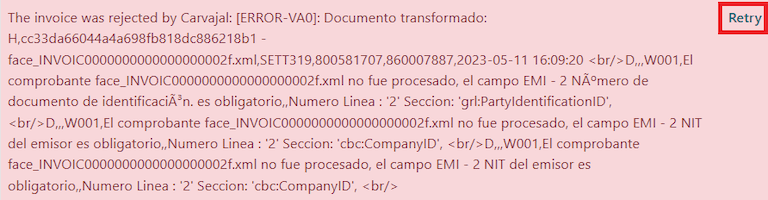
During the XML validation, the most common errors are related to missing master data (Contact Tax ID, Address, Products, Taxes). In such cases, error messages are shown in the chatter after updating the electronic invoice status.
After the master data is corrected, it’s possible to reprocess the XML with the new data and send the updated version, using the Retry button.
Rendiconti finanziari
Certificado de Retención en ICA
Questo report è una certificazione ai fornitori per le ritenute effettuate per l’imposta colombiana Industria e Commercio (ICA). Il report si trova in .

Certificado de Retención en IVA
Questo report emette un certificato sull’importo trattenuto dai fornitori per la ritenuta IVA. Il report si trova in .

Certificado de Retención en la Fuente
Questo certificato viene rilasciato ai partner per la ritenuta alla fonte che hanno effettuato. Il report si trova in .
