
Argomenti avanzati
Questa sezione tratta le funzionalità avanzate di Odoo.sh relative a container, sottomoduli Git e azioni pianificate.
Contenitori
Ogni build è isolata nel proprio container (container con namespace Linux). La base è un sistema basato su Ubuntu su cui sono installate tutte le dipendenze richieste da Odoo, oltre ai pacchetti comuni più utili.
Se il tuo progetto richiede dipendenze Python aggiuntive o versioni più recenti, puoi definire un file requirements.txt nella radice dei tuoi rami che le elenchi. La piattaforma si assicurerà che queste dipendenze siano installate nei tuoi container.
Vedi anche
For a concrete example, check out the Odoo Community requirements.txt file.
Nota
Vengono presi in considerazione anche i file requirements.txt dei sottomoduli. La piattaforma cerca questi file nella cartella principale di ogni cartella contenente un modulo Odoo.
Struttura della cartella
Poiché i container sono basati su Ubuntu, la struttura delle loro directory segue il Filesystem Hierarchy Standard.
Le directory rilevanti per Odoo.sh sono le seguenti:
.
├── home
│    └── odoo
│         ├── backup.daily
│         ├── data
│         │    ├── filestore           Database attachments, as well as the files of binary fields
│         │    └── sessions            Visitors and users sessions
│         ├── logs
│         │    ├── install.log         Database installation logs
│         │    ├── odoo.log            Running server logs
│         │    ├── update.log          Database updates logs
│         │    └── pip.log             Python packages installation logs
│         └── src
│              ├── odoo                Odoo Community source code
│              │    └── odoo-bin       Odoo server executable
│              ├── enterprise          Odoo Enterprise source code
│              ├── themes              Odoo Themes source code
│              └── user                Your repository branch source code
└── usr
     ├── lib
     │    └── pythonX.XX
     │         └── dist-packages       Python X.XX standard libraries
     ├── local
     │    └── lib
     │         └── pythonX.XX
     │              └── dist-packages  Python X.XX third-party libraries
     └── usr
          └── bin
               └── pythonX.X           Python X.XX executable
Shell del database
Quando si accede a un container tramite la shell è possibile accedere al database utilizzando il comando psql.
odoo@odoo-master-1.odoo.sh:~$ psql
psql (16.9)
Type "help" for help.

odoo-master-1=>
Avvertimento
Utilizza sempre transactions (ad es., BEGIN (…) COMMIT / ROLLBACK) quando un’istruzione SQL comporta modifiche (ad es., UPDATE, DELETE, ALTER, etc.) , specialmente nel caso di database di produzione. Il meccanismo di transizione è la tua rete di protezione in caso di errori. Ti basterà eseguire il rollback delle modifiche per riportare il database al suo stato precedente.
Non dimenticare di eseguire il commit o il rollback delle transazioni. Le transazioni aperte possono bloccare i record nelle tue tabelle e un database in esecuzione potrebbe attendere il loro rilascio, causando il blocco indefinito di un server.
Inoltre, utilizza prima i database di staging per testare le istruzioni. Ti offre una rete di sicurezza aggiuntiva.
Example
Hai dimenticato di impostare la condizione WHERE. In questo caso, puoi eseguire il ripristino dello stato precedente per annullare la modifica indesiderata:
odoo-master-1=> BEGIN;
BEGIN
odoo-master-1=> UPDATE res_users SET password = '***';
UPDATE 457
odoo-master-1=> ROLLBACK;
ROLLBACK
In seguito, riscrivi l’istruzione ed esegui il commit della modifica:
odoo-master-1=> BEGIN;
BEGIN
odoo-master-1=> UPDATE res_users SET password = '***' WHERE id = 1;
UPDATE 1
odoo-master-1=> COMMIT;
COMMIT
Far funzionare un server Odoo
Puoi avviare un’istanza del server Odoo da una shell del container. Non potrai accedervi dall’esterno con un browser web ma puoi:
usare la shell di Odoo
odoo-bin shell
>>> partner = env['res.partner'].search([('email', '=', 'asusteK@yourcompany.example.com')], limit=1)
>>> partner.name
'ASUSTeK'
>>> partner.name = 'Odoo'
>>> env['res.partner'].search([('email', '=', 'asusteK@yourcompany.example.com')], limit=1).name
'Odoo'
installare un modulo
odoo-bin -i sale --without-demo=all --stop-after-initSuggerimento
L’argomento
--without-demo=allimpedisce il caricamento dei dati di prova per tutti i moduli.L’argomento
--stop-after-initarresta immediatamente l’istanza del server al termine dell’operazione.
aggiornare un modulo
odoo-bin -u sale --stop-after-init
eseguire test per un modulo
odoo-bin -i sale --test-enable --log-level=test --stop-after-init
Vedi anche
Per individuare il percorso dei componenti aggiuntivi utilizzato da Odoo.sh per eseguire il server, cerca «odoo: addons paths» nei log (~/logs/odoo.log).
2025-02-19 10:51:39,267 4 INFO ? odoo: Odoo version 18.0
2025-02-19 10:51:39,268 4 INFO ? odoo: Using configuration file at /home/odoo/.config/odoo/odoo.conf
2025-02-19 10:51:39,268 4 INFO ? odoo: addons paths: ['/home/odoo/data/addons/18.0', '/home/odoo/src/user', '/home/odoo/src/enterprise', '/home/odoo/src/themes', '/home/odoo/src/odoo/addons', '/home/odoo/src/odoo/odoo/addons']
Avvertimento
Le operazioni eseguite su un’istanza del server Odoo non sono isolate: le modifiche si riflettono sul database. Ricorda di eseguire sempre i test nei tuoi database di staging.
Eseguire il debug in Odoo.sh
Nota
Il debug di una build di Odoo.sh non è molto diverso dal debug di un’altra applicazione Python. Lo scopo di questa sezione è illustrare le specificità e le limitazioni della piattaforma Odoo.sh, presupponendo che tu sappia già come utilizzare un debugger.
Puoi usare pdb, pudb o ipdb per il debug del codice su Odoo.sh. Poiché il server viene eseguito al di fuori di una shell, non puoi avviare il debugger direttamente dal backend di Odoo in quanto richiede una shell per funzionare.
pdb viene installato per impostazione predefinita in ogni contenitore.
Suggerimento
Per usare pudb o ipdb, è necessario installarli in uno dei seguenti modi:
in modo permanente aggiungendo
pudboipdbal filerequirements.txtdel progetto;temporaneamente (solo nella build corrente) eseguendo il comando appropriato:
pip install pudb --user
pip install ipdb --user
Aggiungi questo codice a quello che desideri sottoporre a debug per attivare il debugger:
import sys
if sys.__stdin__.isatty():
    import pdb; pdb.set_trace()
Nota
La condizione
sys.__stdin__.isatty()è un metodo alternativo per rilevare se Odoo è in esecuzione da una shell.Successivamente, salva il file ed esegui la shell di Odoo:
odoo-bin shell
Usa la shell di Odoo per attivare il codice che desideri sottoporre a debug.

Moduli secondarii
I sottomoduli Git ti permettono di collegare repository esterni direttamente al tuo progetto senza dover copiare e incollare il codice così da semplificare la distribuzione tramite la clonazione delle dipendenze insieme al codice principale. Mantieni un controllo preciso delle versioni scegliendo i branch esatti e fissando specifiche revisioni dei commit da aggiornare quando lo desideri.
Su Odoo.sh, la piattaforma rileva automaticamente i sottomoduli e li aggiunge al percorso dei componenti aggiuntivi per l’installazione del database, a condizione che tu configuri una chiave di distribuzione nelle impostazioni di progetto e repository quando integri repository privati.
Aggiungere un modulo secondario
Nota
Al momento, non è possibile aggiungere repository privati con Odoo.sh. È comunque possibile farlo con Git.
Dalla vista Rami del tuo progetto Odoo.sh, scegli il ramo in cui vuoi aggiungere un sottomodulo;
nell’angolo in alto a destra, fai clic su Sottomodulo e poi su Esegui su Odoo.sh;
nella finestra di dialogo, compila i seguenti campi:
URL repository: l’URL SSH della repository
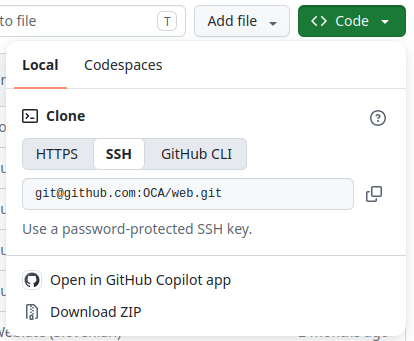
Suggerimento
Su GitHub, fai clic su Clone, seleziona SSH e copia l’URL.
Ramo: il ramo specifico da utilizzare;
Percorso: la cartella in cui il sottomodulo deve essere aggiunto nel tuo ramo.

In un terminale, nella cartella dove viene clonato il registro Git, verifica il ramo al quale vuoi aggiungere il modulo secondario:
git checkout <branch>
aggiungi il modulo secondario:
git submodule add -b <branch> <git@yourprovider.com>:<username/repository.git> <path>
<git@yourprovider.com>:<username/repository.git>: l’URL SSH della repository che vuoi aggiungere come modulo secondario
<branch>: il ramo che vuoi utilizzare nella repository
<path>: la cartella in cui vuoi aggiungere questo modulo secondario
esegui il commit e il push delle modifiche:
git commit -a && git push -u <remote> <branch><remote>: la repository su cui vuoi eseguire il push delle modifiche. In una configurazione Git standard, si tratta di origin.
<branch>: il ramo su cui vuoi eseguire il push delle modifiche. Molto probabilmente, il ramo che hai selezionato al primo passaggio.
Suggerimento
Quando aggiungi una repository che contiene molti moduli, potresti voler ignorarne alcuni se vengono installati automaticamente. Per farlo, anteponi un . (ad es. .folder) alla cartella del tuo modulo secondario. La piattaforma ignorerà questa cartella e potrai selezionare manualmente i moduli creando dei collegamenti simbolici ad essi da un’altra cartella.
Azioni programmate
Sulla piattaforma Odoo.sh, le azioni pianificate sono implementate in modo leggermente diverso rispetto a un server Odoo standard ed eseguite secondo il principio del «best-effort». Questo perché più clienti potrebbero condividere lo stesso server e a ciascuno viene garantita una quota equa delle risorse. Pertanto, non è possibile garantire un orario di esecuzione esatto per le azioni pianificate.
Importante
Non aspettarti che un’azione pianificata venga eseguita più spesso di ogni cinque minuti.
Poiché il tempo di esecuzione delle azioni pianificate è limitato, ti consigliamo di assicurarti che le azioni pianificate:
lavorino su piccoli gruppi di record;
registrino le modifiche dopo aver elaborato ogni gruppo, in modo da non dover ricominciare da capo in caso di interruzione dovuta al limite di tempo;
siano idempotenti, cioè non devono causare effetti collaterali se vengono avviate più spesso del previsto.
IP address change
Odoo.sh notifies project administrators of IP address changes.
Additionally, when the IP address of a production instance changes, an HTTP GET request is made
to the path /_odoo.sh/ip-change with the new IP address included as a query string parameter
(new), along with the previous IP address as an additional parameter (old).
This mechanism allows custom actions to be triggered in response to the IP address change (e.g., sending an email, contacting a firewall API, configuring database objects, etc.)
For security reasons, the /_odoo.sh/ip-change route is accessible only internally by the platform
itself and returns a 403 response if accessed through any other means.
Here is a pseudo-implementation example:
class IPChangeController(http.Controller):

    @http.route('/_odoo.sh/ip-change', auth='public')
    def ip_change(self, old=None, new=None):
        _logger.info("IP address changed from %s to %s", old, new)
        # Then perform whatever action is required for your use case, e.g., update an
        # ir.config_parameter, send an email, contact an external firewall service's API, ...
        return 'ok'