
Accordi sul livello di servizio (SLA)
A service level agreement (SLA) defines the level of service a customer can expect from a supplier. SLAs provide a timeline that tells customers when they can expect results, and keeps the support team on target.
Nota
The SLA Policies feature is enabled by default on newly created Helpdesk teams.
Per disattivare la funzionalità o modificare l’orario di lavoro, vai a . Fai clic su un team per aprire la pagina di configurazione di quel team.
From here, scroll to the Performance section. To turn off the SLAs feature for the team, clear the SLA Policies checkbox.

Creare una nuova politica SLA
Per creare una nuova politica, vai a , e fai clic su Nuovo.
In alternativa, vai a , e fai clic su un team. Quindi, fai clic sul pulsante intelligente Politiche SLA in alto nella pagina delle impostazioni del team, e fai clic su Nuovo.
On the blank SLA policy form, enter a Title and a Description for the new policy, and proceed to fill out the form using the steps below.
Definire i criteri per una politica SLA
La sezione Criteri viene utilizzata per identificare a quali ticket viene applicata questa politica.
Compila i seguenti campi per modificare i criteri di selezione:
Nota
Salvo diversa indicazione, è possibile effettuare selezioni multiple per ciascun campo.
Helpdesk Team: a policy can only be applied to one team. This field is required.
Priority: the priority level for a ticket is identified by selecting one, two, or three of the ⭐ (star) icons, representing the priority level on the Kanban card or on the ticket itself. The SLA is only applied after the priority level has been updated on the ticket to match the SLA criteria. If no selection is made in this field, this policy only applies to tickets marked as
Low Priority, meaning those with zero ⭐ (star) icons.Tags: tags are used to indicate what the ticket is about. Multiple tags can be applied to a single ticket.
Customers: individual contacts or companies may be selected in this field.
Sales Order Items: this field is available only if a team has the Timesheets app enabled. This allows the ticket to link directly to a specific line on a sales order, which must be indicated on the ticket in the Sales Order Items field.
Example
Un team di supporto deve affrontare problemi urgenti per i clienti VIP entro un giorno lavorativo.
The new policy, titled 8 Hours to close, is assigned to the VIP Support team. It only
applies to tickets that are assigned three ⭐ (star) icons, which equates to an
Urgent priority level.
Allo stesso tempo, i ticket possono essere correlati a più problemi, quindi la politica si applica ai ticket con tag Riparazione, Servizio o Emergenza.

Stabilire un obiettivo per una politica SLA
A target is the stage a ticket needs to reach, and the time allotted to reach that stage, in order to satisfy the SLA policy. Any stage assigned to a team may be selected for the Reach Stage field.
Time spent in stages selected in the Excluding Stages field are not included in the calculation of the SLA deadline.
Example
An SLA titled 8 Hours to Close tracks the working time before
a ticket is completed, and would have Solved as the Reach Stage. Simultaneously, an
SLA titled 2 Days to Start tracks the working time before
work on a ticket has begun, and would have In Progress as the Reach Stage.
Rispettare le scadenze SLA
As soon as it is determined that a ticket fits the criteria of an SLA policy, a deadline is calculated. The deadline is based on the creation date of the ticket, and the targeted working hours.
Nota
The value indicated next to the Working Hours field of an SLA policy is used to determine the deadline. By default, this is determined by the value set in the Company Working Hours field under .
The deadline is then added to the ticket, as well as a tag indicating the name of the SLA applied.

When a ticket satisfies an SLA policy, the SLA tag turns green, and the deadline disappears from view on the ticket.

Importante
If a ticket fits the criteria for more than one SLA, the earliest occurring deadline is displayed on the ticket. After that deadline has passed, the next deadline is displayed.
If the SLA deadline passes and the ticket has not moved to the Reach Stage, the SLA tag turns red. After the SLA has failed, the red tag stays on the ticket, even after the ticket is moved to the Reach Stage.

Analizzare le prestazioni SLA
The SLA Status Analysis report tracks how quickly an SLA is fulfilled, as well as the performance of individual team members. Navigate to the report, and corresponding pivot table, by going to .
VIsta pivot
By default, the report displays in a Pivot view. Any SLA policies in the database with tickets that failed to fulfill a policy, are in progress, or have satisfied a policy are listed. By default, they are grouped by team and ticket count.
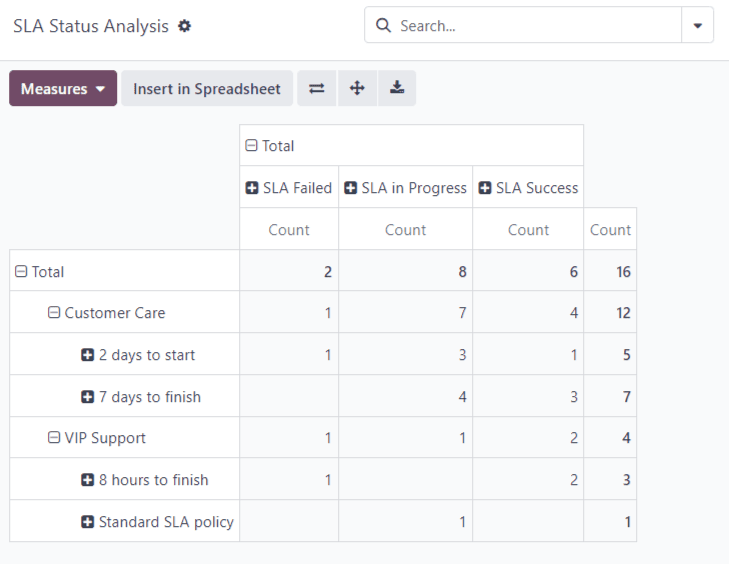
La vista pivot aggrega i dati, che possono essere manipolati aggiungendo misure e filtri.
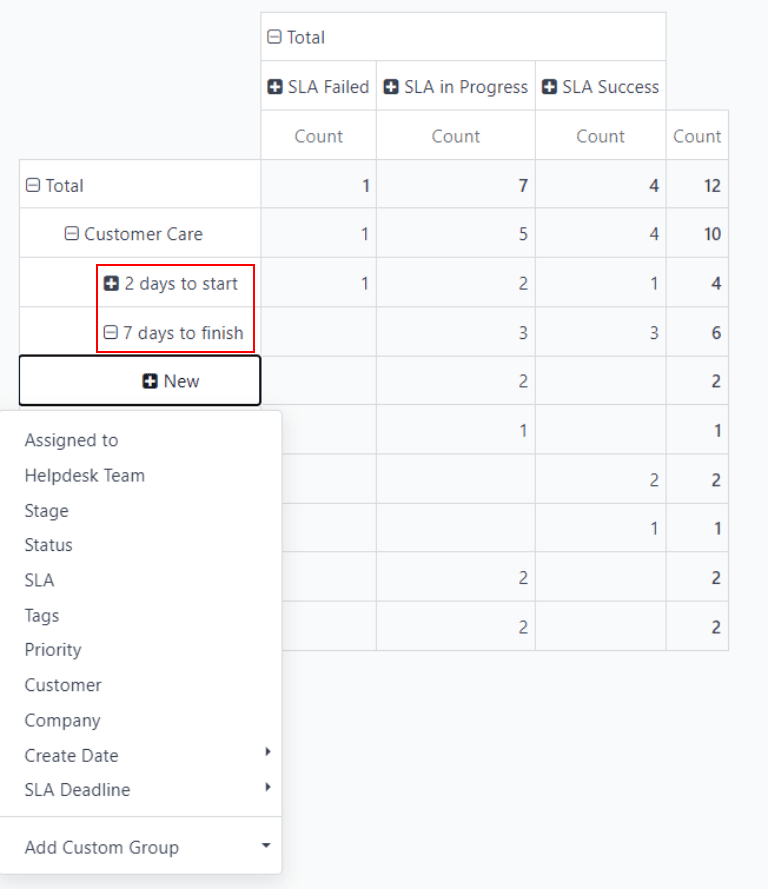
Per modificare la visualizzazione o aggiungere misurazioni aggiuntive, fare clic sul pulsante Misure per visualizzare un menu a discesa dei criteri di reportistica e scegliere tra le opzioni disponibili.
Whenever a measurement is picked, a ✔️ (checkmark) icon appears in the drop-down menu to indicate that the measurement is included, and a corresponding new column emerges in the pivot table to show the relevant calculations.

To add a group to a row or column, click the ➕ (plus) icon next to the policy name and then select one of the groups. To remove one, click the ➖ (minus) icon next to the policy name.
Vista grafico
The SLA Status Analysis report can also be viewed as a Bar Chart, Line Chart, or Pie Chart. Toggle between these views by first selecting the Graph button at the top-right of the dashboard. Then, select the appropriate chart icon at the top-left of the graph.

Un grafico a barre può gestire set di dati più grandi e confrontare dati tra diverse categorie.

Un grafico a linee può visualizzare tendenze dei dati o cambiamenti nel tempo.

Un grafico a torta confronta dati tra un numero limitato di categorie.
Suggerimento
Both the Bar Chart and Line Chart views can be Stacked by selecting the Stacked icon. This displays two or more groups on top of each other instead of next to each other, making it easier to compare data.

Vista coorte
The Cohort view is used to track the changes in data over a period of time. To display the SLA Status Analysis report in a Cohort view, click the Cohort button, represented by (four cascading horizontal lines), in the top-right corner, next to the other view options.

La vista coorte esamina il ciclo di vita dei dati nel tempo.