Alokasi
Setelah tipe cuti dan rencana akrual dikonfigurasi, langkah selanjutnya adalah mengalokasikan, atau memberikan, cuti kepada karyawan.
Halaman Alokasi dari aplikasi Cuti hanya terlihat oleh user yang memiliki hak akses Time Off Officer atau Administrator untuk aplikasi Cuti. Untuk informasi lebih lanjut tentang hak akses, lihat dokumentasi hak akses.
Alokasikan cuti
Untuk membuat alokasi baru, buka .
Ini menyajikan daftar semua alokasi saat ini, termasuk status masing-masing.
Click New to allocate time off, and a blank allocation form appears.
Setelah memasukkan nama untuk alokasi pada kolom kosong pertama formulir, masukkan informasi berikut:
Jenis Cuti: Menggunakan menu drop-down, pilih jenis cuti yang dialokasikan kepada karyawan.
Allocation Type: Select either Regular Allocation or Accrual Allocation. If the allocation is not based on an accrual plan, select Regular Allocation.
Accrual Plan: If Accrual Allocation is selected for the Allocation Type, the Accrual Plan field appears. Using the drop-down menu, select the accrual plan with which the allocation is associated. An accrual plan must be selected for an Accrual Allocation.
Periode Validitas/Tanggal Mulai: Jika Alokasi Regular dipilih untuk Jenis Alokasi, kolom ini diberi label Periode Validitas. Jika Alokasi Akrual dipilih untuk Jenis Alokasi, kolom ini diberi label Tanggal Mulai.
Tanggal saat ini mengisi kolom tanggal pertama secara default. Untuk memilih tanggal lain, klik pada tanggal yang telah terisi untuk menampilkan jendela kalender popover. Navigasi ke tanggal mulai yang diinginkan untuk alokasi, dan klik pada tanggal untuk memilihnya.
If the allocation expires, select the expiration date in the next date field. If the time off does not expire, leave the second date field blank. No Limit appears in the field if no date is selected.
Jika Alokasi Akrual dipilih untuk Jenis Alokasi, kolom kedua ini diberi label Jalankan hingga.
Penting
If the Start Date entered is in the middle of a period of time, such as the middle of the month, Odoo applies the allocation to the beginning or end of the period, depending on the Accrued Gain Time entered on the accrual plan (either At the start of the accrual period, or At the end of the accrual period) instead of the specific date entered.
For example, an allocation is created, and references an accrual plan that grants time At the start of the accrual period, monthly, on the first of the month.
On the allocation form, the Allocation Type is set to Accrual Allocation, and the Start Date entered is
06/16/24.Odoo's Time Off app retroactively applies the allocation to the beginning of the time period entered in the Start Date.
Therefore, this allocation accrues time from
06/01/24, rather than06/16/24.Additionally, if on the accrual form, the allocation references an accrual plan that grants time `At the end of the accrual period, the allocation accrues time from
7/01/24rather than6/18/24.Alokasi: Masukkan jumlah waktu yang dialokasikan kepada karyawan. Bidang ini menampilkan waktu dalam Jam atau Hari, tergantung pada bagaimana Tipe Cuti yang dipilih dikonfigurasi.
Mode: Using the drop-down menu, select how the allocation is assigned. This selection determines who receives the time off allocation. The options are By Employee, By Company, By Department, or By Employee Tag.
Depending on what is selected for the Mode, the field beneath Mode is labeled either: Employees, Company, Department, or Employee Tag.
Using the drop-down menu, indicate the specific employees, company, department, or employee tags receiving this time off.
Multiple selections can be made for either Employees or Employee Tag.
Only one selection can be made for the Company or Department.
Tambahkan alasan...: Jika diperlukan deskripsi atau catatan untuk menjelaskan alokasi cuti, masukkan di kolom ini di bagian bawah formulir.

Minta alokasi
Jika seorang karyawan telah menggunakan semua cutinya, atau akan kehabisan cuti, mereka dapat meminta alokasi untuk waktu tambahan. Alokasi dapat diminta dengan salah satu dari dua cara, baik dari Dashboard atau tampilan Alokasi Saya.
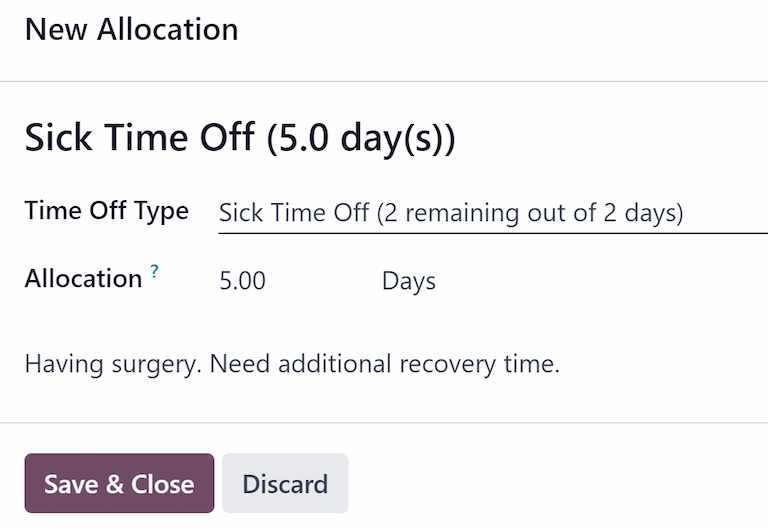
Untuk membuat permintaan alokasi baru, klik tombol Permintaan Alokasi Baru di dashboard Cuti utama, atau tombol Baru di tampilan daftar Alokasi Saya. Kedua tombol membuka formulir permintaan alokasi baru.
Catatan
Both options open a new allocation request form, but when requested from the Dashboard, the form appears in a pop-up window, and the Validity Period field does not appear. When requested from the My Allocations list view, the screen navigates to a new allocation request page, instead of presenting a pop-up window.
Masukkan informasi berikut pada formulir permintaan alokasi baru:
Time Off Type: Select the type of time off being requested for the allocation from the drop-down menu. After a selection is made, the title updates with the time off type.
Validity Period: By default, the current date populates this field, and it is not able to be modified. This field only appears when requesting an allocatoin from the My Allocations view ().
Alokasi: Masukkan jumlah waktu yang diminta di bidang ini. Formatnya disajikan dalam Hari atau Jam, tergantung pada bagaimana Jenis Cuti dikonfigurasi. Setelah bidang ini diisi, nama permintaan alokasi diperbarui untuk menyertakan jumlah waktu yang diminta.
Tambahkan alasan...: Masukkan deskripsi untuk permintaan alokasi di bidang ini. Ini harus menyertakan detail apa pun yang mungkin diperlukan oleh pemberi persetujuan untuk menyetujui permintaan.
Jika permintaan dibuat dari Dashboard, klik tombol Simpan & Tutup pada jendela pop-up Alokasi Baru untuk menyimpan informasi dan mengirimkan permintaan.
If the form was completed from the My Allocations list view, the information is automatically saved as it is entered. However, the form can be saved manually at any time by clicking the (cloud upload) icon.