
Log expenses
Before expenses can be reimbursed, each individual expense needs to be logged in the database. Expense records can be created in three different ways: manually enter an expense record, upload a receipt, or email a receipt to a preconfigured email address.
Manually enter expenses
To record a new expense, open the , which displays the My Expenses page, by default.
Tip
This view can also be accessed from .
Then, click New, and then fill out the following fields on the form that appears:
Description: Enter a short description for the expense. This should be concise and informative, such as
lunch with clientorhotel for conference.Category: Select the expense category from the drop-down menu that most closely corresponds to the expense.
Total: Enter the total amount paid for the expense in one of two ways:
If the expense is for a single item/expense, and the category selected was for a single item, enter the cost in the Total field (the Quantity field is hidden).
If the expense is for multiples of the same item/expense with a fixed price, the Unit Price is displayed. Enter the quantity in the Quantity field, and the total cost is automatically updated with the correct total. The total cost appears below the Quantity.
Example
In the case of mileage driven, the Unit Price is populated as the cost per mile. Set the Quantity to the number of miles driven, and the total is calculated.
Included Taxes: If taxes were configured on the expense category, the tax percentage and amount appear automatically after entering either the Total or the Quantity.
Catatan
When a tax is configured on an expense category, the Included Taxes value updates in real time, as the Total or Quantity is updated.
Employee: Using the drop-down menu, select the employee this expense is for.
Paid By: Click the radio button to indicate who paid for the expense, and should be reimbursed. Select either Employee (to reimburse) or Company. Depending on the expense category selected, this field may not appear.
Expense Date: Using the calendar popover window that appears when this field is clicked, enter the date the expense was incurred.
Account: Using the drop-down menu, select the expense account the expense should be logged in.
Customer to Reinvoice: If the expense is something that should be paid for by a customer, select the SO and customer that should be invoiced for this expense from the drop-down menu. All sales orders in the drop-down menu list both the SO, as well as the company the sales order is written for. After the expense is saved, the customer name disappears, and only the SO is visible on the expense.
Example
A customer wishes to have an on-site meeting for the design and installation of a custom garden, and agrees to pay for the expenses associated with it (such as travel, hotel, meals, etc). All expenses tied to that meeting would indicate the sales order for the custom garden (which also references the customer) as the Customer to Reinvoice.
Analytic Distribution: Select the account the expense should be written against from the drop-down menu for either Projects, Departments, or both. Multiple accounts can be listed for each category, if needed. Adjust the percentage for each analytic account by typing in the percentage value next to each account.
Company: If multiple companies are set up, select the company the expense should be filed for from the drop-down menu. The current company automatically populates this field.
Notes...: If any notes are needed to clarify the expense, enter them in the notes field.

Attach receipts
After the expense record is created, the next step is to attach a receipt. Click the Attach Receipt button, and a file explorer appears. Navigate to the receipt to be attached, and click Open.
The new receipt is recorded in the chatter, and the number of receipts appears next to the (paperclip) icon. Multiple receipts can be attached to an individual expense record, as needed.

Upload expenses
It is possible to have expense records created automatically, by uploading a PDF receipt. This feature requires the enabling of a setting, and the purchasing of IAP credits.
Digitalization settings
To enable receipt scanning, navigate to , and tick the checkbox beside the Expense Digitization (OCR) option. Then, click Save. When enabled, additional options appear. Click on the corresponding radio button to select one of the following options:
Do not digitize: turns off receipt digitization.
Digitize on demand only: only digitizes receipts when requested. A Digitize document button appears on expense records. When clicked, the receipt is scanned and the expense record is updated.
Digitize automatically: automatically digitizes all receipts when they are uploaded.
Beneath these options are two additional links. Click the Buy credits link to purchase credits for receipt digitization. Click the View My Services link to view a list of all current services, and their remaining credit balances.
For more information on document digitization and IAPs, refer to the In-app purchase (IAP) documentation.
Catatan
When the Expense Digitization (OCR) option is enabled, a necessary module is installed, so receipts can be scanned. Disabling this option uninstalls the module.
If, at some point, there is a desire to temporarily stop digitizing receipts, select the Do not digitize option. The reason this option is available is so the module is not uninstalled, allowing for digitization to be enabled in the future by selecting one of the other two options.
Upload receipts
Open the Expenses app, and from the My Expenses dashboard, click Upload, and a file explorer appears. Navigate to the desired receipt, select it, then click Open.

The receipt is scanned, and a new expense record is created. The Expense Date field is populated with today's date, along with any other fields based on the scanned data, such as the Total.
Click on the new entry to open the individual expense form, and make any changes, if needed. The scanned receipt appears in the chatter.
Email expenses
Instead of individually creating each expense in the Expenses app, expenses can be automatically created by sending an email to an email alias.
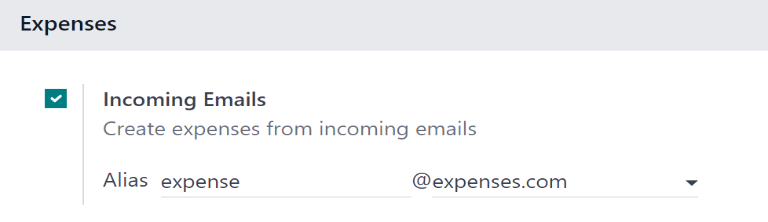
To do so, an email alias must first be configured. Navigate to . Ensure the checkbox beside Incoming Emails is ticked. The default email alias is expense@(domain).com. Change the email alias by entering the desired email in the field to the right of Alias. Then, click Save.
Catatan
If the domain alias needs to be set up, Setup your domain alias appears beneath the Incoming Emails checkbox, instead of the email address field.

Refer to the Nama domain documentation for setup instructions and more information.
Once the domain alias is configured, the email address field is visible beneath the Incoming Emails feature on the Settings page in the Expenses app.
Once the email address has been entered, emails can be sent to that alias to create new expenses, without having to be in the Odoo database.
To submit an expense via email, create a new email, and enter the product's internal reference code (if available) and the amount of the expense as the subject of the email. Next, attach the receipt to the email. Odoo creates the expense by taking the information in the email subject, and combining it with the receipt.
To check an expense category's internal reference, go to . If an internal reference is listed on the expense category, it is listed in the Internal Reference column.

To add an internal reference on an expense category, click on the category to open the expense category form. Enter the Internal Reference in the corresponding field. Beneath the Internal Reference field, this sentence appears: Use this reference as a subject prefix when submitting by email.

Example
If submitting an expense, via email, for a $25.00 meal during a work trip, the email subject
would be FOOD $25.00.
Explanation:
The Internal Reference for the expense category
MealsisFOODThe Cost for the expense is
$25.00
Catatan
For security purposes, only authenticated employee emails are accepted by Odoo when creating an expense from an email. To confirm an authenticated employee email address, go to the employee card in the , and refer to the Work Email field.
