
หลายเว็บไซต์
Odoo ช่วยให้คุณสร้างเว็บไซต์หลายเว็บไซต์จากฐานข้อมูลเดียวกันได้ ซึ่งอาจมีประโยชน์ เช่น หากคุณมีแบรนด์ต่างๆ มากมายที่ดำเนินการภายใต้องค์กรของคุณ หรือเพื่อสร้างเว็บไซต์แยกกันสำหรับผลิตภัณฑ์/บริการที่แตกต่างกัน หรือกลุ่มเป้าหมายที่แตกต่างกัน ในกรณีเช่นนี้ การมีเว็บไซต์ที่แตกต่างกันจะช่วยหลีกเลี่ยงความสับสนและทำให้ปรับแต่งกลยุทธ์การเข้าถึงทางดิจิทัลและเข้าถึงกลุ่มเป้าหมายของคุณได้ง่ายขึ้น
แต่ละเว็บไซต์สามารถออกแบบและกำหนดค่าอย่างอิสระด้วย:doc:ชื่อโดเมน <domain_names>, ธีม, หน้าเพจ, เมนู, ภาษา, สินค้า, ทีมการขายที่กำหนด ฯลฯ ของตัวเอง และยังสามารถ:ref:`แบ่งปันเนื้อหาและหน้าเพจ <multi-website/website_content>`ได้
Tip
เนื้อหาที่ซ้ำกัน (เช่น หน้าเพจและเนื้อหาที่แบ่งปันระหว่างหลายเว็บไซต์) อาจส่งผลกระทบเชิงลบต่อ:doc:../structure/seo
การสร้างเว็บไซต์
เพื่อสร้างเว็บไซต์ใหม่ ให้ดำเนินการดังนี้:
ไปที่
คลิก + New Website

ระบุ ชื่อเว็บไซต์ และ โดเมนเว็บไซต์ แต่ละเว็บไซต์ต้องเผยแพร่ภายใต้ โดเมน ของตัวเอง
ปรับ ชื่อบริษัท, ภาษา และ ภาษาเริ่มต้น หากจำเป็น
คลิกปุ่ม สร้าง
จากนั้นคุณสามารถเริ่มสร้างเว็บไซต์ใหม่ของคุณได้
Note
ตามค่าเริ่มต้น แอปที่เกี่ยวข้องกับเว็บไซต์ทั้งหมดที่คุณติดตั้งไว้ (เช่น อีคอมเมิร์ซ, ฟอรัม, บล็อก เป็นต้น) และหน้าเว็บไซต์ที่เกี่ยวข้องจะพร้อมใช้งานบนเว็บไซต์ใหม่ด้วย คุณสามารถลบออกได้โดยการแก้ไขเมนูของเว็บไซต์
การสลับเว็บไซต์
หากต้องการสลับจากเว็บไซต์หนึ่งไปยังอีกเว็บไซต์หนึ่ง ให้คลิกเมนูถัดจากปุ่ม +ใหม่ ที่มุมบนขวาและเลือกเว็บไซต์ที่คุณต้องการสลับไป

Note
เมื่อคุณสลับเว็บไซต์ คุณจะถูกเปลี่ยนเส้นทางไปยังหน้าแรกของเว็บไซต์อื่น
การกำหนดค่าเฉพาะเว็บไซต์
การตั้งค่าเว็บไซต์ส่วนใหญ่จะเป็นแบบเฉพาะเว็บไซต์ ซึ่งหมายความว่าสามารถเปิด/ปิดใช้งานได้ในแต่ละเว็บไซต์ หากต้องการปรับเปลี่ยนการตั้งค่าสำหรับเว็บไซต์ ให้ไปที่ เลือกเว็บไซต์ที่ต้องการในช่อง การตั้งค่าเว็บไซต์ ที่ด้านบนของหน้า การตั่งค่า ในแบนเนอร์ สีเหลือง จากนั้นปรับเปลี่ยนตัวเลือกสำหรับเว็บไซต์เฉพาะนั้น
Note
เว็บไซต์ถูกสร้างด้วยการตั้งค่าเริ่มต้น การตั้งค่าจะไม่ถูกคัดลอกจากเว็บไซต์หนึ่งไปยังอีกเว็บไซต์หนึ่ง
ใน สภาพแวดล้อมหลายบริษัท แต่ละเว็บไซต์สามารถเชื่อมโยงกับบริษัทเฉพาะในฐานข้อมูลของคุณได้ เพื่อให้แสดงเฉพาะข้อมูลที่เกี่ยวข้องกับบริษัท (เช่น ผลิตภัณฑ์, งาน, อีเว้นต์ เป็นต้น) บนเว็บไซต์ หากต้องการแสดงข้อมูลเฉพาะบริษัท ให้ตั้งค่าบริษัทที่ต้องการในฟิลด์ บริษัท
ความพร้อมใช้งานของเนื้อหา
ตามค่าเริ่มต้น เพจ ผลิตภัณฑ์ กิจกรรม และอื่นๆ ที่สร้างจากส่วนหน้า (โดยใช้ปุ่ม +สร้าง) จะพร้อมใช้งานบนเว็บไซต์ที่ถูกสร้างขึ้นเท่านั้น อย่างไรก็ตาม บันทึกที่สร้างจากส่วนหลังจะพร้อมใช้งานบนเว็บไซต์ทั้งหมดตามค่าเริ่มต้น ความพร้อมใช้งานของเนื้อหาสามารถเปลี่ยนแปลงได้ในแบ็กเอนด์ในฟิลด์ เว็บไซต์ ตัวอย่างเช่น สำหรับผลิตภัณฑ์ ไปที่ จากนั้นเลือกผลิตภัณฑ์และไปที่แท็บ การขาย สำหรับฟอรัม ให้ไปที่ จากนั้นเลือกฟอรัม
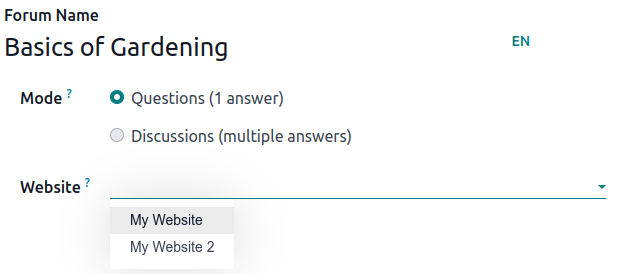
บันทึกและฟีเจอร์สามารถทำให้พร้อมใช้งานได้:
บนเว็บไซต์ทั้งหมด: ปล่อยฟิลด์ เว็บไซต์ ว่างไว้
เฉพาะบนเว็บไซต์เดียว: ตั้งค่าฟิลด์ เว็บไซต์ ตามนั้น
บนบางเว็บไซต์: ในกรณีนี้ คุณควรทำซ้ำรายการและตั้งค่าฟิลด์ เว็บไซต์
หน้าเว็บไซต์
หากต้องการแก้ไขเว็บไซต์ที่จะเผยแพร่หน้า ให้ดำเนินการดังนี้:
ไปที่
เปิดแผงการค้นหาและเลือกเว็บไซต์ที่หน้านั้นเผยแพร่อยู่ในปัจจุบัน

ทำเครื่องหมายในช่องถัดจากหน้าที่คุณต้องการเปลี่ยนแปลง
คลิกฟิลด์ เว็บไซต์ และเลือกเว็บไซต์ หรือเว้นว่างไว้เพื่อเผยแพร่หน้านั้นบนเว็บไซต์ทั้งหมด
Note
เว็บไซต์แต่ละแห่งต้องมีหน้าแรกของตัวเอง คุณไม่สามารถใช้หน้าแรกเดียวกันสำหรับหลายเว็บไซต์
ฟีเจอร์อีคอมเมิร์ซ
ฟีเจอร์อีคอมเมิร์ซ เช่น ผลิตภัณฑ์, หมวดหมู่อีคอมเมิร์ซ, ใบเสนอราคา, ส่วนลด, ผู้ให้บริการชำระเงิน เป็นต้น สามารถจำกัดให้ เว็บไซต์เฉพาะ ได้
บัญชีลูกค้า
คุณสามารถ:doc:อนุญาตให้ลูกค้าใช้บัญชีเดียวกัน <../../ecommerce/customer_accounts>`บนเว็บไซต์ทั้งหมดของคุณได้โดยเปิดใช้งานช่องทำเครื่องหมาย :guilabel:`บัญชีลูกค้าที่ใช้ร่วมกัน ในการตั้งค่าเว็บไซต์
กำหนดราคา
Products can be priced differently based on the website using pricelists. The following configuration is required:
ไปที่
เลื่อนลงไปที่ส่วน ร้านค้า - สินค้า และเลือกตัวเลือก รายการราคา หลายราคาต่อสินค้า
คลิก รายการราคา เพื่อกำหนดรายการราคาใหม่หรือแก้ไขรายการที่มีอยู่
เลือกรายการราคาหรือคลิก ใหม่ เพื่อสร้างรายการใหม่ จากนั้นเลือกแท็บ การกำหนดค่า และตั้งค่าฟิลด์ เว็บไซต์
การรายงาน
การวิเคราะห์
แต่ละเว็บไซต์มี:ref:`การวิเคราะห์ <analytics/plausible>`ของตัวเอง หากต้องการสลับระหว่างเว็บไซต์ ให้คลิกปุ่มที่มุมบนขวา

ข้อมูลรายงานอื่นๆ
ข้อมูลรายงานอื่นๆ เช่น ข้อมูลแดชบอร์ดอีคอมเมิร์ซ การวิเคราะห์การขายออนไลน์ และผู้เยี่ยมชม สามารถจัดกลุ่มตามเว็บไซต์ได้หากจำเป็น เปิดแผงการค้นหาและเลือก จัดกลุ่มตาม --> เว็บไซต์