
訂單
打开 午餐 应用程序后,将加载 订购午餐 仪表板。也可通过导航至 :menuselection:`午餐管理应用程序 –> 我的午餐 –> 新订单`访问此视图。
訂購午餐Dashboard 提供午餐供應概要、使用者的帳戶資訊,以及當天的訂單及其狀態。
訂購午餐
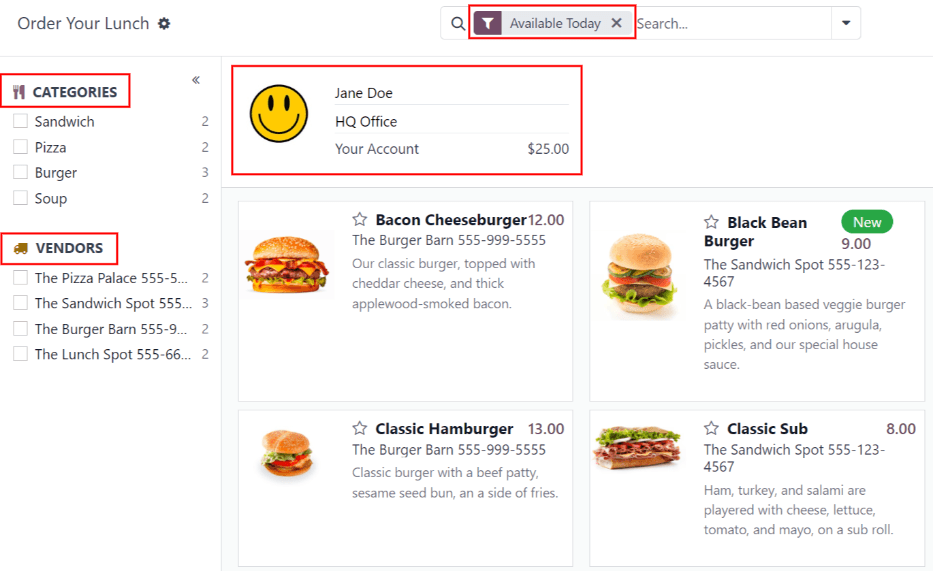
在 订购午餐`主仪表板上,可以看到下订单所需的所有必要信息。产品的默认筛选器是 :guilabel:`今日提供,位于 搜索… 栏中。该筛选器根据 供应商供货情况,只显示当天可以购买的产品。
仪表板的左侧显示各种 类别 可用产品,以及提供产品的 供应商 。每一行的右侧是一个数字,表示与该类别或供应商相关联的产品数量。
要按类别或供应商筛选产品,请勾选所需类别或供应商旁边的复选框,这样就只能查看与这些选择相关的项目。每个部分都可以进行多项选择。
備註
如果進行多項選擇,僅會顯示屬於所有所選選項的產品。
仪表板的顶部是订单摘要,显示用户的账户信息和今天的订单详情(如果已有订单)。
用户信息下方的主要部分以默认看板视图显示所有产品。每个产品卡都显示产品的名称、成本、供应商、照片和描述。如果产品配置为新产品,还会显示 新的 标签。
備註
在 午餐 应用程序中列出供应商名称的任何地方,例如看板产品卡上,也会列出他们的电话号码。
点击仪表盘右上角的 ≣ (四条平行线) 图标,还可以在列表视图中显示产品。
下訂單
要下午餐订单,请通过打开 午餐 应用程序或导航至:menuselection:午餐应用程序 --> 我的午餐 --> 新订单,进入 订购午餐 主仪表板。
將產品加入訂單
在 订购午餐`仪表板上,点击所需的产品添加到订单中,产品就会出现在 :guilabel:`配置订单 弹出窗口中。
弹出窗口的顶部是产品图片、名称和价格。下面是潜在的 附加 字段,显示任何 额外项目或选项。勾选 附加 字段中任何所需额外项目旁边的复选框,将其添加到订单中。
每個額外選項都按類別整理,包含名稱和價格。選擇額外選項時,彈出視窗頂端顯示的價格會更新,以反映目前的所有選擇。
在 附加 字段下面是产品的 说明 字段,然后是 笔记 字段。guilabel:`笔记`字段用于输入任何重要信息,然后将这些信息发送给供应商,如任何特殊要求或食物过敏。
當完成產品的所有選擇後,請按一下彈出視窗左下角的加入購物車按鈕。要取消訂單,請按一下捨棄按鈕。

錯誤
根據供應商的各種額外選項的配置方式,嘗試將產品加入購物車時可能會收到錯誤。
当配置的产品**要求**用户在 附加 字段中选择一个选项,但用户忽略了该选项时,可能会发生错误。
發生這種情況時,會出現驗證錯誤彈出視窗。彈出視窗中會簡要說明錯誤。按一下關閉以關閉視窗,並對配置您的訂單彈出視窗進行任何必要的變更。
Example
供應商 The Pizza Palace 在任何採購時都會提供免費飲料。其產品經過配置,在將其產品加入購物車之前,必須在額外選項欄位中選擇飲料。
如果未進行選擇,則會發生錯誤。出現的訊息為「您必須訂購一個且只能訂購一個隨購買附贈的免費飲料」。

Your Order summary
When at least one item is added to an order, the items appear at the top of the dashboard in the Your Order summary. In addition to the products, users can view the account information, in addition to all the information related to orders placed during the current calendar day.
As products are added to an order, they appear at the top center of the summary box. Each product is listed beneath the words Your Order, with the product name, quantity, and a status tag.
The available tags that can be displayed for each item are:
To Order: the product has been added to the cart, but has not been purchased yet by the user.
Ordered: the product has been purchased by the user, and is waiting to be sent to the vendor by a Lunch app manager.
Sent: the order for the product has been sent to the vendor by a Lunch app manager.
Received: the product has been delivered by the vendor to the user’s location, and has been verified as received by a Lunch app manager.
Product quantities can be adjusted by clicking the ➕ (plus sign) or ➖ (minus sign) to the left of the listed product. The product price adjusts in real-time to display the cost for the currently selected quantity of the product.
The right side of the Your Order summary displays the purchasing information. The Total amount for the entire day’s lunch order is displayed. The Already Paid field indicates how much has been paid that day towards the Total amount. The To Pay field displays how much of the remaining Total amount must be paid, in order to place the currently configured order.

小訣竅
Users can place multiple orders throughout the day, and are not restricted to only placing one lunch order each day. Multiple orders might need to be placed, due to users forgetting to add items to an order, or if there are multiple meals that are available to be purchased for the office ()not just lunch), and so on.
Depending on the various vendors, and how the vendors and products are configured, it is possible to order breakfast, lunch, dinner, coffee, and/or snacks.
提交訂單
To place the order, click the Order Now button on the right-side of the Your Order summary. The user is charged the amount that is displayed in the To Pay field, and the cost is deducted from their Lunch account balance.
Once the order is placed, the tags for the items just purchased in the Your Order field change from orange To Order tags to red Ordered tags.
追蹤訂單
When orders have been sent to the vendors, the tags for the items in the Your Order summary change from red Ordered tags to blue Sent tags.
Once orders have been received and verified, the tags change from blue Sent tags to green Received tags.
接收訂單
When orders are received at the delivery location, they are confirmed by a Lunch app manager, and a notification is sent to the employee who ordered the food.
我的銷售訂單
要查看当前登录用户在 午餐管理 应用程序中下达的所有订单的完整列表,请导航至 。这将导航到 我的订单 面板。数据按 我的订单 筛选,并按 订单日期:日 分组,默认情况下,这两个选项都位于 搜索… 栏中。
所有產品以清單檢視顯示,依日期組織。清單會顯示訂單日期、廠商、產品、額外項目、備註、使用者、午餐地點、價格和狀態資訊。如果在多公司資料庫中,還會顯示公司欄位。
每份订单的总费用显示在包含订单日期的行上。在列表底部,所有行下面的 价格 列显示所有订单的总支付金额。
在每个状态为 已订购 或 已发送 的产品行末尾,会出现一个 X 取消 按钮。点击:guilabel:X 取消,以取消该产品订单。取消产品订单后,为该产品支付的款项将退还,并显示在用户账户中。
在每个状态为 已收到 的产品系列末尾,会出现一个 重新订购 按钮。点击 重新订购 即可重新订购相同的产品,并添加相同的附加功能(如适用)。新订单会出现在当前日期下的列表中,产品已付款,款项会从用户账户中扣除。

我的帳戶
若要檢視使用者帳戶中所有交易的摘要,請前往。這會顯示我的帳戶 Dashboard。
我的帳戶 Dashboard 的預設呈現方式會顯示所有記項,從最新到最舊。日期、說明和金額是清單中唯一顯示的欄位。
在 金额 栏中列出负数的条目代表在 午餐管理 应用程序中购买的产品。其格式为 $-XX.XX。
余额为正数的条目要么代表用户午餐账户中的新增资金,要么代表最终退还给用户的取消订单。这些余额以 $XX.XX 格式显示。
