
คำสั่ง
When the Lunch application is opened, the Order Your Lunch dashboard loads. This view is also accessed by navigating to .
แดชบอร์ด สั่งอาหารกลางวันของคุณ ให้ข้อมูลสรุปของข้อเสนออาหารกลางวัน ข้อมูลบัญชีของผู้ใช้ และคำสั่งซื้อของวันปัจจุบัน พร้อมทั้งสถานะของคำสั่งซื้อเหล่านั้น
คำสั่งอาหารกลางวัน
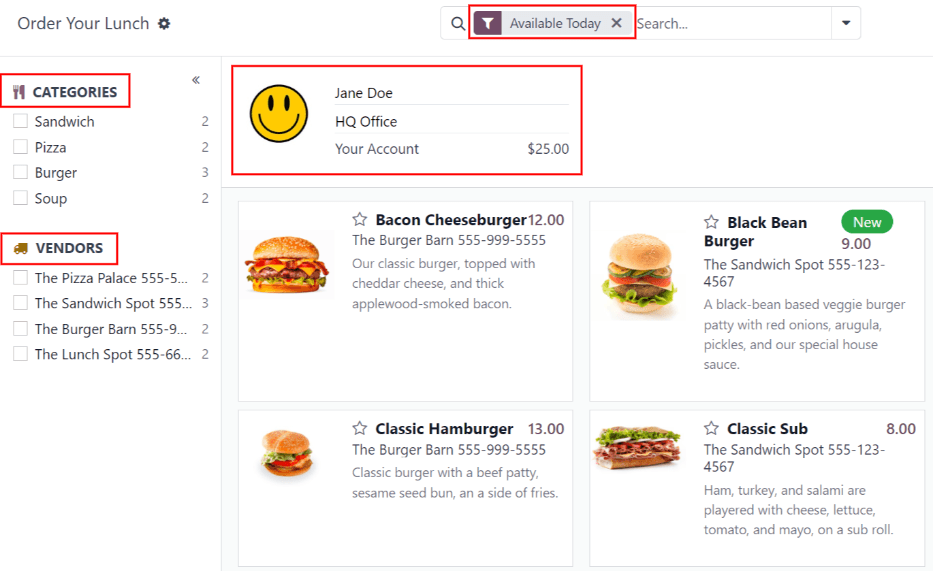
On the main Order Your Lunch dashboard, all the necessary information needed to place an order is visible. The default filter for the products is Available Today, which is present in the Search... bar. This filter shows only products that can be purchased that day, based on the vendor's availability.
The left-side of the dashboard displays the various Categories of products available, along with the Vendors supplying the products. To the right of each line is a number, which indicates how many products are associated with that respective category or vendor.
To filter the products by categories or vendors, tick the checkbox next to the desired category or vendor to only view items related to those selections. Multiple selections can be made in each section.
Note
หากมีการเลือกหลายรายการ จะแสดง**เฉพาะ**สินค้าที่อยู่ภายใต้ตัวเลือกที่เลือก**ทั้งหมด**
The top portion of the dashboard, which serves as an order summary, displays the user's account information, and the order details for today, if any orders have been placed.
The main section, beneath the user's information, displays all the products in a default Kanban view. Each product card displays the name, cost, vendor, photo, and description of the product. If the product is configured as new, it also displays a New tag.
Note
Anywhere a vendor's name is listed in the Lunch app, such as on Kanban product cards, their phone number is listed, as well.
The products can also be displayed in a list view, by clicking the ≣ (four parallel lines) icon in the top-right corner of the dashboard.
การสั่งซื้อ
To place a lunch order, navigate to the main Order Your Lunch dashboard, by either opening the Lunch app, or by navigating to .
เพิ่มสินค้าไปยังคำสั่งซื้อ
From the Order Your Lunch dashboard, click on a desired product to add to an order, and the product appears in a Configure Your Order pop-up window.
At the top of the pop-up window is the product image, name, and price. Beneath that, there is a potential Extras field, showcasing any extra items or options. Tick the checkbox next to any desired extras present in the Extras field to add them to the order.
ตัวเลือกเพิ่มเติมแต่ละรายการจัดระเบียบตามหมวดหมู่ พร้อมด้วยชื่อและราคา เมื่อเลือกตัวเลือกเพิ่มเติม ราคาที่แสดงด้านบนของหน้าต่างป๊อปอัปจะอัปเดตเพื่อสะท้อนการเลือกปัจจุบันทั้งหมด
ใต้ฟิลด์ Extras คือ Description ของสินค้า ตามด้วยฟิลด์ Notes ฟิลด์ Notes ใช้สำหรับกรอกข้อมูลสำคัญใดๆ ซึ่งจะถูกส่งไปยังผู้ขายเกี่ยวกับคำสั่งซื้อ เช่น คำขอพิเศษหรือการแพ้อาหาร
เมื่อทำการเลือกทั้งหมดสำหรับสินค้าเสร็จแล้ว ให้คลิกปุ่ม เพิ่มลงในรถเข็น ที่มุมซ้ายล่างของหน้าต่างป๊อปอัป หากต้องการยกเลิกคำสั่งซื้อ ให้คลิกปุ่ม ยกเลิก

เกิดข้อผิดพลาด
ขึ้นอยู่กับการกำหนดค่า:ref:`ตัวเลือกเพิ่มเติม <lunch/configure-extras>`ต่างๆ สำหรับผู้จำหน่าย อาจเกิดข้อผิดพลาดเมื่อพยายามเพิ่มสินค้าลงในรถเข็น
ข้อผิดพลาดอาจเกิดขึ้นเมื่อสินค้าที่กำหนดค่าไว้**กำหนด**ให้ผู้ใช้เลือกตัวเลือกในฟิลด์ Extras แต่ผู้ใช้ละเลยที่จะเลือก
เมื่อสิ่งนี้เกิดขึ้น หน้าต่างป๊อปอัป ข้อผิดพลาดในการตรวจสอบ จะปรากฏขึ้น ข้อผิดพลาดจะอธิบายโดยสังเขปในหน้าต่างป๊อปอัป คลิก ปิด เพื่อปิดหน้าต่าง และทำการเปลี่ยนแปลงที่จำเป็นในหน้าต่างป๊อปอัป กำหนดค่าคำสั่งซื้อของคุณ
Example
ผู้ขาย The Pizza Palace มอบเครื่องดื่มฟรีสำหรับการซื้อสินค้าทุกครั้ง สินค้าของพวกเขาได้รับการกำหนดค่าเพื่อให้ ต้อง เลือกเครื่องดื่มในฟิลด์ Extras ก่อน เพิ่มสินค้าของพวกเขาลงในตะกร้า
หากไม่มีการเลือก จะเกิดข้อผิดพลาด ข้อความที่ปรากฏคือ You have to order one and only one Free Beverage with Purchase

สรุปคำสั่งซื้อของคุณ
เมื่อมีการเพิ่มรายการอย่างน้อยหนึ่งรายการลงในคำสั่งซื้อ รายการจะปรากฏที่ด้านบนของแดชบอร์ดในสรุป Your Order นอกจากสินค้าแล้ว ผู้ใช้สามารถดูข้อมูลบัญชี รวมถึงข้อมูลทั้งหมดที่เกี่ยวข้องกับคำสั่งซื้อที่ทำในวันปฏิทินปัจจุบัน
เมื่อเพิ่มสินค้าลงในคำสั่งซื้อ สินค้าจะปรากฏที่ด้านบนตรงกลางของกล่องสรุป สินค้าแต่ละรายการจะแสดงรายการใต้คำว่า Your Order พร้อมชื่อสินค้า จำนวน และแท็กสถานะ
แท็กที่สามารถแสดงได้สำหรับแต่ละรายการคือ:
To Order: สินค้าได้ถูกเพิ่มในตะกร้าแล้ว แต่ยังไม่ได้ถูกซื้อโดยผู้ใช้
Ordered: the product has been purchased by the user, and is waiting to be sent to the vendor by a Lunch app manager.
Sent: the order for the product has been sent to the vendor by a Lunch app manager.
Received: the product has been delivered by the vendor to the user's location, and has been verified as received by a Lunch app manager.
Product quantities can be adjusted by clicking the ➕ (plus sign) or ➖ (minus sign) to the left of the listed product. The product price adjusts in real-time to display the cost for the currently selected quantity of the product.
ทางด้านขวาของสรุป การสั่งซื้อของคุณ จะแสดงข้อมูลการสั่งซื้อ จำนวนเงิน ทั้งหมด ของการสั่งซื้ออาหารกลางวันทั้งวันจะแสดงขึ้น ช่อง ชำระเงินเรียบร้อยแล้ว ระบุว่าได้ชำระเงินไปแล้วเท่าใดในวันนั้นสำหรับจำนวนเงิน ทั้งหมด ช่อง เพื่อชำระ จะแสดงจำนวนเงิน ทั้งหมด ที่เหลือที่ต้องชำระเพื่อวางคำสั่งซื้อที่กำหนดค่าไว้ในปัจจุบัน

Tip
ผู้ใช้สามารถสั่งอาหารได้หลายรายการตลอดทั้งวัน และไม่จำกัดว่าจะต้องสั่งอาหารมื้อเที่ยงได้เพียงรายการเดียวในแต่ละวัน อาจจำเป็นต้องสั่งอาหารหลายรายการ เนื่องจากผู้ใช้ลืมเพิ่มรายการในคำสั่งซื้อ หรือมีอาหารหลายมื้อที่ต้องซื้อสำหรับใช้ในสำนักงาน (ไม่ใช่แค่มื้อกลางวัน) เป็นต้น
ขึ้นอยู่กับผู้ขายต่างๆ และวิธีการกำหนดค่าผู้ขายและสินค้า เป็นไปได้ที่จะสั่งอาหารเช้า อาหารกลางวัน อาหารเย็น กาแฟ และ/หรือของว่าง
ส่งคำสั่งซื้อ
To place the order, click the Order Now button on the right-side of the Your Order summary. The user is charged the amount that is displayed in the To Pay field, and the cost is deducted from their Lunch account balance.
Once the order is placed, the tags for the items just purchased in the Your Order field change from orange To Order tags to red Ordered tags.
ติดตามคำสั่งซื้อ
เมื่อคำสั่งซื้อถูกส่งไปยังผู้ขายแล้ว แท็กสำหรับรายการในสรุป Your Order จะเปลี่ยนจากแท็ก Ordered สีแดงเป็นแท็ก Sent สีน้ำเงิน
เมื่อคำสั่งซื้อได้รับและยืนยันแล้ว แท็กจะเปลี่ยนจากแท็ก Sent สีน้ำเงินเป็นแท็ก Received สีเขียว
รับคำสั่งซื้อ
When orders are received at the delivery location, they are confirmed by a Lunch app manager, and a notification is sent to the employee who ordered the food.
คำสั่งซื้อของฉัน
หากต้องการดูรายการคำสั่งซื้อทั้งหมดที่สั่งในแอป อาหารกลางวัน สำหรับผู้ใช้ที่ลงชื่อเข้าใช้ในปัจจุบัน ให้ไปที่ จากนั้นไปที่แดชบอร์ด คำสั่งซื้อของฉัน ข้อมูลจะถูกกรองตาม คำสั่งซื้อของฉัน และจัดกลุ่มตาม วันที่สั่งซื้อ : วัน ตามค่าเริ่มต้น ซึ่งทั้งคู่จะอยู่ในแถบ ค้นหา...
สินค้าทั้งหมดจะปรากฏในมุมมองรายการ จัดเรียงตามวันที่ รายการแสดง Order Date, Vendor, Product, Extras, Notes, User, Lunch Location, Price และข้อมูล Status หากอยู่ในฐานข้อมูลหลายบริษัท คอลัมน์ Company จะปรากฏด้วย
ต้นทุนรวมสำหรับแต่ละคำสั่งซื้อจะแสดงในบรรทัดที่มีวันที่สั่งซื้อ ที่ด้านล่างของรายการ ใต้บรรทัดทั้งหมด จะแสดงยอดรวมทั้งหมดที่จ่ายสำหรับคำสั่งซื้อทั้งหมดในคอลัมน์ Price
At the end of each product line with a status of Ordered or Sent, an X Cancel button appears. Click X Cancel to cancel that product order. Once a product order has been canceled, the money paid for that product is refunded, and appears in the user's account.
เมื่อสิ้นสุดสายผลิตภัณฑ์แต่ละรายการที่มีสถานะ ได้รับ ปุ่ม สั่งซื้อใหม่ จะแสดงขึ้น คลิก สั่งซื้อใหม่ เพื่อสั่งผลิตภัณฑ์เดียวกันนั้นใหม่ทันที พร้อมส่วนเสริมเท่าเดิม หากมี คำสั่งซื้อใหม่จะแสดงในรายการภายใต้วันที่ปัจจุบัน และชำระเงินค่าผลิตภัณฑ์โดยหักเงินจากบัญชีของผู้ใช้

บัญชีของฉัน
หากต้องการดูสรุปธุรกรรมทั้งหมดในบัญชีของผู้ใช้ ให้ไปที่ การดำเนินการนี้จะแสดงแดชบอร์ด My Account
การนำเสนอเริ่มต้นของแดชบอร์ด My Account แสดงรายการทั้งหมด จากใหม่ไปเก่า Date, Description และ Amount เป็นเพียงฟิลด์ที่แสดงในรายการ
Entries with a negative figure listed in the Amount column represent products purchased
in the Lunch app. These appear in a $-XX.XX format.
Entries with a positive balance either represent funds added to the user's lunch account, or
canceled orders that were eventually refunded to the user. These appear in a $XX.XX format.
