
ศูนย์ช่วยเหลือ
Odoo Helpdesk integrates with the Forum, eLearning, and Knowledge apps to create the Help Center. The Help Center is a centralized location where teams and customers can search for and share detailed information about products and services.

การกำหนดค่า
หากต้องการเปิดใช้งานฟีเจอร์ ศูนย์ช่วยเหลือ (ฟอรัม, การอบรมออนไลน์ หรือ คลังข้อมูล) ในทีม Helpdesk ให้ไปที่ และเลือกทีม หรือสร้าง ทีมใหม่ ตรวจสอบว่า การมองเห็น ของทีมถูกตั้งค่าเป็น ผู้ใช้พอร์ทัลที่ได้รับเชิญและผู้ใช้ภายในทั้งหมด (สาธารณะ) ในส่วน การมองเห็นและการมอบหมาย
Additionally, the Website Form option on the Helpdesk team page must be enabled to activate any of the Help Center features. When one or more of the Help Center features is enabled, the Website Form is automatically enabled, as well.
Danger
เนื่องจากคุณสมบัติ ศูนย์ช่วยเหลือ ทั้งหมดต้องการการผสานการทำงานกับแอปพลิเคชันอื่นๆ การเปิดใช้งานใดๆ อาจส่งผลให้มีการติดตั้งโมดูลหรือแอปพลิเคชันเพิ่มเติม
Installing a new application on a One-App-Free database will trigger a 15-day trial. At the end of the trial, if a paid subscription has not been added to the database, it will no longer be active or accessible.
ดูเพิ่มเติม
ความรู้
Odoo's Knowledge application is a collaborative library, where users can store, edit, and share information. The Knowledge app is accessible throughout the database by clicking on the Knowledge (bookmark) icon.

เปิดใช้งานคลังข้อมูลบนทีม Helpdesk
To enable the Knowledge feature on a Helpdesk team, go to and select a team, or create a new one.
เมื่อเลือกหรือสร้างทีมแล้ว Odoo จะแสดงแบบฟอร์มรายละเอียดของทีมนั้น
On the team's detail form, scroll down to the Help Center section. Then, click the box next to Knowledge to activate the Knowledge feature. When clicked, a new field labeled, Article appears.
การคลิกฟิลด์ Article จะแสดงเมนูแบบเลื่อนลง ตอนแรกจะมีตัวเลือกเดียวในเมนูแบบเลื่อนลงชื่อว่า Help ซึ่ง Odoo จัดเตรียมไว้โดยค่าเริ่มต้น เลือก Help จากเมนูแบบเลื่อนลงเพื่อเลือกบทความนี้
Tip
To create a new article, go to the , then hover the cursor next to the Workspace section heading, located in the left sidebar. Moving the cursor there reveals a hidden ➕ (plus sign) icon.
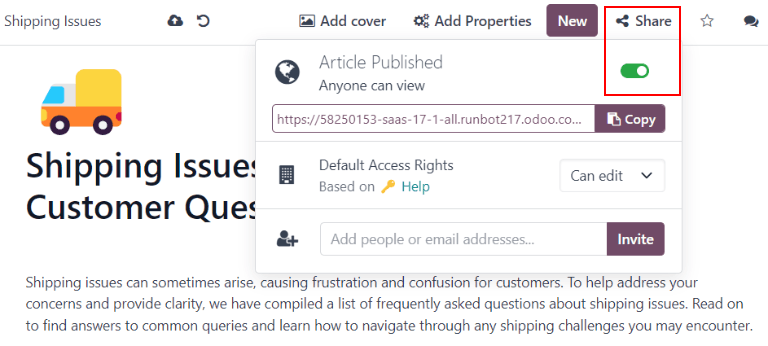
Click the ➕ (plus sign) icon to create a new article in the Workspace. In the upper-right corner of the page, click the Share button, and slide the Share to Web toggle switch until it reads Article Published. It can then be added to a Helpdesk team.
Once an article has been created and assigned to a Helpdesk team, content can be added and organized through the Knowledge app.
ดูเพิ่มเติม
ค้นหาบทความจากตั๋ว Helpdesk
When members of a Helpdesk team are trying to solve a ticket, they can search through the content in the Knowledge app for more information on the issue.
To search Knowledge articles, open a ticket — either from the Helpdesk app dashboard, or by going to , then select a ticket from the list.
เมื่อเลือกตั๋วแล้ว Odoo จะแสดงแบบฟอร์มรายละเอียดของตั๋วนั้น
คลิกไอคอน คลังข้อมูล (ที่คั่นหน้า) ที่อยู่ด้านบนขวาของหน้า เพื่อเปิดหน้าต่างค้นหาแบบป๊อปอัป

Tip
Knowledge articles can also be searched by pressing Ctrl + K to open the command
palette, then typing ?, followed by the name of the desired article.
เมื่อ Odoo แสดงบทความที่ต้องการแล้ว ให้คลิกที่บทความนั้น หรือเลือกชื่อ Article และกด Enter วิธีนี้จะเปิดบทความในแอปพลิเคชัน คลังข้อมูล
หากต้องการเปิดบทความในแท็บใหม่ ให้กด Ctrl + Enter
Tip
หากต้องการการค้นหาที่ละเอียดกว่านี้ ให้กด Alt + B วิธีนี้จะแสดงหน้าแยกต่างหาก ซึ่งสามารถทำการค้นหาโดยละเอียดได้
แชร์บทความไปยัง Help Center
To make a Knowledge article available to customers and website visitors, it must be published.
Important
แม้ว่าบทความ Help จะถูกเปิดใช้งานในทีมแล้ว แต่ Odoo ไม่ แชร์บทความที่ซ้อนกันทั้งหมดไปยังเว็บ บทความแต่ละรายการที่มุ่งหมายสำหรับลูกค้า ต้อง ได้รับการเผยแพร่เพื่อให้สามารถดูได้บนเว็บไซต์
To publish an article, navigate to the desired article, by following the above steps, and click the Share icon in the upper-right corner. This reveals a menu. Slide the toggle button labeled Share to Web to read Article Published.
แก้ไขตั๋วด้วยกล่องคลิปบอร์ด
Clipboard boxes can be added to Knowledge articles to allow content to be reused, copied, sent as messages, or added to the description on a ticket. This allows teams to maintain consistency when answering customer tickets, and minimize the amount of time spent on responding to repeat questions.
เพิ่มกล่องคลิปบอร์ดลงในบทความ
To create a clipboard box, go to . Click on an existing nested article or create a new one by clicking the ➕ (plus sign) icon next to Help.
Type / to open the powerbox, and view a drop-down list of commands. Select or type clipboard. A gray block is
then added to the page. Add any necessary content to this block.

Note
Clipboard boxes only display the Use as description or Send as Message options if they are accessed directly from the Helpdesk.
ใช้กล่องคลิปบอร์ดในตั๋ว
Clipboard boxes can be used to respond directly to a Helpdesk ticket as a message, or to add information to the ticket's description.
To use clipboard boxes in a Helpdesk ticket, first, open a ticket, either from the Helpdesk dashboard or by going to and selecting a ticket from the list.
Click on the Knowledge (bookmark) icon in the top-right corner. This opens a search window. In this search window, select, or search, for the desired article. Doing so reveals that article page in the Odoo Knowledge application.
ในการใช้กล่องคลิปบอร์ดเพื่อตอบกลับตั๋ว ให้คลิก ส่งเป็นข้อความ ที่มุมขวาบนของกล่องคลิปบอร์ดซึ่งอยู่ในเนื้อหาของบทความ
การทำเช่นนี้จะเปิดหน้าต่างป๊อปอัป เขียนอีเมล ในหน้าต่างนี้ ให้เลือกผู้รับ ทำการเพิ่มหรือแก้ไขเนื้อหาคลิปบอร์ดตามที่จำเป็น จากนั้นคลิก ส่ง
Tip
หากต้องการใช้กล่องคลิปบอร์ดเพื่อเพิ่มข้อมูลลงในคำอธิบายของทิกเก็ต ให้คลิก ใช้เป็นคำอธิบาย ที่มุมขวาบนของกล่องคลิปบอร์ด ซึ่งอยู่ในเนื้อหาของบทความ การทำเช่นนี้จะไม่**แทนที่**ข้อความที่มีอยู่ในคำอธิบายของทิกเก็ต เนื้อหาจากกล่องคลิปบอร์ดจะถูกเพิ่มเป็นข้อความเพิ่มเติม
ฟอรั่มชุมชน
ฟอรั่มคอมมูนิตี้ มีพื้นที่สำหรับลูกค้าในการตอบคำถามของกันและกันและแชร์ข้อมูล ด้วยการรวมฟอรัมเข้ากับทีม Helpdesk ทิกเก็ตที่ลูกค้าส่งมาสามารถแปลงเป็นโพสต์และแชร์ได้
เปิดใช้งานฟอรัมในทีม Helpdesk
To enable Community Forums on a Helpdesk team, start by navigating to and select a team, or create a new one.
การเลือกหรือสร้างทีมจะแสดงแบบฟอร์มรายละเอียดของทีมนั้น เลื่อนลงไปที่ส่วนคุณสมบัติ ศูนย์ช่วยเหลือ และเปิดใช้งาน ฟอรัมชุมชน โดยทำเครื่องหมายในช่องถัดจากมัน
เมื่อเปิดใช้งาน ฟิลด์ใหม่ชื่อ ฟอรัม จะปรากฏด้านล่าง
คลิกช่อง ฟอรั่ม ที่ว่างเปล่า เพื่อแสดงเมนูแบบเลื่อนลง ตามค่าเริ่มต้น จะมีเพียงตัวเลือกเดียวเท่านั้นที่จะเริ่มต้นด้วย โดยมีป้ายกำกับ ช่วยเหลือ นั่นคือตัวเลือกที่ Odoo สร้างขึ้นโดยอัตโนมัติเมื่อเปิดใช้งานฟีเจอร์ ฟอรั่มคอมมูนิตี้ เลือก ช่วยเหลือ จากเมนูแบบเลื่อนลงเพื่อเปิดใช้งานฟอรั่มนั้น
ในการสร้างฟอรัมใหม่ ให้พิมพ์ชื่อลงในฟิลด์ ฟอรัม ว่าง จากนั้นคลิกตัวเลือก สร้างและแก้ไข สามารถเลือกหลายฟอรัมในฟิลด์นี้ได้
ดูเพิ่มเติม
สร้างโพสต์ฟอรั่มจากตั๋ว Helpdesk
When a Helpdesk team has a Forum enabled, tickets submitted to that team can be converted to forum posts.
ในการดำเนินการนั้น ให้เลือกตั๋ว ไม่ว่าจากไปป์ไลน์ของทีมหรือจาก ในแอปพลิเคชัน Helpdesk
ที่ด้านบนของแบบฟอร์มรายละเอียดตั๋ว ให้คลิกปุ่ม แชร์บนฟอรั่ม

เมื่อคลิก หน้าต่างป๊อปอัปจะปรากฏขึ้น ที่นี่สามารถแก้ไขโพสต์ ฟอรั่ม และ ชื่อเรื่อง เพื่อแก้ไขข้อผิดพลาดในการพิมพ์ หรือปรับเปลี่ยนเพื่อลบข้อมูลที่เป็นความลับหรือข้อมูลลูกค้า
แท็ก ยังสามารถเพิ่มเพื่อช่วยจัดระเบียบโพสต์ในฟอรั่ม ทำให้ผู้ใช้ค้นหาได้ง่ายขึ้นระหว่างการค้นหา เมื่อทำการปรับเปลี่ยนทั้งหมดเสร็จแล้ว ให้คลิก สร้างและดูโพสต์
การอบรมออนไลน์
Odoo eLearning courses offer customers additional training and content in the form of videos, presentations, and certifications/quizzes. Providing additional training enables customers to work through issues and find solutions on their own. They can also develop a deeper understanding of the services and products they are using.
เปิดใช้งานหลักสูตรอบรมออนไลน์บนทีม Helpdesk
To enable eLearning courses on a Helpdesk team, go to and select a team, or create a new one.
บนหน้าการตั้งค่าของทีม ให้เลื่อนลงไปที่ส่วน ศูนย์ช่วยเหลือ และทำเครื่องหมายในช่องถัดจาก อบรมออนไลน์ ฟิลด์ใหม่จะปรากฏด้านล่าง มีป้ายกำกับว่า หลักสูตร
คลิกช่องว่างข้าง ๆ หลักสูตร ใต้ฟีเจอร์ การอบรมออนไลน์ เพื่อเปิดเมนูแบบเลื่อนลง เลือกหลักสูตรที่มีให้เลือกจากเมนูแบบเลื่อนลง หรือพิมพ์ชื่อหลักสูตรลงในช่อง แล้วคลิก สร้างและแก้ไข เพื่อสร้างหลักสูตรใหม่จากหน้านี้ สามารถกำหนดหลักสูตรหลายหลักสูตรให้กับทีมเดียวได้
สร้างหลักสูตรอบรมออนไลน์
A new eLearning course can be created from the Helpdesk team's settings page, as in the step above, or from the eLearning app.
To create a course directly through the eLearning application, navigate to . This reveals a blank course template that can be customized and modified as needed.
ในหน้าเทมเพลตคอร์ส ให้เพิ่ม ชื่อคอร์ส และด้านล่างให้เพิ่ม แท็ก
คลิกที่แท็บ ตัวเลือก
ภายใต้ สิทธิ์การเข้าถึง ให้เลือกว่าผู้ใช้คนใดสามารถดูและลงทะเบียนเรียนคอร์สได้
ฟิลด์ แสดงคอร์สให้กับ กำหนดว่าใครสามารถเข้าถึงคอร์สได้ ฟิลด์ นโยบายการลงทะเบียน ระบุวิธีที่พวกเขาสามารถลงทะเบียนเรียนคอร์สได้
ภายใต้ การแสดงผล ให้เลือก ประเภท คอร์สที่ต้องการ
เพิ่มเนื้อหาในคอร์สอบรมออนไลน์
หากต้องการเพิ่มเนื้อหาในคอร์ส ให้คลิกแท็บ เนื้อหา และเลือก เพิ่มเนื้อหา เลือก ประเภทเนื้อหา จากเมนูแบบเลื่อนลงและอัปโหลดไฟล์หรือวางลิงก์ตามที่ระบุ คลิก บันทึก เมื่อเสร็จแล้ว คลิก เพิ่มส่วน เพื่อจัดระเบียบคอร์สเป็นส่วนต่างๆ

Note
หากต้องการเพิ่มใบรับรองในคอร์ส ให้ไปที่ ทำเครื่องหมายในช่องที่มีป้ายกำกับว่า ใบรับรอง และ บันทึก เพื่อเปิดใช้งานการตั้งค่า
ดูเพิ่มเติม
เผยแพร่คอร์สอบรมออนไลน์
เพื่อให้ลูกค้าสามารถลงทะเบียนเรียนคอร์สได้ ทั้งคอร์สและเนื้อหา ต้อง ได้รับการเผยแพร่
Tip
หากมีการเผยแพร่หลักสูตร แต่เนื้อหาหลักสูตรยังไม่ได้รับการเผยแพร่ ลูกค้าสามารถลงทะเบียนเรียนหลักสูตรบนเว็บไซต์ได้ แต่ลูกค้าจะไม่สามารถเข้าชมเนื้อหาหลักสูตรใดๆ ได้ เพราะเหตุนี้ การเผยแพร่หลักสูตรก่อนจึงเป็นประโยชน์ถ้าหากหลักสูตรมีกำหนดการเผยแพร่ในระยะเวลาหนึ่ง เช่น ชั้นเรียนที่มีตารางเรียนเป็นรายสัปดาห์
หากต้องการให้คอร์สทั้งหมดพร้อมใช้งานพร้อมกัน ต้องเผยแพร่เนื้อหาคอร์สแต่ละส่วนก่อน จากนั้นจึงสามารถเผยแพร่คอร์สได้
To publish a course, choose a course from the eLearning dashboard. On the course template page, click the Go to Website smart button.
ซึ่งจะแสดงส่วนหน้าของหน้าเว็บคอร์ส ที่ด้านบนของหน้าเว็บคอร์ส ให้เลื่อนสวิตช์ ไม่ได้เผยแพร่ ไปที่ เผยแพร่แล้ว
เผยแพร่เนื้อหาคอร์สอบรมออนไลน์จากส่วนหลังบ้าน
To publish eLearning course content from the back-end, choose a course from the eLearning dashboard. On the course template page, click the Published Contents smart button.
การทำเช่นนี้จะแสดงหน้าแยกต่างหากที่แสดงเนื้อหาที่เผยแพร่ทั้งหมดที่เกี่ยวข้องกับคอร์สนั้น ลบตัวกรอง เผยแพร่แล้ว เริ่มต้นออกจากแถบค้นหาที่มุมบนขวา เพื่อแสดงเนื้อหาทั้งหมดที่เกี่ยวข้องกับคอร์ส แม้แต่เนื้อหาที่ยังไม่ได้เผยแพร่
Click the ≣ (bars) icon in the upper-right corner, directly beneath the search bar to switch to list view.
ในมุมมองรายการ จะมีช่องทำเครื่องหมายอยู่ที่ด้านซ้ายสุดของหน้าจอ เหนือรายการคอร์สที่แสดง ทางซ้ายของหัวคอลัมน์ Title เมื่อคลิกที่ช่องทำเครื่องหมายนั้น เนื้อหาคอร์สทั้งหมดจะถูกเลือกทันที
เมื่อเลือกเนื้อหาคอร์สทั้งหมดแล้ว ให้คลิกที่ช่องใดก็ได้ในคอลัมน์ Is Published จะมีหน้าต่างป๊อปอัปปรากฏขึ้น เพื่อขอยืนยันว่าต้องการเผยแพร่ระเบียนที่เลือกทั้งหมด คลิก Confirm เพื่อเผยแพร่เนื้อหาคอร์สทั้งหมดโดยอัตโนมัติ
