
墨西哥
模組
以下模块会自动安装墨西哥本地化版本:
名稱 |
技術名稱 |
說明 |
|---|---|---|
墨西哥 - 会计 |
|
默认 财务本地化套装 为墨西哥本地化添加会计特征,例如:最常见的税种和会计科目表 - 基于`SAT 科目分组代码 <https://www.gob.mx/cms/uploads/attachment/file/151586/codigo_agrupador.pdf>`_。 |
墨西哥电子数据交换 |
|
包含根据 SAT 发布的技术文档生成和验证 电子单据 所需的所有技术和功能要求。这允许您向政府发送发票(无论是否带附录)以及付款补充信息。 |
Odoo 墨西哥本地化报表 |
|
为墨西哥电子会计调整报表:包括会计科目表、试算平衡表和 DIOT。 |
墨西哥 - 第13个月试算平衡表 |
|
用于创建结账分录(也称为*第13个月凭证*)所必需。 |
Odoo 墨西哥 XML 凭证导出 |
|
允许导出用于强制性审计的日记账凭证 XML 文件。 |
以下模块是可选的。建议*仅当*满足业务的特定需求时才 安装 它们。
名稱 |
技術名稱 |
說明 |
|---|---|---|
墨西哥电子数据交换(高级功能) |
|
在发票上添加外贸补充信息(向国外销售产品的法律要求)。 |
墨西哥 - 电子货运指南 |
|
允许您创建*电子货运单*:一种向政府证明您正在通过已签名的电子单据将货物从A地运送到B地的货运提单。它同时也会安装 车队 应用。 |
Odoo 墨西哥库存/清关本地化 |
|
允许在电子单据中管理与清关成本相关的报关号。 |
销售订单的 CFDI 4.0 字段 |
|
向 销售 模块添加额外字段,以符合墨西哥电子发票法规要求。 |
POS 墨西哥本地化 |
|
向 POS 模块添加额外字段,以符合墨西哥电子发票法规要求。 |
电商的墨西哥本地化 |
|
向 电商 模块添加额外字段,以符合墨西哥电子发票要求。 |
其他資料
工资单模块的相关信息可 在此处 查阅。
视频教程
关于墨西哥本地化的视频教程也已提供。本页面涵盖的基本工作流程和大多数主题均有视频格式,请查看以下内容:
Localization overview
Odoo 的墨西哥本地化模块允许根据 SAT 对 CFDI 4.0 版本 的规范签署电子发票,这是自 2022 年 1 月 1 日起的法律要求。这些模块还添加了相关的会计报告,包括 DIOT,支持外贸业务,并支持创建货运指南。
備註
为了在 Odoo 中电子签署任何文档,必须安装“电子签名”应用。
要求
在 Odoo 中配置墨西哥本地化模块之前,必须满足以下要求:
已在 SAT 注册并拥有有效的 RFC。
拥有有效的 `数字印章证书 <https://www.gob.mx/sat/acciones-y-programas/certificado-de-sello-digital>`_(CSD)。
选择一个 PAC。目前,Odoo 与以下 PACs 合作:Solución Factible <https://solucionfactible.com/contenido/productos/timbrado/general#dos>、Quadrum <https://cfdiquadrum.com.mx/odoo/> 和 SW Sapien - Smarter Web <https://info.sw.com.mx/sw-smarter-odoo>_。
公司
安装正确的模块后,下一步是验证公司是否配置了正确的数据。请前往 ,然后选择要配置的公司。
在打开的表单中输入完整的 地址,包括:邮政编码、州、国家/地区 和 |RFC|(税务编号)。
根据 CFDI 4.0 的要求,公司主要联系人的姓名**必须**与在 SAT 注册的商业名称完全一致,且不包含法律实体缩写。邮政编码 的要求也同样。
重要
从法律角度来看,墨西哥公司**必须**使用当地货币(MXN)。如需使用其他货币,请将 MXN 设为默认货币,并使用 价格表 来代替。
接下来,请前往 ,并滚动到 墨西哥电子发票 部分。在 税务管理服务局(SAT)`下,从下拉列表中选择适用于公司的 :guilabel:`税收制度,然后点击 保存。
小訣竅
若要测试墨西哥本地化功能,请将公司配置为墨西哥境内的真实地址(包括所有字段)。添加 EKU9003173C9 作为 税务编号,并添加 ESCUELA KEMPER URGATE 作为 公司名称。对于 税收制度,请使用 法人实体通用法。
分公司
在使用分支机构时,所有发票信息都将取自总公司,但邮政编码除外。除非在分支机构上设置了 RFC,那么信息将直接取自该分支机构。
分支机构允许用户在同一母公司下建立多个品牌。此外,当因开票目的需要不同的税收制度时,必须为每种制度创建一个分支机构。默认情况下,制度会从母公司继承。但是,如果在分支机构上明确设置了制度,Odoo 将采用适用于该分支机构的制度。
聯絡人
備註
请 安装 联系人 应用以访问**联系人**记录。
要创建一个可用于开票的联系人,请前往 应用并点击 新建。然后,输入联系人姓名、完整的 地址`(包括 :guilabel:`邮政编码、省/州、国家/地区)以及 |RFC|( 税务编号)。
重要
与公司本身一样,所有联系人必须拥有在 SAT 注册的正确商业名称。还必须在 销售与采购 标签页中添加 税收制度。
警告
设置了 |RFC|(税务编号)但未配置 国家/地区,可能会导致发票信息不正确。
稅項
为了正确签署发票,请在销售税上设置 因素类型 和 征税对象 字段。
小訣竅
RESICO ISR 预扣税和一些 IEPS 税种会自动创建,但该功能默认不激活。要启用它,请前往 。
因素类型
因素类型 和 SAT 税金类型 字段均已预装在默认税种中。
对于新税种,请在 中设置这些字段,然后点击 新建。将 税金类型 设置为 销售。在 高级选项 标签页中,填写 SAT 税金类型 和 因素类型 字段。
Odoo 支持四组 SAT 税金类型:增值税、所得税、特别生产与服务税 和 地方税。
如果因素类型是 定额,则无法使用标准计算方法。此时,应将税金计算方式设置为 自定义公式。
Example
数量 = 交易中的商品数量
6.455 = 定额值(每单位的固定金额)
仅支持按单位定额,不支持基于其他因素的定额。
小訣竅
墨西哥管理两种不同的 0% 增值税以适应两种场景:
对于 0% 增值税,将 因素类型 设置为 税率
对于 增值税免税,将 因素类型 设置为 免税
備註
地方税在 XML 文件中生成于一个单独的节点,这些税款不会由 PAC 验证。
警告
定额和自定义公式需要 使用Python代码定义税金 模块。参见 税金。
征税对象
CFDI 4.0 的一项要求是生成的 XML 文件需根据法规处理业务税金的细分。XML 文件中添加了八种不同的可能值:
01:非征税对象:如果发票行不包含任何税金,则自动添加此值。02:征税对象:这是任何包含税金的发票行的默认配置。03:征税对象且无需细分:此值只能手动添加。04:征税对象但无税:此值只能手动添加。05:征税对象,用于PODEBI的增值税:此值只能手动添加。06:增值税对象,不结转增值税:当存在 ISR 预扣税且无增值税时,将选择此对象。07:不结转增值税,需拆分 IEPS:当存在 ISR 预扣税、IEPS 税且无增值税时,将选择此对象。08:不结转增值税,需拆分 IEPS:此对象只能手动添加。
警告
使用 01、03、04 或 05 中的任意一个值,都将从 XML 文件中移除税金节点。
重要
IEPS 拆分 状态会影响征税对象的行为,这是因为当拆分未发生时,会缺失 IEPS 信息。
地方税
地方税(例如,ISH、Cedullar)需要一个单独的 XML 节点,并且可能不遵循标准的税金逻辑。
配置地方税时,其名称会出现在地方税补充信息中。如果税率为负值,则视为预扣税;如果为正值,则视为结转税。
IEPS 拆分
默认情况下,Odoo 会在发票中隐藏 IEPS,以便计算增值税的小计包含 IEPS 的金额,这是为了确保不需要它的税收制度不会收到它。
可以通过在每个联系人的 销售与采购 标签页内选中 IEPS 拆分 复选框,使 IEPS 在 XML 中可见。
其他税项配置
墨西哥本地化使用 现金制税金。登记付款时,Odoo 会执行将税金从 现金制过渡账户 转移到发票或账单行上设置的税金记录中 定义 标签页内配置的账户的操作。在此操作中,重新分类税金时,日记账分录会使用一个税基账户:( 899.01.99 基于现金流税基账户)。请勿删除此账户。
预扣税
默认情况下,Odoo 包含具有特殊分配的预扣税以处理增值税的分配。
在登记发票时,需添加预扣税及其对应的增值税。两者都必须包含在供应商账单中以确保会计处理的正确性。建议使用 财务位置,以便现金制分录能正确拆分税项分配。
Example
对于一份 10000 MXN 的租赁供应商账单,10.67% 的租赁预扣税对应的是 16% 的 2/3 住宅增值税。必须同时应用这两种税才能正确反映会计信息。

備註
目前不支持带预扣税的 CFDI。请咨询会计师以获取正确的分配方案。
產品
要配置产品,请前往 。打开现有产品或点击 新建。在 会计 标签页中,设置 UNSPSC 产品类别。产品和类别可以手动设置,也可以通过 批量导入 完成。
備註
所有产品都需要关联一个 SAT 编码,以防止验证错误。
電子發票
PAC凭证
在通过 SAT 处理完您的 私钥(CSD) 后,您必须在开始从 Odoo 创建发票之前,直接向您选择的 认证服务提供商(PAC) 注册。
一旦您在任一提供商处创建了账户,请前往 ,并导航到 墨西哥电子发票`部分。在 :guilabel:`授权认证提供商(PAC)`部分,输入您的 |PAC| 名称及您的凭据(:guilabel:`PAC 用户名 和 PAC 密码)。

小訣竅
若要在没有凭据的情况下测试电子发票功能,请勾选 墨西哥 PAC 测试环境 复选框,并选择 Solucion Factible 作为 PAC。在测试环境中,无需添加用户名或密码。
.cer 和 .key 证书
公司的 数字证书 必须在 证书 部分上传。要执行此操作,请前往 。
在 管理您的证书 下,点击 密钥`链接以访问 :guilabel:`密钥 列表视图。点击 创建,上传数字 密钥文件`(:file:.key 文件),为密钥添加一个 :guilabel:`名称,并输入 私钥密码。
从 中,选择 证书 以访问 证书 列表视图。点击 创建,上传数字 证书`(:file:.cer`文件),为证书添加一个 名称,并从下拉菜单中选择上一步创建的 私钥。
備註
证书 记录上的 证书密码 和 公钥 字段是可选的。
會計
電子發票
Odoo 中的发票流程基于 SAT 电子发票的附件 20 <http://omawww.sat.gob.mx/tramitesyservicios/Paginas/anexo_20.htm>`_ 版本 4.0。
客戶發票
要从 Odoo 开具发票,必须使用 标准开票流程 创建客户发票。
当文件处于草稿模式时,可以对其进行更改,某些字段会使用之前在销售订单或联系人上设置的值。
需要审查的字段有:
向公众开具 CFDI。
用途
付款政策
支付方式(如果支付政策未设置为 PPD)
小訣竅
用途、支付政策 和 :guilabel:`支付方式`可以预先在销售订单上设置,也可以针对每张发票在联系人上设置。
支付政策是发票上的一个可选字段,可以手动设置为所需的政策。然而,如果未选择任何政策,Odoo 将根据以下一般规则自动计算政策:
如果预期付款的到期日在当前月份内,该值将设置为 PUE;如果日期超出当前月份,则政策将设置为 PPD。
警告
如果未选择支付政策且预期为 PPD 政策,则要么选择一个与当前月份不同的发票 到期日,要么选择意味着更改到期月份的 付款条件`(例如,:guilabel:`30 天 或 15 天,只要它们落在下个月即可)。
在客户发票上点击 确认 后,点击 发送 按钮以通过政府处理发票。请确保已勾选 CFDI 复选框。

从政府收到已签署的文档后,财务流水号 字段将出现在文档上,XML 文件将同时出现在 CFDI 标签页和沟通栏的附件中。
如果在客户联系人记录中配置了电子邮件地址,勾选 通过电子邮件发送 和 :guilabel:`CFDI`复选框会将 XML 和 PDF 文件一起发送。
要在本地下载 PDF 文件,请点击 打印 按钮。
小訣竅
点击 更新 SAT 状态 时,发票上的 SAT 状态 字段将确认 XML 文件是否在 SAT 中 已验证。
在测试环境中,将始终显示 未找到 的消息。
警告
如果合作伙伴不包含 国家/地区 或 邮政编码,则开票将被视为向公众开具 CFDI,发票将开给通用客户。但是,如果这些字段留空且用户取消勾选 向公众开具 CFDI 复选框,将出现一个弹出窗口阻止该操作。
貸記單
发票属于单据类型 “I”(Ingreso),而贷记单属于单据类型 “E”(Egreso)。
除了 标准货项通知单流程 外,根据 SAT 的要求,货项通知单和发票之间必须通过财务流水号建立关联。
因此,CFDI 来源 字段会通过 01| 加上原始 UUID(通用唯一标识符) 的财务流水号来添加这种关联。
小訣竅
要自动添加 CFDI 来源 字段,请使用发票上的 添加贷方票据 按钮,而不是手动创建。
通常,货项通知单会冲销日记账中定义的主要销售收入科目,但也可以全局为所有货项通知单分配一个科目。要执行此操作,请前往 ,并在 默认科目 部分设置 货项通知单 科目。
備註
在默认配置中,货项通知单科目设置为 402.01.01 按通用税率的销售和/或服务的退货、折扣或奖金。
供應商賬單
供应商账单必须具有财务流水号,报表和付款才能正常工作。如果供应商账单是通过采购应用创建的或手动添加的,只需在沟通栏**作为日志注释**上传发票的 XML 文件,财务流水号将相应更新。请注意,账单必须处于草稿状态才能进行更新。
小訣竅
点击 更新 SAT 状态 时,发票上的 :SAT 状态 字段将确认 XML 文件是否已被 |SAT|**验证**,供应商账单也是如此。
其他資料
日記賬
The module EDI for Mexico (Advanced Features) (l10n_mx_edi_extended) must be installed
on the database to complete the Address Issued field on the sales journal. This ensures
that all invoices from that sales journal, as well as global invoices,
use the correct zipcode when generating the CFDI.
To invoice within a company under different time zones with the same user, a system parameter must be created to ensure the correct time zone is applied when invoicing, as the user’s time zone is used by default.
To do so, enable developer mode and go to
. Click New to create a new
parameter with the key l10n_mx_edi_tz_XX where XX is the ID of the journal, and set the desired
time zone as the value, for example, “America/Tijuana”.
付款
付款政策
墨西哥本地化的一项补充是 付款政策 字段。根据 SAT 文档 <https://www.sat.gob.mx/consultas/92764/comprobante-de-recepcion-de-pagos>_,付款有两种类型:
PUE (一次性付款)
PPD (分期或延期付款)
警告
仅当发票的政策设置为 PPD 时,才会生成付款补充信息。请注意,必须将 付款方式 设置为除 99 - 待定义 以外的选项。

如果发票的到期日不在当前月份,将默认设置为 PPD。
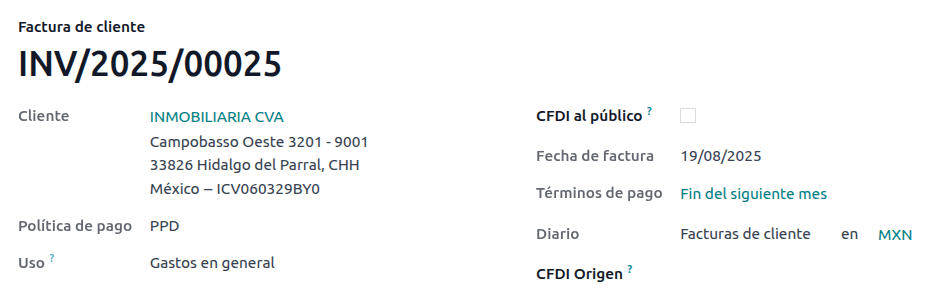
支付流
这两种情况下,Odoo 中的付款流程 是相同的。主要区别在于,根据法律规定,与 PPD 发票相关的付款需要以 「P」(付款)单据类型发送给政府。
如果付款与 PUE 发票相关,可以通过付款弹窗进行登记,并与相应的发票关联。要执行此操作,请前往 ,选择一张发票。然后,点击 付款 按钮打开付款弹窗,设置 付款方式`和其他字段,并点击 :guilabel:`创建付款。
尽管 PPD 发票的流程相同,但创建 电子单据 的补充要求意味着需要满足一些额外条件才能正确地将单据发送给 SAT。
从法律角度看,PPD 发票**必须**包含收到付款的具体 付款方式。因此,付款方式 字段不能设置为 待定义,因此选择该选项时该字段将变为不可见。
備註
如果需要银行账号,请在客户联系人记录的 会计 标签页中添加。
具体配置见 SAT <http://omawww.sat.gob.mx/tramitesyservicios/Paginas/anexo_20.htm>`_ 的附件 20。通常,银行账户 需要 10 或 18 位数字用于转账,16 位数字用于信用卡或借记卡。
如果一个已完全核销的付款与一张具有 财务流水号 的发票相关,则会显示 更新付款 按钮。点击 更新付款 按钮,将自动向政府发送**付款补充信息** XML 文件,并在发票和付款的 CFDI 标签页中显示该文件。
与发票或货项通知单类似,PDF 和 XML 文件可以发送给最终客户。要执行此操作,请在付款视图中点击 (齿轮) 图标打开操作下拉菜单,然后选择 通过电子邮件发送收据。
无论付款创建时是否已核销,都可以通过点击发票上 CFDI 标签页中的 打印 按钮来下载付款的 PDF 文件。

开票取消
可以取消发送到 SAT 的电子数据交换文件。根据 Reforma Fiscal 2022,自 2022 年 1 月 1 日起,有两项要求:
所有取消请求都需要提供*取消原因*。
发票创建 24 小时后,必须请求客户批准取消。如果 72 小时内未收到回复,取消将自动处理。
发票取消会在 Odoo 中自动更新,但可能需要一些时间。要检查取消状态,只需按 更新 SAT 状态 按钮。
发票取消可以基于以下原因之一进行:
01 - 发票开具有误(有相关单据)
02 - 发票开具有误(无需替换)
03 - 业务未执行
04 - 与全局发票相关的记名业务
要发起取消,请前往 ,选择要取消的已过账发票,然后点击 请求取消。接着,根据取消原因,参考 取消原因 01 或 取消原因 02、03 和 04 部分。
小訣竅
或者,也可以从 CFDI 标签页请求取消,点击行项目上的 取消。
備註
如果在锁定期间请求取消,CFDI 将被取消,但会计凭证不会。
如果客户拒绝取消,发票取消行项目将从 CFDI 标签中删除。
取消原因 01
在 :guilabel:请求 CFDI 取消 弹出窗口中,从 :guilabel:原因 字段选择 :guilabel:01 - 发票开具有误(有相关单据),然后点击 :guilabel:创建替换发票 以创建新的草稿发票。这张新的草稿发票将替换之前的发票以及相关的 CFDI。
请 确认 该草稿并 :guilabel:`发送并打印`发票。
返回到初始发票(即您最初请求取消的那张发票)。请注意,被替换为 字段会出现,并引用新的替换发票。
点击 请求取消。在 请求 CFDI 取消 弹出窗口中,原因 字段会自动选中 01 - 发票开具有误(有相关单据) 选项。
点击 确认。
随后将生成发票取消,并在 CFDI 标签页中显示原因行项目。

備註
当使用 01 - 发票开具有误(有相关单据) 作为取消原因时,财务流水号 字段中会出现 04| 前缀。这是 Odoo 用于完成取消操作的内部前缀,并不意味着 取消原因是 04 - 与全局发票相关的记名业务。
取消原因 02、03 和 04
在 请求 CFDI 取消 弹出窗口中,选择所需的取消 原因 并 确认 取消。
确认后,将生成发票取消,并在 :guilabel:`CFDI`标签页中显示原因行项目。
備註
如果 SAT 状态 变回**已验证**,可能是由于以下三个原因之一:
该发票在 SAT 网站 <https://www.sat.gob.mx/home>_ 上被标记为*不可取消*,原因是它具有有效的相关单据:要么是另一张通过 CFDI 来源 字段链接的发票,要么是一份付款补充信息。如果是这种情况,您需要先取消任何其他相关单据。
取消请求仍在由 SAT 处理中。如果是这样,请等待几分钟再试。
最终客户需要在其 税务信箱 中拒绝或接受取消请求。这可能需要长达 72 小时,如果取消请求被拒绝,您将需要重复此过程。
对于取消原因**02**、03 和 04,创建替换发票 按钮将被 确认 按钮取代,该按钮会立即请求取消。
当前发票的 状态 和 :guilabel:`取消原因`均可在 :guilabel:`CFDI`标签页中找到。

付款取消
要取消 付款补充信息,请转到相关发票的 CFDI`标签页,然后点击付款补充信息行上的 :guilabel:`取消。
与发票类似,前往付款单并点击 更新 SAT 状态,以便将 SAT 状态 和 状态 更改为 已取消。
備註
与发票一样,在创建新的付款补充信息时,可以通过在 CFDI 来源 ` 字段中添加 `04| 加上财务流水号,来建立与原始单据的关联。
此操作会取消发票,并将 原因 标记为 01 - 发票开具有误(有相关单据)。
开票特殊用例
CFDI 关联
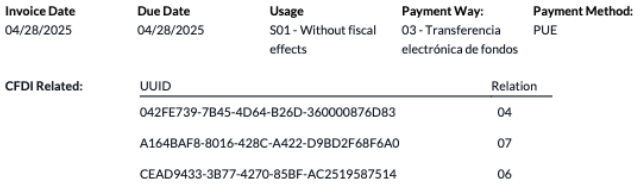
有时需要将当前单据与先前已签署的 CFDI 建立关联,为此只需在发票的 CFDI 来源 字段中填写关联信息,共有 7 种可能的值:
01:货项通知单
02:相关单据的借记通知单
03:先前发票或货物转移的退货
04:替换先前的 CFDI
05:先前已开具发票的货物转移
06:基于先前转移生成的发票
07:预付款应用的 CFDI
小訣竅
格式为:关联类型 |UUID1, UUID2, …., UUIDn,可以添加多个关联类型。
Example
以下是包含两个关联的示例:
04|042FE739-7B45-4D64-B26D-360000876D83,
07|A164BAF8-8016-428C-A422-D9BD2F68F6A0,CEAD9433-3B77-4270-85BF-AC2519587514
第一部分具有关联类型**04**和**1 个 UUID**
第二部分具有关联类型**07**和**2 个 UUID**
此外,任何组合也将在已签署的 PDF 上可见。
多種貨幣
墨西哥的 主货币 是 MXN。虽然这对所有墨西哥公司都是强制性的,但可以发送和接收不同货币的发票(和付款)。要启用 多币种 功能,请前往 ,然后在 自动汇率 部分将 服务 设置为 [MX] 墨西哥银行。接着,根据您希望更新汇率的频率设置 间隔 字段。
这样,文档的 XML 文件将具有正确的汇率和总金额(外币和墨西哥比索)。
强烈建议为每种货币使用独立的 银行账户。
備註
每天自动更新汇率的货币仅为:美元、欧元、英镑、日元和人民币。
折扣
根据法律,发送给政府的电子单据不能包含负数行,否则可能引发错误。因此,当使用 礼品卡 或 忠诚计划 时,后续的负数行在 XML 中将被转换为普通的 折扣。
要进行此设置,请前往 并创建一个名为 折扣 的产品,确保它设置了有效的 税金`(通常为 16% 的 :guilabel:`增值税)。
之后,通过 CFDI 创建并签署发票,并在底部添加`折扣`产品。在 XML 中,Odoo 将折扣平均分配到各行,而任何数学差异将添加到一个舍入产品中。
小訣竅
必须为与 礼品卡 或 忠诚计划 相关的每个产品变体创建一个`折扣`和 UNSPSC 产品类别。
首期付款
墨西哥的常见做法是使用 预付款。其主要应用场景是,在商品或服务(或两者)尚未完全确定的情况下,您收到了对应的款项。
SAT 允许两种不同的方式来处理此流程:两种方式都涉及通过 CFDI 来源 字段将所有发票相互关联。
備註
此流程必须安装 销售 应用。
其他資料
配置
首先,前往 以创建产品 Anticipo(预付款)并进行配置。产品类型 必须为 服务,并使用 UNSPSC 类别 84111506 开票服务。
然后,进入 ,将 Anticipo 产品添加为默认产品。
方法 A
此方法包括创建预付款发票、创建总金额发票,最后为预付款总额创建一张货项通知单。
首先,创建一个包含总金额的销售订单,并从中创建预付款(使用百分比或固定金额均可)。然后,通过 CFDI 签署该单据,并登记付款。
当客户需要最终发票时,再次从同一销售订单创建。在 创建发票 ` 弹出窗口中,选择 :guilabel:`常规发票。确保*Anticipo* 产品的那一行。
小訣竅
在墨西哥本地化中使用预付款时,请确保产品的 开票政策`为 :guilabel:`订购数量。否则将创建客户贷项通知单。
接着,复制预付款发票的 财务流水号,并将其粘贴到最终发票的 CDFI 来源 字段中,在值前添加前缀 07|,并通过 CFDI 签署该单据。
最后,为第一张发票创建一张货项通知单。复制最终发票的 财务流水号,并将其粘贴到货项通知单的 CFDI 来源 字段中,添加前缀`07|`。然后,通过 CFDI 签署该单据。
至此,所有电子单据都已相互关联。最后一步是全额支付新发票。在新发票的底部,您可以在 未结清信用 部分找到货项通知单 - 将其添加为付款。最后,通过 付款 弹窗登记剩余金额。
在销售订单中,所有三张单据都应显示为“收款中”。
方法 B
满足 SAT 要求的另一种更简单的方法是只开具首付款发票,并为余款开具第二张发票。这种方法将负数行作为折扣处理。
为此,请遵循与 方法 A 相同的过程,直到创建最终发票。不要删除包含*Anticipo*的行,而是将其他产品的 描述`重命名为包含文本`基于预付款余款的 CFDI。别忘了在最终发票的 CFDI 来源 字段中添加预付款发票的 财务流水号,并在前面加上前缀 07|。
最后,通过 CFDI 签署最终发票。
附录与补充信息
可以在 XML 中包含附录和补充信息。要添加,请前往 ,点击 新建 以输入要注入的代码。可能需要超出标准 Odoo 范围的额外字段。
警告
此部分可能需要技术知识,并可能带来技术债务风险;建议向您的客户经理咨询最佳技术建议。
一旦创建了所需的节点,就可以在每个联系人上选择它们,使其出现在开给该联系人的每张发票上。默认情况下,所有选中的节点将自动添加到每张发票上。
也可以通过在每个发票的 其他信息 标签页中选择所需的节点,从 附录与补充信息 中进行选择,按需添加节点。
小訣竅
可以为每个联系人或每张发票添加多个节点。
XML 阅读器
在某些情况下,例如当您在其他软件中或直接在 SAT 上创建发票时,您可能希望将发票上传到 Odoo。XML 阅读器允许您从 XML 文件中提取数据。要执行此操作,请前往 ,在列表视图中,点击 上传 按钮选择任意数量的 XML 文件,草稿发票将自动创建。您也可以将文件从电脑拖拽到视图中来完成此操作。
草稿发票将提取 :guilabel:`客户信息`(如果不存在,将创建新联系人)、:guilabel:`产品行`(仅当已存在同名产品时),并计算所有税金和墨西哥本地化特有的额外字段。导入信息将显示在沟通栏中。
警告
根据发票的创建来源,XML 文件中的值可能与 Odoo 计算的总金额不同。**务必**仔细检查以此方式上传的任何文档。
以此方式创建的 客户发票 将能够创建*付款补充信息*,并且可以随时取消。如果您使用 打印 按钮,PDF 文档将包含所有相应信息。
这同样适用于 供应商账单。
小訣竅
要获取已创建草稿发票的 财务流水号,请将 XML 文件作为日志笔记拖拽到沟通栏中。
CFDI 公开
墨西哥政府要求所有销售的商品或服务都必须有发票支持。如果客户不需要发票或没有 RFC,则必须创建*向公众开具的 CFDI*,也称为」名义」发票。
必须创建一个联系人,并且必须使用特定名称。
如果在销售订单或发票中勾选了 :guilabel:`向公众开具 CFDI `复选框,最终的 XML 将覆盖发票联系人的数据,并添加以下特征:
RFC:如果客户是本国客户,则为**XAXX010101000**;如果是外国客户,则为**XEXX010101000**
邮政编码:与公司的邮政编码相同
用途:S01 - 无财务影响

如果最终客户不提供任何详细信息,请创建一个通用的 客户。名称不能是 PUBLICO EN GENERAL,否则会触发错误(例如,可以是`CLIENTE FINAL`)。
全域發票
如果在特定时间段结束时(根据您公司的法律需求和偏好,可能从每日到每两月不等),客户仍有未被标记为常规发票或个人*向公众开具 CFDI 发票*的销售业务,SAT 允许创建一张可包含所有业务的单一发票,称为*统一发票*。
備註
此流程必须安装 销售 应用。
其他資料
設定
The Global Invoice Serie is specific to each branch or company and is used to define the sequence of global invoices. To configure it, go to , and navigate to the MX Electronic invoicing section. The Global Invoice Serie field can be found within the Service Tax Administration (SAT) section.

小訣竅
The default sequence for every company/branch is GINV/
销售流程
First, create a dedicated journal in to maintain a separate sequence that is used for global invoices, which function as orders when they are created.
然后,确保所有需要签署的销售订单具有以下配置:
完成后,前往 ,选择所有相关的销售订单并按 创建发票。确保禁用 合并开票 复选框,然后点击 创建草稿发票。
Odoo 将重定向到发票列表。选择所有发票,在 操作 下拉菜单中选择 过账。再次选择所有已过账的发票,返回 操作 下拉菜单,选择 创建统一发票。
在向导中,选择专业会计师指定的 周期,然后按 创建。所有发票应在同一个 XML 文件下签署,并拥有相同的 财务流水号。
小訣竅
点击 CFDI`标签页中的 :guilabel:`显示,可查看包含所有相关发票的列表。
点击:guilabel:
CFDI`标签页中的 :guilabel:`取消,可在 SAT 和 Odoo 中同时取消统一发票。
備註
以此方式创建的统一发票不会包含**PDF 文件**,因为其信息已存储在 Odoo 中,且无需向客户展示。
电子会计(报告)
在墨西哥,“电子会计<https://www.sat.gob.mx/aplicacion/42150/envia-tu-contabilidad-electronica>`_” 是指通过电子手段保存会计记录和条目,并每月通过 SAT 网站输入会计信息的义务。
它由三个主要 XML 文件组成:
当前正在使用的会计科目表的最新列表
月度试算平衡表,以及结账分录报告,也称为:第13个月试算平衡表
总分类账中日记账分录的导出(除非强制审计,否则为可选)
生成的 XML 文件符合 `Anexo Técnico de Contabilidad Electrónica 1.3 <https://www.gob.mx/cms/uploads/attachment/file/151135/Anexo24_05012015.pdf>`_的要求。
除此以外,还可以生成 DIOT:一份涉及增值税的供应商日记账分录报告,可以 TXT 文件格式导出。
備註
要使用这些报告,必须安装以下模块:
Odoo 墨西哥本地化报告 l10n_mx_reports
墨西哥 - 第13个月试算平衡表 l10n_mx_reports_closing
Odoo 墨西哥XML凭证导出 l10n_mx_xml_polizas
会计科目表 和 第 13个月试算平衡表 报告可在 中找到。*DIOT 报告可在 *menuselection:会计 --> 报告 --> 税务报告 中找到。
重要
您发送的报告的具体特点和义务可能会根据您的财政制度而发生变化。在向政府发送任何文件之前,请务必联系您的会计师。
賬目總表
墨西哥的 会计科目表 遵循基于 SAT 科目分组代码 <http://omawww.sat.gob.mx/fichas_tematicas/buzon_tributario/Documents/codigo_agrupador.pdf>_ 的特定模式。
可以创建任何科目,只要其符合 SAT 的编码分组模式:模式为 NNN.YY.ZZ 或 NNN.YY.ZZZ。
Example
例如,“102.01.99” 或 “401.01.001”。
在 中创建符合 SAT 编码分组模式的新科目时,正确的分组代码会出现在 标签 中,并且该科目会显示在*会计科目表* 报告中。
创建所有科目后,请确保添加了正确的 标签,因为这些标签标明了科目的性质。
備註
不建议使用任何以 0 结尾的章节模式(例如`100.01.01`、301.00.003 或 604.77.00)。这会在报告中触发错误。默认情况下,如果编号稍后会导致问题,Odoo 会将科目标记为黄色,这是为了防止报告提供不准确的数据。
一切设置完成后,请前往 ,点击 :guilabel:`SAT 会计科目表(XML) `按钮,生成包含所有科目的 XML 文件。该 XML 文件可准备上传至 SAT 网站。
試算平衡
只要添加了正确的 编码组,试算表就会报告账户的初始余额、贷方余额和总余额。
要生成试算平衡表的 XML 文件,请前往 ,选择日期,然后点击 (操作菜单),再选择 SAT (XML)。

備註
Odoo 不会生成 Balanza de Comprobación Complementaria。
第 13 个月
另一个附加报告是*第13个月*:一份结账资产负债表,显示了会计年度结束时所做的任何调整或变动。
要生成此 XML 文档,请前往 ,并创建一个新凭证。在此处,添加所有需要调整的金额,并平衡每个科目的借方和/或贷方。
完成后,进入 其他信息 标签页,勾选 第13个月结账 字段。如果需要,请前往 并选择日期 第13个月,在此处可以查看年度总金额以及日记账分录的所有增减项。要生成 XML 文件,请点击 (操作菜单),然后选择 SAT (XML)。
總賬
根据法律,墨西哥的所有交易都必须以数字方式记录。由于 Odoo 会自动为所有发票和付款创建底层日记账分录,因此只需导出总账即可满足 SAT 的审计和/或退税要求。
小訣竅
可以根据需要按期间或按日记账筛选报告。
要创建 XML,请前往 ,点击 (操作菜单),然后点击 XML (Polizas)。接着,从四种 导出 类型中选择:
税务审计
审计认证
退货
赔偿
For Tax audit or Audit certification, add the Order Number provided by the SAT. For Return of goods or Compensation, add the Process Number, also provided by the SAT.
備註
To see this report without sending it, use ABC6987654/99 for the Order Number or
AB123451234512 for the Process Number.
DIOT报告
The DIOT (Declaración Informativa de Operaciones con Terceros / Informative Declaration of Operations with Third Parties) is an additional obligation with the SAT, where the current status of creditable and non-creditable payments, withholdings, import taxes, and refunds of VAT from your vendor bills are provided to the SAT.
備註
Since July 2025 the new 2025 version of the report is available.
Unlike other reports, the DIOT is uploaded to a website provided by the SAT that contains the A-29 form. In Odoo, you can download the records of your transactions as a TXT file that can be uploaded to the form, avoiding direct capture of this data.
The transactions file contains the total amount of the payments registered in vendor bills, broken down into the corresponding types of IVA. The VAT, Country and Type of operation fields are mandatory for all vendors.
To download the DIOT report as a TXT file, go to . Select the desired month, click (action menu), and select DIOT (TXT).
In case new taxes are created on the database, there are two types of tags, the tags containing tax must go into the tax distribution and the ones with the base name go on the base of the tax. All lines of a VAT tax must containing at least one tax grid.

重要
It is required to fill in the Type of Operation field in the Accounting tab of each vendor to prevent validation errors. Make sure that foreign customers have their Country set.

Selecting 87 - Global Operations will cause the final TXT file to merge all vendors that are part of the global operations under one generic VAT: XAXX010101000.
外部贸易
外贸是对普通发票的补充,根据 SAT 法规,在 XML 和 PDF 中为外国客户的发票添加某些值,例如:
收件人和发件人的具体地址
增加一个 关税比例 标签,用于识别产品类型
The correct 國際貿易術語 (International Commercial Terms)
And more, such as the certificate of origin and special units of measure
除了扩展所售商品的描述之外,还可以正确识别出口商和进口商。
Since January 1, 2018, external trade is a requirement for taxpayers who carry export operations of type A1. While the current CFDI is 4.0, the external trade is currently on version 2.0.
備註
In order to use this feature, the EDI for Mexico (Advanced Features)
l10n_mx_edi_extended module must be installed.
重要
安装前,请确保您的企业需要使用此功能。如有必要,在安装任何模块之前,请先咨询您的会计师。
The CFDI to public checkbox must be ticked when creating foreign invoices.
配置
聯絡人
To configure your company contact for external trade, navigate to , remove the default Customer Invoices filter, and select your Company name. While the CFDI 4.0 requirements require adding a valid ZIP code in the company contact record, the external trade complement adds the requirement that the City and the State must also be valid. All three fields must coincide with the Official SAT Catalog for Carta Porte, or it will produce an error.
警告
Add the City and State in the company’s contact record, not in the company record itself.
On the contact record, the optional fields Locality and Colony Code can also be filled. These two fields also have to coincide with the data in the SAT.
要配置外国接收客户的联系人数据,请导航至 ,然后选择外国客户的联系人。为避免出错,联系人必须填写以下字段:
整个公司的 地址,包括有效的 ZIP 代码和国外的 国家/地区。
The foreign RFC (tax identification number), in the correct format (for example: Colombia
123456789-1)In the Sales & Purchase tab, to activate the Needs external trade? checkbox.
備註
在生成的 XML 和 PDF 文件中,VAT 会自动替换为国外交易的通用增值税:xexx010101000。
產品
All products involved with external trade have four additional fields that are required, two of which are exclusive to external trade.
The Reference of the product must be set in the General Information tab.
The Weight of the product in the Inventory tab must be more than
0.The correct Tariff Fraction of the product must be set in the Accounting tab for external trade.
The UMT Aduana in the Accounting tab must be set and correspond to the Tariff Fraction for external trade.

小訣竅
If the UoM code of the Tariff Fraction is
01, the correct UMT Aduana iskg.If the UoM code of the Tariff Fraction is
06, the correct UMT Aduana isUnits.
開立發票流程
Before creating an invoice, it is important to take into account that external trade invoices require converting product prices into a foreign currency such as USD. Therefore, multicurrency must be enabled with the foreign currency activated in the Currencies section. The correct Service to run is [MX] Bank of Mexico. To convert product prices, create a pricelist in the foreign currency.
Then, with the correct exchange rate set up in , set the Incoterm and the optional Certificate Source fields in the invoice’s Other Info tab.
小訣竅
While not mandatory, the information will be more complete if CFDI to public is also active.
Finally, confirm the invoice with the same process as a regular invoice, and click the Send button to sign it via CFDI.
Point of sale
The Point of sale adaptation of the Mexican Localization enables the creation of invoices that comply with the SAT requirements directly from the POS register, with the added benefit of creating receipt tickets that allow self-invoicing in a special portal and creating global invoices.
Point of sale flow
On top of the standard Point of Sale configuration, the Mexican localization requires each payment method to be configured with a correct Payment Way as well as a Re-invoicing account to handle the accounting for invoices with the invoicing portal.
小訣竅
By default, Odoo creates pre-configured payment methods for cash, credit card, and debit card and assigns the 402.04.01 Re-invoicing account as default for re-invoicing.
While selling on the Point of Sale, click the Customer button to either create or select a customer. Here it is possible to review customer invoicing information (such as the RFC or Fiscal Regime) and even modify it directly inside the session.
After selecting a customer, tick the Invoice checkbox. This opens a menu to select the Usage and to define if it is an invoice to the public. Click confirm, select the payment method, and then click validate to complete the order. The PDF is then downloaded and it is possible to send the invoice via mail to the final customer alongside the receipt.
小訣竅
To create invoices from orders, go to the Orders menu, select the order, click Load Order, and tick the Invoice checkbox. This opens the same menu for the Usage and CFDI to Public.

To sign a credit note automatically, tick the Invoice checkbox when processing a refund.
備註
Credit notes for returned products will contain the relation type 03 - Devolución de mercancía sobre facturas o traslados previos.
重要
In the Mexican localization, positive and negative lines in a POS session cannot be mixed.
If a SAT validation error occurs customer will get a Pro-Forma invoice instead.
Self-invoicing portal
If the final customer is not sure if they want to have their invoice generated at the exact moment of the sale, it is possible to give them the option of creating a receipt with either a QR code or a URL. To do so, follow these steps:
Go to .
Select the Point of Sale.
Scroll to the Bills & Receipts section.
Enable Self-service invoicing.
Set the Print field to QR code, URL, or QR code + URL.
Customers who scan this QR code or follow the URL will access to a menu where they can add their fiscal information, including the Usage and Fiscal Regime once they enter the five digit code that is also provided on the receipt.
On the journal entries of the session, the previously selected Re-invoicing account will be used to handle reversals of the sales entries when invoices are requested as well as be used as a sales account for the new invoices.
其他資料
全域發票
As with regular sales orders, global invoices can also be created from the POS register.
For this, make sure not to select a customer or the invoice option in the payment menu and go to . There, select all the orders to invoice, click Actions and select Create Global Invoice.
Like with sales orders, choose the correct Periodicity and press Create.
This attaches an XML file to each of the selected orders. The XML files can be downloaded by going to the CFDI tab. If needed, it is possible to cancel the invoice from the same tab.
If eventually any of the orders that are part of the global invoice need to be addressed to a customer, it is still possible to send an invoice by opening the POS register, clicking the (drop-down menu), then click Orders. Change the All active orders filter to Paid, select the order, and click the Invoice button.
備註
Global invoices, just as regular invoices, can only be grouped by physical address. That is determined by the address set on the POS invoice journal, so when attempting to invoice two addresses a warning will come up to warn the user of the error.
電子商務
The eCommerce adaptation of the Mexican Localization provides and extra step to create invoices that comply with the SAT requirements on eCommerce by retrieving the customer data after the Checkout and even allowing for the signature of automatic invoices after the payment is processed, as well as sending customers the files via email and granting them access to retrieve their PDF file from their own customer portal.
eCommerce flow
During the regular checkout process, a new Invoicing Info step appears, where it is possible to request an invoice or not. If No is selected, a CFDI to Public is created,. If Yes is selected, the RFC, Fiscal Regime, and Usage are required in order to get all information in the sales order, where its status will change to To Invoice.
Additionally the customer can decide whether or not to request IEPS Breakdown.
重要
Make sure to add a UNSPSC code to the shipping product.
If the Automatic Invoicing is enabled in , the electronic document will be signed automatically.
銷售
The Sales app contains fields that make invoicing easier, while the fields themselves do not change the sales behavior, they are directly copied when creating an invoice.
The copied fields are:
Payment Way
付款政策
CFDI 公开
用途
Additionally, it is possible to get a preview of the invoice for validation purposes with the customer by installing the pro-forma module. This module adds the mentioned fields to the sale order as well as:
Product code
Unit code
Fiscal regime
訂閱
While handling subscriptions, all the sales fields are used to create the recurrent invoices. These are automatically signed and sent via email with the PDF and XML attached with no additional manual actions required.
重要
All invoices generated by the subscription app will always be automatically signed with no exceptions.
庫存
海关编号
A customs declaration (Pedimento Aduanero) is a fiscal document that certifies that all contributions to the fiscal entity (the SAT) have been paid for, including the import/export of goods.
According to the Annex 20 of CFDI 4.0, in documents where the invoiced goods come from a first-hand import operation, the Customs Number field needs to be added to all lines of products involved with the operation, as does the date of the document.
備註
To do so, the Odoo Mexico Localization for Stock/Landing l10n_mx_edi_landing module
must be installed, in addition to the Inventory,
Purchase, and Sales apps.
重要
不要将这一特征与对外贸易相混淆。海关编号与进口货物直接相关,而对外贸易补充则与出口相关。如果需要此功能,请先咨询您的会计师,然后再做任何修改。
配置
In order to track the correct customs number for a specific invoice, Odoo uses landed costs. Go to , and in the Valuation section, make sure that Landed Costs is activated.
小訣竅
It is recommended to add a Default Journal to automatically fill the mandatory Journal field on landed costs even though landed costs that only add customs numbers without adding Additional Costs do not create journal entries.
Configure the goods-type products that hold the customs numbers. To do so, create the products and complete these three requirements:
Tracking must be set to either By Lots or By Unique Serial Number but not By Quantity.
Invoicing Policy must be set to Delivered quantities.
Valuation by lots/serial numbers must be enabled.
This will make the field Customs invoicing available on the Accounting tab. Enable the field to use customs numbers with this product.
It is important to make sure the product has a Product Category and has the following configuration:
成本计算方法:选择 FIFO 或 AVCO
Inventory Valuation: Either Periodic or Perpetual
備註
The feature works regardless of whether the inventory valuation is set to either Periodic (at closing) or Perpetual (at invoicing).


采购和销售流程
After configuring the product, follow the standard purchase flow.
Create a purchase order from . Then, confirm the order to display a Receipt smart button. Click on the Receipt smart button, add the lots or serial numbers and Validate.
Go to , and create a new record. In the Transfer, add the receipt that was just validated, and add the Customs number.
小訣竅
While it is possible to add costs related to the customs number at this stage of the process, it is highly recommended to create a landed cost from a vendor bill from your customs agent. Learn more about Landed Costs here.
警告
The Customs number field is not editable once it is set, and cannot be repeated, however it is possible to fix the number on the lot or serial number later by selecting a different landed cost.

The customs number assigned to a specific lot or serial number can be found on the its registry on . The L10N Mx Edi Landed Cost field can be edited at any time to fix any mistakes that could have occurred when registering the landed cost. Editing the L10N Mx Edi Landed Cost field automatically updates the Customs number and the name of the lot or serial number.
Next, create a sales order and confirm it. Click on the Delivery smart button that appears, and carefully review the assigned lots/serial numbers to make sure they are the desired values, after that Validate the delivery order.
Finally, create an invoice from the sales order, and confirm it. The invoice lines are created according to the distribution of the delivery order, in cases where more than one customs number were selected, Odoo will split the invoice lines by quantity and customs numbers.

Delivery guide
A Carta Porte is a bill of lading: a document that states the type, quantity, and destination of goods being carried.
On July 17th, 2024, version 3.1 of this CFDI was implemented for all transportation providers, intermediaries, and owners of goods. Odoo is able to generate a document type 「T」 (Traslado), which, unlike other documents, is created in a delivery order instead of an invoice or payment.
Odoo 可以创建带(或不带)地面运输的 XML 和 PDF 文件,并可以处理被视为 危险品 的材料。
In order to print the PDF, the delivery order must be signed by the government and then it can be printed using the Print Carta Porte button on the delivery order.
小訣竅
The PDF file contains a QR code to verify the CCP code for the authorities.
In order to transport goods between warehouses, the logistic route must contain a Delivery type of operation.
備註
In order to use this feature, the Mexico - Electronic Delivery Guide
l10n_mx_edi_stock module must be installed.
Additionally, it is necessary to have the Inventory and Sales apps installed.
重要
Odoo does not support Carta Porte type document type 「I」 (Ingreso), air, train or marine transport.
Consult your accountant first if this feature is needed before doing any modifications.
配置
Odoo manages two different types of CFDI type 「T」. Both can be created from either incoming shipments or delivery orders.
No Federal Highways is used when the Distance to Destination is less than 30 km.
Federal Transport is used when the Distance to Destination exceeds 30 km.
For No Federal Highways, no other configuration is required beyond the standard requirements of regular invoicing (the RFC of the customer, the UNSPSC code, etc.).
For Federal Transport, several configurations have to be added to contacts, vehicle setups, and products. Those configurations are then included in the XML and PDF files.
联系方式和车辆
Like the external trade feature, the Address in both the company and the final customer must be complete. The ZIP code, City, and State must coincide with the Official SAT Catalog for Carta Porte.
小訣竅
The Locality field is optional for both addresses.
重要
The origin address used for the delivery guide is set in . While this is set as the company address by default, you can change it to your correct warehouse address.
This feature requires the use of Fleet to manage vehicles. The vehicle setup is managed directly on the vehicle, and all the required fields are only visible after checking the L10N Mx Is Freight Vehicle field.
Checking the L10N Mx Is Freight Vehicle field displays the MX Parameters tab where the mandatory fields are required to create a correct delivery guide. Additionally the vehicle must contain a License Plate, a Model Year, and a Driver.
小訣竅
The Vehicle Plate Number and Number Plate fields must contain between 5 and 7 characters.
The main driver of the vehicle is set directly on the Driver field, and it is possible to add more vehicle operators in the Intermediaries section. The only mandatory fields for driver contacts are the VAT and Operator License.

小訣竅
If the vehicle is rented or more intermediaries are required, it is possible to add them in the Intermediaries field.
產品
与常规发票类似,所有产品都必须有 UNSPSC 类别。除此以外,还有两种额外配置,适用于交货指南中涉及的产品:
必须将 产品 设置为 可储存产品 才能创建库存变动。
In the Inventory tab, the Weight field must be more than
0.
警告
Creating a delivery guide of a product with the Weight set to 0 will trigger an
error. As the Weight is immediately stored in the delivery order, it is then
necessary to return the products and recreate the delivery order (and delivery guide) with the
correct values.
销售和库存流动
To create a delivery guide, first create and confirm a sales order from . Click the Delivery smart button that is generated, and Validate the transfer.
After the status is set to Done, you can edit the transfer, and select the Transport Type in the Additional Info tab.
If using the No Federal Highways Transport Type, save the transfer, and then click Generate Delivery Guide. The resulting XML can be found in the chatter.
備註
Other than the UNSPSC on all products, delivery guides that use No Federal Highways do not require any special configuration to be sent to the government, as they are a type 「T」 CFDI with no delivery guide complement.
If using the Federal Transport Transport Type, the Vehicle Setup is displayed to be selected. The Gross vehicle weight is taken from the Vehicle setup configuration where it is possible to add additional Extra weight to account for the drivers and luggage.
備註
Odoo will calculate the Gross vehicle weight with the following formula:
Every delivery requires a value in Distance to Destination (KM) greater than 0.
Finally, enter the Delivery Date and click Generate Delivery Guide.
備註
By default the Scheduled Date is filled and represents the time at which the shipment leaves the warehouse and the Delivery Date is the time that the shipment is expected to arrive at its destination. These values are declared in both the XML and PDF.
危险隐患
在 官方 SAT 目录 <http://omawww.sat.gob.mx/tramitesyservicios/Paginas/complemento_carta_porte.htm>`_中,:guilabel:`UNSPSC 类别`中的某些值被视为*危险危害*。在使用 :guilabel:`联邦运输 创建交货指南时,需要额外考虑这些类别。
First, select the product from . Then, in the Accounting tab, fill the Hazardous Material Designation Code and Hazardous Packaging fields with the correct code from the SAT catalog.

重要
There exists the possibility that a UNSPSC Category may or may not be a dangerous
hazard (for example 01010101). If it is not dangerous, enter 0 in the Hazardous
Material Designation Code field.
In MX Parameters, complete the Environment Insurer and Environment Insurance Policy as well. After this, continue with the regular process to create a delivery guide.
Imports and Exports
If your Carta Porte is for international operations (for exports), some additional fields need to be taken into account.
First, make sure that all relevant Products have the following configuration:
UNSPSC Category cannot be 01010101 Does not exist in the catalog.
Tariff Fraction and UMT Aduana must be set, similar to the external trade flow.
Material Type must be set.
Then, when creating a Delivery Guide from a delivery or receipt, fill the following fields:
Customs Regimes
Customs Document Type
Customs Document Identification
Then, when creating a Delivery Guide for a receipt where the Customs Document Type is Customs number, two new fields appear: Customs Number and Importer.
小訣竅
The field Customs Number should follow the pattern xx xx xxxx xxxxxxx. For example,
15 48 3009 0001235 with Two spaces between text.