
Offboarding
When an employee leaves the company, it is important to ensure their employee record is updated to reflect their departure, log the reason why, close any open activities associated with the employee, and provide them with any important documents.
Lưu trữ một nhân viên
In Odoo, when an employee leaves the company they must be archived. To archive an employee, first navigate to the . From here, locate the employee who is leaving the company, and click on their employee card.
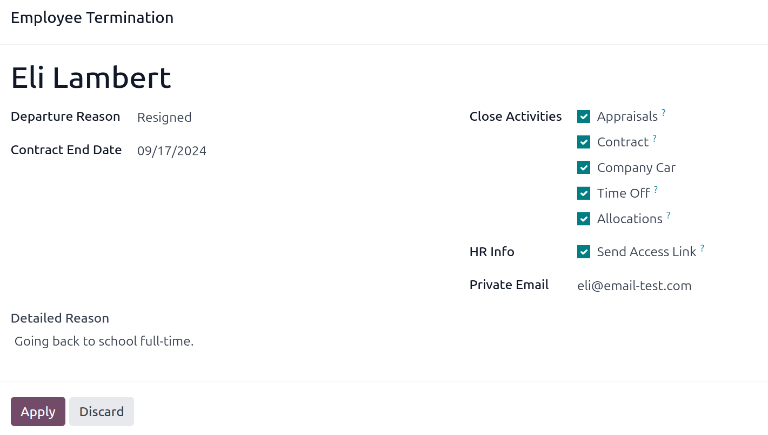
Biểu mẫu nhân viên tải, hiển thị tất cả thông tin của họ. Nhấp vào biểu tượng (bánh răng) ở góc trên bên trái và menu thả xuống xuất hiện. Nhấp vào Lưu trữ, và cửa sổ bật lên Chấm dứt Nhân viên xuất hiện.
Điền các trường sau vào biểu mẫu:
Lý do Nghỉ việc: Chọn lý do nhân viên rời đi từ menu thả xuống. Các tùy chọn mặc định là:
Bị Sa thải: Chọn tùy chọn này khi nhân viên bị cho thôi việc và công ty đã thông báo.
Từ chức: Chọn tùy chọn này khi nhân viên không còn mong muốn làm việc và nhân viên đã thông báo.
Nghỉ hưu: Chọn tùy chọn này khi nhân viên nghỉ hưu.
Trở thành Freelance: Chọn tùy chọn này khi nhân viên không còn làm việc cho công ty, nhưng thay vào đó trở thành một freelancer.
Ngày Kết thúc Hợp đồng: Sử dụng công cụ chọn lịch, chọn ngày làm việc cuối cùng của nhân viên tại công ty.
Lý do Chi tiết: Nhập mô tả ngắn gọn về việc nhân viên rời đi trong trường này.
Đóng hoạt động: Đánh dấu vào ô bên cạnh mỗi loại hoạt động để đóng hoặc xóa bất kỳ hoạt động nào đang mở liên quan đến nó. Khuyến nghị đánh dấu tất cả các ô được áp dụng. Các tùy chọn có sẵn là:
Đánh giá: hủy tất cả các đánh giá được lên lịch sau ngày kết thúc hợp đồng.
Hợp đồng: áp dụng ngày kết thúc cho hợp đồng hiện tại.
Xe công ty: xóa nhân viên khỏi vị trí lái xe công ty hiện tại của họ và chỉ định tài xế tiếp theo, nếu có.
Time Off: cancels any time off requests after the contract end date.
Allocations: removes the employee from any accrual plans they are on.
Thông tin nhân sự: Đánh dấu vào ô bên cạnh Gửi liên kết truy cập để gửi liên kết tải xuống đến địa chỉ email cá nhân của nhân viên, chứa tất cả các tệp nhân sự cá nhân của họ.
Private Email: This field appears if the HR Info checkbox is ticked. Enter the private email address for the employee.
Khi hoàn thành biểu mẫu, nhấp Áp dụng. Hồ sơ nhân viên sẽ được lưu trữ, một email chứa liên kết tải tài liệu cá nhân sẽ được gửi đến địa chỉ email riêng của nhân viên (nếu được chọn), và biểu ngữ màu đỏ Đã lưu trữ sẽ xuất hiện ở góc trên bên phải biểu mẫu nhân viên. Cửa sổ trò chuyện sẽ ghi lại Ngày nghỉ việc và Lý do nghỉ việc, cùng với việc liên kết truy cập đã được gửi email hay chưa.
Ghi chú
Trong khi cố gắng gửi liên kết truy cập tài liệu nhân sự, cửa sổ bật lên Thao tác không hợp lệ có thể xuất hiện, hiển thị thông báo lỗi sau:
Người dùng liên quan và email cá nhân của nhân viên phải được thiết lập để sử dụng chức năng "Gửi liên kết truy cập": (Tên nhân viên)
Nếu lỗi này xuất hiện, nhấp Đóng để đóng cửa sổ bật lên, sau đó đánh dấu vào ô Gửi liên kết truy cập để bỏ chọn nó trên cửa sổ bật lên Chấm dứt nhân viên.
Nhấp Áp dụng để lưu trữ nhân viên và đóng các hoạt động đã chọn trên cửa sổ bật lên Chấm dứt nhân viên, quay lại biểu mẫu nhân viên.
Sau khi vào biểu mẫu nhân viên, đảm bảo các trường sau được điền:
Tab Thông tin cá nhân: Đảm bảo địa chỉ email được nhập vào trường Email.
Tab Cài đặt nhân sự: Đảm bảo Người dùng liên quan được chọn trong trường tương ứng.
Sau khi thông tin cần thiết được nhập, gửi lại liên kết truy cập tài liệu nhân sự
Gửi liên kết truy cập tài liệu nhân sự
Nếu liên kết truy cập không được gửi khi lần đầu lưu trữ nhân viên trên biểu mẫu Chấm dứt nhân viên, nó có thể được gửi sau khi nhân viên được lưu trữ vào bất kỳ thời điểm nào.
Sau khi một nhân viên được lưu trữ, thì nhân viên đó sẽ không còn hiển thị trên trang chủ chính của ứng dụng Nhân viên. Để xem các nhân viên đã lưu trữ, đi đến trang chủ và nhấp vào biểu tượng (mũi tên xuống) trên thanh tìm kiếm để hiển thị menu thả xuống. Chọn Đã lưu trữ ở cuối cột Bộ lọc, sau đó nhấp ra ngoài cửa sổ thả xuống để đóng nó.
Bây giờ, chỉ các nhân viên đã lưu trữ xuất hiện trên bảng điều khiển. Nhấp vào nhân viên mong muốn để mở biểu mẫu nhân viên của họ. Trên biểu mẫu này, nhấp vào biểu tượng (bánh răng) ở góc trên bên trái, sau đó nhấp Gửi liên kết truy cập tài liệu nhân sự từ menu thả xuống hiển thị. Chatter ghi lại rằng liên kết đã được gửi.