
Salida
When an employee leaves the company, it is important to ensure their employee record is updated to reflect their departure, log the reason why, close any open activities associated with the employee, and provide them with any important documents.
Archivar un empleado
In Odoo, when an employee leaves the company they must be archived. To archive an employee, first navigate to the . From here, locate the employee who is leaving the company, and click on their employee card.
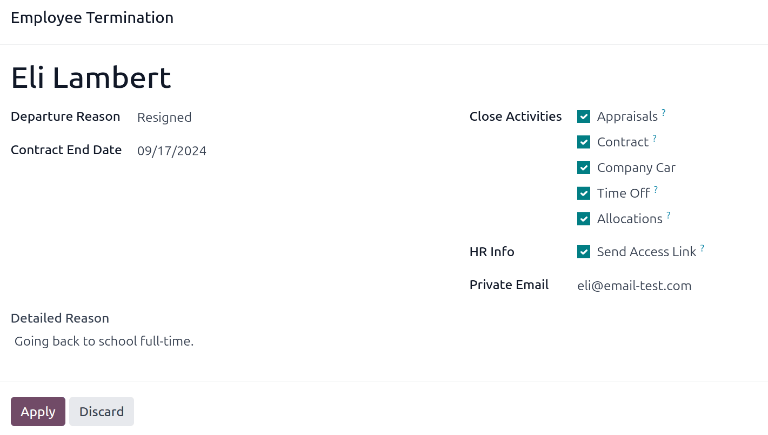
Se carga el formulario del empleado, mostrando toda su información. Haz clic en el icono (engranaje) en la esquina superior izquierda, y aparece un menú desplegable. Haz clic en Archivar, y aparece una ventana emergente de Terminación de empleado.
Complete los siguientes campos del formulario:
Motivo de salida: Selecciona un motivo por el que el empleado se va del menú desplegable. Las opciones predeterminadas son:
Despedido: Selecciona esta opción cuando un empleado es despedido y la empresa ha dado el aviso.
Renunció: Selecciona esta opción cuando el empleado ya no desea estar empleado y el empleado ha dado el aviso.
Jubilado: Selecciona esta opción cuando el empleado se jubile.
Se hizo autónomo: Selecciona esta opción cuando el empleado ya no trabaje para la empresa, pero se convierta en trabajador autónomo.
Fecha de fin de contrato: Usa el selector de calendario para seleccionar el último día que el empleado trabaja para la empresa.
Motivo detallado: Introduce una breve descripción de la salida del empleado en este campo.
Cerrar actividades: Marca la casilla junto a cada tipo de actividad para cerrar o eliminar cualquier actividad abierta asociada con ella. Se recomienda marcar todas las casillas que sean aplicables. Las opciones disponibles son:
Evaluación: cancela todas las evaluaciones programadas después de la fecha de finalización del contrato.
Contrato: aplica una fecha de finalización para el contrato actual.
Coche de empresa: elimina al empleado como conductor de su coche de empresa actual, y asigna al siguiente conductor, si procede.
Time Off: cancels any time off requests after the contract end date.
Allocations: removes the employee from any accrual plans they are on.
Información de RRHH: Marca la casilla junto a Enviar enlace de acceso para enviar un enlace de descarga a la dirección de correo electrónico personal del empleado, que contiene todos sus archivos personales de RRHH.
Private Email: This field appears if the HR Info checkbox is ticked. Enter the private email address for the employee.
Cuando el formulario esté completo, haz clic en Aplicar. El registro del empleado se archiva, se envía un correo electrónico con un enlace de descarga a sus documentos personales a la dirección de correo electrónico privado del empleado (si se seleccionó), y aparece un banner rojo Archivado en la esquina superior derecha del formulario del empleado. El chatter registra la Fecha de salida y el Motivo de salida, y si se envió un enlace de acceso por correo electrónico.
Nota
Al intentar enviar el enlace de acceso a los documentos de RRHH, puede aparecer una ventana emergente de Operación inválida, mostrando el siguiente mensaje de error:
El usuario relacionado del empleado y el correo electrónico privado deben establecerse para usar la función «Enviar enlace de acceso»: (Nombre del empleado)
Si aparece este error, haz clic en Cerrar para cerrar la ventana emergente, luego marca la casilla Enviar enlace de acceso para deseleccionarla en la ventana emergente de Terminación de empleado.
Haz clic en Aplicar para archivar al empleado y cerrar las actividades seleccionadas en la ventana emergente de Terminación de empleado, volviendo al formulario del empleado.
Una vez en el formulario del empleado, asegúrate de que los siguientes campos estén completados:
Pestaña Información privada: Asegúrate de que haya una dirección de correo electrónico introducida en el campo Correo electrónico.
Pestaña Configuración de RRHH: Asegúrate de que haya un Usuario relacionado seleccionado en el campo correspondiente.
Después de introducir la información necesaria, reenvía el enlace de acceso a los documentos de RRHH
Enviar enlace de acceso a documentos de RRHH
Si el enlace de acceso no se envió al archivar por primera vez al empleado en el formulario de Terminación de empleado, se puede enviar después de que el empleado esté archivado en cualquier momento.
Después de archivar a un empleado, ya no es visible en el tablero principal de la aplicación Empleados. Para ver los empleados archivados, navega al tablero de la aplicación y haz clic en (flecha hacia abajo) en la barra de búsqueda para mostrar un menú desplegable. Selecciona Archivado, hacia la parte inferior de la columna Filtros, y luego haz clic fuera de la ventana desplegable para cerrarla.
Ahora, solo aparecen empleados archivados en el tablero. Haz clic en el empleado deseado para abrir su formulario de empleado. En este formulario, haz clic en el icono (engranaje) en la esquina superior izquierda y luego haz clic en Enviar enlace de acceso a documentos de RRHH del menú desplegable resultante. El chatter registra que se envió el enlace.