
Tuyển dụng
Odoo đảm bảo tất cả ứng viên tuyển dụng được quản lý một cách khoa học thông qua một chuỗi các bước và giai đoạn được cấu hình sẵn mà mỗi ứng viên sẽ trải qua. Mỗi giai đoạn có (các) bước cụ thể cần được thực hiện, ví dụ như lên lịch cuộc gọi điện thoại, phỏng vấn, hoặc gửi thư mời nhận việc. Quy trình này được gọi là chu trình ứng viên.
When an applicant applies for a job position, an applicant card is automatically created in Odoo's Recruitment app for that specific job position. As the applicant progresses through the recruitment pipeline, the recruitment team moves their card from one stage to the next.
Stages can be configured so that an email is automatically sent out using a set, pre-configured template as soon as an applicant's card enters a stage. These automated emails are defined on each stage in the applicant flow.
The applicant flow explained in this document is the default flow in Odoo, and goes through the applicant flow when using the Recruitment application's default configuration. The applicant flow is able to be modified to suit the specific recruitment flow for any business.
Ghi chú
Luồng ứng viên cùng với tất cả các giai đoạn của luồng này mang tính phổ quát và được áp dụng cho mọi vị trí tuyển dụng, trừ khi có quy định khác. Tuy nhiên, một giai đoạn cụ thể có thể được cấu hình để chỉ áp dụng cho một công việc cụ thể, nghĩa là giai đoạn đó chỉ hiển thị với vị trí công việc đó. Nếu không, bất kỳ giai đoạn mới nào được tạo ra, hoặc giai đoạn hiện có được chỉnh sửa, thì những thay đổi đó sẽ xuất hiện trên tất cả các vị trí tuyển dụng.
Cài đặt
Before creating a job position in Odoo, configure the necessary settings for the Recruitment app. To view and edit the settings, navigate to . After any changes are made, click the Save button in the top-left corner to save all the changes.
Job posting
The Job Posting section of the Recruitment app settings has only one selection to make. If job positions are to be posted to the company's website, enable the Online Posting option.
Ghi chú
The Online Posting is only available if the Website application is also installed.
Recruitment process
The Recruitment process section of the settings page specifies what the database can and cannot do during the recruitment process.
Gửi khảo sát phỏng vấn
Odoo có khả năng gửi một khảo sát cho ứng viên để thu thập thêm thông tin về họ. Khảo sát có thể được coi như bài kiểm tra hoặc bảng câu hỏi, và có thể được tùy chỉnh theo nhiều cách khác nhau để cung cấp cho đội ngũ tuyển dụng những hiểu biết có giá trị về ứng viên.
Bật tùy chọn Gửi Khảo Sát Phỏng Vấn để gửi khảo sát cho ứng viên. Sau khi được bật, một liên kết nội bộ Khảo Sát Phỏng Vấn xuất hiện. Nhấp vào liên kết Khảo Sát Phỏng Vấn để điều hướng đến danh sách tất cả các khảo sát đã tạo.
This list includes all surveys that were created in the database, not just surveys used in the Recruitment app. If no surveys have been created, the surveys list displays a No Survey Found message, and presents options to create a survey from several pre-configured survey templates.
Xem thêm
For more detailed information about surveys, refer to the survey essentials documentation.
Ghi chú
Enabling the Send Interview Survey option will install the Surveys application once the settings are saved, if it is not installed already.
Gửi SMS
It is possible to send text messages to applicants directly through the Recruitment app. To do so, enable the Send SMS option. This option requires credits to use, which can be obtained by clicking the Buy credits internal link that emerges when the feature is enabled.
Xem thêm
For more information, refer to the SMS pricing and FAQs documentation.
CV display
When applicants submit an application, one of the default required fields is a resumé, or CV. All resumés are stored in the Documents application, and are accessible on the applicant's card.
CV có tùy chọn hiển thị trên mẫu đơn của ứng viên, có thể được xem bằng cách nhấp vào thẻ của ứng viên. Hồ sơ sẽ xuất hiện ở phía bên phải màn hình. Nếu không kích hoạt tùy chọn này, CV có thể được truy cập qua một liên kết trong cửa sổ trò chuyện, nơi cần nhấp vào để mở rộng và xem hoặc tải xuống.
Enable the CV Display option to show the resumé on the applicant's card by default, and in addition to the document link. When enabled, the resumé appears on the right side of the applicant's card.
Ghi chú
For the resumé to appear on the right-side, the browser window must be in full-screen mode (where the browser spans the entire screen).
If the browser window is set to a size smaller than the entire width of the screen (not full-screen), then the resumé does not appear on the right-side. Instead, the resumé appears in the Files section of the chatter, below the applicant's card.

Số hóa CV (OCR)
Khi một đơn ứng tuyển được gửi bằng bất kỳ phương thức nào, chẳng hạn như nộp đơn online, gửi email sơ yếu lý lịch đến địa chỉ email của nhà tuyển dụng, hoặc tạo hồ sơ ứng viên trực tiếp từ cơ sở dữ liệu, Odoo có thể tự động trích xuất tên, số điện thoại và địa chỉ email của ứng viên từ sơ yếu lý lịch và điền vào biểu mẫu ứng viên. Để thực hiện điều này, hãy bật tùy chọn Số hóa CV (OCR).
Khi được bật, các tùy chọn bổ sung xuất hiện. Nhấp vào nút radio tương ứng để chọn một trong các tùy chọn sau:
Do not digitize: this option turns off resumé digitization.
Digitize on demand only: this option only digitizes resumes when requested. A Digitize document buttons appears on applicant cards. When clicked, the resumé is scanned and the applicant's card is updated.
Digitize automatically: this option automatically digitizes all resumés when they are submitted.
Beneath these options are two additional links. Click the Buy credits button to purchase credits for CV digitization. Click the View My Services to view a list of all current services, and their remaining credit balances.
Để biết thêm thông tin về số hóa tài liệu và IAP, hãy tham khảo tài liệu Mua hàng trong ứng dụng (IAP).
Ghi chú
The Do not digitize option for CV digitization (OCR) at first may seem like a redundancy. It seems to be the same as disabling the CV digitization (OCR) option.
When the CV digitization (OCR) option is enabled, a module is installed so that resumés can be scanned. Disabling this option would uninstall the module.
If at some point, there is a desire to temporarily stop digitizing resumés, the Do not digitize option is selected. The reason this option is available is so that the module is not uninstalled, allowing for digitization to be enabled in the future by selecting one of the other two options.
Trình cấu hình gói lương
Khi gửi đề nghị cho ứng viên, có thể đặt ngày hết hạn cho đề nghị đó. Nhập số ngày đề nghị có hiệu lực vào trường ngày. Sau khi số ngày đã đặt trôi qua, nếu ứng viên chưa chấp nhận đề nghị, đề nghị sẽ không còn khả dụng.
Chế độ xem kanban
Để truy cập chế độ xem Kanban cho một vị trí tuyển dụng, hãy đi đến trang chủ của - đây là chế độ xem mặc định khi mở ứng dụng. Tất cả các vị trí tuyển dụng sẽ hiển thị trên đây. Nhấp vào nút thông minh (#) Đơn ứng tuyển mới trên thẻ vị trí tuyển dụng để chuyển đến chế độ xem Kanban hiển thị tất cả ứng viên cho vị trí cụ thể đó.

Inside the job application, the Kanban stages appear, with all the applicants populated in their respective columns, indicating what stage they are currently in. There are six default stages in Odoo:
Cột cuối cùng, Hợp đồng đã ký, được thu gọn theo mặc định. Các cột bị thu gọn sẽ hiển thị màu xám và các ứng viên trong cột đó sẽ bị ẩn khỏi chế độ xem. Để mở rộng giai đoạn đã thu gọn và xem các thẻ ứng viên trong cột đó, hãy nhấp vào bất kỳ vị trí nào trên cột màu xám mỏng có tên giai đoạn, khi đó cột sẽ được mở rộng và hiển thị các ứng viên.

Mỗi giai đoạn có một thanh mã màu bên dưới tên giai đoạn, cung cấp thông tin trạng thái cho các ứng viên trong giai đoạn cụ thể đó. Các màu trạng thái là:
Xanh lá: ứng viên đã sẵn sàng chuyển sang giai đoạn tiếp theo.
Đỏ: ứng viên bị chặn không thể chuyển sang giai đoạn tiếp theo.
Xám: ứng viên vẫn đang trong quá trình ở giai đoạn hiện tại và chưa sẵn sàng hoặc bị chặn khỏi giai đoạn tiếp theo.
Trạng thái cho mỗi thẻ được đặt thủ công. Để đặt trạng thái, nhấp vào vòng tròn nhỏ ở góc dưới bên trái của thẻ ứng viên. Cửa sổ bật lên trạng thái xuất hiện. Nhấp vào trạng thái mong muốn cho ứng viên. Dấu chấm trạng thái trên thẻ ứng viên cũng như thanh trạng thái sẽ cập nhật.

Mẹo
The names for the three status colors (In Progress, Blocked, and Ready for Next Stage)
can be modified, if desired.
Tùy chỉnh giai đoạn
Stages can be modified, added, or deleted to best meet the needs of the particular hiring steps of a business.
Giai đoạn mới
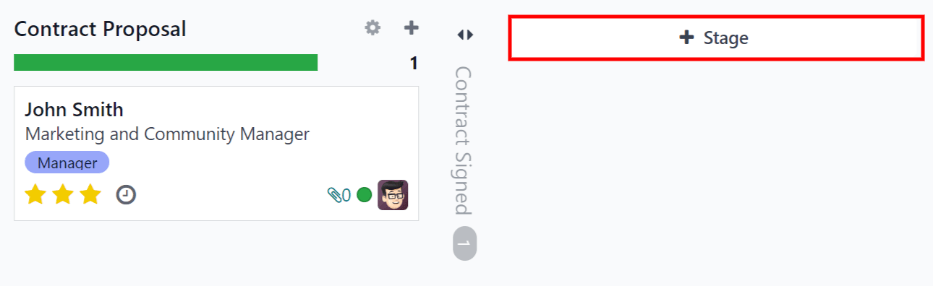
Để tạo giai đoạn mới, nhấp vào Giai đoạn và một cột mới sẽ xuất hiện. Nhập tiêu đề cho giai đoạn mới vào trường Tiêu đề giai đoạn, sau đó nhấp Thêm. Cột mới sẽ xuất hiện và bạn có thể tạo thêm giai đoạn mới khác. Nếu không cần tạo thêm giai đoạn nào nữa, nhấp vào bất kỳ đâu trên màn hình để thoát khỏi chế độ tạo giai đoạn mới.
Sửa đổi giai đoạn
Để chỉnh sửa cài đặt của một giai đoạn, hãy di chuột lên tên của giai đoạn đó, biểu tượng (bánh răng) sẽ xuất hiện ở góc trên bên phải. Nhấp vào biểu tượng (bánh răng) này để mở menu, sau đó chọn Chỉnh sửa. Một biểu mẫu Chỉnh sửa: (Giai đoạn) sẽ hiện ra. Thực hiện các chỉnh sửa mong muốn trên biểu mẫu, rồi nhấp Lưu & đóng khi hoàn tất.

Biểu mẫu chỉnh sửa giai đoạn
Biểu mẫu Chỉnh sửa: (Giai đoạn) là nơi cấu hình cài đặt của giai đoạn. Trường bắt buộc duy nhất là Tên giai đoạn.
Các trường cần điền hoặc sửa đổi là:
Stage Name: type in a name for the stage.
Email Template: select an email template to be used from the drop-down menu. If a template is selected, when the applicant card enters the stage, an email is automatically sent to the applicant using the selected template.
Folded in Kanban: check the box to have the stage appear folded (hidden) at all times in the default view.
Hired Stage: check the box if this stage indicates that the applicant is hired. When an applicant's card enters this stage, the card displays a Hired banner in the upper right corner. If this box is checked, this stage is used to determine the hire date of an applicant.
Job Specific: if the stage only applies to specific job positions, select the job positions from the drop-down menu. Multiple job positions can be selected.
Hiển thị trong Giới thiệu: tích vào ô này nếu giai đoạn này cần hiển thị trong ứng dụng Giới thiệu và cho phép người giới thiệu tích lũy điểm khi ứng viên của họ đạt đến giai đoạn này. Nếu được kích hoạt, trường Điểm sẽ xuất hiện. Nhập số điểm giới thiệu nhân viên nhận được khi ứng viên vào giai đoạn này. Ứng dụng Giới thiệu phải được cài đặt để sử dụng tùy chọn này.
Tooltips section: there are three pre-configured status labels (colored circles) for each applicant's card, indicating its status. These colors are displayed at the top of each stage to reflect the statuses of the applicants in the stage. The names for the label can be modified, but the label itself (the color) cannot. The default names and labels are: In Progress (gray), Blocked (red), and Ready for Next Stage (green).
Requirements: enter any internal notes for this stage explaining any requirements of the stage.
Xóa giai đoạn
Nếu một giai đoạn không còn cần thiết, bạn có thể xóa giai đoạn đó. Để xóa một giai đoạn, di chuột qua tên giai đoạn và một biểu tượng (bánh răng) sẽ xuất hiện. Đầu tiên, nhấp vào biểu tượng (bánh răng) để hiển thị một menu thả xuống, sau đó nhấp vào Xóa. Một cảnh báo bật lên Xác nhận sẽ xuất hiện để hỏi Bạn có chắc chắn muốn xóa cột này không? Nhấp vào Xóa để xóa cột.
Quan trọng
Nếu hiện có ứng viên trong giai đoạn đang bị xóa, một lỗi sẽ xuất hiện khi cố gắng xóa giai đoạn. Các bản ghi hiện đang ở trong giai đoạn cần được xóa, lưu trữ hoặc chuyển sang giai đoạn khác trước khi có thể xóa giai đoạn.
Mẫu Email
To communicate with the applicant, Odoo has several pre-configured email templates that can be used. The pre-configured email templates and when to use them are as follows:
Tuyển dụng: Xác nhận ứng viên: mẫu này được sử dụng để thông báo cho ứng viên biết rằng đơn ứng tuyển của họ đã được nhận. Email này tự động được gửi khi ứng viên ở giai đoạn Mới.
Tuyển dụng: Quan tâm: mẫu này được sử dụng để thông báo cho ứng viên biết rằng đơn ứng tuyển của họ đã thu hút sự chú ý của nhà tuyển dụng và họ đã được đưa vào danh sách rút gọn để gọi điện thoại hoặc phỏng vấn.
Recruitment: Schedule Interview: this template is used to let the applicant know that they have passed the Initial Qualification stage and they will be contacted to set up an interview with the recruiter. This email is automatically sent out once the applicant is in the Initial Qualification stage.
Tuyển dụng: Không còn quan tâm: mẫu này được sử dụng khi ứng viên thông báo rằng họ không còn quan tâm đến vị trí nữa và cảm ơn họ vì thời gian và sự quan tâm của họ.
Tuyển dụng: Từ chối: mẫu này được sử dụng khi ứng viên không còn được xem xét cho vị trí.
Ghi chú
Mẫu email có thể được tạo, chỉnh sửa và xóa để phù hợp với nhu cầu của doanh nghiệp. Để biết thêm thông tin về mẫu email, hãy tham khảo tài liệu Mẫu Email.
Để gửi email thủ công, nhấp Gửi tin nhắn trong hộp trò chuyện. Một hộp văn bản sẽ xuất hiện, cùng với địa chỉ email của ứng viên.
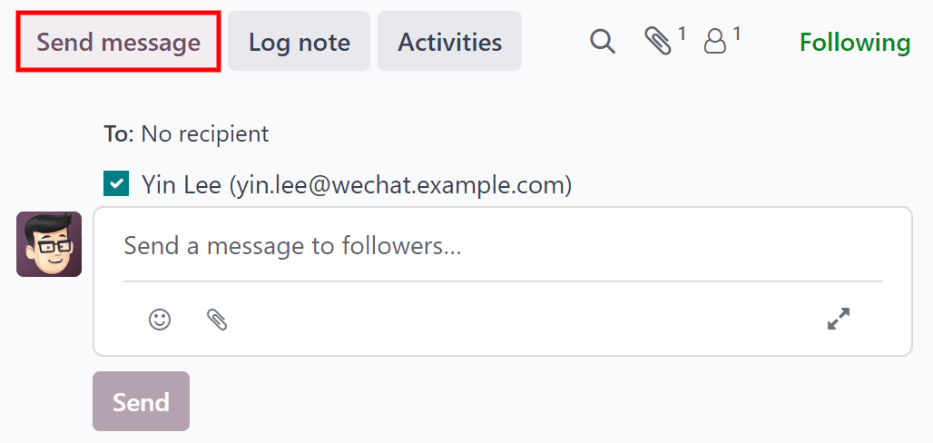
Nhấp vào biểu tượng (mở rộng) soạn thảo đầy đủ ở góc dưới bên phải của tab Gửi tin nhắn trong khung cửa sổ trò chuyện. Một cửa sổ bật lên Soạn email sẽ tải với các trường Người nhận và Chủ đề đã được điền sẵn. Địa chỉ email của ứng viên được nhập vào dòng Người nhận, và Chủ đề là (Vị trí công việc). Nội dung email sẽ trống theo mặc định.
To use a pre-configured email template, click the field next to Load template in the bottom section of the window. Select the email template to use from the drop-down menu.
Pre-configured email templates may contain dynamic placeholders so unique information can be populated in the email for a more personalized message to the applicant. There are several pre-configured email templates to choose from. Depending on the template selected, the email subject and/or body may change.
Ghi chú
Only the email templates that are configured for the model load. There are other email templates pre-configured in Odoo, but if they are not configured for the recruitment application, they do not appear in the list of available templates.
If any attachments are to be added, click the Attachments button in the lower left corner. Navigate to the file to be attached, then click Open to attach it. To delete an attachment, click the (delete) icon to the right of the attachment.
Nếu cần thay đổi nội dung email, hãy chỉnh sửa phần thân email. Nếu muốn lưu các thay đổi để sử dụng sau này, có thể lưu email dưới dạng mẫu mới. Nhấp nút Lưu mẫu ở phía dưới. Để gửi email, nhấp Gửi và email sẽ được gửi đến ứng viên. Sau đó, email sẽ xuất hiện trong cửa sổ trò chuyện.

Xem thêm