Harmonogramy pracy
W Odoo harmonogramy pracy określają godziny, które Pracownicy mają przepracować zgodnie ze swoją umową i informują aplikację Lista płac, jak obliczać wpisy pracy, co ostatecznie wpływa na wynagrodzenia i paski wypłat. Konieczne jest zapewnienie, że wszystkie harmonogramy pracy dla Pracowników są skonfigurowane w bazie danych.
To view the currently configured working schedules, navigate to , and the Working Schedules dashboard loads.

Informacja
In Odoo’s Payroll app, working schedules are referred to as working hours in salary structures.
Nowy harmonogram pracy
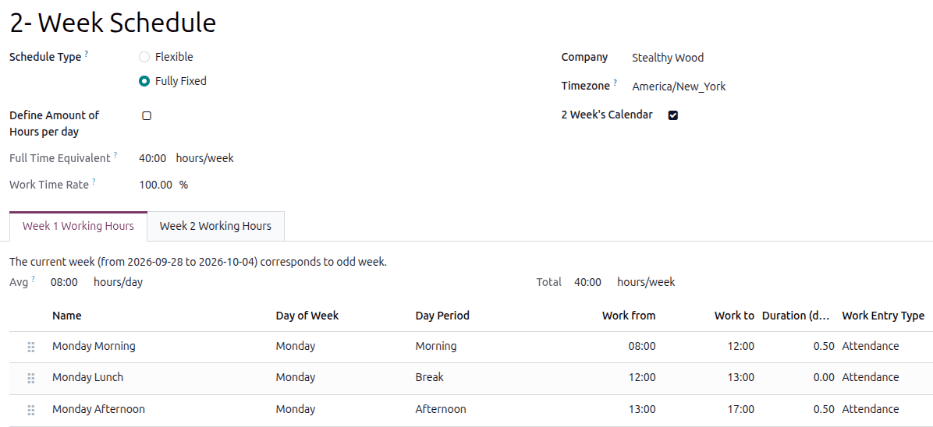
To create a new working schedule, navigate to , click New, and a blank Working Schedules form loads. The form has two sections, a general information section and a Working Hours tab listing out all the individual working hours by day and time.
Wypełnij następujące informacje w górnej części formularza:
Name: Type in the name for the new default working schedule. This should be descriptive and clear to understand, such as
Standard 20 Hours/Week. The placeholder nameWorking Hours of (Company)populates this field by default.Schedule Type: Click the radio button next to Flexible indicating a flexible schedule, or Fully Fixed for a set schedule with specific working hours. If Flexible is selected, the Working Hours tab is hidden.
Define Amount of Hours per day: Enable this option to have specific start and end working times.
Full Time Equivalent: The amount of hours an employee must work each week to be considered a full time employee. This field cannot be modified, and is determined by the country the company is located in.
Work Time Rate: The percentage of hours compared to the full time schedule. The percentage is auto-generated based on the Full Time Equivalent and the working hours configured in the Working Hours tab. This number should be between
0.00%and100%, so if the percentage is above100%, it is an indication that the working times may need adjustment.Firma: Wybierz z rozwijanego menu firmę, która może używać tych nowych domyślnych godzin pracy. Puste pole oznacza, że jest dostępne dla wszystkich firm.
2 Week’s Calendar: Enable this option to switch from a one-week calendar to a two-week calendar. When enabled, two tabs appear: Week 1 Working Hours and Week 2 Working Hours.
Next, configure the individual hours in the Working Hours tab. This tab lists the specific working hours for each day, including breaks.
The default presented working hours are for a 40-hour work week, with each day divided into three timed sections. Every day has morning (8:00-12:00), lunch (12:00-13:00), and evening (13:00-17:00) hours configured.
Informacja
The Work from and Work to times must be in a 24-hour format. For
example, 2:00 PM is entered as 14:00.
Update the Name of each shift, if desired. Modify the Day of Week, Day Period, and Work Entry Type selections by clicking into the drop-down menus in each column and making the desired selection. The Work from, and Work to columns are modified by typing in the time.

Wskazówka
If the working hours are not consistent each week, and the hours are on a bi-weekly schedule instead, enable the Switch to 2 week calendar checkbox on the new Working Schedules form. This changes the single Working Hours tab to two tabs, a Week 1 Working Hours and a Week 2 Working Hours tab, where the working times can be adjusted.