字段和小组件
Fields structure the models of a database. If you think of a model as a table or spreadsheet, fields are the columns and records are the individual rows. Fields also define the type of data that is stored within them. The way in which a field’s data is presented and formatted on the UI is controlled by its widget.
With Studio, it is possible to:
add new fields to your database. From a technical point of view, there are 15 field types in Odoo. However, you can choose from 20 field types in Studio, as some field types are available more than once with a different default widget;
add existing fields, i.e., fields that already exists on a model, to any view of that model;
Studio fields vs. property fields
Fields created using Studio are saved as columns in your Odoo database. Property fields, on the other hand, act as pseudo-fields; they are shared by all records that are linked to the same parent record (e.g., for tasks, the project, or for a product, the product category), but they are not saved as columns in your database.
Example
Adding a Deadline field to the form view of a task using Studio makes that field visible in every task in your database. Adding a Special instructions property field to a task makes the field visible in all tasks within the same project (i.e., its parent) while other projects’ tasks remain unaffected.
Field types
Fields can be broadly divided into two categories:
Simple fields, which contain basic values, such as text, numbers, files, etc.
Relational fields, which are used to link and display the data from records on another model.
简单字段
注解
Non-default widgets, when available, are presented as bullet points or sub-headings.
文件(char)
:guilable:`文本`字段用于包含任何字符的短文本。填写该字段时显示一行文本。
:guilable:`标记`:显示圈内值,类似于标记。该值不能在用户界面上编辑,但可以设置默认值。
复制到剪贴板:用户可以点击按钮复制值。
电子邮件:该值变为可点击的*电子邮件*链接。
图片:使用URL显示图片。该值不能手动编辑,但可以设置默认值。
注解
This works differently from selecting the Image field directly, as the image is not stored in Odoo when using a Text field with the Image widget. For example, it can be useful if you want to save disk space.
电话:该值变为可点击的*电话*链接。
小技巧
勾选:guilabel:
启用短信,添加直接从字段旁的Odoo发送短信的选项。URL:该值变为可点击的URL。
Example
多行文本(text)
:guilable:`多行文本`字段用于包含任何类型字符的较长文本。填写该字段时,用户界面上显示两行文本。
复制到剪贴板:用户可以点击按钮复制值。
Example
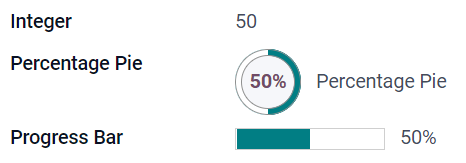
整数(integer)
:guilable:`整数`字段用于所有整数(:dfn:`positive, negative, or zero, without a decimal`)。
:guilable:`百分比饼图`:显示百分比饼图值,通常为计算得出的值。该值无法在用户界面上编辑,但可以设置默认值。
进度条:显示百分比条旁的值,通常为计算得出的值。该字段无法手动编辑,但可以设置默认值。
处理:显示拖动手柄图标,用于在:ref:`List view <studio/views/multiple-records/list>`中手动排序记录。
Example
小数(float)
小数`字段用于所有小数(:dfn:`positive, negative, or zero, with a decimal)。
注解
小数在用户界面上显示为两位小数,保存在数据库中时精度更高。
Monetary: it is similar to using the Monetary field. It is recommended to use the latter as it offers more functionalities.
百分比:在数值后显示百分比符号。
:guilable:`百分比饼图`:显示百分比饼图值,通常为计算得出的值。该字段无法手动编辑,但可以设置默认值。
进度条:显示百分比条旁的值,通常为计算得出的值。该字段无法手动编辑,但可以设置默认值。
时间:数值须为*小时:分钟*格式,最大分钟值为59。
Example
货币(monetary)
:guilabel:`货币`字段用于所有货币值。
注解
首次添加:guilable:`货币`字段时,如果模型上不存在:guilabel:`币种`字段,则会提示添加:gullable:`币种`字段。Odoo为您添加:guilable:`币种`字段。添加完成后,应再次添加:guilable:`货币`字段。
Example
超文本标记语言(html)
:guilabel:`超文本标记语言`字段用于添加可使用Odoo HTML编辑器编辑的文本。
多行文本:禁用Odoo HTML编辑器,以便允许编辑原超文本标记语言。
Example
日期(date)
:guilabel:`日期`字段用于从日历选择日期。
剩余天数:从目前日期起计,距离选取的日期还剩下多少天,例如: 剩余 5 天 。此栏位应设为 仅读。
Example
日期和时间(datetime)
:guilabel:`日期和时间`字段用于从日历选择日期,从钟表选择时间。如果未设置时间,则自动采用用户的当前时间。
小技巧
As well as general properties, some specific properties are available for Date & Time fields that have the Date & Time or Date Range widget set.
Date Range (daterange)
The Date Range widget is used to display a period of time defined by a start date and an end date in a single line. A date range can have a mandatory start and end date, e.g., for a multi-day event, or allow an optional start or end date, e.g., for a field service intervention or a project task.
Adding a date range requires two fields: a Date & Time field with the Date Range widget set and another field that is selected as the start date or end date. This underlying field can be an existing Date or Date & Time field, or one created specifically for this purpose.
To add a date range:
Identify an existing Date or Date & Time field that can be used as the underlying start/end date field, or add a new one. If the date range:
has a mandatory start date and end date, this field can be either the start date or end date; the outcome is the same.
allows an optional start or end date, this field is the start date or end date, respectively.
小技巧
To avoid displaying the same information twice, the underlying start/end date field can be made invisible by enabling Invisible or removed from the view by clicking Remove from view.
Add a Date & Time field and set the Widget field to Date Range.
Enter an appropriate Label.
Select the underlying start/end date field from the Start date field or End date field dropdown, as relevant.
If the date range should have a mandatory start and end date, enable Always range.
Update any other general properties or specific properties for Date & Time fields as needed, then click Close in the upper right corner of the screen.
Example
Remaining Days (remaining_days)
The Remaining Days widget displays the remaining number of days before the selected date (e.g., In 5 days), based on the current date and time. This field should be set to Read only.
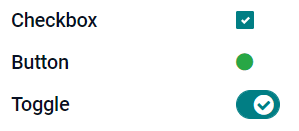
复选框(boolean)
:guilabel:`复选框`字段用于值只能为是或否时,选中或取消选中复选框,以进行指示。
按钮:显示为单选按钮。该小组件可在不切换至编辑模式的情况下工作。
切换:显示为切换按钮。该小组件可在不切换至编辑模式的情况下工作。
Example
选择(selection)
:guilabel:`选择`字段用于用户从一组预定义值中选择一个值。
:guilable:`标记`:显示圈内值,类似于标记。该值不能在用户界面上编辑,但可以设置默认值。
多个标记:在水平排列的矩形内同时显示所有可选值。
Priority: displays star symbols instead of values, which can be used to indicate an importance or satisfaction level, for example. This has the same effect as selecting the Priority field, although, for the latter, four priority values are already predefined.
单选: 同时显示所有可选值的单选按钮。
小技巧
By default, radio buttons are organized vertically. Enable Display horizontally to switch the way they are displayed.
Status Bar: displays all selectable values at the same time as an arrow progress bar.
小技巧
By default, values on the status bar are selectable. Disable Clickable to prevent the value being edited on the UI.
Example
优先级(selection)
The Priority field is used to display a three-star rating system, which can be used to indicate importance or satisfaction level. This field type is a Selection field with the Priority widget selected by default and four priority values predefined. Consequently, the Badge, Badges, Radio, and Selection widgets have the same effects as described under Selection.
小技巧
要通过添加或删除值来更改可用星的数量,点击:guilable:编辑值。请注意,第一个值等于0星(即未作选择),因此,三星评级系统具有4个值。
Example
文件(binary)
:guilabel:`文件`字段用于上传任何类型的文件,或 签署表单(:guilabel:`签署`小组件)。
Image: users can upload an image file, which is then displayed in Form view. This has the same effect as using the Image field.
PDF查看器:用户可以上传PDF文件,上传后,可以在:ref:`Form view <studio/views/general/form>`中查看该文件。
Sign: users can electronically sign the form. This has the same effect as selecting the Sign field.
Example
图片(binary)
The Image field is used to upload an image and display it in Form view. This field type is a File field with the Image widget selected by default. Consequently, the File, PDF Viewer, and Sign widgets have the same effects as described under File.
小技巧
要更改上传图片的显示大小,在:guilable:尺寸`选项下选择:guilabel:`小、:guilale:`中`或:guilalb:`大`。
签署(binary)
The Sign field is used to sign the form electronically. This field type is a File field with the Sign widget selected by default. Consequently, the File, Image, and PDF Viewer widgets have the same effects as described under File.
小技巧
To give users the Auto option when having to draw their signature, select one of the available Auto-complete with fields (Text, Many2One, and Related Field on the model only). The signature is automatically generated using the data from the selected field.
关系字段
注解
Non-default widgets, when available, are presented as bullet points or sub-headings.
Many2One(many2one)
:guilabel:`Many2One`字段用于将另一记录(来自另一模型)链接至正在编辑的记录。来自另一模型的记录名称将显示在正在编辑的记录中。
小技巧
要防止用户在链接的模型中创建新记录,勾选:guilable:
禁用创建。要防止用户在弹窗中打开记录,勾选:guilable:
禁用打开。要帮助用户只选择正确的记录,点击:guilable:
域,创建筛选器。
标记:显示圈内值,类似于标记。该值不能在用户界面上编辑。
单选: 同时显示所有可选值的单选按钮。
One2Many(one2many)
:guilabel:`One2Many`字段用于显示当前模型中的记录和另一模型中的多个记录间的现有关系。
注解
To use a One2Many field, the two models must have been linked already using a Many2One field. One2Many relations do not exist independently: a reverse-search of existing Many2One relations is performed.
多行(one2many)
:guilabel:`多行`字段用于创建有多行和多列的表格(例如,销售订单中的多个产品行)。
小技巧
要修改列,点击:guilable:多行`字段,然后点击:gullable:`编辑列表视图。要编辑用户点击:guilable:Add a line`时弹出的表单,改为点击:gullable:`编辑表单视图。
Example
Many2Many(many2many)
The Many2Many field is used to link multiple records from another model to multiple records on the current model. Many2Many fields can use Disable creation, Disable opening, Domain, just like Many2One fields.
Example
在*任务*模型中,:guilable:`受托人`字段为指向*联系人*模型的:guilabel:`Many2Many`字段,允许向单个用户分配**多个**任务,以及向**多个**用户分配给同一任务。
多个复选框:用户可以通过多个复选框选择多个值。
Tags: users can select several values appearing in rounded shapes, also known as tags. This has the same effect as selecting the Tags field.
Add a field to a view
With Studio, it is possible to add:
a new field to a form or list view of a model
an existing field, i.e., a field that already exists on the model in question, to any view of that model
小技巧
Add a new field to a form or list view to save it to the model and make it available as an existing field in other views of the same model.
Add a new field
小技巧
Activate developer mode before adding a new field to see, and be able to edit, the field’s technical name during configuration.
To add a new field, follow these steps:
Navigate to the relevant form or list view, then click the (Toggle Studio) icon in the upper-right corner. Alternatively, with any app open, click the (Toggle Studio) icon, then navigate to the relevant form or list view.
In the Add tab, drag the relevant field type from the New Fields section and drop it in the desired position. If the new field is a relational field, select the relevant reciprocal field, model, or related field in the pop-up.
In the Properties tab, configure the field’s properties:
Enter the Label to be displayed as the field name on the UI; this is also used to generate the default technical name of the field.
Click anywhere outside the Label field to see the Technical Name updated with the default technical name.
注解
The Technical Name of a new field can be edited in Studio during the configuration process. At any other time, a field’s technical name can only be modified via the technical settings of the database.
The technical name of a new field added using Studio is by default prefixed by
x_studio_.
Optionally, select a different Widget via the dropdown; the default widget for the field type is selected by default.
Optionally, configure any other field properties.
Click Close in the top-right corner to close Studio.
Add an existing field
To add a field that exists on the model but that is not present on the current view, follow these steps:
Navigate to the relevant view, then click the (Toggle Studio) icon in the upper-right corner. Alternatively, with any app open, click the (Toggle Studio) icon, then navigate to the relevant view.
In the Add tab, in the left panel, click Existing Fields to reveal a list of all the model’s fields that are not currently present in the view.
Drag the relevant field and drop it in the desired position.
In the Properties tab, configure the relevant properties for the field in the current view.
注解
Various properties can be configured independently for different views, if needed, such as the Label, the Widget, the visibility of the field for certain user groups, as well as whether or not the field is Invisible, Required, or Readonly.
Click Close in the top-right corner to close Studio.
Field properties
A series of general properties can be configured for most combinations of field type and widget. Additional properties are available depending on the specific field type and widget selected. For example, Date & Time fields using the Date & Time or Date Range widget have various specific properties that can be configured.
General properties
Class: Use Bootstrap or other custom classes defined in Odoo to customize how the field is styled and displayed on the UI.
Invisible: Enable this property when it is not necessary for users to view a field on the UI. This helps declutter the UI by only showing the essential fields depending on a specific situation.
Required: Enable this property if a field should always be completed by the user before being able to proceed.
Readonly: Enable this property if users should not be able to modify a field.
小技巧
The Invisible property also applies inside Studio. To view hidden fields in Studio, click on a view’s View tab and enable Show Invisible Elements.
The Invisible, Required, and Readonly properties can be enabled for specific records only by clicking on Conditional and creating a filter.
Example
On the form view of the Contact model, the Title field only appears when Individual is selected, as that field would not be helpful for a Company contact.
Label: This is the field name on the UI; the label is used to generate the technical name of the field.
Help Tooltip: To explain the purpose of a field, add a description. The text is displayed inside a tooltip box when hovering with your mouse over the question mark beside the field’s label.
Technical Name: To view a field’s technical name in Studio (and, during the configuration of a new field, edit it if desired), activate developer mode.
小技巧
If this field needs to be updated but is no longer editable via Studio, the technical name can be modified via the technical settings of the database.
小组件:要更改某字段的默认外观或功能,选择可用小组件中的一个。
Placeholder: To provide an example of how a field should be completed, add a fixed placeholder text. The text appears in light gray until a value is entered.
Dynamic Placeholder: To provide the value of the selected field as an example of how a field should be completed. The text appears in light gray until a value is entered.
Default value: To display a default value in a field when a record is created, add a value.
Allow visibility to groups: To limit which users can view the field, select one or more user access groups.
Forbid visibility to groups: To prevent certain users from seeing the field, select one or more user access groups.
Properties for Date & Time fields
For Date & Time fields using the Date & Time or Date Range widget, some specific properties are available:
Minimal precision: Determine the smallest date unit that must be selected in the date selector. The possible values are
Day,Month,YearorDecade. If no value is selected, the user must select a day in the date selector.Maximal precision: Determine the largest date unit that can be used to navigate the date selector. The possible values are
Day,Month,YearorDecade. If no value is selected, the user can navigate the date selector by decade.Warning for future dates: Enable this property to display a warning icon if a future date is selected.
Condensed display: Enable this property to show days, months and hours with no leading zeros, e.g.,
4/2/2025 8:05:00instead of04/02/2025 08:05:00.Show time: This property is enabled by default for Date & Time fields. On a read-only field, disable the property to show only the date. This can keep a list view less cluttered, for example.
Show seconds: This property is enabled by default for Date & Time fields. Disable the property to show only hours and minutes.
Time interval: Enter a value to determine the minute intervals shown in the time selector. For example, enter 15 to allow quarter-hour intervals. The default value is set to 5 minutes.
最早接受日期:以 ISO 格式输入日期选择器中可选择的最早日期,即
年-月-日。如果当前日期始终是最早接受的日期,则输入今天。在日期选择器上,最早接受日期之前的日期为灰色。最新接受日期:输入日期选择器中可选择的 ISO 格式的最新日期,即
年-月-日。如果当前日期总是最新日期,请输入今天。在日期选择器上,晚于最新接受日期的日期将显示为灰色。
Modify a field’s properties
To modify the properties of a field, follow these steps:
Navigate to the relevant view, then click the (Toggle Studio) icon in the upper-right corner. Alternatively, with any app open, click the (Toggle Studio) icon, then navigate to the relevant view.
Click on the relevant field.
In the Properties tab, make any desired changes to the field properties.
小技巧
Various properties can be configured independently for different views, such as the Label, the Widget, the visibility of the field for certain user groups, as well as whether or not the field is Invisible, Required, or Readonly.
Click Close in the top-right corner to close Studio.
注解
The Technical Name of a field (visible in Studio with developer mode activated) cannot be modified in Studio; this can be done via the technical settings of the database.
Modify a field’s technical name
To modify the technical name of a field, activate developer mode, then follow these steps:
With the field open in Studio, copy the technical name of the field.
Remove the field from all views in Studio, then click Close to close Studio.
Navigate to .
Paste the copied technical name into the search bar, then open the relevant field.
Modify the Field Name as needed.
Once the field’s technical name has been updated, the field can then be added (back) to the relevant view(s) from the list of existing fields.
重要
When updating the technical name of a field, make sure to keep at least the x_ prefix, which is
required for any custom field; for fields created using Studio, keep the x_studio_ prefix to
allow such fields to be more easily identified.
Remove a field from a view
To remove a field from a view, follow these steps:
Navigate to the relevant view, then click the (Toggle Studio) icon in the upper-right corner. Alternatively, with any app open, click the (Toggle Studio) icon, then navigate to the relevant view.
Click on the relevant field.
Scroll to the bottom of the Properties tab, then click Remove from view.
Click Ok to confirm the action.
小技巧
A removed field can be easily added back to the view at a later stage, if needed.
If the intention is to declutter the view, it is also possible to modify a field and make it Invisible on the view in question.