Skip to Content
Odoo Menu
  • Prihlásiť sa
  • Vyskúšajte zadarmo
  • Aplikácie
    Financie
    • Účtovníctvo
    • Fakturácia
    • Výdavky
    • Tabuľka (BI)
    • Dokumenty
    • Podpis
    Predaj
    • CRM
    • Predaj
    • POS Shop
    • POS Restaurant
    • Manažment odberu
    • Požičovňa
    Webstránky
    • Tvorca webstránok
    • eShop
    • Blog
    • Fórum
    • Živý chat
    • eLearning
    Supply Chain
    • Sklad
    • Výroba
    • Správa životného cyklu produktu
    • Nákup
    • Údržba
    • Manažment kvality
    Ľudské zdroje
    • Zamestnanci
    • Nábor zamestnancov
    • Voľné dni
    • Hodnotenia
    • Odporúčania
    • Vozový park
    Marketing
    • Marketing sociálnych sietí
    • Email marketing
    • SMS marketing
    • Eventy
    • Marketingová automatizácia
    • Prieskumy
    Služby
    • Projektové riadenie
    • Pracovné výkazy
    • Práca v teréne
    • Helpdesk
    • Plánovanie
    • Schôdzky
    Produktivita
    • Tímová komunikácia
    • Schvalovania
    • IoT
    • VoIP
    • Znalosti
    • WhatsApp
    Third party apps Odoo Studio Odoo Cloud Platform
  • Priemyselné odvetvia
    Retail
    • Book Store
    • Clothing Store
    • Furniture Store
    • Grocery Store
    • Hardware Store
    • Toy Store
    Food & Hospitality
    • Bar and Pub
    • Reštaurácia
    • Fast Food
    • Guest House
    • Beverage distributor
    • Hotel
    Reality
    • Real Estate Agency
    • Architecture Firm
    • Konštrukcia
    • Estate Managament
    • Gardening
    • Property Owner Association
    Poradenstvo
    • Accounting Firm
    • Odoo Partner
    • Marketing Agency
    • Law firm
    • Talent Acquisition
    • Audit & Certification
    Výroba
    • Textile
    • Metal
    • Furnitures
    • Jedlo
    • Brewery
    • Corporate Gifts
    Health & Fitness
    • Sports Club
    • Eyewear Store
    • Fitness Center
    • Wellness Practitioners
    • Pharmacy
    • Hair Salon
    Trades
    • Handyman
    • IT Hardware and Support
    • Solar Energy Systems
    • Shoe Maker
    • Cleaning Services
    • HVAC Services
    Iní
    • Nonprofit Organization
    • Environmental Agency
    • Billboard Rental
    • Photography
    • Bike Leasing
    • Software Reseller
    Browse all Industries
  • Komunita
    Vzdelávanie
    • Tutoriály
    • Dokumentácia
    • Certifikácie
    • Školenie
    • Blog
    • Podcast
    Empower Education
    • Vzdelávací program
    • Scale Up! Business Game
    • Visit Odoo
    Softvér
    • Stiahnuť
    • Porovnanie Community a Enterprise vierzie
    • Releases
    Spolupráca
    • Github
    • Fórum
    • Eventy
    • Preklady
    • Staň sa partnerom
    • Services for Partners
    • Register your Accounting Firm
    Služby
    • Nájdite partnera
    • Nájdite účtovníka
    • Meet an advisor
    • Implementation Services
    • Zákaznícke referencie
    • Podpora
    • Upgrades
    ​Github Youtube Twitter Linkedin Instagram Facebook Spotify
    +1 (650) 691-3277
    Získajte demo
  • Cenník
  • Pomoc

Odoo is the world's easiest all-in-one management software.
It includes hundreds of business apps:

  • CRM
  • e-Commerce
  • Účtovníctvo
  • Sklady
  • PoS
  • Projektové riadenie
  • MRP
All apps
You need to be registered to interact with the community.
All Posts People Badges
Tagy (View all)
odoo accounting v14 pos v15
About this forum
You need to be registered to interact with the community.
All Posts People Badges
Tagy (View all)
odoo accounting v14 pos v15
About this forum
Pomoc

Unable to Add or Create Desired Payment Methods in Journals

Odoberať

Get notified when there's activity on this post

This question has been flagged
accounting
3 Replies
3675 Zobrazenia
Avatar
ZAMEEL ISMAIL

Hi Odoo Community,

I’m trying to configure payment methods for Bank and Cash journals in Odoo 18, but I cannot find an option to add a line or create new payment methods in the journal settings.


Details:

  1. What I’ve Tried:
    • Navigated to Accounting > Configuration > Journals.
    • Opened the specific journal (e.g., Bank or Cash).
    • Looked under Incoming Payments and Outgoing Payments, but there’s no option to add or create payment methods.
    • Enabled Developer Mode, but still no success.
  2. Environment Details:
    • Odoo Version: Odoo 18
    • Hosting: Odoo.sh
  3. User Access:
    • I have full admin rights and Accounting/Finance Manager permissions.
  4. Modules Installed:
    • Accounting/Invoicing modules are fully installed.

Question:

How can I add or create desired payment methods for Bank and Cash journals? Is there any specific configuration or workaround I’m missing?

I’d appreciate any guidance or steps to resolve this issue.

Thanks in advance!

0
Avatar
Zrušiť
Avatar
Sunny Sheth
Best Answer

Hi,

payment method auto populated when you activated respective payment acquire( Stripe, Autorize.net, Paypal) else there only two options display for payment method.

I hope this will help out.

Best Regards,
Sunny Sheth (shethsunny555@gmail.com)

1
Avatar
Zrušiť
ZAMEEL ISMAIL
Autor

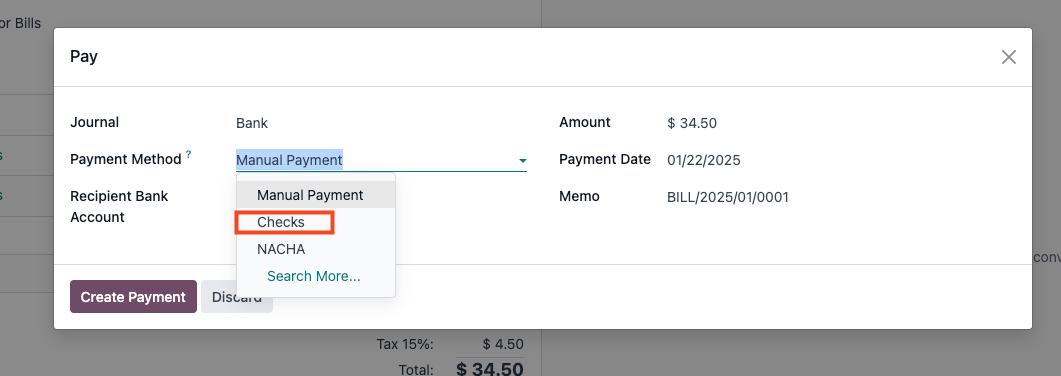
Thank You for the reply, May I know how to add payment method for journals for cheque payments.

Avatar
Dmitriy Stepanov
Best Answer

Hello,

Integrating online table reservations with Odoo 18's Point of Sale (POS) system enhances restaurant operations by streamlining customer management and table allocation. This integration ensures seamless coordination between front-of-house and kitchen staff, improving operational efficiency and customer satisfaction. Here's a step-by-step guide to setting up this feature:

Step 1: Configure Floors and Tables

  1. Access the POS Module: Navigate to the Point of Sale module in your Odoo dashboard.
  2. Set Up Floor Plans:
    • Click on Configuration and select Floor Plans.
    • To add a new floor, click New.
    • Enter the Floor Name and select the associated Point of Sale.
    • Choose a Background Color for visual differentiation. 
  3. Add Tables:
    • Within the floor configuration, click Add a line.
    • For each table, specify the Table Name, Number of Seats, and Table Shape.
    • Repeat this process to add all tables under the respective floor.

Step 2: Assign Floors in POS Settings

  1. Navigate to POS Settings:
    • Go to Configuration and select Settings within the Point of Sale module.
  2. Enable Restaurant Mode:
    • Under the Restaurant Mode section, ensure the Floors & Table Map option is activated.
    • This setting allows the creation of floors and assignment of orders to specific tables.

Step 3: Configure Appointment Types for Online Reservations

  1. Access Appointment Settings:
    • In the Calendar module, navigate to Appointments menu.
  2. Create New Appointment:
    • Click Create to define a new appointment type.
    • Fill in necessary details such as Name, Duration, and Reservation Settings.
  3. Set availability:
    • Select “Resources” option (resources are the tables) 
  4. Set up your Schedule:
    • Select days and time under the Schedule tab.
  5. Set up the Options:
    • Set up emails for reminders, confirmations, and cancellations.
    • Enable "Up-front Payment" checkbox, if visitors must make a payment to confirm their reservation.
  6. Publish this Appointment on your website:
    • Click “Go to Website” and then enable “Published”


Step 4: Set Up Online Booking in your PoS

  1. Enable Table Booking:
    • Go to PoS settings and enable “Table Booking” checkbox (please note that all sessions must be closed)
    • Select your Appointment type
  2. Test the Booking System on the Website:
    • Perform test bookings to ensure the system accurately reflects table availability and reservations.


0
Avatar
Zrušiť
Avatar
Nurlan Farajov
Best Answer

Hi,

You can refer to this official documantation for check payment methods: https://www.odoo.com/documentation/18.0/applications/finance/accounting/payments/pay_checks.html#pay-by-checks


  1. Enable Accounting -> Configuration -> Settings -> Vendor Payments -> Checks

  2. Pay your Vendor Bills with check

Hope it is helpful

0
Avatar
Zrušiť
Enjoying the discussion? Don't just read, join in!

Create an account today to enjoy exclusive features and engage with our awesome community!

Registrácia
Related Posts Replies Zobrazenia Aktivita
New date format odoo 19
accounting
Avatar
Avatar
Avatar
2
dec 25
1470
Bank Suspense vs Bank Suspense Account on Odoo Chart of Accounts default Solved
accounting
Avatar
Avatar
2
dec 25
453
Peppol - Envoie de mails à mon comptable pour WinAuditor
accounting
Avatar
Avatar
Avatar
3
dec 25
1594
{{LL@mar Mexico}} ¿Cómo hablar con una persona en Air France?
accounting
Avatar
0
dec 25
4
Why is the invoice PDF showing an error in the right corner
accounting
Avatar
Avatar
1
dec 25
1319
Komunita
  • Tutoriály
  • Dokumentácia
  • Fórum
Open Source
  • Stiahnuť
  • Github
  • Runbot
  • Preklady
Služby
  • Odoo.sh hosting
  • Podpora
  • Vyššia verzia
  • Custom Developments
  • Vzdelávanie
  • Nájdite účtovníka
  • Nájdite partnera
  • Staň sa partnerom
O nás
  • Naša spoločnosť
  • Majetok značky
  • Kontaktujte nás
  • Pracovné ponuky
  • Eventy
  • Podcast
  • Blog
  • Zákazníci
  • Právne dokumenty • Súkromie
  • Bezpečnosť
الْعَرَبيّة Català 简体中文 繁體中文 (台灣) Čeština Dansk Nederlands English Suomi Français Deutsch हिंदी Bahasa Indonesia Italiano 日本語 한국어 (KR) Lietuvių kalba Język polski Português (BR) română русский язык Slovenský jazyk slovenščina Español (América Latina) Español ภาษาไทย Türkçe українська Tiếng Việt

Odoo je sada podnikových aplikácií s otvoreným zdrojovým kódom, ktoré pokrývajú všetky potreby vašej spoločnosti: CRM, e-shop, účtovníctvo, skladové hospodárstvo, miesto predaja, projektový manažment atď.

Odoo prináša vysokú pridanú hodnotu v jednoduchom použití a súčasne plne integrovanými biznis aplikáciami.

Website made with

Odoo Experience on YouTube

1. Use the live chat to ask your questions.
2. The operator answers within a few minutes.

Live support on Youtube
Watch now