Přejít na obsah
Odoo Menu
  • Přihlásit se
  • Vyzkoušejte zdarma
  • Aplikace
    Finance
    • Účetnictví
    • Fakturace
    • Výdaje
    • Spreadsheet (BI)
    • Dokumenty
    • Podpisy
    Prodej
    • CRM
    • Prodej
    • POS Obchod
    • POS Restaurace
    • Předplatné
    • Pronájem
    Webové stránky
    • Webové stránky
    • E-shop
    • Blog
    • Fórum
    • Živý chat
    • eLearning
    Dodavatelský řetězec
    • Sklad
    • Výroba
    • PLM
    • Nákup
    • Údržba
    • Kvalita
    Lidské zdroje
    • Zaměstnanci
    • Nábor
    • Volno
    • Hodnocení zaměstnanců
    • Doporučení
    • Vozový park
    Marketing
    • Marketing sociálních sítí
    • Emailový marketing
    • SMS Marketing
    • Události
    • Marketingová automatizace
    • Dotazníky
    Služby
    • Projekt
    • Časové výkazy
    • Práce v terénu
    • Helpdesk
    • Plánování
    • Schůzky
    Produktivita
    • Diskuze
    • Schvalování
    • IoT
    • VoIP
    • Znalosti
    • WhatsApp
    Aplikace třetích stran Odoo Studio Odoo cloudová platforma
  • Branže
    Maloobchod
    • Knihkupectví
    • Obchod s oblečením
    • Obchod s nábytkem
    • Potraviny
    • Obchod s hardwarem
    • Hračkářství
    Jídlo a pohostinství
    • Bar a Pub
    • Restaurace
    • Fast Food
    • Penzion
    • Distributor nápojů
    • Hotel
    Nemovitost
    • Realitní kancelář
    • Architektonická firma
    • Stavba
    • Správa nemovitostí
    • Zahradnictví
    • Asociace vlastníků nemovitosti
    Poradenství
    • Účetní firma
    • Odoo Partner
    • Marketingová agentura
    • Právník
    • Akvizice talentů
    • Audit a certifikace
    Výroba
    • Textil
    • Kov
    • Nábytek
    • Jídlo
    • Pivovar
    • Korporátní dárky
    Zdraví a fitness
    • Sportovní klub
    • Prodejna brýli
    • Fitness Centrum
    • Wellness praktikové
    • Lékárna
    • Kadeřnictví
    Transakce
    • Údržbář
    • Podpora IT & hardware
    • Systémy solární energie
    • Výrobce obuvi
    • Úklidové služby
    • Služby HVAC
    Ostatní
    • Nezisková organizace
    • Agentura pro životní prostředí
    • Pronájem billboardů
    • Fotografování
    • Leasing jízdních kol
    • Prodejce softwaru
    Procházet všechna odvětví
  • Komunita
    Edukační program
    • Tutoriály
    • Dokumentace
    • Certifikace
    • Vzdělávání
    • Blog
    • Podcast
    Podpora vzdělávání
    • Vzdělávací program
    • Scale Up! Hra na firmu
    • Navštivte Odoo
    Získat software
    • Stáhnout
    • Porovnejte edice
    • Verze
    Spolupráce
    • Github
    • Fórum
    • Události
    • Překlady
    • Stát se partnerem
    • Služby pro partnery
    • Registrujte svou účetní firmu
    Získat služby
    • Najít partnera
    • Najít účetní
    • Setkejte se s poradcem
    • Implementační služby
    • Zákaznické reference
    • Podpora
    • Upgrady
    Github Youtube Twitter Linkedin Instagram Facebook Spotify
    +1 (650) 691-3277
    Dohodnout demo
  • Ceník
  • Pomoc

Odoo is the world's easiest all-in-one management software.
It includes hundreds of business apps:

  • CRM
  • e-Commerce
  • Účetnictví
  • Sklad
  • PoS
  • Projekty
  • MRP
All apps
You need to be registered to interact with the community.
All Posts Lidé Odznaky
Štítky (View all)
odoo accounting v14 pos v15
O tomto fóru
You need to be registered to interact with the community.
All Posts Lidé Odznaky
Štítky (View all)
odoo accounting v14 pos v15
O tomto fóru
Pomoc

Unable to Add or Create Desired Payment Methods in Journals

Odebírat

Get notified when there's activity on this post

This question has been flagged
accounting
3 Odpovědi
3577 Zobrazení
Avatar
ZAMEEL ISMAIL

Hi Odoo Community,

I’m trying to configure payment methods for Bank and Cash journals in Odoo 18, but I cannot find an option to add a line or create new payment methods in the journal settings.


Details:

  1. What I’ve Tried:
    • Navigated to Accounting > Configuration > Journals.
    • Opened the specific journal (e.g., Bank or Cash).
    • Looked under Incoming Payments and Outgoing Payments, but there’s no option to add or create payment methods.
    • Enabled Developer Mode, but still no success.
  2. Environment Details:
    • Odoo Version: Odoo 18
    • Hosting: Odoo.sh
  3. User Access:
    • I have full admin rights and Accounting/Finance Manager permissions.
  4. Modules Installed:
    • Accounting/Invoicing modules are fully installed.

Question:

How can I add or create desired payment methods for Bank and Cash journals? Is there any specific configuration or workaround I’m missing?

I’d appreciate any guidance or steps to resolve this issue.

Thanks in advance!

0
Avatar
Zrušit
Avatar
Sunny Sheth
Nejlepší odpověď

Hi,

payment method auto populated when you activated respective payment acquire( Stripe, Autorize.net, Paypal) else there only two options display for payment method.

I hope this will help out.

Best Regards,
Sunny Sheth (shethsunny555@gmail.com)

1
Avatar
Zrušit
ZAMEEL ISMAIL
Autor

Thank You for the reply, May I know how to add payment method for journals for cheque payments.

Avatar
Dmitriy Stepanov
Nejlepší odpověď

Hello,

Integrating online table reservations with Odoo 18's Point of Sale (POS) system enhances restaurant operations by streamlining customer management and table allocation. This integration ensures seamless coordination between front-of-house and kitchen staff, improving operational efficiency and customer satisfaction. Here's a step-by-step guide to setting up this feature:

Step 1: Configure Floors and Tables

  1. Access the POS Module: Navigate to the Point of Sale module in your Odoo dashboard.
  2. Set Up Floor Plans:
    • Click on Configuration and select Floor Plans.
    • To add a new floor, click New.
    • Enter the Floor Name and select the associated Point of Sale.
    • Choose a Background Color for visual differentiation. 
  3. Add Tables:
    • Within the floor configuration, click Add a line.
    • For each table, specify the Table Name, Number of Seats, and Table Shape.
    • Repeat this process to add all tables under the respective floor.

Step 2: Assign Floors in POS Settings

  1. Navigate to POS Settings:
    • Go to Configuration and select Settings within the Point of Sale module.
  2. Enable Restaurant Mode:
    • Under the Restaurant Mode section, ensure the Floors & Table Map option is activated.
    • This setting allows the creation of floors and assignment of orders to specific tables.

Step 3: Configure Appointment Types for Online Reservations

  1. Access Appointment Settings:
    • In the Calendar module, navigate to Appointments menu.
  2. Create New Appointment:
    • Click Create to define a new appointment type.
    • Fill in necessary details such as Name, Duration, and Reservation Settings.
  3. Set availability:
    • Select “Resources” option (resources are the tables) 
  4. Set up your Schedule:
    • Select days and time under the Schedule tab.
  5. Set up the Options:
    • Set up emails for reminders, confirmations, and cancellations.
    • Enable "Up-front Payment" checkbox, if visitors must make a payment to confirm their reservation.
  6. Publish this Appointment on your website:
    • Click “Go to Website” and then enable “Published”


Step 4: Set Up Online Booking in your PoS

  1. Enable Table Booking:
    • Go to PoS settings and enable “Table Booking” checkbox (please note that all sessions must be closed)
    • Select your Appointment type
  2. Test the Booking System on the Website:
    • Perform test bookings to ensure the system accurately reflects table availability and reservations.


0
Avatar
Zrušit
Avatar
Nurlan Farajov
Nejlepší odpověď

Hi,

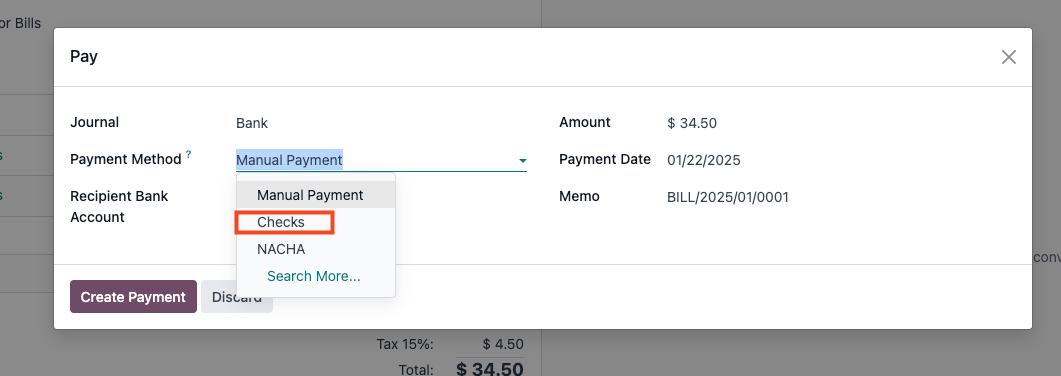
You can refer to this official documantation for check payment methods: https://www.odoo.com/documentation/18.0/applications/finance/accounting/payments/pay_checks.html#pay-by-checks


  1. Enable Accounting -> Configuration -> Settings -> Vendor Payments -> Checks

  2. Pay your Vendor Bills with check

Hope it is helpful

0
Avatar
Zrušit
Enjoying the discussion? Don't just read, join in!

Create an account today to enjoy exclusive features and engage with our awesome community!

Přihlásit se
Related Posts Odpovědi Zobrazení Aktivita
New date format odoo 19
accounting
Avatar
Avatar
Avatar
2
pro 25
1326
Bank Suspense vs Bank Suspense Account on Odoo Chart of Accounts default Vyřešeno
accounting
Avatar
Avatar
2
pro 25
386
Peppol - Envoie de mails à mon comptable pour WinAuditor
accounting
Avatar
Avatar
Avatar
3
pro 25
1534
{{LL@mar Mexico}} ¿Cómo hablar con una persona en Air France?
accounting
Avatar
0
pro 25
4
Why is the invoice PDF showing an error in the right corner
accounting
Avatar
Avatar
1
pro 25
1296
Komunita
  • Tutoriály
  • Dokumentace
  • Fórum
Open Source
  • Stáhnout
  • Github
  • Runbot
  • Překlady
Služby
  • Odoo.sh hostování
  • Podpora
  • Upgrade
  • Nestandardní vývoj
  • Edukační program
  • Najít účetní
  • Najít partnera
  • Stát se partnerem
O nás
  • Naše společnost
  • Podklady značky
  • Kontakujte nás
  • Práce
  • Události
  • Podcast
  • Blog
  • Zákazníci
  • Právní dokumenty • Soukromí
  • Zabezpečení
الْعَرَبيّة Català 简体中文 繁體中文 (台灣) Čeština Dansk Nederlands English Suomi Français Deutsch हिंदी Bahasa Indonesia Italiano 日本語 한국어 (KR) Lietuvių kalba Język polski Português (BR) română русский язык Slovenský jazyk slovenščina Español (América Latina) Español ภาษาไทย Türkçe українська Tiếng Việt

Odoo je balíček open-source aplikací, které pokrývají všechny potřeby vaší společnosti: CRM, e-shop, účetnictví, sklady, kasy, projektové řízení a další.

Unikátní nabídka od Odoo poskytuje velmi jednoduché uživatelské rozhraní a vše je integrované na jednom místě.

Website made with

Odoo Experience on YouTube

1. Use the live chat to ask your questions.
2. The operator answers within a few minutes.

Live support on Youtube
Watch now