Skip to Content
Odoo Меню
  • Увійти
  • Спробуйте це безкоштовно
  • Додатки
    Фінанси
    • Бухоблік
    • Виставлення рахунку
    • Витрати
    • Електронні таблиці (BI)
    • Документи
    • Підпис
    Продажі
    • CRM
    • Продажі
    • POS Магазин
    • POS Ресторан
    • Підписки
    • Оренда
    Веб-сайти
    • Конструктор веб-сайту
    • Електронна комерція
    • Блог
    • Форум
    • Живий чат
    • Електронне навчання
    Ланцюг поставок
    • Склад
    • Виробництво
    • PLM
    • Купівлі
    • Технічне обслуговування
    • Якість
    Кадри
    • Співробітники
    • Рекрутинг
    • Відпустки
    • Оцінювання
    • Рекомендації
    • Автотранспорт
    Маркетинг
    • Маркетинг соцмереж
    • Email-маркетинг
    • SMS-маркетинг
    • Події
    • Автом. маркетингу
    • Опитування
    Послуги
    • Проект
    • Табелі
    • Виїзне обслуговування
    • Служба підтримки
    • Планування
    • Призначення
    Продуктивність
    • Обговорення
    • Схвалення
    • IoT
    • IP-телефонія
    • База знань
    • WhatsApp
    Сторонні модулі Odoo Studio Платформа Odoo Cloud
  • Сфери
    Роздрібна торгівля
    • Книжковий магазин
    • Магазин одягу
    • Магазин меблів
    • Продуктовий магазин
    • Магазин будівельних матеріалів
    • Магазин іграшок
    Food & Hospitality
    • Бар та паб
    • Ресторан
    • Фастфуд
    • Guest House
    • Дистриб'ютор напоїв
    • Hotel
    Нерухомість
    • Real Estate Agency
    • Архітектурна фірма
    • Будівництво
    • Управління нерухомістю
    • Садівництво
    • Асоціація власників нерухомості
    Консалтинг
    • Бухгалтерська компанія
    • Партнер Odoo
    • Агенція маркетингу
    • Юридична фірма
    • Придбання Талантів
    • Аудит та сертифікація
    Виробництво
    • Textile
    • Metal
    • Меблі
    • Їжа
    • Brewery
    • Корпоративні подарунки
    Здоров'я & Фітнес
    • Спортивний клуб
    • Оптика
    • Фітнес-центр
    • Практики здоров'я
    • Аптека
    • Салон краси
    Trades
    • Ремонтник
    • IT-обладнання та Підтримка
    • Системи сонячної енергії
    • Shoe Maker
    • Cleaning Services
    • HVAC Services
    Інші
    • Nonprofit Organization
    • Екологічна агенція
    • Оренда білбордів
    • Фотографія
    • Лізинг велосипедів
    • Реселлер програмного забезпечення
    Browse all Industries
  • Спільнота
    Навчання
    • Навчальний посібник
    • Документація
    • Сертифікації
    • Тренування
    • Блог
    • Подкаст
    Сприяйте Освіті
    • Програма навчання
    • Бізнес гра Scale Up!
    • Відвідайте Odoo
    Отримайте програмне забезпечення
    • Завантаження
    • Порівняйте версії
    • Релізи
    Співпрацюйте
    • Github
    • Форум
    • Події
    • Переклади
    • Стати партнером
    • Services for Partners
    • Зареєструйте вашу бухгалтерську фірму
    Отримайте послуги
    • Знайдіть партнера
    • Знайдіть бухгалтера
    • Зустріньтеся з консультантом
    • Послуги з впровадження
    • Референси клієнтів
    • Підтримка
    • Оновлення
    Github Youtube Twitter Linkedin Instagram Facebook Spotify
    +1 (650) 691-3277
    Отримати демо
  • Ціни
  • Допомога

Odoo is the world's easiest all-in-one management software.
It includes hundreds of business apps:

  • CRM
  • e-Commerce
  • Бухоблік
  • Склад
  • PoS
  • Проект
  • MRP
All apps
Вам необхідно зареєструватися, щоб взаємодіяти зі спільнотою.
All Posts Люди Значки
Мітки (View all)
odoo accounting v14 pos v15
Про цей форум
Вам необхідно зареєструватися, щоб взаємодіяти зі спільнотою.
All Posts Люди Значки
Мітки (View all)
odoo accounting v14 pos v15
Про цей форум
Допомога

Unable to Add or Create Desired Payment Methods in Journals

Підписатися

Отримуйте сповіщення про активність щодо цієї публікації

Це запитання позначене
accounting
3 Відповіді
3688 Переглядів
Аватар
ZAMEEL ISMAIL

Hi Odoo Community,

I’m trying to configure payment methods for Bank and Cash journals in Odoo 18, but I cannot find an option to add a line or create new payment methods in the journal settings.


Details:

  1. What I’ve Tried:
    • Navigated to Accounting > Configuration > Journals.
    • Opened the specific journal (e.g., Bank or Cash).
    • Looked under Incoming Payments and Outgoing Payments, but there’s no option to add or create payment methods.
    • Enabled Developer Mode, but still no success.
  2. Environment Details:
    • Odoo Version: Odoo 18
    • Hosting: Odoo.sh
  3. User Access:
    • I have full admin rights and Accounting/Finance Manager permissions.
  4. Modules Installed:
    • Accounting/Invoicing modules are fully installed.

Question:

How can I add or create desired payment methods for Bank and Cash journals? Is there any specific configuration or workaround I’m missing?

I’d appreciate any guidance or steps to resolve this issue.

Thanks in advance!

0
Аватар
Відмінити
Аватар
Sunny Sheth
Найкраща відповідь

Hi,

payment method auto populated when you activated respective payment acquire( Stripe, Autorize.net, Paypal) else there only two options display for payment method.

I hope this will help out.

Best Regards,
Sunny Sheth (shethsunny555@gmail.com)

1
Аватар
Відмінити
ZAMEEL ISMAIL
Автор

Thank You for the reply, May I know how to add payment method for journals for cheque payments.

Аватар
Dmitriy Stepanov
Найкраща відповідь

Hello,

Integrating online table reservations with Odoo 18's Point of Sale (POS) system enhances restaurant operations by streamlining customer management and table allocation. This integration ensures seamless coordination between front-of-house and kitchen staff, improving operational efficiency and customer satisfaction. Here's a step-by-step guide to setting up this feature:

Step 1: Configure Floors and Tables

  1. Access the POS Module: Navigate to the Point of Sale module in your Odoo dashboard.
  2. Set Up Floor Plans:
    • Click on Configuration and select Floor Plans.
    • To add a new floor, click New.
    • Enter the Floor Name and select the associated Point of Sale.
    • Choose a Background Color for visual differentiation. 
  3. Add Tables:
    • Within the floor configuration, click Add a line.
    • For each table, specify the Table Name, Number of Seats, and Table Shape.
    • Repeat this process to add all tables under the respective floor.

Step 2: Assign Floors in POS Settings

  1. Navigate to POS Settings:
    • Go to Configuration and select Settings within the Point of Sale module.
  2. Enable Restaurant Mode:
    • Under the Restaurant Mode section, ensure the Floors & Table Map option is activated.
    • This setting allows the creation of floors and assignment of orders to specific tables.

Step 3: Configure Appointment Types for Online Reservations

  1. Access Appointment Settings:
    • In the Calendar module, navigate to Appointments menu.
  2. Create New Appointment:
    • Click Create to define a new appointment type.
    • Fill in necessary details such as Name, Duration, and Reservation Settings.
  3. Set availability:
    • Select “Resources” option (resources are the tables) 
  4. Set up your Schedule:
    • Select days and time under the Schedule tab.
  5. Set up the Options:
    • Set up emails for reminders, confirmations, and cancellations.
    • Enable "Up-front Payment" checkbox, if visitors must make a payment to confirm their reservation.
  6. Publish this Appointment on your website:
    • Click “Go to Website” and then enable “Published”


Step 4: Set Up Online Booking in your PoS

  1. Enable Table Booking:
    • Go to PoS settings and enable “Table Booking” checkbox (please note that all sessions must be closed)
    • Select your Appointment type
  2. Test the Booking System on the Website:
    • Perform test bookings to ensure the system accurately reflects table availability and reservations.


0
Аватар
Відмінити
Аватар
Nurlan Farajov
Найкраща відповідь

Hi,

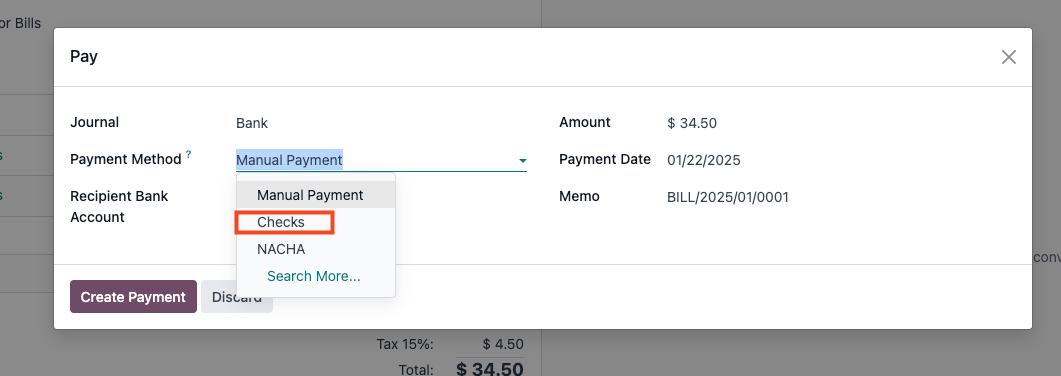
You can refer to this official documantation for check payment methods: https://www.odoo.com/documentation/18.0/applications/finance/accounting/payments/pay_checks.html#pay-by-checks


  1. Enable Accounting -> Configuration -> Settings -> Vendor Payments -> Checks

  2. Pay your Vendor Bills with check

Hope it is helpful

0
Аватар
Відмінити
Enjoying the discussion? Don't just read, join in!

Create an account today to enjoy exclusive features and engage with our awesome community!

Реєстрація
Related Posts Відповіді Переглядів Дія
New date format odoo 19
accounting
Аватар
Аватар
Аватар
2
груд. 25
1503
Bank Suspense vs Bank Suspense Account on Odoo Chart of Accounts default Вирішено
accounting
Аватар
Аватар
2
груд. 25
462
Peppol - Envoie de mails à mon comptable pour WinAuditor
accounting
Аватар
Аватар
Аватар
3
груд. 25
1603
{{LL@mar Mexico}} ¿Cómo hablar con una persona en Air France?
accounting
Аватар
0
груд. 25
4
Why is the invoice PDF showing an error in the right corner
accounting
Аватар
Аватар
1
груд. 25
1328
Спільнота
  • Навчальний посібник
  • Документація
  • Форум
Open Source
  • Завантаження
  • Github
  • Runbot
  • Переклади
Послуги
  • Хостинг Odoo.sh
  • Підтримка
  • Оновлення
  • Кастомні доробки
  • Навчання
  • Знайдіть бухгалтера
  • Знайдіть партнера
  • Стати партнером
Про нас
  • Наша компанія
  • Торгові активи
  • Зв'яжіться з нами
  • Вакансії
  • Події
  • Подкаст
  • Блог
  • Клієнти
  • Юридичні документи • Конфіденційність
  • Безпека
الْعَرَبيّة Català 简体中文 繁體中文 (台灣) Čeština Dansk Nederlands English Suomi Français Deutsch हिंदी Bahasa Indonesia Italiano 日本語 한국어 (KR) Lietuvių kalba Język polski Português (BR) română русский язык Slovenský jazyk slovenščina Español (América Latina) Español ภาษาไทย Türkçe українська Tiếng Việt

Odoo - це набір програм для роботи з відкритим кодом, які охоплюють всі ваші потреби компанії: CRM, електронна комерція, бухгалтерський облік, склад, точка продажу, управління проектами тощо.

Унікальна пропозиція Odoo - це одночасно дуже проста у використанні та повністю інтегрована.

Website made with

Odoo Experience on YouTube

1. Use the live chat to ask your questions.
2. The operator answers within a few minutes.

Live support on Youtube
Watch now