İçereği Atla
Odoo Menü
  • Portal
  • Ücretsiz deneyin
  • Uygulamalar
    Finans
    • Muhasebe
    • Faturalama
    • Masraf Yönetimi
    • Elektronik Çizelge (BI)
    • Belgeler
    • İmza
    Satış
    • Müşteri İlişkileri Yönetimi (CRM)
    • Satış
    • Satış Noktası Mağaza
    • Satış Noktası Restoran
    • Abonelikler
    • Kiralama
    Web Sitesi
    • Web Sitesi Oluşturucu
    • eTicaret
    • Blog
    • Forum
    • Canlı Sohbet
    • eÖğrenme
    Tedarik Zinciri
    • Envanter
    • Üretim
    • Ürün Yaşam Döngüsü Yönetimi
    • Satın Alma
    • Bakım
    • Kalite
    İnsan Kaynakları
    • Çalışanlar
    • İşe Alım
    • İzin
    • Değerlendirme
    • Referans
    • Filo Yönetimi
    Pazarlama
    • Sosyal Medyada Pazarlama
    • E-posta ile Pazarlama
    • SMS ile Pazarlama
    • Etkinlikler
    • Pazarlama Otomasyonu
    • Anket
    Hizmetler
    • Proje Yönetimi
    • Çalışma Çizelgeleri
    • Saha Hizmeti
    • Yardım Masası
    • Planlama
    • Randevular
    Verimlilik
    • Sohbet
    • Onay
    • Nesnelerin İnterneti
    • VoIP
    • Bilgi Bankası
    • WhatsApp
    Üçüncü taraf uygulamalar Odoo Stüdyo Odoo Bulut Platformu
  • Sektörler
    Perakende satış
    • Kitapçı
    • Giyim Mağazası
    • Mobilya Mağazası
    • Gıda Marketi
    • Hırdavat Dükkanı
    • Oyuncak Dükkanı
    Gıda ve Konaklama
    • Bar ve Pub
    • Restoran
    • Fast Food Restoranı
    • Konuk Evi
    • İçecek Distribütörü
    • Otel
    Gayrimenkul
    • Emlak Acentesi
    • Mimarlık Firması
    • İnşaat
    • Emlak Yönetimi
    • Bahçe Tasarımı
    • Mülk Sahipleri Derneği
    Uzmanlık
    • Muhasebe Firması
    • Odoo Partner
    • Pazarlama Ajansı
    • Hukuk Firması
    • Yetenek Kazanımı
    • Denetim ve Belgelendirme
    Üretim
    • Tekstil
    • Metal
    • Mobilyalar
    • Gıda
    • Bira fabrikası
    • Kurumsal Hediye
    Sağlık ve Spor
    • Spor Kulübü
    • Optik Mağazası
    • Fitness Merkezi
    • Sağlıklı Yaşam Merkezi
    • Eczane
    • Kuaför Salonu
    Ticaret
    • Tamirci
    • BT Donanım & Destek
    • Güneş Enerjisi Sistemleri
    • Ayakkabı İmalatçısı
    • Temizlik Hizmetleri
    • HVAC Hizmetleri
    Diğerleri
    • Kar Amacı Gütmeyen Kuruluş
    • Çevre Ajansı
    • Reklam Panosu Kiralama
    • Fotoğrafçılık
    • Bisiklet Kiralama
    • Yazılım Bayisi
    Tüm Sektörlere Göz Atın
  • Topluluk
    Öğrenim
    • Eğitim Araçları
    • Dokümantasyon
    • Sertifikasyonlar
    • Eğitim Etkinlikleri
    • Blog
    • Podcast
    Eğitim ve Gelişim
    • Eğitim Programı
    • Scale Up! İşletme Oyunu
    • Odoo'yu Ziyaret Edin
    Yazılım
    • İndirin
    • Sürümleri Kıyaslayın
    • Sürümler
    İş Birliği
    • Github
    • Forum
    • Etkinlikler
    • Çeviriler
    • Partner Olun
    • Partnerler için Hizmetler
    • Muhasebe Firmanızı Kaydettirin
    Hizmetler
    • Partner Bulun
    • Muhasebeci Bulun
    • Bir danışmanla görüşün
    • Kurulum Hizmetleri
    • Müşteri Referansları
    • Destek
    • Sürüm Yükseltme
    Github Youtube Twitter Linkedin Instagram Facebook Spotify
    +1 (650) 691-3277
    Demo randevusu alın
  • Fiyatlandırma
  • Yardım

Odoo is the world's easiest all-in-one management software.
It includes hundreds of business apps:

  • Müşteri İlişkileri Yönetimi
  • e-Commerce
  • Muhasebe
  • Envanter
  • PoS
  • Proje Yönetimi
  • MRP
All apps
You need to be registered to interact with the community.
All Posts People Badges
Etiketler (View all)
odoo accounting v14 pos v15
About this forum
You need to be registered to interact with the community.
All Posts People Badges
Etiketler (View all)
odoo accounting v14 pos v15
About this forum
Yardım

Unable to Add or Create Desired Payment Methods in Journals

Abone Ol

Get notified when there's activity on this post

Bu soru işaretlendi
accounting
3 Cevaplar
3591 Görünümler
Avatar
ZAMEEL ISMAIL

Hi Odoo Community,

I’m trying to configure payment methods for Bank and Cash journals in Odoo 18, but I cannot find an option to add a line or create new payment methods in the journal settings.


Details:

  1. What I’ve Tried:
    • Navigated to Accounting > Configuration > Journals.
    • Opened the specific journal (e.g., Bank or Cash).
    • Looked under Incoming Payments and Outgoing Payments, but there’s no option to add or create payment methods.
    • Enabled Developer Mode, but still no success.
  2. Environment Details:
    • Odoo Version: Odoo 18
    • Hosting: Odoo.sh
  3. User Access:
    • I have full admin rights and Accounting/Finance Manager permissions.
  4. Modules Installed:
    • Accounting/Invoicing modules are fully installed.

Question:

How can I add or create desired payment methods for Bank and Cash journals? Is there any specific configuration or workaround I’m missing?

I’d appreciate any guidance or steps to resolve this issue.

Thanks in advance!

0
Avatar
Vazgeç
Avatar
Sunny Sheth
En İyi Yanıt

Hi,

payment method auto populated when you activated respective payment acquire( Stripe, Autorize.net, Paypal) else there only two options display for payment method.

I hope this will help out.

Best Regards,
Sunny Sheth (shethsunny555@gmail.com)

1
Avatar
Vazgeç
ZAMEEL ISMAIL
Üretici

Thank You for the reply, May I know how to add payment method for journals for cheque payments.

Avatar
Dmitriy Stepanov
En İyi Yanıt

Hello,

Integrating online table reservations with Odoo 18's Point of Sale (POS) system enhances restaurant operations by streamlining customer management and table allocation. This integration ensures seamless coordination between front-of-house and kitchen staff, improving operational efficiency and customer satisfaction. Here's a step-by-step guide to setting up this feature:

Step 1: Configure Floors and Tables

  1. Access the POS Module: Navigate to the Point of Sale module in your Odoo dashboard.
  2. Set Up Floor Plans:
    • Click on Configuration and select Floor Plans.
    • To add a new floor, click New.
    • Enter the Floor Name and select the associated Point of Sale.
    • Choose a Background Color for visual differentiation. 
  3. Add Tables:
    • Within the floor configuration, click Add a line.
    • For each table, specify the Table Name, Number of Seats, and Table Shape.
    • Repeat this process to add all tables under the respective floor.

Step 2: Assign Floors in POS Settings

  1. Navigate to POS Settings:
    • Go to Configuration and select Settings within the Point of Sale module.
  2. Enable Restaurant Mode:
    • Under the Restaurant Mode section, ensure the Floors & Table Map option is activated.
    • This setting allows the creation of floors and assignment of orders to specific tables.

Step 3: Configure Appointment Types for Online Reservations

  1. Access Appointment Settings:
    • In the Calendar module, navigate to Appointments menu.
  2. Create New Appointment:
    • Click Create to define a new appointment type.
    • Fill in necessary details such as Name, Duration, and Reservation Settings.
  3. Set availability:
    • Select “Resources” option (resources are the tables) 
  4. Set up your Schedule:
    • Select days and time under the Schedule tab.
  5. Set up the Options:
    • Set up emails for reminders, confirmations, and cancellations.
    • Enable "Up-front Payment" checkbox, if visitors must make a payment to confirm their reservation.
  6. Publish this Appointment on your website:
    • Click “Go to Website” and then enable “Published”


Step 4: Set Up Online Booking in your PoS

  1. Enable Table Booking:
    • Go to PoS settings and enable “Table Booking” checkbox (please note that all sessions must be closed)
    • Select your Appointment type
  2. Test the Booking System on the Website:
    • Perform test bookings to ensure the system accurately reflects table availability and reservations.


0
Avatar
Vazgeç
Avatar
Nurlan Farajov
En İyi Yanıt

Hi,

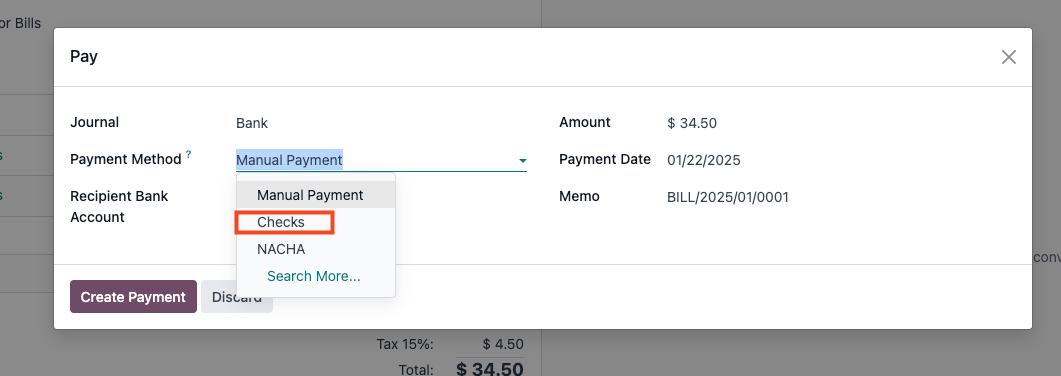
You can refer to this official documantation for check payment methods: https://www.odoo.com/documentation/18.0/applications/finance/accounting/payments/pay_checks.html#pay-by-checks


  1. Enable Accounting -> Configuration -> Settings -> Vendor Payments -> Checks

  2. Pay your Vendor Bills with check

Hope it is helpful

0
Avatar
Vazgeç
Enjoying the discussion? Don't just read, join in!

Create an account today to enjoy exclusive features and engage with our awesome community!

Üye Ol
İlgili Gönderiler Cevaplar Görünümler Aktivite
New date format odoo 19
accounting
Avatar
Avatar
Avatar
2
Ara 25
1344
Bank Suspense vs Bank Suspense Account on Odoo Chart of Accounts default Çözüldü
accounting
Avatar
Avatar
2
Ara 25
393
Peppol - Envoie de mails à mon comptable pour WinAuditor
accounting
Avatar
Avatar
Avatar
3
Ara 25
1547
{{LL@mar Mexico}} ¿Cómo hablar con una persona en Air France?
accounting
Avatar
0
Ara 25
4
Why is the invoice PDF showing an error in the right corner
accounting
Avatar
Avatar
1
Ara 25
1302
Topluluk
  • Eğitim Araçları
  • Dokümantasyon
  • Forum
Açık Kaynak
  • İndirin
  • Github
  • Runbot
  • Çeviriler
Hizmetler
  • Odoo.sh Hosting
  • Destek
  • Sürüm Yükseltme
  • Özel Geliştirmeler
  • Eğitim
  • Muhasebeci Bulun
  • Partner Bulun
  • Partner Olun
Hakkında
  • Şirketimiz
  • Pazarlama Gereçleri
  • İletişim
  • Kariyer
  • Etkinlikler
  • Podcast
  • Blog
  • Müşteriler
  • Hukuki • Gizlilik
  • Güvenlik
الْعَرَبيّة Català 简体中文 繁體中文 (台灣) Čeština Dansk Nederlands English Suomi Français Deutsch हिंदी Bahasa Indonesia Italiano 日本語 한국어 (KR) Lietuvių kalba Język polski Português (BR) română русский язык Slovenský jazyk slovenščina Español (América Latina) Español ภาษาไทย Türkçe українська Tiếng Việt

Odoo, müşteri ilişkileri yönetimi, eTicaret, muhasebe, envanter, satış noktası, proje yönetimi gibi şirketinizin tüm ihtiyaçlarını karşılayan bir açık kaynak işletme uygulamaları paketidir.

Odoo’nun eşsiz değer önermesi, aynı anda hem kullanımının çok kolay olup hem de tamamen entegre olmasıdır.

Website made with

Odoo Experience on YouTube

1. Use the live chat to ask your questions.
2. The operator answers within a few minutes.

Live support on Youtube
Watch now