跳至內容
Odoo 選單
  • 登入
  • 免費試用
  • 應用程式
    財政
    • 會計
    • 發票
    • 開支報銷
    • 試算表 (BI)
    • 文件管理
    • 電子簽名
    銷售
    • 客戶關係
    • 銷售
    • POS 銷售點管理 - 零售
    • POS 銷售點管理 - 餐廳
    • 訂閱
    • 租賃
    網站
    • 網站製作
    • 電子商務
    • 網誌
    • 討論區
    • 線上客服
    • 網上學習
    供應鏈
    • 庫存
    • 製造管理
    • 產品生命周期
    • 採購
    • 保養維護
    • 品質管理
    人力資源
    • 員工管理
    • 招聘
    • 休假
    • 工作表現評核
    • 內部推薦
    • 車隊管理
    市場推廣
    • 社交媒體推廣
    • 電郵推廣
    • 短訊營銷
    • 活動
    • 自動化推廣
    • 網上調查
    服務
    • 專案管理
    • 工時管理
    • 外勤服務管理
    • 技術支援
    • 工作規劃
    • 預約管理
    生產力
    • 聊天
    • 批核
    • 物聯網
    • VoIP
    • 知識庫
    • WhatsApp
    第三方應用程式 Odoo Studio Odoo 雲端平台
  • 行業
    零售
    • 書店
    • 服裝店
    • 家具店
    • 食品雜貨店
    • 五金店
    • 玩具店
    餐飲及款待
    • 酒吧及酒館
    • 餐廳
    • 快餐
    • 賓館
    • 飲品分銷商
    • 酒店
    房地產
    • 地產代理公司
    • 建築師事務所
    • 建造業
    • 物業管理
    • 園藝
    • 業主聯會
    顧問服務
    • 會計公司
    • Odoo 合作夥伴
    • 市場推廣公司
    • 律師事務所
    • 人才招募
    • 審計及認證
    製造管理
    • 紡織
    • 金屬
    • 家具
    • 食品
    • 啤酒廠
    • 企業禮品
    保健與健身
    • 運動俱樂部
    • 眼鏡店
    • 健身中心
    • 健康從業人員
    • 藥房
    • 髮型屋
    技術行業
    • 雜工
    • IT 硬體與支援
    • 太陽能系統
    • 鞋匠
    • 清潔服務
    • 暖通空調服務
    其他
    • 非牟利組織
    • 環境保護機構
    • 廣告板租賃
    • 攝影服務
    • 自行車租賃
    • 軟體經銷商
    瀏覽所有行業
  • 社群
    學習
    • 教學影片
    • 使用說明
    • 認證
    • 培訓
    • 網誌
    • Podcast
    增強教學效能
    • 教育計劃
    • Scale Up! 商業遊戲
    • 到訪 Odoo
    取得軟件
    • 下載
    • 版本對照表
    • 版本說明
    合作
    • GitHub
    • 討論區
    • 活動
    • 翻譯
    • 成為合作夥伴
    • 合作夥伴服務
    • 登記你的會計服務公司
    獲取服務相關資料
    • 尋找合作夥伴
    • 尋找會計服務
    • 預約顧問諮詢
    • 安裝及推行服務
    • 客戶案例
    • 支援
    • 軟件升級
    GitHub YouTube Twitter LinkedIn Instagram Facebook Spotify
    +1 (650) 691-3277
    預約示範
  • 定價
  • 技術支援

Odoo is the world's easiest all-in-one management software.
It includes hundreds of business apps:

  • 客戶關係
  • e-Commerce
  • 會計
  • 庫存
  • PoS
  • 專案管理
  • MRP
All apps
只限註冊用戶才可與社群互動。
所有帖文 人 獎章
標籤 (查看所有)
odoo accounting v14 pos v15
關於此討論區
只限註冊用戶才可與社群互動。
所有帖文 人 獎章
標籤 (查看所有)
odoo accounting v14 pos v15
關於此討論區
支援

Unable to Add or Create Desired Payment Methods in Journals

訂閱

此帖文有活動時,接收通知

此問題已被標幟
accounting
3 回覆
3685 瀏覽次數
頭像
ZAMEEL ISMAIL

Hi Odoo Community,

I’m trying to configure payment methods for Bank and Cash journals in Odoo 18, but I cannot find an option to add a line or create new payment methods in the journal settings.


Details:

  1. What I’ve Tried:
    • Navigated to Accounting > Configuration > Journals.
    • Opened the specific journal (e.g., Bank or Cash).
    • Looked under Incoming Payments and Outgoing Payments, but there’s no option to add or create payment methods.
    • Enabled Developer Mode, but still no success.
  2. Environment Details:
    • Odoo Version: Odoo 18
    • Hosting: Odoo.sh
  3. User Access:
    • I have full admin rights and Accounting/Finance Manager permissions.
  4. Modules Installed:
    • Accounting/Invoicing modules are fully installed.

Question:

How can I add or create desired payment methods for Bank and Cash journals? Is there any specific configuration or workaround I’m missing?

I’d appreciate any guidance or steps to resolve this issue.

Thanks in advance!

0
頭像
捨棄
頭像
Sunny Sheth
最佳答案

Hi,

payment method auto populated when you activated respective payment acquire( Stripe, Autorize.net, Paypal) else there only two options display for payment method.

I hope this will help out.

Best Regards,
Sunny Sheth (shethsunny555@gmail.com)

1
頭像
捨棄
ZAMEEL ISMAIL
作者

Thank You for the reply, May I know how to add payment method for journals for cheque payments.

頭像
Dmitriy Stepanov
最佳答案

Hello,

Integrating online table reservations with Odoo 18's Point of Sale (POS) system enhances restaurant operations by streamlining customer management and table allocation. This integration ensures seamless coordination between front-of-house and kitchen staff, improving operational efficiency and customer satisfaction. Here's a step-by-step guide to setting up this feature:

Step 1: Configure Floors and Tables

  1. Access the POS Module: Navigate to the Point of Sale module in your Odoo dashboard.
  2. Set Up Floor Plans:
    • Click on Configuration and select Floor Plans.
    • To add a new floor, click New.
    • Enter the Floor Name and select the associated Point of Sale.
    • Choose a Background Color for visual differentiation. 
  3. Add Tables:
    • Within the floor configuration, click Add a line.
    • For each table, specify the Table Name, Number of Seats, and Table Shape.
    • Repeat this process to add all tables under the respective floor.

Step 2: Assign Floors in POS Settings

  1. Navigate to POS Settings:
    • Go to Configuration and select Settings within the Point of Sale module.
  2. Enable Restaurant Mode:
    • Under the Restaurant Mode section, ensure the Floors & Table Map option is activated.
    • This setting allows the creation of floors and assignment of orders to specific tables.

Step 3: Configure Appointment Types for Online Reservations

  1. Access Appointment Settings:
    • In the Calendar module, navigate to Appointments menu.
  2. Create New Appointment:
    • Click Create to define a new appointment type.
    • Fill in necessary details such as Name, Duration, and Reservation Settings.
  3. Set availability:
    • Select “Resources” option (resources are the tables) 
  4. Set up your Schedule:
    • Select days and time under the Schedule tab.
  5. Set up the Options:
    • Set up emails for reminders, confirmations, and cancellations.
    • Enable "Up-front Payment" checkbox, if visitors must make a payment to confirm their reservation.
  6. Publish this Appointment on your website:
    • Click “Go to Website” and then enable “Published”


Step 4: Set Up Online Booking in your PoS

  1. Enable Table Booking:
    • Go to PoS settings and enable “Table Booking” checkbox (please note that all sessions must be closed)
    • Select your Appointment type
  2. Test the Booking System on the Website:
    • Perform test bookings to ensure the system accurately reflects table availability and reservations.


0
頭像
捨棄
頭像
Nurlan Farajov
最佳答案

Hi,

You can refer to this official documantation for check payment methods: https://www.odoo.com/documentation/18.0/applications/finance/accounting/payments/pay_checks.html#pay-by-checks


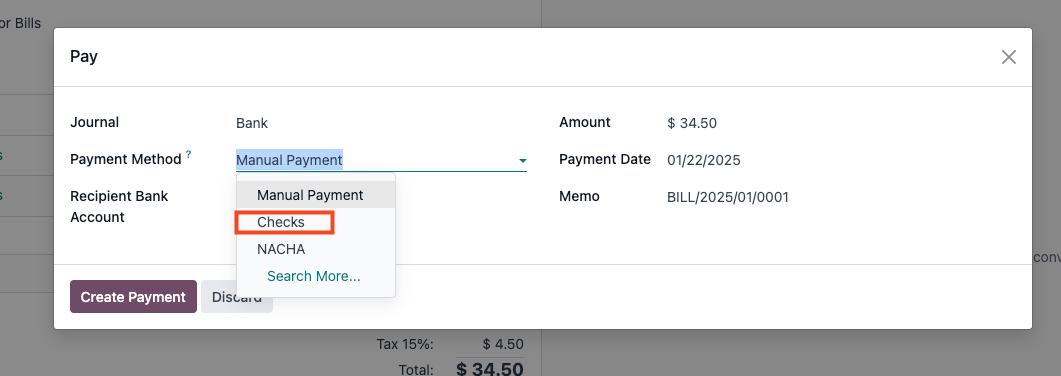
  1. Enable Accounting -> Configuration -> Settings -> Vendor Payments -> Checks

  2. Pay your Vendor Bills with check

Hope it is helpful

0
頭像
捨棄
喜歡這則討論?不要只閱讀,加入發表意見吧!

今天就建立帳戶,享受獨家功能,與我們精彩的社群互動!

註冊
相關帖文 回覆 瀏覽次數 活動
New date format odoo 19
accounting
頭像
頭像
頭像
2
12月 25
1491
Bank Suspense vs Bank Suspense Account on Odoo Chart of Accounts default 已解決
accounting
頭像
頭像
2
12月 25
461
Peppol - Envoie de mails à mon comptable pour WinAuditor
accounting
頭像
頭像
頭像
3
12月 25
1599
{{LL@mar Mexico}} ¿Cómo hablar con una persona en Air France?
accounting
頭像
0
12月 25
4
Why is the invoice PDF showing an error in the right corner
accounting
頭像
頭像
1
12月 25
1326
社群
  • 教學影片
  • 使用說明
  • 討論區
開源
  • 下載
  • GitHub
  • Runbot 測試環境
  • 翻譯
服務
  • odoo.sh 網頁寄存
  • 支援
  • 升級
  • 自訂功能開發
  • 教育及培訓
  • 尋找會計服務
  • 尋找合作夥伴
  • 成為合作夥伴
關於我們
  • 關於 Odoo 公司
  • 品牌資產
  • 聯絡我們
  • 招聘
  • 活動
  • Podcast
  • 網誌
  • 客戶
  • 法律 • 私隱政策
  • 安全性
الْعَرَبيّة Català 简体中文 繁體中文 (台灣) Čeština Dansk Nederlands English Suomi Français Deutsch हिंदी Bahasa Indonesia Italiano 日本語 한국어 (KR) Lietuvių kalba Język polski Português (BR) română русский язык Slovenský jazyk slovenščina Español (América Latina) Español ภาษาไทย Türkçe українська Tiếng Việt

Odoo 是一套開放源碼的商業管理系統,涵蓋你公司全部的營運需要,包括客戶關係管理(CRM)、電子商務、會計、庫存管理、POS(銷售點管理)、專案管理等應用程式。

Odoo 的獨特價值是非常簡單易用,同時將不同應用程式完美整合。

Website made with

Odoo Experience on YouTube

1. Use the live chat to ask your questions.
2. The operator answers within a few minutes.

Live support on Youtube
Watch now