跳至内容
Odoo 菜单
  • 登录
  • 免费试用
  • 应用程序
    财务
    • 会计
    • 发票
    • 费用
    • 电子表格 (BI)
    • 文档
    • 电子签名
    销售
    • 客户关系管理
    • 销售
    • POS 销售点管理-零售
    • POS 销售点管理 - 餐厅
    • 订阅
    • 租赁
    网站
    • 网站设计
    • 电子商务
    • 博客
    • 论坛
    • 在线客服
    • 在线学习
    供应链
    • 库存
    • 制造
    • 产品生命周期
    • 采购
    • 维护保养
    • 品控
    人力资源
    • 员工
    • 招聘
    • 休假
    • 评价
    • 内部推荐
    • 车队
    营销
    • 社媒营销
    • 电邮营销
    • 短信营销
    • 近期活动
    • 营销自动化
    • 网上调查
    服务
    • 项目管理
    • 工时单
    • 现场服务
    • 服务台
    • 排期
    • 预约
    生产力
    • 讨论
    • 批核
    • IoT物联网
    • VoIP
    • 知识库
    • WhatsApp
    第三方应用软件 Odoo 定制 Odoo云端平台
  • 行业
    零售
    • 书店
    • 服装店
    • 家具店
    • 食品杂货店
    • 五金店
    • 玩具店
    餐饮与酒店服务
    • 酒吧及酒馆
    • 餐厅
    • 快餐
    • 民宿
    • 饮品分销商
    • 酒店
    房地产
    • 房地产代理
    • 建筑师事务所
    • 建造业
    • 地产管理
    • 园艺
    • 业主协会
    咨询
    • 会计师事务所
    • Odoo合作伙伴
    • 市场推广公司
    • 律师事务所
    • 人才招聘
    • 审核 & 认证
    制造
    • 纺织
    • 金属
    • 家具
    • 食品
    • 啤酒厂
    • 企业礼品
    保健与健身
    • 体育俱乐部
    • 眼镜店
    • 健身中心
    • 健康从业者
    • 药房
    • 发型屋
    商贸服务
    • 维修人员
    • IT 硬件及支持
    • 太阳能系统
    • 鞋匠
    • 清洁服务
    • 暖通空调服务
    其他
    • 非营利组织
    • 环境机构
    • 广告牌租赁
    • 摄影服务
    • 自行车租赁
    • 软件经销商
    浏览所有行业
  • 社区
    学习
    • 教学视频
    • 文档
    • 认证
    • 培训
    • 博客
    • 播客
    赋能教育
    • 教育计划
    • Scale Up! 商业游戏
    • 参观Odoo
    获取软件
    • 下载
    • 版本对比
    • 发布
    合作
    • Github
    • 论坛
    • 近期活动
    • 翻译
    • 成为合作伙伴
    • 合作伙伴服务
    • 注册您的会计事务所
    获取服务
    • 寻找合作伙伴
    • 查找会计服务
    • 预约顾问咨询
    • 安装及推行服务
    • 客户参考
    • 支持
    • 升级
    Github Youtube Twitter Linkedin Instagram Facebook Spotify
    +1 (650) 691-3277
    获取演示
  • 定价
  • 技术支持

Odoo is the world's easiest all-in-one management software.
It includes hundreds of business apps:

  • 客户关系管理
  • e-Commerce
  • 会计
  • 库存
  • PoS
  • 项目
  • MRP
All apps
只限注册用戶才可与社群互动。
所有帖文 人 徽章
标签 (查看所有)
odoo accounting v14 pos v15
关于此论坛区
只限注册用戶才可与社群互动。
所有帖文 人 徽章
标签 (查看所有)
odoo accounting v14 pos v15
关于此论坛区
帮助

Unable to Add or Create Desired Payment Methods in Journals

订阅

此帖文有活动时,接收通知

此问题已终结
accounting
3 回复
3606 查看
形象
ZAMEEL ISMAIL

Hi Odoo Community,

I’m trying to configure payment methods for Bank and Cash journals in Odoo 18, but I cannot find an option to add a line or create new payment methods in the journal settings.


Details:

  1. What I’ve Tried:
    • Navigated to Accounting > Configuration > Journals.
    • Opened the specific journal (e.g., Bank or Cash).
    • Looked under Incoming Payments and Outgoing Payments, but there’s no option to add or create payment methods.
    • Enabled Developer Mode, but still no success.
  2. Environment Details:
    • Odoo Version: Odoo 18
    • Hosting: Odoo.sh
  3. User Access:
    • I have full admin rights and Accounting/Finance Manager permissions.
  4. Modules Installed:
    • Accounting/Invoicing modules are fully installed.

Question:

How can I add or create desired payment methods for Bank and Cash journals? Is there any specific configuration or workaround I’m missing?

I’d appreciate any guidance or steps to resolve this issue.

Thanks in advance!

0
形象
丢弃
形象
Sunny Sheth
最佳答案

Hi,

payment method auto populated when you activated respective payment acquire( Stripe, Autorize.net, Paypal) else there only two options display for payment method.

I hope this will help out.

Best Regards,
Sunny Sheth (shethsunny555@gmail.com)

1
形象
丢弃
ZAMEEL ISMAIL
编写者

Thank You for the reply, May I know how to add payment method for journals for cheque payments.

形象
Dmitriy Stepanov
最佳答案

Hello,

Integrating online table reservations with Odoo 18's Point of Sale (POS) system enhances restaurant operations by streamlining customer management and table allocation. This integration ensures seamless coordination between front-of-house and kitchen staff, improving operational efficiency and customer satisfaction. Here's a step-by-step guide to setting up this feature:

Step 1: Configure Floors and Tables

  1. Access the POS Module: Navigate to the Point of Sale module in your Odoo dashboard.
  2. Set Up Floor Plans:
    • Click on Configuration and select Floor Plans.
    • To add a new floor, click New.
    • Enter the Floor Name and select the associated Point of Sale.
    • Choose a Background Color for visual differentiation. 
  3. Add Tables:
    • Within the floor configuration, click Add a line.
    • For each table, specify the Table Name, Number of Seats, and Table Shape.
    • Repeat this process to add all tables under the respective floor.

Step 2: Assign Floors in POS Settings

  1. Navigate to POS Settings:
    • Go to Configuration and select Settings within the Point of Sale module.
  2. Enable Restaurant Mode:
    • Under the Restaurant Mode section, ensure the Floors & Table Map option is activated.
    • This setting allows the creation of floors and assignment of orders to specific tables.

Step 3: Configure Appointment Types for Online Reservations

  1. Access Appointment Settings:
    • In the Calendar module, navigate to Appointments menu.
  2. Create New Appointment:
    • Click Create to define a new appointment type.
    • Fill in necessary details such as Name, Duration, and Reservation Settings.
  3. Set availability:
    • Select “Resources” option (resources are the tables) 
  4. Set up your Schedule:
    • Select days and time under the Schedule tab.
  5. Set up the Options:
    • Set up emails for reminders, confirmations, and cancellations.
    • Enable "Up-front Payment" checkbox, if visitors must make a payment to confirm their reservation.
  6. Publish this Appointment on your website:
    • Click “Go to Website” and then enable “Published”


Step 4: Set Up Online Booking in your PoS

  1. Enable Table Booking:
    • Go to PoS settings and enable “Table Booking” checkbox (please note that all sessions must be closed)
    • Select your Appointment type
  2. Test the Booking System on the Website:
    • Perform test bookings to ensure the system accurately reflects table availability and reservations.


0
形象
丢弃
形象
Nurlan Farajov
最佳答案

Hi,

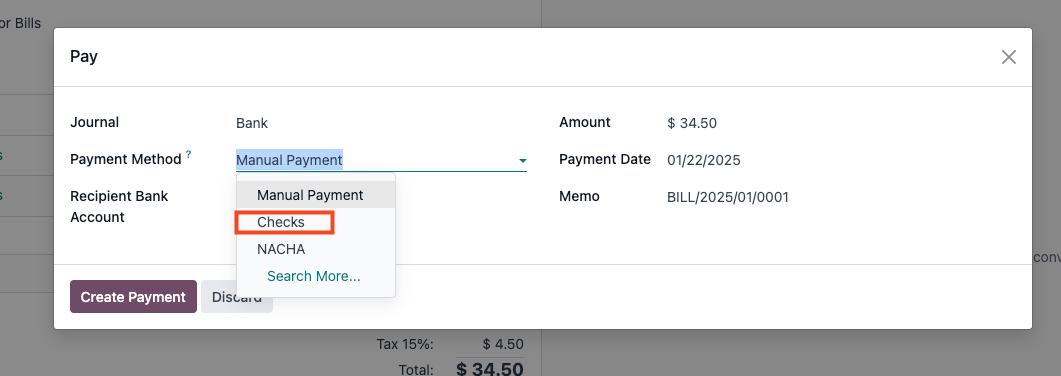
You can refer to this official documantation for check payment methods: https://www.odoo.com/documentation/18.0/applications/finance/accounting/payments/pay_checks.html#pay-by-checks


  1. Enable Accounting -> Configuration -> Settings -> Vendor Payments -> Checks

  2. Pay your Vendor Bills with check

Hope it is helpful

0
形象
丢弃
喜欢讨论吗?不要只阅读,加入进来!

立即创建账户,享受专属功能,与我们的精彩社区互动!

注册
相关帖文 回复 查看 活动
New date format odoo 19
accounting
形象
形象
形象
2
12月 25
1380
Bank Suspense vs Bank Suspense Account on Odoo Chart of Accounts default 已解决
accounting
形象
形象
2
12月 25
417
Peppol - Envoie de mails à mon comptable pour WinAuditor
accounting
形象
形象
形象
3
12月 25
1566
{{LL@mar Mexico}} ¿Cómo hablar con una persona en Air France?
accounting
形象
0
12月 25
4
Why is the invoice PDF showing an error in the right corner
accounting
形象
形象
1
12月 25
1306
社区
  • 教学视频
  • 文档
  • 论坛
开源
  • 下载
  • Github
  • Runbot
  • 翻译
服务
  • Odoo.sh 托管
  • 支持
  • 升级
  • 自定义开发服务
  • 教育
  • 查找会计服务
  • 寻找合作伙伴
  • 成为合作伙伴
关于我们
  • 我们的公司
  • 品牌资产
  • 联系我们
  • 招聘
  • 近期活动
  • 播客
  • 博客
  • 客户
  • 法律 • 隐私
  • 安全
الْعَرَبيّة Català 简体中文 繁體中文 (台灣) Čeština Dansk Nederlands English Suomi Français Deutsch हिंदी Bahasa Indonesia Italiano 日本語 한국어 (KR) Lietuvių kalba Język polski Português (BR) română русский язык Slovenský jazyk slovenščina Español (América Latina) Español ภาษาไทย Türkçe українська Tiếng Việt

Odoo致力于为企业管理提供高效智能的开源解决方案,是全球业内高速成长的软件服务商之一,逾七百五十万用户选择Odoo进行数字化升级。通过一系列全业务链覆盖、高度集成、简单易用的商业应用,助力企业实现信息化改革、降本增效并释放公司增长潜力。

Odoo独特的价值在于是一款非常容易使用又完全集成的应用。

Website made with

Odoo Experience on YouTube

1. Use the live chat to ask your questions.
2. The operator answers within a few minutes.

Live support on Youtube
Watch now