Skip ke Konten
Odoo Menu
  • Login
  • Uji coba gratis
  • Aplikasi
    Keuangan
    • Akuntansi
    • Faktur
    • Pengeluaran
    • Spreadsheet (BI)
    • Dokumen
    • Tanda Tangan
    Sales
    • CRM
    • Sales
    • POS Toko
    • POS Restoran
    • Langganan
    • Rental
    Website
    • Website Builder
    • eCommerce
    • Blog
    • Forum
    • Live Chat
    • eLearning
    Rantai Pasokan
    • Inventaris
    • Manufaktur
    • PLM
    • Purchase
    • Maintenance
    • Kualitas
    Sumber Daya Manusia
    • Karyawan
    • Rekrutmen
    • Cuti
    • Appraisal
    • Referensi
    • Armada
    Marketing
    • Social Marketing
    • Email Marketing
    • SMS Marketing
    • Acara
    • Otomatisasi Marketing
    • Survei
    Layanan
    • Project
    • Timesheet
    • Layanan Lapangan
    • Meja Bantuan
    • Planning
    • Appointment
    Produktivitas
    • Discuss
    • Approval
    • IoT
    • VoIP
    • Pengetahuan
    • WhatsApp
    Aplikasi pihak ketiga Odoo Studio Platform Odoo Cloud
  • Industri-Industri
    Retail
    • Toko Buku
    • Toko Baju
    • Toko Furnitur
    • Toko Kelontong
    • Toko Hardware
    • Toko Mainan
    Makanan & Hospitality
    • Bar dan Pub
    • Restoran
    • Fast Food
    • Rumah Tamu
    • Distributor Minuman
    • Hotel
    Real Estate
    • Agensi Real Estate
    • Firma Arsitektur
    • Konstruksi
    • Estate Management
    • Perkebunan
    • Asosiasi Pemilik Properti
    Konsultansi
    • Firma Akuntansi
    • Mitra Odoo
    • Agensi Marketing
    • Firma huku
    • Talent Acquisition
    • Audit & Sertifikasi
    Manufaktur
    • Tekstil
    • Logam
    • Perabotan
    • Makanan
    • Brewery
    • Corporate Gift
    Kesehatan & Fitness
    • Sports Club
    • Toko Kacamata
    • Fitness Center
    • Wellness Practitioners
    • Farmasi
    • Salon Rambut
    Perdagangan
    • Handyman
    • IT Hardware & Support
    • Sistem-Sistem Energi Surya
    • Pembuat Sepatu
    • Cleaning Service
    • Layanan HVAC
    Lainnya
    • Organisasi Nirlaba
    • Agen Lingkungan
    • Rental Billboard
    • Fotografi
    • Penyewaan Sepeda
    • Reseller Software
    Browse semua Industri
  • Komunitas
    Belajar
    • Tutorial-tutorial
    • Dokumentasi
    • Sertifikasi
    • Pelatihan
    • Blog
    • Podcast
    Empower Education
    • Program Edukasi
    • Game Bisnis 'Scale Up!'
    • Kunjungi Odoo
    Dapatkan Softwarenya
    • Download
    • Bandingkan Edisi
    • Daftar Rilis
    Kolaborasi
    • Github
    • Forum
    • Acara
    • Terjemahan
    • Menjadi Partner
    • Layanan untuk Partner
    • Daftarkan perusahaan Akuntansi Anda.
    Dapatkan Layanan
    • Temukan Mitra
    • Temukan Akuntan
    • Temui penasihat
    • Layanan Implementasi
    • Referensi Pelanggan
    • Bantuan
    • Upgrades
    Github Youtube Twitter Linkedin Instagram Facebook Spotify
    +1 (650) 691-3277
    Dapatkan demo
  • Harga
  • Bantuan

Odoo is the world's easiest all-in-one management software.
It includes hundreds of business apps:

  • CRM
  • e-Commerce
  • Akuntansi
  • Inventaris
  • PoS
  • Project
  • MRP
All apps
Anda harus terdaftar untuk dapat berinteraksi di komunitas.
Semua Post Orang Lencana-Lencana
Label (Lihat semua)
odoo accounting v14 pos v15
Mengenai forum ini
Anda harus terdaftar untuk dapat berinteraksi di komunitas.
Semua Post Orang Lencana-Lencana
Label (Lihat semua)
odoo accounting v14 pos v15
Mengenai forum ini
Help

Unable to Add or Create Desired Payment Methods in Journals

Langganan

Dapatkan notifikasi saat terdapat aktivitas pada post ini

Pertanyaan ini telah diberikan tanda
accounting
3 Replies
3645 Tampilan
Avatar
ZAMEEL ISMAIL

Hi Odoo Community,

I’m trying to configure payment methods for Bank and Cash journals in Odoo 18, but I cannot find an option to add a line or create new payment methods in the journal settings.


Details:

  1. What I’ve Tried:
    • Navigated to Accounting > Configuration > Journals.
    • Opened the specific journal (e.g., Bank or Cash).
    • Looked under Incoming Payments and Outgoing Payments, but there’s no option to add or create payment methods.
    • Enabled Developer Mode, but still no success.
  2. Environment Details:
    • Odoo Version: Odoo 18
    • Hosting: Odoo.sh
  3. User Access:
    • I have full admin rights and Accounting/Finance Manager permissions.
  4. Modules Installed:
    • Accounting/Invoicing modules are fully installed.

Question:

How can I add or create desired payment methods for Bank and Cash journals? Is there any specific configuration or workaround I’m missing?

I’d appreciate any guidance or steps to resolve this issue.

Thanks in advance!

0
Avatar
Buang
Avatar
Sunny Sheth
Jawaban Terbai

Hi,

payment method auto populated when you activated respective payment acquire( Stripe, Autorize.net, Paypal) else there only two options display for payment method.

I hope this will help out.

Best Regards,
Sunny Sheth (shethsunny555@gmail.com)

1
Avatar
Buang
ZAMEEL ISMAIL
Penulis

Thank You for the reply, May I know how to add payment method for journals for cheque payments.

Avatar
Dmitriy Stepanov
Jawaban Terbai

Hello,

Integrating online table reservations with Odoo 18's Point of Sale (POS) system enhances restaurant operations by streamlining customer management and table allocation. This integration ensures seamless coordination between front-of-house and kitchen staff, improving operational efficiency and customer satisfaction. Here's a step-by-step guide to setting up this feature:

Step 1: Configure Floors and Tables

  1. Access the POS Module: Navigate to the Point of Sale module in your Odoo dashboard.
  2. Set Up Floor Plans:
    • Click on Configuration and select Floor Plans.
    • To add a new floor, click New.
    • Enter the Floor Name and select the associated Point of Sale.
    • Choose a Background Color for visual differentiation. 
  3. Add Tables:
    • Within the floor configuration, click Add a line.
    • For each table, specify the Table Name, Number of Seats, and Table Shape.
    • Repeat this process to add all tables under the respective floor.

Step 2: Assign Floors in POS Settings

  1. Navigate to POS Settings:
    • Go to Configuration and select Settings within the Point of Sale module.
  2. Enable Restaurant Mode:
    • Under the Restaurant Mode section, ensure the Floors & Table Map option is activated.
    • This setting allows the creation of floors and assignment of orders to specific tables.

Step 3: Configure Appointment Types for Online Reservations

  1. Access Appointment Settings:
    • In the Calendar module, navigate to Appointments menu.
  2. Create New Appointment:
    • Click Create to define a new appointment type.
    • Fill in necessary details such as Name, Duration, and Reservation Settings.
  3. Set availability:
    • Select “Resources” option (resources are the tables) 
  4. Set up your Schedule:
    • Select days and time under the Schedule tab.
  5. Set up the Options:
    • Set up emails for reminders, confirmations, and cancellations.
    • Enable "Up-front Payment" checkbox, if visitors must make a payment to confirm their reservation.
  6. Publish this Appointment on your website:
    • Click “Go to Website” and then enable “Published”


Step 4: Set Up Online Booking in your PoS

  1. Enable Table Booking:
    • Go to PoS settings and enable “Table Booking” checkbox (please note that all sessions must be closed)
    • Select your Appointment type
  2. Test the Booking System on the Website:
    • Perform test bookings to ensure the system accurately reflects table availability and reservations.


0
Avatar
Buang
Avatar
Nurlan Farajov
Jawaban Terbai

Hi,

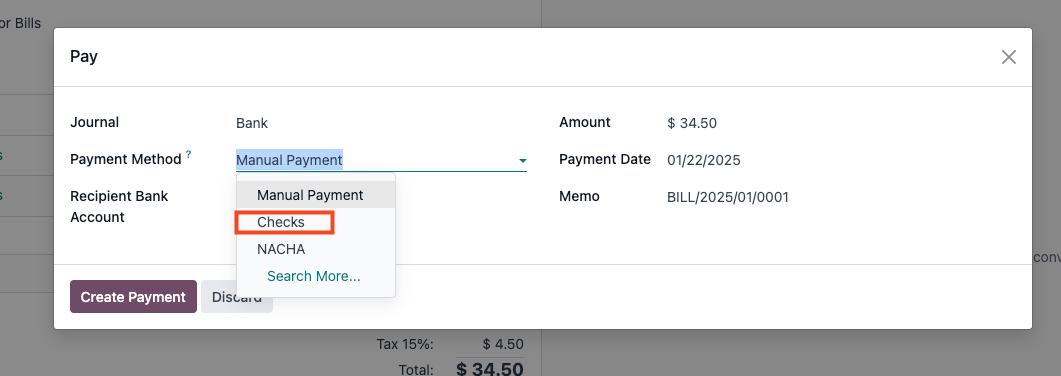
You can refer to this official documantation for check payment methods: https://www.odoo.com/documentation/18.0/applications/finance/accounting/payments/pay_checks.html#pay-by-checks


  1. Enable Accounting -> Configuration -> Settings -> Vendor Payments -> Checks

  2. Pay your Vendor Bills with check

Hope it is helpful

0
Avatar
Buang
Menikmati diskusi? Jangan hanya membaca, ikuti!

Buat akun sekarang untuk menikmati fitur eksklufi dan agar terlibat dengan komunitas kami!

Daftar
Post Terkait Replies Tampilan Aktivitas
New date format odoo 19
accounting
Avatar
Avatar
Avatar
2
Des 25
1427
Bank Suspense vs Bank Suspense Account on Odoo Chart of Accounts default Diselesaikan
accounting
Avatar
Avatar
2
Des 25
432
Peppol - Envoie de mails à mon comptable pour WinAuditor
accounting
Avatar
Avatar
Avatar
3
Des 25
1584
{{LL@mar Mexico}} ¿Cómo hablar con una persona en Air France?
accounting
Avatar
0
Des 25
4
Why is the invoice PDF showing an error in the right corner
accounting
Avatar
Avatar
1
Des 25
1310
Komunitas
  • Tutorial-tutorial
  • Dokumentasi
  • Forum
Open Source
  • Download
  • Github
  • Runbot
  • Terjemahan
Layanan
  • Odoo.sh Hosting
  • Bantuan
  • Peningkatan
  • Custom Development
  • Pendidikan
  • Temukan Akuntan
  • Temukan Mitra
  • Menjadi Partner
Tentang Kami
  • Perusahaan kami
  • Aset Merek
  • Hubungi kami
  • Tugas
  • Acara
  • Podcast
  • Blog
  • Pelanggan
  • Hukum • Privasi
  • Keamanan
الْعَرَبيّة Català 简体中文 繁體中文 (台灣) Čeština Dansk Nederlands English Suomi Français Deutsch हिंदी Bahasa Indonesia Italiano 日本語 한국어 (KR) Lietuvių kalba Język polski Português (BR) română русский язык Slovenský jazyk slovenščina Español (América Latina) Español ภาษาไทย Türkçe українська Tiếng Việt

Odoo adalah rangkaian aplikasi bisnis open source yang mencakup semua kebutuhan perusahaan Anda: CRM, eCommerce, akuntansi, inventaris, point of sale, manajemen project, dan seterusnya.

Mudah digunakan dan terintegrasi penuh pada saat yang sama adalah value proposition unik Odoo.

Website made with

Odoo Experience on YouTube

1. Use the live chat to ask your questions.
2. The operator answers within a few minutes.

Live support on Youtube
Watch now