Se rendre au contenu
Odoo Menu
  • Se connecter
  • Essai gratuit
  • Applications
    Finance
    • Comptabilité
    • Facturation
    • Notes de frais
    • Feuilles de calcul (BI)
    • Documents
    • Signature
    Ventes
    • CRM
    • Ventes
    • PdV Boutique
    • PdV Restaurant
    • Abonnements
    • Location
    Sites web
    • Site Web
    • eCommerce
    • Blog
    • Forum
    • Live Chat
    • eLearning
    Chaîne d'approvisionnement
    • Inventaire
    • Fabrication
    • PLM
    • Achats
    • Maintenance
    • Qualité
    Ressources Humaines
    • Employés
    • Recrutement
    • Congés
    • Évaluations
    • Recommandations
    • Parc automobile
    Marketing
    • Marketing Social
    • E-mail Marketing
    • SMS Marketing
    • Événements
    • Marketing Automation
    • Sondages
    Services
    • Projet
    • Feuilles de temps
    • Services sur Site
    • Assistance
    • Planification
    • Rendez-vous
    Productivité
    • Discussion
    • Validations
    • Internet des Objets
    • VoIP
    • Connaissances
    • WhatsApp
    Applications tierces Odoo Studio Plateforme Cloud d'Odoo
  • Industries
    Commerce de détail
    • Librairie
    • Magasin de vêtements
    • Magasin de meubles
    • Épicerie
    • Quincaillerie
    • Magasin de jouets
    Restauration & Hôtellerie
    • Bar et Pub
    • Restaurant
    • Fast-food
    • Maison d’hôtes
    • Distributeur de boissons
    • Hôtel
    Immobilier
    • Agence immobilière
    • Cabinet d'architecture
    • Construction
    • Gestion immobilière
    • Jardinage
    • Association de copropriétaires
    Consultance
    • Cabinet d'expertise comptable
    • Partenaire Odoo
    • Agence Marketing
    • Cabinet d'avocats
    • Aquisition de talents
    • Audit & Certification
    Fabrication
    • Textile
    • Métal
    • Meubles
    • Alimentation
    • Brasserie
    • Cadeaux d'entreprise
    Santé & Fitness
    • Club de sports
    • Opticien
    • Salle de fitness
    • Praticiens bien-être
    • Pharmacie
    • Salon de coiffure
    Commerce
    • Bricoleur
    • Matériel informatique & support
    • Systèmes photovoltaïques
    • Cordonnier
    • Services de nettoyage
    • Services CVC
    Autres
    • Organisation à but non lucratif
    • Agence environnementale
    • Location de panneaux d'affichage
    • Photographie
    • Leasing de vélos
    • Revendeur de logiciel
    Parcourir toutes les industries
  • Communauté
    Apprenez
    • Tutoriels
    • Documentation
    • Certifications
    • Formation
    • Blog
    • Podcast
    Renforcer l'éducation
    • Programme éducatif
    • Business Game Scale-Up!
    • Rendez-nous visite
    Obtenir le logiciel
    • Téléchargement
    • Comparez les éditions
    • Versions
    Collaborer
    • Github
    • Forum
    • Événements
    • Traductions
    • Devenez partenaire
    • Services pour partenaires
    • Enregistrer votre cabinet comptable
    Nos Services
    • Trouver un partenaire
    • Trouver un comptable
    • Rencontrer un conseiller
    • Services de mise en œuvre
    • Références clients
    • Assistance
    • Mises à niveau
    Github Youtube Twitter Linkedin Instagram Facebook Spotify
    +1 (650) 691-3277
    Obtenir une démonstration
  • Tarification
  • Aide

Odoo is the world's easiest all-in-one management software.
It includes hundreds of business apps:

  • CRM
  • e-Commerce
  • Comptabilité
  • Inventaire
  • PoS
  • Projet
  • MRP
All apps
Vous devez être inscrit pour interagir avec la communauté.
Toutes les publications Personnes Badges
Étiquettes (Voir toutl)
odoo accounting v14 pos v15
À propos de ce forum
Vous devez être inscrit pour interagir avec la communauté.
Toutes les publications Personnes Badges
Étiquettes (Voir toutl)
odoo accounting v14 pos v15
À propos de ce forum
Aide

Unable to Add or Create Desired Payment Methods in Journals

S'inscrire

Recevez une notification lorsqu'il y a de l'activité sur ce poste

Cette question a été signalée
accounting
3 Réponses
3677 Vues
Avatar
ZAMEEL ISMAIL

Hi Odoo Community,

I’m trying to configure payment methods for Bank and Cash journals in Odoo 18, but I cannot find an option to add a line or create new payment methods in the journal settings.


Details:

  1. What I’ve Tried:
    • Navigated to Accounting > Configuration > Journals.
    • Opened the specific journal (e.g., Bank or Cash).
    • Looked under Incoming Payments and Outgoing Payments, but there’s no option to add or create payment methods.
    • Enabled Developer Mode, but still no success.
  2. Environment Details:
    • Odoo Version: Odoo 18
    • Hosting: Odoo.sh
  3. User Access:
    • I have full admin rights and Accounting/Finance Manager permissions.
  4. Modules Installed:
    • Accounting/Invoicing modules are fully installed.

Question:

How can I add or create desired payment methods for Bank and Cash journals? Is there any specific configuration or workaround I’m missing?

I’d appreciate any guidance or steps to resolve this issue.

Thanks in advance!

0
Avatar
Ignorer
Avatar
Sunny Sheth
Meilleure réponse

Hi,

payment method auto populated when you activated respective payment acquire( Stripe, Autorize.net, Paypal) else there only two options display for payment method.

I hope this will help out.

Best Regards,
Sunny Sheth (shethsunny555@gmail.com)

1
Avatar
Ignorer
ZAMEEL ISMAIL
Auteur

Thank You for the reply, May I know how to add payment method for journals for cheque payments.

Avatar
Dmitriy Stepanov
Meilleure réponse

Hello,

Integrating online table reservations with Odoo 18's Point of Sale (POS) system enhances restaurant operations by streamlining customer management and table allocation. This integration ensures seamless coordination between front-of-house and kitchen staff, improving operational efficiency and customer satisfaction. Here's a step-by-step guide to setting up this feature:

Step 1: Configure Floors and Tables

  1. Access the POS Module: Navigate to the Point of Sale module in your Odoo dashboard.
  2. Set Up Floor Plans:
    • Click on Configuration and select Floor Plans.
    • To add a new floor, click New.
    • Enter the Floor Name and select the associated Point of Sale.
    • Choose a Background Color for visual differentiation. 
  3. Add Tables:
    • Within the floor configuration, click Add a line.
    • For each table, specify the Table Name, Number of Seats, and Table Shape.
    • Repeat this process to add all tables under the respective floor.

Step 2: Assign Floors in POS Settings

  1. Navigate to POS Settings:
    • Go to Configuration and select Settings within the Point of Sale module.
  2. Enable Restaurant Mode:
    • Under the Restaurant Mode section, ensure the Floors & Table Map option is activated.
    • This setting allows the creation of floors and assignment of orders to specific tables.

Step 3: Configure Appointment Types for Online Reservations

  1. Access Appointment Settings:
    • In the Calendar module, navigate to Appointments menu.
  2. Create New Appointment:
    • Click Create to define a new appointment type.
    • Fill in necessary details such as Name, Duration, and Reservation Settings.
  3. Set availability:
    • Select “Resources” option (resources are the tables) 
  4. Set up your Schedule:
    • Select days and time under the Schedule tab.
  5. Set up the Options:
    • Set up emails for reminders, confirmations, and cancellations.
    • Enable "Up-front Payment" checkbox, if visitors must make a payment to confirm their reservation.
  6. Publish this Appointment on your website:
    • Click “Go to Website” and then enable “Published”


Step 4: Set Up Online Booking in your PoS

  1. Enable Table Booking:
    • Go to PoS settings and enable “Table Booking” checkbox (please note that all sessions must be closed)
    • Select your Appointment type
  2. Test the Booking System on the Website:
    • Perform test bookings to ensure the system accurately reflects table availability and reservations.


0
Avatar
Ignorer
Avatar
Nurlan Farajov
Meilleure réponse

Hi,

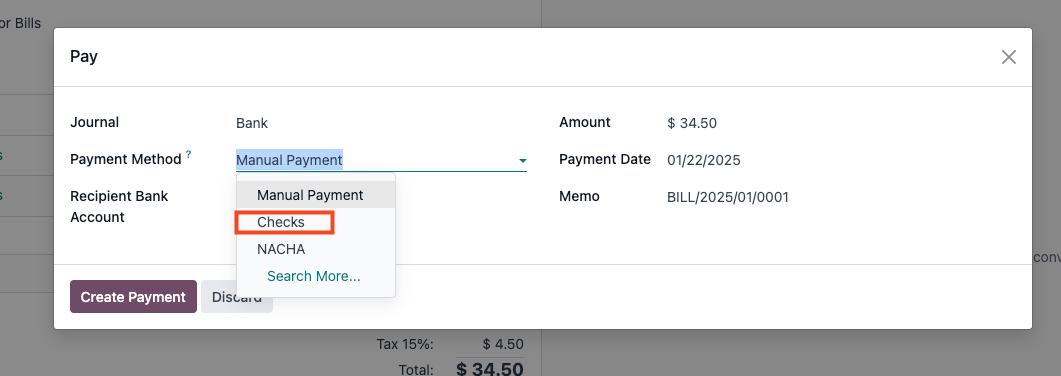
You can refer to this official documantation for check payment methods: https://www.odoo.com/documentation/18.0/applications/finance/accounting/payments/pay_checks.html#pay-by-checks


  1. Enable Accounting -> Configuration -> Settings -> Vendor Payments -> Checks

  2. Pay your Vendor Bills with check

Hope it is helpful

0
Avatar
Ignorer
Vous appréciez la discussion ? Ne vous contentez pas de lire, rejoignez-nous !

Créez un compte dès aujourd'hui pour profiter de fonctionnalités exclusives et échanger avec notre formidable communauté !

S'inscrire
Publications associées Réponses Vues Activité
New date format odoo 19
accounting
Avatar
Avatar
Avatar
2
déc. 25
1470
Bank Suspense vs Bank Suspense Account on Odoo Chart of Accounts default Résolu
accounting
Avatar
Avatar
2
déc. 25
455
Peppol - Envoie de mails à mon comptable pour WinAuditor
accounting
Avatar
Avatar
Avatar
3
déc. 25
1594
{{LL@mar Mexico}} ¿Cómo hablar con una persona en Air France?
accounting
Avatar
0
déc. 25
4
Why is the invoice PDF showing an error in the right corner
accounting
Avatar
Avatar
1
déc. 25
1319
Communauté
  • Tutoriels
  • Documentation
  • Forum
Open Source
  • Téléchargement
  • Github
  • Runbot
  • Traductions
Services
  • Hébergement Odoo.sh
  • Assistance
  • Migration
  • Développements personnalisés
  • Éducation
  • Trouver un comptable
  • Trouver un partenaire
  • Devenez partenaire
À propos
  • Notre société
  • Actifs de la marque
  • Contactez-nous
  • Emplois
  • Événements
  • Podcast
  • Blog
  • Clients
  • Informations légales • Confidentialité
  • Sécurité.
الْعَرَبيّة Català 简体中文 繁體中文 (台灣) Čeština Dansk Nederlands English Suomi Français Deutsch हिंदी Bahasa Indonesia Italiano 日本語 한국어 (KR) Lietuvių kalba Język polski Português (BR) română русский язык Slovenský jazyk slovenščina Español (América Latina) Español ภาษาไทย Türkçe українська Tiếng Việt

Odoo est une suite d'applications open source couvrant tous les besoins de votre entreprise : CRM, eCommerce, Comptabilité, Inventaire, Point de Vente, Gestion de Projet, etc.

Le positionnement unique d'Odoo est d'être à la fois très facile à utiliser et totalement intégré.

Website made with

Odoo Experience on YouTube

1. Use the live chat to ask your questions.
2. The operator answers within a few minutes.

Live support on Youtube
Watch now