
Retribuzioni
In Odoo, salaries are calculated and determined by six factors: salary structure types, salary structures, rules, rule parameters, rule categories, and salary input types. Together, these determine how each employee’s pay is calculated.
Each structure type contains one or more structures within it. Each structure contains a set of rules, and every rule uses parameters and categories to define how specific amounts are calculated. Additional salary inputs, such as bonuses or deductions, can also be included to adjust the final salary.
Quando vengono calcolati i cedolini, Odoo calcola il tempo lavorato del dipendente dalle sue voci di lavoro, quindi applica la struttura, le regole e i parametri pertinenti dal tipo di struttura assegnato al dipendente per determinare la retribuzione totale.
Tipi di struttura
In Odoo, un tipo di struttura raggruppa strutture salariali correlate. Quando un contratto specifica un tipo di struttura, vengono utilizzate solo le strutture all’interno di quel tipo per calcolare la retribuzione del dipendente. Ogni tipo di struttura contiene singole strutture al suo interno, ciascuna contenente un insieme di regole per l’elaborazione di una voce del foglio ore.
I tipi di struttura definiscono aspetti chiave della configurazione del libro paga, tra cui la frequenza con cui i dipendenti vengono pagati, il loro orario di lavoro, la struttura salariale predefinita e se i salari sono fissi (basati su stipendio) o variabili (basati su ore).
Example
Un tipo di struttura chiamato Dipendente contiene due diverse strutture al suo interno: una struttura Retribuzione Ordinaria che include tutte le regole separate per l’elaborazione della retribuzione ordinaria, e una struttura Bonus di Fine Anno, che include le regole solo per il bonus di fine anno. Entrambe appartengono allo stesso tipo di struttura Dipendente.
Visualizzare i tipi di struttura esistenti andando su .
Due tipi di struttura predefiniti sono preconfigurati in Odoo: Dipendente e Lavoratore.
Typically, Employee is used for salaried employees, which is why the Wage Type is set to Fixed Wage. Worker is typically used for employees paid by the hour, so the wage type is set to Hourly Wage.
Nota
If using a country-specific payroll localization, it is recommended to use the structure in the corresponding country localization document.

Nuovo tipo di struttura
Se i tipi di struttura predefiniti non soddisfano le esigenze dell’azienda, andare su e fare clic su Nuovo per creare un tipo di struttura personalizzato.
Avvertimento
Quando si crea un nuovo tipo di struttura salariale, assicurarsi che tutte le leggi locali e nazionali siano prese in considerazione. Confermare con il reparto contabilità durante la configurazione delle strutture del libro paga, per garantire che tutti i requisiti siano soddisfatti.
Procedere all’inserimento delle seguenti informazioni nei campi:
Tipo di struttura: Inserire il nome per il nuovo tipo di struttura, come
DipendenteoLavoratore.Paese: Selezionare il paese a cui si applica il nuovo tipo di struttura dal menu a discesa.
Tipo di salario: Selezionare il tipo di salario per la struttura:
Salario fisso: Per i dipendenti stipendiati che ricevono lo stesso salario ogni periodo di paga.
Salario orario: Per i dipendenti pagati in base alle ore lavorate durante un periodo di paga.
Scheduled Pay: Select the typical pay schedule for the new structure type using the drop-down menu. This indicates how often this specific type of structure is paid out.
Working Hours: Select the working hours for the new structure type using the drop-down menu. All available working hours for the currently selected company appear in the drop-down menu. The default working hours are the Standard 40 hours/week option. If the needed working hours do not appear in the list, a new set of working hours can be created.
Pay Structure: Select the pay structure that falls within the new structure type using the drop-down menu. This is used as the default option when generating payslips.
Work Entry Type: Select the work entry type used to create all work entries for the employee.

New working hours
To make new working hours, type the name for the new working hours in the Working Hours field on the new structure type form, then click Create and edit. A Create Working Hours pop-up window loads. The form has two sections: a general information section, and a Working Hours tab listing all the individual working hours by day and time. When the form is completed, click Save.
Name: Type in the name for the new working hours. This should be descriptive and clear to understand, such as
Standard 20 Hours/Week.Schedule Type: Select whether the hours are Flexible or Fully Fixed by clicking the corresponding radio button. Selecting Flexible hides the Working Hours tab and some other fields in the general information section.
Define Amount of Hours per day: Enable this option to base the schedule on a set amount of expected hours by day, instead of set start and end times for each day. When this option is modified, a Confirmation pop-up window appears. Click Confirm on the pop-up to make the change.
Full Time Equivalent: The number of hours per week an employee needs to work to be considered a full-time employee. Typically, this is approximately 40 hours, and this number affects what types of benefits an employee can receive, based on their employment status (full-time vs. part-time). This field is not able to be modified.
Work Time Rate: This percentage is auto-generated based on the configured times in the Working Hours tab, compared to the Full Time Equivalent. This number should be between
0.00%and100%, so if the percentage is above100%, it is an indication that the working times may need adjustment.Company: Select the company that can use the new default working hours using the drop-down menu. Leave this field blank if the hours are available for all companies.
Timezone: Select the time zone to be used for the new working hours using the drop-down menu.
2 Week’s Calendar: Enable this checkbox to switch from a one-week calendar to a two-week calendar. When this option is modified, a Confirmation pop-up window appears. Click Switch on the pop-up to make the change. When enabled, the presented tabs change from a single Working Hours tab to two tabs: Week 1 Working Hours and Week 2 Working Hours.
Importante
Switching the calendar between either method removes all current work entries.
Working Hours tab: This tab is where each day’s specific working hours are listed, including breaks. When a new working schedule is created, the Working Hours tab is pre-populated with a default 40-hour week, with each day divided into three timed sections.
Each day includes a morning shift (8:00-12:00), a lunch break (12:00-13:00), and an afternoon shift (13:00-17:00), configured using a 24-hour time format.
The average daily working hours are automatically calculated based on the schedule and appear in the Avg field, along with the Total hours for the week.
To adjust any of these entries, click the desired field and modify the information using the drop-down menus or type the information in directly.
Ensure the Work Entry Type field is configured for each line. This ensures the Payroll app properly calculates all work entries.
Nota
Gli orari di lavoro sono specifici dell’azienda e non possono essere condivisi tra aziende.
Suggerimento
If the 2 Week’s Calendar option is enabled, ensure the various working hours for both tabs (Week 1 Working Hours and Week 2 Working Hours) are correctly configured.

Strutture
Le strutture salariali sono le diverse situazioni in cui un dipendente può essere pagato all’interno di una specifica struttura e sono specificamente definite da varie regole.
Il numero di strutture di cui un’azienda ha bisogno per ciascun tipo di struttura dipende da quanti modi diversi vengono pagati i dipendenti e da come viene calcolata la loro retribuzione. Un esempio comune di struttura aggiuntiva è un Bonus.
Per visualizzare tutte le varie strutture per ciascun tipo di struttura, andare a .
Each structure type lists the various structures associated with it. Each structure contains a set of rules that define it.
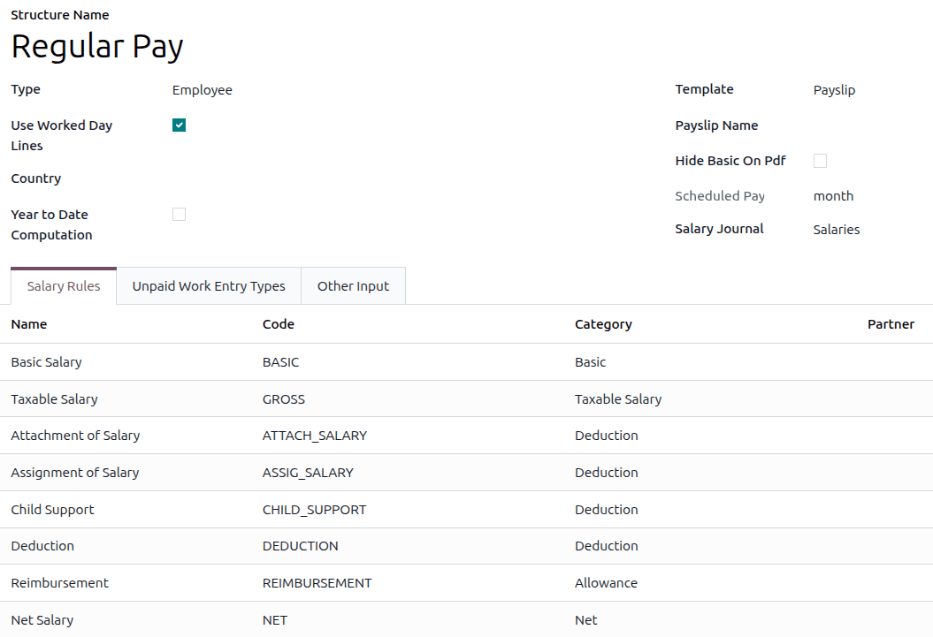
Odoo comes with two salary structures preconfigured: Regular Pay, housed within the Employee structure type, and Worker Pay, housed within the Worker salary structure type.
Fare clic su una struttura per visualizzare le sue Regole salariali. Queste regole definiscono come verrà calcolata la busta paga per il dipendente.
Nota
Dopo aver installato una localizzazione del libro paga, le strutture pertinenti vengono installate e appaiono in questo elenco.
Salary input types
When creating payslips, it is sometimes necessary to add other entries for specific circumstances, like tips, commissions, expenses, or deductions. These other inputs can be found by navigating to . All universal and localization-specific salary input types appear in the list.

If a new input type is needed that does not appear on the list, click the New button to create a new salary input type. Enter the Description, the Code, and select which structure it applies to in the Availability in Structure field.
Enable the Available in adjustments checkbox if the input should be a salary adjustment.
Importante
Il Codice viene utilizzato nelle regole salariali per calcolare i cedolini. Se il campo Disponibilità nella struttura viene lasciato vuoto, indica che il nuovo tipo di input è disponibile per tutti i cedolini e non è esclusivo di una struttura specifica.