
Test and run campaigns
Before launching an automated marketing campaign, test the workflows to ensure they function as expected and reach the intended audiences. This documentation explains how to test and run marketing campaigns.
Nota
Campaign tests are intended for production databases. Duplicate and trial databases have limited email sending capabilities.
Testare le campagne
To test a marketing campaign, open the Marketing Automation app, and select the desired campaign. Ensure that all activities are configured in the workflow.
Click the Test button at the top. Then, in the Launch a test pop-up window, create or select a contact from the drop-down menu.
Nota
A marketing campaign can be tested on only one contact at a time.
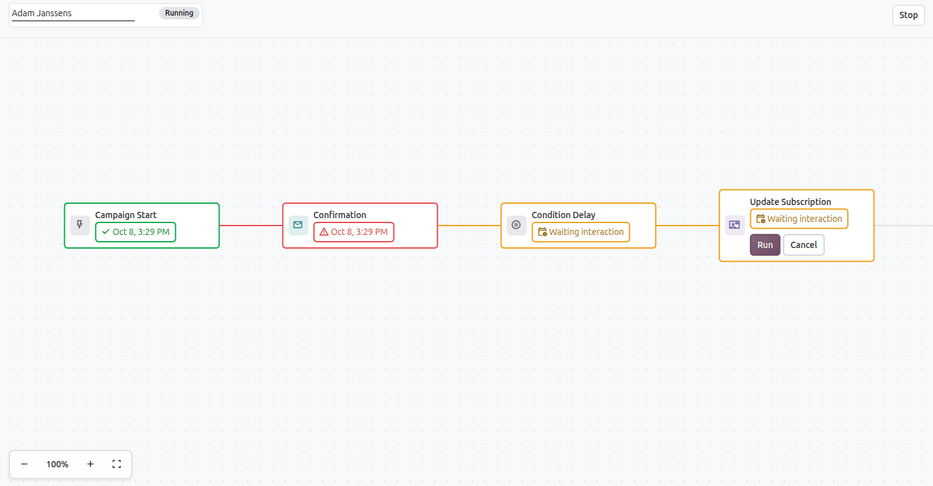
Once a contact is selected, click Launch. This opens the campaign test view, displaying the entire workflow for the chosen participant.
Individually run a step by clicking the Run button on the specific step. The tested step is then labeled with the date and time of completion and highlighted with its corresponding status:
Green: Completed successfully.
Orange: Scheduled or waiting.
Red: Canceled or error.
To stop a test before all the workflow activities are completed, click the Stop button at the top of the page.
View traces for each step
View detailed information about each completed step by clicking its corresponding node. A Marketing Trace pop-up window loads and displays the following data:
Activity: The selected step.
Schedule Date: The step’s date and time of scheduling or completion.
Participant: The selected test participant.
State: The status of the step.
Mass Mailing Statistics: A table of messages linked to this step. This table is only filled for Email, SMS, and WhatsApp steps.
Nota
The Marketing Trace window is intended for checking step information. It is not recommended to modify any fields.

Eseguire campagne
To run a campaign, navigate to and select the desired campaign to run. At the top of the campaign page, click Start to launch the campaign.
Nota
Be aware that participants who have already gone through an entire campaign in its original state can be reintroduced into the newly-modified campaign, and new traces could be created for them.
As mailings and actions are triggered in the workflow, data related to each activity appears in their corresponding nodes. Real-time engagement metrics are also shown in the smart buttons at the top of the campaign.
To stop the campaign, click Stop.