I want to add an existing custom field to the quick create view. It is a field that is required to save the Opportunity, but when Quick Create is used, the record can be saved without that field, which is not what we want.
This question has been flagged
6
Replies
284
Views


Hi,
In Odoo, the Quick Create dialog for CRM opportunities uses a dedicated lightweight form (crm.quick_create_opportunity_form) rather than the standard opportunity form. Therefore, adding a required custom field to the main crm.lead form will not automatically make it available in the Quick Create dialog. To enforce the field during quick creation, you need to inherit the quick create view and insert your custom field. If the field is marked as required=True at the model level, Odoo will prevent saving until it is provided. If the requirement is only defined in the form view, you should also add the required="1" attribute in the quick create view.
A sample XML inheritance is shown below:
<record id="crm_quick_create_opportunity_form_inherit" model="ir.ui.view">
<field name="name">crm.quick.create.opportunity.form.inherit</field>
<field name="model">crm.lead</field>
<field name="inherit_id" ref="crm.crm_quick_create_opportunity_form"/>
<field name="arch" type="xml">
<xpath expr="//field[@name='contact_name']" position="after">
<field name="x_custom_field" required="1"/>
</xpath>
</field>
</record>
Replace x_custom_field with your custom field's technical name and adjust the XPath as needed. If users are still able to save the record without the field, ensure the field is also defined as required=True in the Python model (for custom modules), as view-level requirements alone can be bypassed in some scenarios. If you're using Odoo Studio, you can achieve the same result by editing the Quick Create form view and adding the custom field there.
Hope it helps

Hi there,
The Quick Create feature in CRM uses a completely separate, minimal form view. Because your custom field is only required on the main form view, Odoo allows the record to save through Quick Create without validating it.
You have two options depending on your setup:
Method 1: Using the Technical UI (Best for Odoo Online / SaaS)
You can directly edit the Quick Create view's architecture from the Odoo settings:
- Turn on Developer Mode (Go to Settings, scroll to the bottom, and click "Activate the developer mode").
- Go to Settings > Technical > User Interface > Views.
- In the search bar, search for quick_create_opportunity_form and open it.
- Go to the Architecture tab. You will see the XML code for the minimal form.
- Find the line that says <field name="name"/> and add your custom field right below it like this: <field name="x_studio_your_custom_field" required="1"/>
- Save the view. Note: Make sure to replace x_studio_your_custom_field with the actual technical name of your field.
Method 2: Using Code / XML Inheritance (Best for On-Premise / Odoo.sh)
If you are building a custom module, you simply inherit the crm.quick_create_opportunity_form view and add your field.
xml
<record id="crm_quick_create_add_custom_field" model="ir.ui.view">
<field name="name">crm.lead.form.quick_create.inherit</field>
<field name="model">crm.lead</field>
<field name="inherit_id" ref="crm.quick_create_opportunity_form"/>
<field name="arch" type="xml">
<field name="name" position="after">
<field name="x_studio_your_custom_field" required="1"/>
</field>
</field>
</record>

Hello there,
Even Custom fields/properties used in CRM can be set in the quick create view "Kanban".
- Ensure you have the custom field/property field in CRM
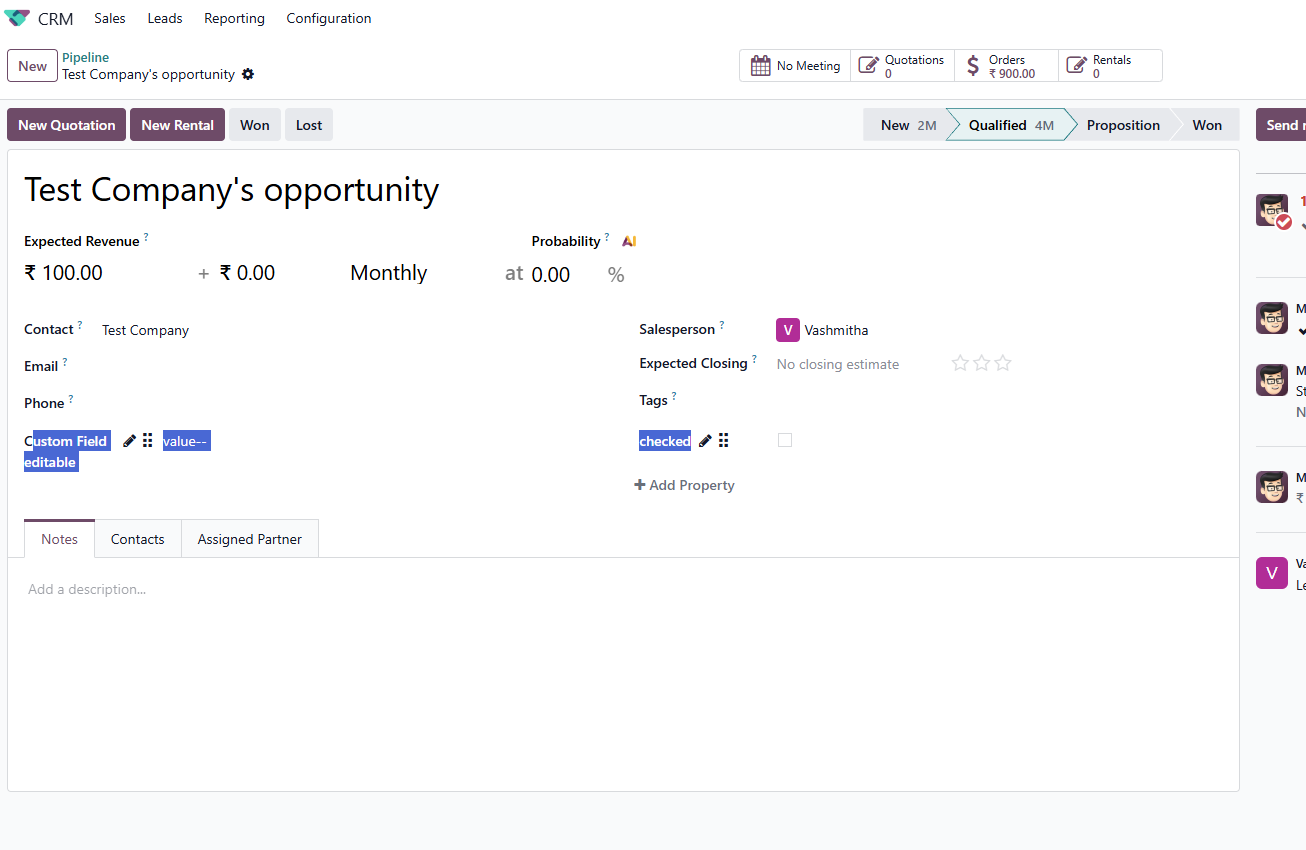
- Here, 2 "propertry fields" are highlighted!
- Create a custom View by inheriting crm.lead.form.quick_create - responsible for quick create in the Kanban view.
<group class="crm_quick_create_opportunity_form_group" position="inside">
    <div class="d-flex align-items-center" colspan="2">
        <field name="lead_properties" string="Properties" nolabel="1" class="o_field_highlight w-100 mb-0"/>
    </div>
</group>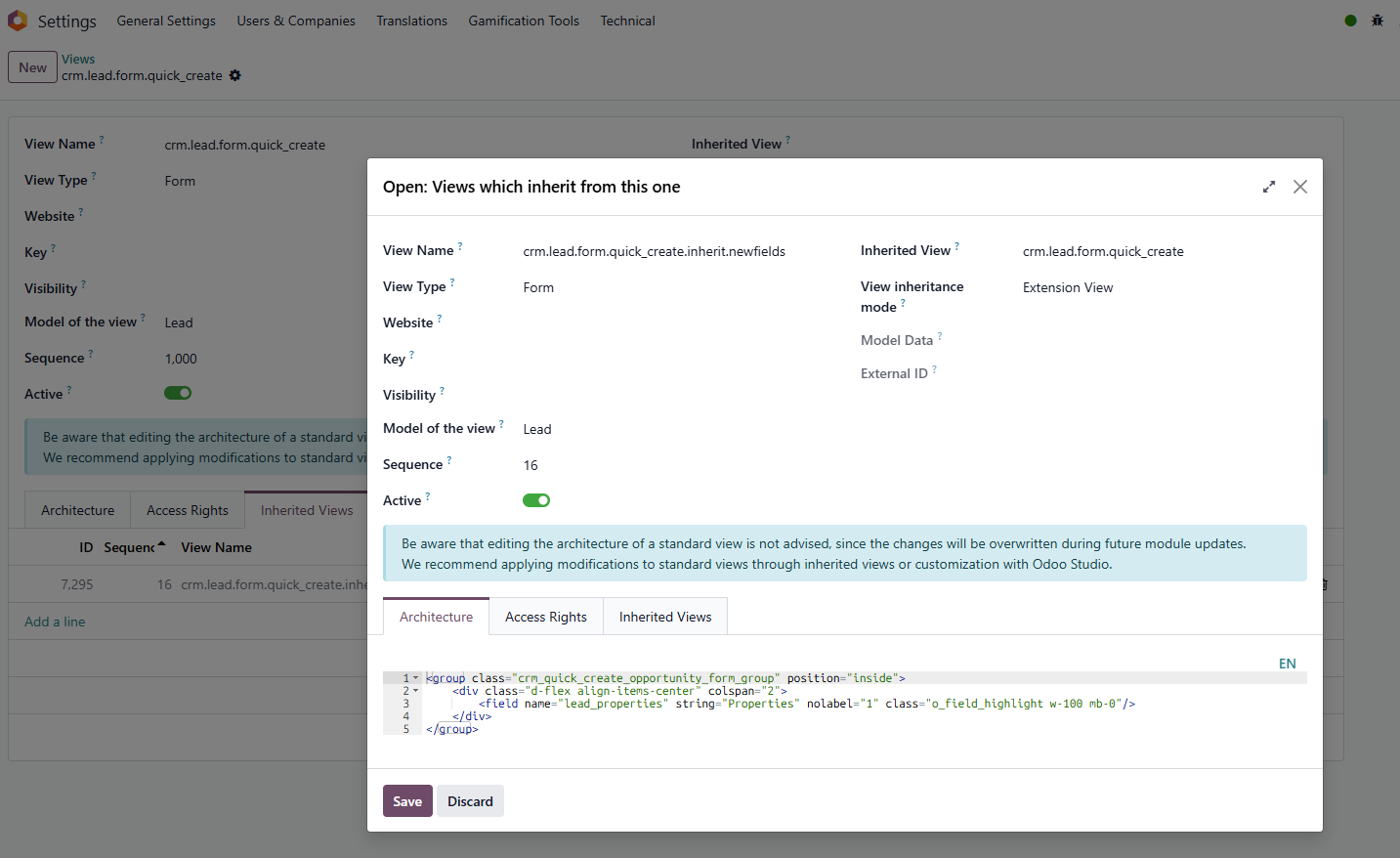
- After this, simply try the quick create - result as expected!
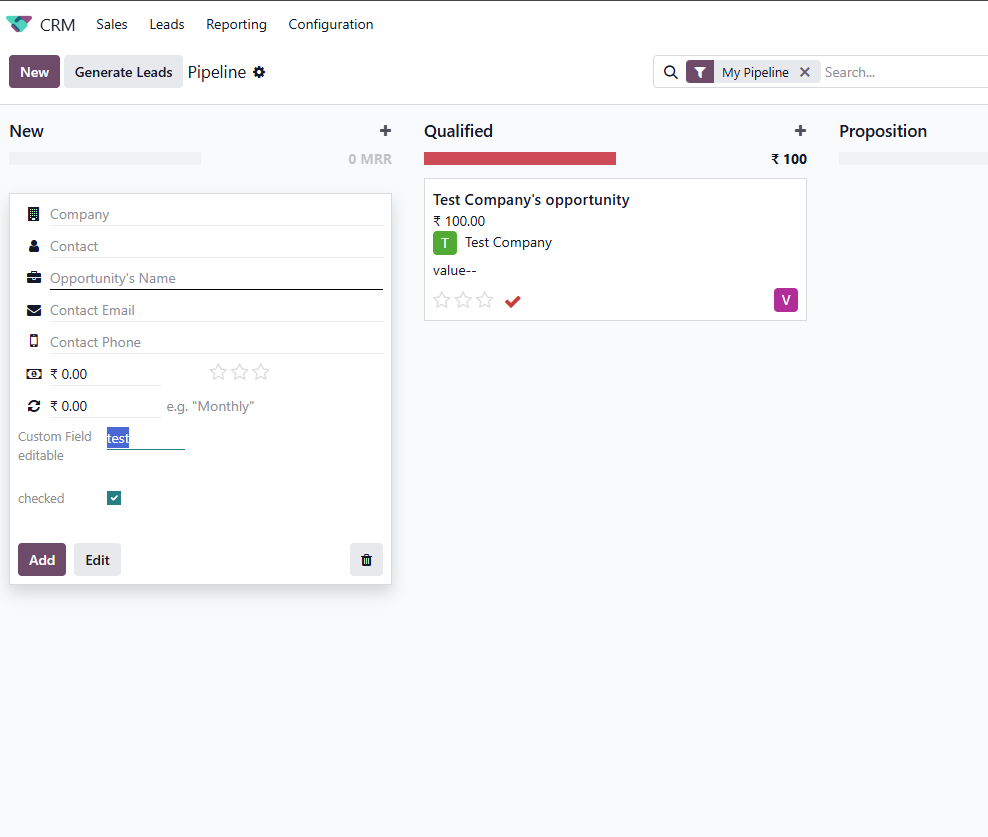
Here are those 2 properties fields in quick edit.
Same process for your custom fields to be listed in the Kanban view.
No extra module download or no studio changes required!
Hope this helps you!

Hello,
The Quick Create form in CRM is a simplified view and doesn't automatically include custom fields, even if those fields are required on the main Opportunity form. Here are your options:
The Quick Create form in CRM is a simplified view and doesn't automatically include custom fields, even if those fields are required on the main Opportunity form. Here are your options:
Option 1: Add the field to the Quick Create view via Odoo Studio
If you have Studio, you can open the CRM Kanban view, click "Customize" on the Quick Create form, and drag your custom field into it. You can also set it as required there to enforce it at save time.
Option 2: Disable Quick Create entirely
If the field is critical, the cleanest approach is to disable the Quick Create popup so users are always redirected to the full Opportunity form where the required field is already enforced. This can be done with a small customization on the CRM action or view (setting quick_create: false).
Option 3: Custom development
If Studio isn't available, a developer can add the field to the crm.lead quick create form view via XML override. The field can be marked required in that view directly.
Given your use case (a required field that must not be skipped), Option 2 or a combination of Option 1 + making the field required in Studio is the most reliable path.
Hope this works for you! If you need any help implementing this or want a more optimized approach, feel free to reach out for further discussion.
Regards,
Zehntech Technologies Inc.

The Quick Create form in CRM uses its own simplified view and does not automatically include all fields from the full Opportunity form. If your custom field is required, you'll need to add it to the Quick Create view as well.
If you're using Odoo.sh or on-premise, you can do this by inheriting the quick create view (crm.quick_create_opportunity_form) and adding your custom field. If the field is truly required, it's also a good idea to enforce this at the model level (Python or a constraint), so the requirement applies regardless of how the record is created (Quick Create, import, API, etc.).
If you're using Odoo Online (SaaS), your options depend on what Studio allows for that view. If Studio doesn't expose the Quick Create form for editing, you may need to disable Quick Create (if possible) so users are directed to the full form, or consider a customization on Odoo.sh/on-premise.

Quick Create uses a separate, minimal form view — required-field validation in Odoo only applies to fields that are actually present in the view being submitted. Since your custom field isn't in the quick_create view, Odoo has nothing to validate against, so the record saves fine even without it.
Two ways to fix this:
Option 1 — Add the field to the Quick Create view
Inherit the quick create form and add your field there too:
xml
<record id="crm_lead_view_form_quick_create_inherit" model="ir.ui.view">
    <field name="name">crm.lead.quick.create.custom</field>
    <field name="model">crm.lead</field>
    <field name="inherit_id" ref="crm.crm_lead_view_form_quick_create"/>
    <field name="arch" type="xml">
        <field name="name" position="after">
            <field name="your_custom_field" required="1"/>
        </field>
    </field>
</record>
Note: the exact inherit_id for the quick create view has changed across Odoo versions, so check your version's actual view ID before using this (you can find it via Settings → Technical → Views, filtered by model crm.lead and searching for "quick create"). Adjust the ref accordingly.
Option 2 — Disable Quick Create for this view
If you'd rather force users through the full form every time, remove/disable quick create on the kanban view so clicking "+" opens the full Opportunity form instead:
xml
<kanban quick_create="false" ...>
Option 1 keeps the fast workflow but plugs the validation gap. Option 2 is simpler but slower for users. Given the field is business-critical, I'd go with Option 1.
Enjoying the discussion? Don't just read, join in!
Create an account today to enjoy exclusive features and engage with our awesome community!
Sign up| Related Posts | Replies | Views | Activity | |
|---|---|---|---|---|


|
3
May 26
|
2276 | ||

|
0
Feb 26
|
3154 | ||


|
2
Aug 25
|
3556 | ||


|
2
May 25
|
4407 | ||

|
1
Apr 25
|
4121 |