
Preise
Odoo offers multiple options for configuring prices in e-commerce. For example, you can apply prices per unit, offer discounts, and set up pricelists.
Steuern
Um eine Steuer zu einem Produkt hinzuzufügen, können Sie entweder eine Steuer im Feld Verkaufssteuern des Produktformulars festlegen oder Steuerpositionen verwenden.
Siehe auch
Choosing the displayed price tax usually depends on a country’s regulations or the type of customers (B2B vs. B2C). To select the type of price displayed, go to , select the website, scroll down to the eCommerce section, and under Display Product Prices select between:
Tax Excluded: The price displayed on the website is tax-excluded, and the tax is computed at the Bestellübersicht step.
Tax Included: The price displayed on the website is tax-included.
Bemerkung
Diese Einstellung ist websitespezifisch und kann daher für jede Website in der Datenbank unabhängig konfiguriert werden.
Tipp
Switch the Tax indication toggle on in the website editor to explicitly indicate if the price is
Tax excludedorTax includedon the Produktseite.Enable specific B2B fields during checkout in the delivery step using the website editor.
Einzelpreis
Um den Preis pro Einheit neben dem Verkaufspreis auf der Produktseite anzuzeigen, befolgen Sie die folgenden Schritte:
Gehen Sie zu .
Enable the Product Reference Price checkbox in the eCommerce section.
Legen Sie den Verkaufspreis des Produkts fest und wählen Sie die Einheit aus (z. B. Einheit(en)).
In the Base Unit Count field, enter the number of units in the product.
Select the relevant unit from the drop-down list.
Example
Stellen Sie sich vor, Sie möchten einen 2-Liter-Eimer Farbe für 60 Dollar verkaufen, d. h. 30 Dollar pro Liter.

The price per unit, in this case per liter, is shown next to the sales price on the product page.

Bemerkung
In einigen Ländern kann der Preis pro Einheit vorgeschrieben sein.
Siehe auch
Preislisten
Pricelists in Odoo allow for managing flexible pricing rules and offering different prices and discounts based on currencies, time periods, purchase volumes, customers‘ location, and/or customer type.
To enable pricelists for eCommerce, go to , scroll down to the eCommerce section, enable Pricelists, and Save. Then, click Pricelists or go to and configure the relevant pricelists.
Konfigurieren Sie im Reiter E-Commerce Optionen, die speziell für den Online-Verkauf gelten, wie z. B. die Zuweisung einer Website zu einer Preisliste, damit Kunden diese auswählen können, und/oder das Hinzufügen eines E-Commerce-Gutscheincodes.
Tipp
If you are using several websites and want to use the same pricelist on several of them, you need to duplicate the pricelist for each website. If you do not assign any website, the pricelist will not be used, unless it is selectable.
Pricelists can also be assigned to a specific customer.
Bemerkung
Wenn Preislisten in der Verkaufsapp aktiviert sind, werden sie automatisch auch in der E-Commerce-App aktiviert und umgekehrt.
Ordnen Sie die Preislisten in der Liste nach Priorität: Die erste hat Vorrang vor der zweiten, die zweite vor der dritten usw.
Es ist auch möglich, spezifische Preislisten für Varianten zu erstellen.
Siehe auch
Auswählbare Preislisten
Selectable pricelists are useful, for example, when selling products in multiple currencies, and allow customers to choose a pricelist using the pricelist selector in the catalog, located next to the search bar.

Um eine Preisliste auswählbar zu machen, aktivieren Sie Auswählbar.
Bemerkung
If a pricelist is designated as Selectable and not assigned to a specific website, it is selectable on all websites.
Sollte eine Preisliste nicht im Auswahlmenü erscheinen, kann dies folgende Ursachen haben:
Only one pricelist is defined as Selectable, and the contact has a pricelist assigned.
Es existieren mehrere auswählbare Preislisten, aber nur diejenigen, die zur Ländergruppe des Kunden passen, werden angezeigt. Es wird dringend empfohlen, die Option Auswählbar zu deaktivieren, wenn im E-Commerce Preislisten mit Ländergruppen verwendet werden.
Siehe auch
GeoIP und Ländergruppen
Es ist möglich, eine spezifische Preisliste basierend auf dem Standort und der IP-Adresse des Besuchers anzuzeigen, indem man den Preislisten Ländergruppen zuweist.
Navigieren Sie dazu zum entsprechenden Preislistenformular und wählen Sie die geeigneten Ländergruppen aus. Erstellen oder bearbeiten Sie so viele Preislisten für bestimmte Regionen, wie erforderlich. Wählen Sie beispielsweise Europäische Union aus, um die Preisliste auf alle EU-Mitgliedstaaten anzuwenden.
To create a new country group, click Search more in the drop-down list, then Create New. Add a Group Name and select the relevant Countries. Use Custom filters if needed.
Bemerkung
Jede Ländergruppe muss mindestens ein Land umfassen.
Example
Use the following filter to add all non-EU countries to the country group.
Ländergruppen + ist nicht gleich + Europäische Union

Wichtig
When using GeoIP to determine the appropriate pricelist, all pricelists used on the e-commerce site must have a country group assigned.
It is strongly recommended to disable the Selectable option when using pricelists with country groups. Indeed, all pricelists with the relevant country group are automatically applied to the catalog, but if one of them is marked as Selectable, the others will disappear as soon as customers select the selectable pricelist.
Example
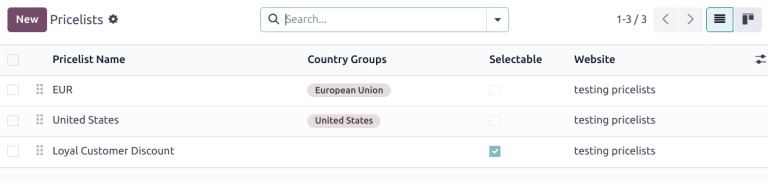
Stellen Sie sich vor, Sie erstellen drei Preislisten:
EU-Standardpreisemit der zugewiesenen LändergruppeEUEU-Preise mit Rabattenmit der zugewiesenen LändergruppeEUUS-Preisemit der zugewiesenen LändergruppeUS
If the Selectable option is enabled for
EU regular pricesandUS prices, and the customer is from the European Union, only the pricelistsEU regular pricesandEU prices with discountswill be available. However, since theEU prices with discountlist is not selectable, it will disappear once the customer selects theEU regular priceslist, and prices will be displayed based on theEU regular pricespricelist in the catalog.
Anwendung der Preisliste
On the e-commerce, the default pricelist is automatically selected for public, non-logged-in users when no country group is assigned. If GeoIP and country groups are used, public users see the pricelist of their country group by default.
Logged-in users with assigned pricelists see the assigned pricelist by default if it is assigned to the website they are visiting. If not, the website’s default pricelist is applied (i.e., the first available pricelist assigned to the website and without a country group, following the sequence order).
Zugewiesene Preislisten haben Vorrang vor länderspezifischen Preislisten, sofern zutreffend, es sei denn, die zugewiesene Preisliste ist mit einer anderen Ländergruppe verknüpft.
Example
Ein Kunde aus den Vereinigten Staaten besucht die Website. Er verfügt über kein Portalkonto. Die Preisliste für die Vereinigten Staaten gilt.
A different visitor, also from the United States, has the Loyal Customer Discount pricelist assigned in their contact form. This assignment takes precedence over the country group assignment, so the Loyal Customer Discount is applied.
Rabatte
Rabattprogramme
Um Rabattprogramme für Ihren E-Commerce zu aktivieren, gehen Sie zu , scrollen Sie nach unten zum Abschnitt E-Commerce und aktivieren Sie die Funktion Rabatte, Treue & Geschenkkarten.
Configure the discount program, make sure the Website option is enabled, and add the relevant Pricelist and Website on the program form, if needed.
Dauerhafter Produktrabatt
When the price of a specific product is permanently reduced, the strikethrough strategy is commonly used. This involves showing the new discounted price, with the original price crossed out alongside it.

To display a permanently discounted price, navigate to , scroll down to the eCommerce section, enable the Comparison Price option, and Save. Then go to the product form, enter the new (discounted) price in the Sales Price field, and the original price (strikethrough) in the Compare to Price field.
Bemerkung
Das Feld Mit Preis vergleichen muss einen Preis enthalten, der höher ist als der Verkaufspreis, damit der ursprüngliche Preis durchgestrichen angezeigt wird.
Wichtig
Die Schaltfläche Mit Preis vergleichen wird nicht angezeigt, wenn Preisnachlässe gelten. Wenn Sie die Schaltfläche Mit Preis vergleichen mit einem weiteren Preisnachlass verwenden möchten, konfigurieren Sie eine Preisliste mit einem Aktionscode.
Rabattierte Preislisten
Es ist auch möglich, Preislisten mit Rabatten zu erstellen. Dazu erstellen Sie eine Preisliste und konfigurieren Sie den Rabatt.
Wenn eine Preisliste einen Preistyp Rabatt enthält, wird der Preis für berechtigte Kunden durchgestrichen, auch wenn die Funktion Vergleichspreis nicht aktiviert wurde.
Bemerkung
If using pricelists with country groups, the discounted pricelist must be assigned the same country group as the non-discounted pricelist.
E-Commerce-Aktionscode
To offer a discounted pricelist for customers with a specific discount code, access the relevant
pricelist form, go to the Ecommerce tab, and add an
E-commerce Promotional Code, e.g., SUMMERSALE10%.
Then, go to the Rules tab, click Add a line, and configure the discount. When a customer enters the code during checkout, the discount is applied according to the configuration in the Rules tab.
Bemerkung
Stellen Sie sicher, dass die Option Aktionscode im Website-Editor aktiviert ist und, falls Sie Ländergruppen verwenden, dass der rabattierten Preisliste dieselbe Ländergruppe zugewiesen ist wie der nicht rabattierten Preisliste.
Preventing direct sales and hiding prices
Some businesses, such as B2B shops or companies that sell luxury or custom items, may want to showcase their products online while restricting direct purchases and hiding prices.
To control price visibility and prevent direct online sales on the e-commerce site, go to , scroll down to the eCommerce section, and enable Hide Add To Cart.
Then, select one of the following options from the For drop-down list to define which products are affected:
For 0 price products: On the product form, set the price to
0for all desired products, or create a pricelist where all product prices are set to0. The price is then not displayed on the product page.Bemerkung
Ensure the pricelist is assigned to the correct website and is listed first among the website’s pricelists.
For Specific categories: Select one or more product categories from the Categories drop-down menu that appears. At least one category must be selected. The price is only displayed for products in these categories if it is not
0.
Then, enter a redirect URL in the Link URL field. The Add to Cart button on the product page for zero-priced products or the selected shop categories is then replaced by a default Contact us button, which can be customized if needed.
Tipp
Stellen Sie sicher, dass keine im E-Commerce verwendete Preisliste als Wählbar markiert wurde, um zu verhindern, dass die Preisliste ohne Preis versehentlich angezeigt wird.
To hide prices from public visitors while keeping them visible to logged-in customers, create a zero-priced pricelist for non-logged-in customers and assign a regular pricelist (with actual prices) to customers with portal access.
Siehe auch