
ราคา
Odoo offers multiple options for configuring prices in e-commerce. For example, you can apply prices per unit, offer discounts, and set up pricelists.
ภาษี
ในการเพิ่มภาษีลงในสินค้า คุณสามารถกำหนดภาษีในฟิลด์ Sales Taxes ของฟอร์มสินค้า หรือใช้ fiscal positions
ดูเพิ่มเติม
การเลือกราคาที่แสดงภาษีมักขึ้นอยู่กับกฎระเบียบของประเทศหรือประเภทของลูกค้า (B2B เทียบกับ B2C) เพื่อเลือกประเภทของราคาที่แสดง ให้ไปที่:menuselection:เว็บไซต์ --> การกำหนดค่า --> การตั้งค่า เลือกเว็บไซต์ เลื่อนลงไปยังส่วน:guilabel:อีคอมเมิร์ซ และภายใต้:guilabel:`แสดงราคาสินค้า`ให้เลือกระหว่าง:
Tax Excluded: The price displayed on the website is tax-excluded, and the tax is computed at the สรุปคำสั่งซื้อ step.
Tax Included: The price displayed on the website is tax-included.
Note
การตั้งค่านี้เป็นการตั้งค่าเฉพาะเว็บไซต์ ดังนั้นจึงสามารถกำหนดค่าได้อย่างอิสระสำหรับทุกเว็บไซต์ในฐานข้อมูล
Tip
Switch the Tax indication toggle on in the website editor to explicitly indicate if the price is
Tax excludedorTax includedon the หน้าสินค้า.Enable specific B2B fields during checkout in the delivery step using the website editor.
ราคาต่อหน่วย
ในการแสดง price per unit พร้อมกับราคาขายบนหน้าสินค้า ให้ทำตามขั้นตอนเหล่านี้:
ไปที่
Enable the Product Reference Price checkbox in the eCommerce section.
กำหนด Sales Price ของสินค้า และเลือกหน่วย (เช่น Units)
In the Base Unit Count field, enter the number of units in the product.
Select the relevant unit from the drop-down list.
Example
ลองจินตนาการว่าคุณต้องการขายถังสีขนาด 2 ลิตรในราคา $60 หรือ $30 ต่อลิตร

The price per unit, in this case per liter, is shown next to the sales price on the product page.

Note
ราคาต่อหน่วยอาจเป็นข้อกำหนดบังคับในบางประเทศ
ดูเพิ่มเติม
รายการราคา
Pricelists in Odoo allow for managing flexible pricing rules and offering different prices and discounts based on currencies, time periods, purchase volumes, customers' location, and/or customer type.
To enable pricelists for eCommerce, go to , scroll down to the eCommerce section, enable Pricelists, and Save. Then, click Pricelists or go to and configure the relevant pricelists.
ในแท็บ Ecommerce กำหนดค่าตัวเลือกเฉพาะสำหรับการขายออนไลน์ เช่น การกำหนด Website ให้กับรายการราคา อนุญาตให้ลูกค้า select it และ/หรือเพิ่ม E-commerce Promotional Code
Tip
If you are using several websites and want to use the same pricelist on several of them, you need to duplicate the pricelist for each website. If you do not assign any website, the pricelist will not be used, unless it is selectable.
Pricelists can also be assigned to a specific customer.
Note
เมื่อเปิดใช้งานรายการราคาในแอปการขาย รายการราคาจะถูกเปิดใช้งานโดยอัตโนมัติในแอปอีคอมเมิร์ซด้วย และในทางกลับกัน
ในรายการราคาต่างๆ ให้จัดเรียงรายการราคาตามลำดับความสำคัญ: รายการแรกมีความสำคัญเหนือรายการที่สอง รายการที่สองเหนือรายการที่สาม และต่อไปเรื่อยๆ
นอกจากนี้ยังสามารถสร้างรายการราคาเฉพาะสำหรับ:ref:`ตัวเลือกสินค้า <products/variants/configure-variants>`ได้
ดูเพิ่มเติม
ใบเสนอราคาที่เลือกได้
Selectable pricelists are useful, for example, when selling products in multiple currencies, and allow customers to choose a pricelist using the pricelist selector in the catalog, located next to the search bar.

หากต้องการทำให้รายการราคาสามารถเลือกได้ ให้เปิดใช้งาน เลือกได้
Note
If a pricelist is designated as Selectable and not assigned to a specific website, it is selectable on all websites.
หากรายการราคา*ไม่*ปรากฏในตัวเลือก อาจเป็นผลมาจากสถานการณ์ต่อไปนี้:
Only one pricelist is defined as Selectable, and the contact has a pricelist assigned.
รายการราคาที่เลือกได้หลายรายการมีอยู่ แต่จะแสดงเฉพาะรายการที่ตรงกับ:ref:`กลุ่มประเทศ <ecommerce/prices/country-groups>`ของลูกค้าเท่านั้น ขอแนะนำอย่างยิ่งให้ปิดใช้งานตัวเลือก:guilabel:`เลือกได้`เมื่อใช้รายการราคาที่มีกลุ่มประเทศในอีคอมเมิร์ซ
ดูเพิ่มเติม
GeoIP และกลุ่มประเทศ
สามารถแสดงรายการราคาเฉพาะตามตำแหน่งและที่อยู่ IP ของผู้เยี่ยมชมได้โดยการกำหนด:ref:`กลุ่มประเทศ <ecommerce/prices/country-groups>`ให้กับรายการราคา
หากต้องการดำเนินการดังกล่าว ไปยังฟอร์มรายการราคาที่เกี่ยวข้อง และเลือก กลุ่มประเทศ ที่เหมาะสม สร้างหรือแก้ไขรายการราคาสำหรับภูมิภาคเฉพาะได้มากเท่าที่ต้องการ ตัวอย่างเช่น เลือก สหภาพยุโรป เพื่อนำรายการราคาไปใช้กับประเทศสมาชิก EU ทั้งหมด
To create a new country group, click Search more in the drop-down list, then Create New. Add a Group Name and select the relevant Countries. Use Custom filters if needed.
Note
กลุ่มประเทศแต่ละกลุ่มต้องมีอย่างน้อยหนึ่งประเทศ
Example
Use the following filter to add all non-EU countries to the country group.
กลุ่มประเทศ + ไม่เท่ากับ + สหภาพยุโรป

Important
When using GeoIP to determine the appropriate pricelist, all pricelists used on the e-commerce site must have a country group assigned.
It is strongly recommended to disable the Selectable option when using pricelists with country groups. Indeed, all pricelists with the relevant country group are automatically applied to the catalog, but if one of them is marked as Selectable, the others will disappear as soon as customers select the selectable pricelist.
Example
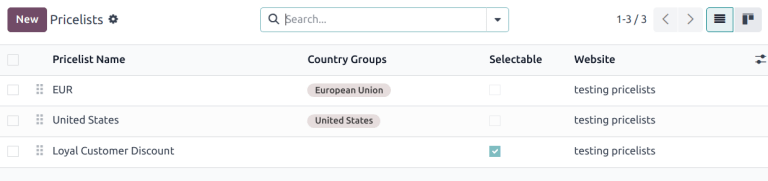
ลองนึกภาพว่าคุณสร้างรายการราคาสามรายการ:
ราคาปกติของ EUโดยกำหนดกลุ่มประเทศEUราคาของ EU ที่มีส่วนลดโดยกำหนดกลุ่มประเทศEUราคาของ USโดยกำหนดกลุ่มประเทศUS
If the Selectable option is enabled for
EU regular pricesandUS prices, and the customer is from the European Union, only the pricelistsEU regular pricesandEU prices with discountswill be available. However, since theEU prices with discountlist is not selectable, it will disappear once the customer selects theEU regular priceslist, and prices will be displayed based on theEU regular pricespricelist in the catalog.
การใช้เพรซลิสต์
On the e-commerce, the default pricelist is automatically selected for public, non-logged-in users when no country group is assigned. If GeoIP and country groups are used, public users see the pricelist of their country group by default.
Logged-in users with assigned pricelists see the assigned pricelist by default if it is assigned to the website they are visiting. If not, the website's default pricelist is applied (i.e., the first available pricelist assigned to the website and without a country group, following the sequence order).
เพรซลิสต์ที่กำหนดไว้จะมีความสำคัญเหนือกว่าเพรซลิสต์ตามประเทศเมื่อเกี่ยวข้อง เว้นแต่เพรซลิสต์ที่กำหนดจะเชื่อมโยงกับกลุ่มประเทศอื่น
Example
ลูกค้าจากสหรัฐอเมริกาเข้าชมเว็บไซต์ พวกเขาไม่มีบัญชีพอร์ทัล จะนำ สหรัฐอเมริกา ใบเสนอราคามาใช้
A different visitor, also from the United States, has the Loyal Customer Discount pricelist assigned in their contact form. This assignment takes precedence over the country group assignment, so the Loyal Customer Discount is applied.
ลดราคา
โปรแกรมส่วนลด
หากต้องการเปิดใช้งาน:doc:โปรแกรมส่วนลด </applications/sales/sales/products_prices/loyalty_discount>`สำหรับอีคอมเมิร์ซของคุณ ให้ไปที่:menuselection:`เว็บไซต์ --> การกำหนดค่า --> การตั้งค่า เลื่อนลงไปยังส่วน:guilabel:อีคอมเมิร์ซ และเปิดใช้งานฟีเจอร์:guilabel:ส่วนลด ความภักดี และบัตรของขวัญ
Configure the discount program, make sure the Website option is enabled, and add the relevant Pricelist and Website on the program form, if needed.
ส่วนลดสินค้าแบบถาวร
When the price of a specific product is permanently reduced, the strikethrough strategy is commonly used. This involves showing the new discounted price, with the original price crossed out alongside it.

To display a permanently discounted price, navigate to , scroll down to the eCommerce section, enable the Comparison Price option, and Save. Then go to the product form, enter the new (discounted) price in the Sales Price field, and the original price (strikethrough) in the Compare to Price field.
Note
ฟิลด์Compare to Priceต้องมีราคาที่สูงกว่าSales Priceเพื่อให้ราคาเดิมปรากฏพร้อมการขีดฆ่า
Important
Compare to Priceจะไม่แสดงหากมีการใช้เพรซลิสต์ส่วนลด หากคุณต้องการใช้Compare to priceกับส่วนลดอื่น ให้กำหนดค่าเพรซลิสต์ด้วยรหัสโปรโมชั่น
เพรซลิสต์ส่วนลด
นอกจากนี้ยังสามารถสร้างเพรซลิสต์ที่มีส่วนลดได้ โดยสร้างเพรซลิสต์และกำหนดค่าส่วนลด
หากเพรซลิสต์มีประเภทราคาDiscountราคาจะถูกขีดฆ่าสำหรับลูกค้าที่เกี่ยวข้อง แม้ว่าฟีเจอร์Comparison Priceจะไม่ได้เปิดใช้งานก็ตาม
Note
If using pricelists with country groups, the discounted pricelist must be assigned the same country group as the non-discounted pricelist.
รหัสโปรโมชั่นอีคอมเมิร์ซ
To offer a discounted pricelist for customers with a specific discount code, access the relevant
pricelist form, go to the Ecommerce tab, and add an
E-commerce Promotional Code, e.g., SUMMERSALE10%.
Then, go to the Rules tab, click Add a line, and configure the discount. When a customer enters the code during checkout, the discount is applied according to the configuration in the Rules tab.
Note
ตรวจสอบให้แน่ใจว่าเปิดใช้งานตัวเลือกPromo Codeในตัวแก้ไขเว็บไซต์ และหากใช้กลุ่มประเทศเพรซลิสต์ส่วนลดจะต้องมีการกำหนดกลุ่มประเทศเดียวกันกับเพรซลิสต์ที่ไม่มีส่วนลด
Preventing direct sales and hiding prices
Some businesses, such as B2B shops or companies that sell luxury or custom items, may want to showcase their products online while restricting direct purchases and hiding prices.
To control price visibility and prevent direct online sales on the e-commerce site, go to , scroll down to the eCommerce section, and enable Hide Add To Cart.
Then, select one of the following options from the For drop-down list to define which products are affected:
For 0 price products: On the product form, set the price to
0for all desired products, or create a pricelist where all product prices are set to0. The price is then not displayed on the product page.Note
Ensure the pricelist is assigned to the correct website and is listed first among the website's pricelists.
For Specific categories: Select one or more product categories from the Categories drop-down menu that appears. At least one category must be selected. The price is only displayed for products in these categories if it is not
0.
Then, enter a redirect URL in the Link URL field. The Add to Cart button on the product page for zero-priced products or the selected shop categories is then replaced by a default Contact us button, which can be customized if needed.
Tip
ตรวจสอบให้แน่ใจว่าไม่มีรายการราคาใดที่ใช้บนอีคอมเมิร์ซถูกทำเครื่องหมายว่า:guilabel:`เลือกได้`เพื่อป้องกันการแสดงรายการราคาที่มีราคาเป็นศูนย์โดยไม่ตั้งใจ
To hide prices from public visitors while keeping them visible to logged-in customers, create a zero-priced pricelist for non-logged-in customers and assign a regular pricelist (with actual prices) to customers with portal access.
ดูเพิ่มเติม